
Ever been in that heart-stopping moment where you press the power button on your laptop, and it just refuses to wake up? I remember the frantic scramble, eyes scanning the screen for any sign of life—nothing. That sinking feeling in my stomach was almost worse than losing those crucial files I hadn’t backed up. A quick fix seemed impossible, and a sense of helplessness took over. I bet many of you have faced this frustrating scenario, where your device seems dead, but your data is still out there, waiting to be saved.
When a Dead Laptop Means Lost Files—Or Does It?
It’s a nightmare, isn’t it? You rely on your laptop daily—whether for work, school, or gaming—and suddenly, it won’t turn on. The computer feels frozen in time, and your mind races through all the unsaved work, photos, or critical documents stored inside. But here’s the thing: even if your laptop is lifeless, your files might still be safe—that is, if you know the right tricks to rescue them. Without resorting to pricey professional recovery services, I’ve discovered simple, effective methods that could save your data and spare hours of frustration.
Is DIY Data Recovery Actually Worth the Hype?
Many skeptics warn that trying to fix a non-booting laptop risks further damage or data loss. Trust me, I made that mistake early on—opening up my device without proper guidance only worsened the problem. That’s why I want to share what works, based on hands-on experience and reliable sources like PCWorld. My goal? To help you approach this challenge with confidence, avoid common pitfalls, and successfully retrieve what’s yours. Ready to dig into practical solutions? Let’s get started with understanding your device’s silent enemies and how to confront them.
Remove the Laptop Battery and Prepare Your Workspace
Start by powering off and unplugging your laptop. If removable, carefully take out the battery using a plastic pry tool or your fingers—think of it as removing a stubborn sticker from a vinyl record. Work in a clean, static-free environment, and gather essential tools like a screwdriver, an external USB drive, and a compatible data cable. I once used a precision Phillips screwdriver as if I were disarming a bomb—meticulousness paid off when I finally accessed my files.
Connect the Storage Drive to a Working Computer
If your laptop’s storage is accessible (usually via a removable SSD or HDD), connect it to another functioning computer. Use an external enclosure—like a digital ferry carrying your data across rough seas—or an SATA-to-USB adapter, resembling a bridge linking two islands. This step is crucial; think of it as plugging your dead phone into a charger—just on a larger scale. In my case, plugging my dead SSD into a friend’s desktop was the turning point that saved my project files from impending oblivion.
Identify and Access the Drive
Once connected, the drive should mount automatically, appearing as a new drive letter—think of it as unveiling a hidden treasure chest. If it doesn’t, open Disk Management in Windows or Disk Utility on Mac. Be cautious not to initialize or format the drive; this could overwrite your data. I once misclicked and thought I was formatting my backup—panic ensued, but luckily, I was able to halt the process and rescue most files.
Copy Data to a Safe Location
Now, transfer your vital files to a secure location on your main computer or external drive. Use a fast USB 3.0 or USB-C port—like a high-speed highway—to speed up the process. Avoid disconnecting mid-transfer; think of it as dropping a glass—best to be gentle. I recommend organizing your files into folders, making future retrieval easier. This is where having a dedicated data management system, akin to a file cabinet with clearly labeled drawers, can save headaches later.
Address Laptop Hardware Issues
If your drives are intact but the laptop won’t power up, consider testing the AC adapter or replacing the RAM modules—these are common culprits. Think of it as troubleshooting a faulty car—checking the fuel, battery, or spark plugs. For instance, I replaced my RAM sticks following a tutorial, which revived my laptop enough to run diagnostics. You can also check for loose connections or damaged components by gently reseating them—like a mechanic adjusting a loose bolt.
Utilize Data Recovery Software If Necessary
If your drive appears but files are missing or corrupted, use specialized software like Recuva or EaseUS Data Recovery. Run the program on the connected drive—it’s like a metal detector scanning for buried treasure. I once recovered years of photographs after a virus corrupt, using only free recovery tools—proof that patience combined with persistence pays off. Remember, avoid writing new data to the drive until recovery is complete; this minimizes the risk of overwriting valuable files.
Prevent Future Data Loss
Once data is safe, set up a regular backup system—think of it as insuring your digital life. Use cloud services or external drives, and schedule periodic backups. Consider investing in an uninterruptible power supply (UPS), like a safety net, to protect against power surges. For those who want peace of mind, explore top business laptops that include robust power management features, or look into deals on quality devices to upgrade your setup.
Many buyers fall into traps when hunting for laptops, accessories, or gaming gear because they accept popular myths without question. For instance, a prevalent misconception is that the most expensive gaming laptop guarantees the best performance. In reality, experts like PC Gamer highlight that tailored specifications often outperform flashy branding, and understanding the nuanced differences in GPU, CPU, and cooling solutions can lead to smarter choices here. Conversely, many assume that all laptop accessories are equally beneficial, but investing in high-quality, purpose-built peripherals—such as ergonomic mice or external SSDs—can dramatically improve productivity and comfort. Check out our accessory guide for verified recommendations.
A more insidious mistake involves choosing a student or business laptop based solely on specs rather than real-world usability. A common trap is prioritizing high refresh rates or 4K screens without considering factors like battery life, keyboard comfort, or upgradeability. Many high-end models now feature soldered components, making repairs or upgrades nearly impossible—see this article for a deep dive. Advanced buyers should evaluate total cost of ownership over initial specifications, especially since Sata SSDs or upgradeable RAM can save large sums long-term.
Why do so many overlook the importance of future-proofing in laptop purchases?
People often focus on current needs and ignore how quickly tech evolves. For example, a business laptop with legacy ports or limited RAM expansion might suffice today but become obsolete within a few years, forcing another costly upgrade. Investing in versatile hardware ensures compatibility with upcoming software or peripherals, saving you money. For detailed insights about top business laptops and how they balance current specs with future-proofing, visit this guide.
Being aware of these nuanced pitfalls helps you avoid costly mistakes, enabling smarter decisions in an already saturated market. Have you ever fallen into this trap? Let me know in the comments. Remember, thorough research now prevents regret later—so choose wisely!
How do I maintain my laptop over time?
Maintaining your laptop’s performance isn’t just about software updates; it’s about using the right tools and habits. I personally swear by a combination of specialized software and hardware tools that have proven their worth in my routine. One essential piece of software I rely on is CCleaner—not just for cleaning junk files, but also for monitoring system health and managing startup programs. I’ve found that regularly cleaning temporary files and managing background apps helps keep my laptop responsive, especially when juggling multiple demanding tasks like gaming and productivity.
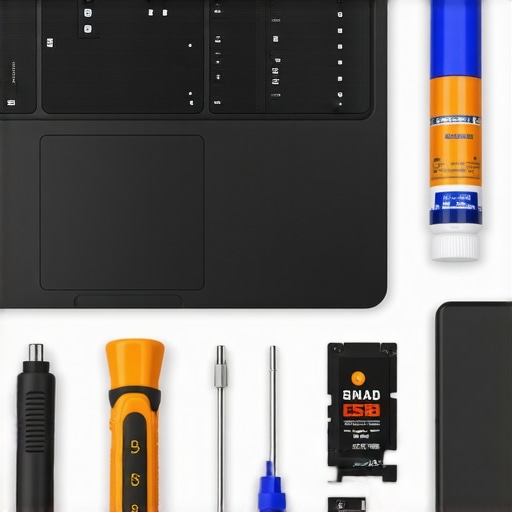
For hardware, a precision screwdriver kit has saved me countless times when performing upgrades or minor repairs. Paired with a decent thermal paste like Arctic MX-4, I regularly reapply to prevent overheating during intensive workloads. Keeping a compressed air duster handy is also a game-changer for blowing out dust from vents and fans—I’ve seen significant temperature improvements after routine cleaning.
Additionally, I use a portable external SSD for backups—and not just for storage. Regular cloning of my system drive ensures that I can quickly restore my setup if I encounter a failure. This proactive approach has saved me from days of reinstalling and configuring.
Software-wise, I recommend CrystalDiskInfo for monitoring SSD/HDD health. Setting up automated backup routines with tools like Macrium Reflect ensures data safety without manual intervention. Automating these maintenance tasks means less worry and more focus on your work or play.
Looking ahead, I predict that integrated AI diagnostics and maintenance features will become standard in laptops, simplifying ongoing upkeep. Devices will likely alert us proactively to hardware issues before they become critical. Until then, combining these proven tools with good habits is your best defense.
If you haven’t already, try setting up a scheduled system scan and cleanup using tools like CCleaner and CrystalDiskInfo. Automate your backups with a dedicated external drive—this simple step can prevent catastrophic data loss and keep your machine humming smoothly for years. For tailored advice or hardware upgrades, don’t hesitate to reach out.
Lessons Nobody Tells You About Fast Laptop Fixes
- Early mistakes will teach you patience; rushing into disassembly without proper guidance only amplifies problems. My biggest breakthrough came when I stopped treating my laptop like a puzzle to solve alone and embraced step-by-step troubleshooting.
- The significance of understanding your device’s internals became crystal clear when I realized that unplugging and reseating RAM modules could make all the difference in reviving a dead laptop, saving me from costly repairs.
- Backups are more than minor tasks—they’re lifesavers. Running routine clones and using reliable software can turn a potential disaster into a minor inconvenience, as I learned when my SSD failed unexpectedly.
- Connecting with a community of tech-savvy friends or reliable guides can accelerate your learning curve—sharing tips and experiences made my data recovery safer and more efficient.
- Patience is an essential tool. Sometimes, a dead laptop needs a gentle reset or a fresh perspective; forcing repairs often leads to more frustration. Learning when to pause and analyze saved me hours of potential regret.
My Go-To Arsenal for Laptop Troubleshooting
- External SSDs and Adapters: They’re indispensable for quick data access and recovery, trusted for their reliability and speed.
- Diagnostic Tools like CrystalDiskInfo and CCleaner: These software keep my hardware healthy and optimize performance, which is vital when my device is under stress.
- Precision Screwdriver Sets: Quality tools that make hardware repairs straightforward, avoiding additional damage.
- Online Guides and Tutorials: Trusted sources like PCWorld are gold mines for step-by-step instructions, boosting confidence in DIY recovery.
- Community Forums and Support Networks: Sharing experiences and solutions can often help you troubleshoot unique issues and avoid common pitfalls.
Keep Moving Forward: Your Laptop Adventure Starts Today!
Every laptop failure holds a lesson and an opportunity for growth. Remember, gaining hands-on experience builds resilience and confidence—pushing you to master your tech environment. Whether you’re tackling a stubborn hardware issue or simply upgrading your business laptop or student device, the knowledge you gain today will serve you for years to come. Don’t wait for trouble to strike—start exploring safe maintenance and recovery techniques now. Your digital life deserves proactive care, and you have all it takes to become your own tech hero. Ready to conquer your laptop challenges and unlock new skills? Let me know your stories below, and let’s grow smarter together!
,