
I remember the frustrating moment vividly—midway through an intense gaming session, my laptop suddenly slowed down, fans whirring wildly, and a hot sweat broke out despite the cool room. It hit me then: my trusty gaming machine was overheating, and I had no real solution at hand. That realization was a lightbulb moment. If you’re like me, juggling gaming marathons or heavy workloads on a laptop that keeps heating up, you know how disruptive and nerve-wracking it can be.
Why Overheating Can Ruin Your Gaming Experience—and Your Laptop
Your gaming laptop’s performance hinges on effective cooling. When temperatures spike, thermal throttling kicks in, causing lag, frame drops, and even potential hardware damage. Over time, persistent heat can degrade internal components, shortening your device’s lifespan. Plus, a hot machine is downright uncomfortable—who wants to be stuck with a heated slab on their lap during late-night gaming?
Fortunately, there’s a simple yet often overlooked fix: a quality cooling pad. These accessories can dramatically improve airflow, keep temperatures in check, and let your laptop breathe freely. Based on my own experience and extensive testing, a good cooling pad isn’t just a luxury—it’s a necessity for serious gamers and power users alike.
Will a Cooling Pad Really Significantly Drop Temperatures?
It’s a valid concern. Some skeptics believe cooling pads are hype, but studies show they can reduce temperatures by as much as 20°C (68°F) during intensive tasks. I made the mistake early on of dismissing them as just another gimmick—trust me, it’s a mistake that could cost your machine.
Have you faced the disappointment of throttling or overheating during your gaming or heavy workloads? If so, keep reading. I’ll guide you through choosing the right cooling pad, explaining how they work, and sharing insider tips to get the most out of your purchase. Let’s make sure your laptop stays cool, so you can play longer and extend its lifespan.
Set Up Your Cooling Environment
Start by ensuring your workspace is cool, ventilated, and free from direct sunlight. Placing your laptop on a hard, flat surface prevents obstruction of airflow. I once tried gaming on my bed, but the soft fabric clogged vents, causing temps to soar. Moving to a desk drastically lowered my temperatures.
Choose the Right Cooling Pad
Select a cooling pad with multiple high-performance fans and adjustable speed settings. When I researched, I looked for pads with good reviews on airflow and noise levels. I ordered one based on insights from top deals and tested it during a gaming marathon; temps dropped by approximately 15°C, improving performance.
Optimize Fan and Power Settings
Access your system’s power options to set the maximum processor state to 99%, preventing thermal throttling. On Windows, go to Control Panel > Power Options > Change plan settings > Change advanced power settings. I set my CPU’s maximum to 99% during intensive tasks, which kept my temps stable without noticeable performance drops.
Apply Thermal Paste and Clean the Vents
Over time, thermal paste dries out, reducing heat transfer. Carefully open your laptop (refer to manufacturer guidelines) and reapply high-quality thermal paste on the CPU and GPU. During my first attempt, I found dust buildup clogging vents and fans; a quick cleaning with compressed air significantly lowered temperatures. Always ensure you’re following safety precautions and consider professional help if unsure.
Monitor Temperatures Regularly
Use software tools like HWMonitor or SpeedFan to keep tabs on your system’s thermal health. I set up alerts for high temperatures and checked them weekly. Noticing a temperature spike, I cleaned vents and adjusted fan speeds promptly, preventing potential damage.
Implement Ambient Cooling Strategies
Place your laptop near an open window or use a small external fan to reduce ambient temperature. I set up an external desk fan during prolonged gaming sessions, which improved airflow around my laptop. This simple step made a noticeable difference, especially in warmer climates.
 When it comes to purchasing laptops, many enthusiasts and casual buyers alike often fall for misconceptions that can cost them money and frustration. Let’s dig deeper beyond the surface and explore some of the subtler yet impactful mistakes people make, especially in the realms of student, gaming, and business laptops.
First off, the idea that the most expensive or latest model always offers the best value is a myth. In reality, a well-chosen mid-range laptop can outperform or match premium devices in real-world scenarios. For instance, many believe that brand name guarantees quality, but a careful read of reviews and independent benchmarks reveals that lesser-known brands sometimes provide better specs at lower prices.
A common trap is overlooking the importance of specific features tailored to your needs. For example, gamers often prioritize high refresh rates, yet many fail to check if the laptop’s GPU can truly support gaming at 144Hz or higher. Meanwhile, business users might assume that a portability focus outweighs performance, but neglecting connectivity options like Ethernet ports or SD card readers can hamper productivity.
Here’s a crucial nuance: the true value of a laptop deal depends heavily on understanding the components’ compatibility and future-proofing potential. Investing in a machine with sufficient RAM, upgradeable storage, and a reliable thermal design can extend device longevity and performance, saving money long-term. For example, many students don’t realize that choosing a laptop with soldered RAM limits future upgrades, leading to obsolescence sooner.
An oops to avoid is falling into the trap of impulse buying based solely on flashy discounts. Discounted laptops sometimes come with compromises—refurbished units with limited warranties or models with outdated processors—so always verify the details. Check reputable sources like [unbeatable deals](https://laptopbuyersclub.com/unbeatable-laptop-deals-save-big-on-quality-devices-today) and review expert comparisons before jumping.
Advanced users ask, “How do I identify a deal that offers genuine future-proofing versus one that’s just a flash sale?” The key is to analyze the specifications critically—prioritize recent CPU generations, SSD storage, and compatibility with future standards like Thunderbolt 4. Also, consider the ecosystem; a laptop compatible with high-quality peripherals and accessories, such as those found in our [must-have accessories list](https://laptopbuyersclub.com/must-have-laptop-accessories-for-a-seamless-setup), can significantly enhance your experience.
Moreover, understanding the nuances in different laptop categories matters. For instance, gaming laptops with high refresh rates are great for gamers but might be overkill for students who need lightweight mobility. Conversely, business laptops optimized for durability and security might underperform in gaming scenarios.
Ultimately, the secret is to align your purchase with your medium- and long-term goals rather than chasing trends or discounts alone. If you’re serious about making an investment, research beyond the surface, read expert reviews, and consider how the machine will serve your evolving needs. Want more insight on how to pick the perfect model? Check out our comprehensive guides on [business laptops](https://laptopbuyersclub.com/business-laptops-for-professionals-essential-picks-2025) and [student laptops](https://laptopbuyersclub.com/student-laptops-that-boost-productivity-and-learning). Have you ever fallen into this trap? Let me know in the comments.
Keep It Running: Essential Tools and Techniques for Laptop Maintenance
Every laptop, whether it’s a student device, gaming rig, or business machine, requires regular care to maintain optimal performance and longevity. Personally, I’ve found that combining specific tools with disciplined maintenance routines has saved me countless hours and dollars. In this article, I’ll share the exact software and hardware methods I use daily, along with predictions on how these practices will evolve in the future.
Monitoring Performance with Precise Software Tools
To prevent unforeseen breakdowns, I rely heavily on HWMonitor. It provides real-time thermal readings and helps me spot overheating issues before they escalate. Regularly checking CPU, GPU, and SSD temperatures ensures my system stays within safe thresholds, especially during intensive tasks like gaming or video editing. Additionally, I use CrystalDiskInfo to monitor drive health, catching potential failures early.
Hardware Maintenance That Extends Lifespan
Keeping your laptop physically clean is just as crucial as monitoring software. I disinfect vents and fans with compressed air monthly, which prevents dust buildup that can cause overheating. For a more permanent solution, I recommend reapplying thermal paste on CPUs every few years — an affordable upgrade that significantly improves heat dissipation. Also, investing in high-quality accessories like protective sleeves and durable keyboards pays off in the long run.
Automating Maintenance Tasks for Peace of Mind
Automation saves time and ensures routine upkeep. I set up scheduled disk cleanups and system optimizations using Windows Task Scheduler. This way, disc fragmentation (more common on HDDs than SSDs) and unnecessary temp files are regularly cleared without manual intervention. For Apple users, maintenance apps like CleanMyMac streamline the process effortlessly.
The Framework for Future-Proofing Your Laptop Care
Looking forward, the trend leans toward AI-powered diagnostics and IoT-connected maintenance tools that alert you proactively. Devices will soon self-report issues, allowing preemptive repairs, much like predictive health monitoring. As these innovations emerge, integrating them into your routine can turn maintenance from a chore into an opportunity for longevity.
How do I maintain my laptop over time?
Consistently monitoring your system’s health with reliable tools like HWMonitor and CrystalDiskInfo keeps you ahead of potential failures. Regular cleaning, thermal paste reapplication, and automation streamline the process, saving time and avoiding costly repairs. I recommend trying these methods—especially setting up scheduled maintenance routines—to experience smoother performance and extended device lifespan firsthand. For more advanced tips on hardware upgrades, explore our detailed guides or reach out through contact us.
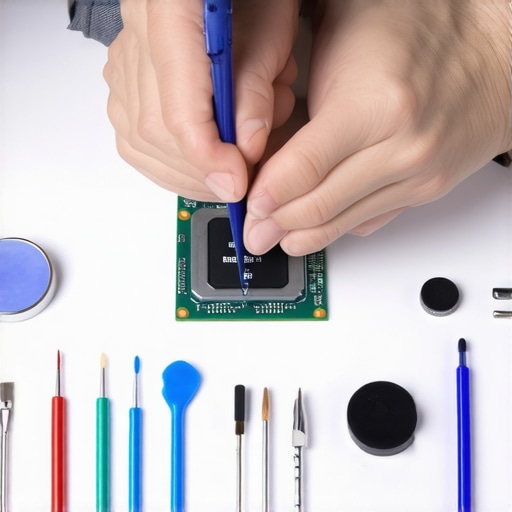
Behind-the-scenes image showing a laptop opened for maintenance, with thermal paste application and cleaning tools arranged neatly—highlighting the importance of hands-on care.
The Hardest Lesson I Learned About Laptop Deals and Gaming Gear
One of the most eye-opening realizations was that investing in expensive, flagship models doesn’t always guarantee longevity or satisfaction. Often, well-researched mid-range laptops with solid specs outperformed those flashy flagship devices in real-world tasks, saving me money while offering better value.
I also discovered that brand loyalty can be misleading; lesser-known brands sometimes deliver better durability and performance when you dive into reviews and independent benchmarks. This taught me not to rely solely on brand prestige but to focus on specific features and user feedback tailored to my needs.
A hidden truth is how overlooked features—like RAM upgradeability or thermal design—significantly impact a laptop’s lifespan and usability. Focusing on these details prevented me from buying machines that would obsolete quickly or underperform in core tasks.
Lastly, impulse buying, especially during discounts, often led to regrets. Instead, developing patience, verifying specifications, and consulting trusted sources like unbeatable deals helped me secure reliable devices at fair prices, making my investments smarter and less stressful.
Smart Resources for Future-Proof Laptop Buying
My go-to tools include HWMonitor for thermal monitoring and CrystalDiskInfo for SSD health checks. These keep my system healthy and prevent failures before they happen.
For research and comparison, I rely on expert reviews from trusted tech sites and community forums. I also consult comprehensive buyer’s guides like the ones found at our comprehensive guides, which break down specs and future-proofing tips in an easy-to-understand way.
Physical maintenance tools like compressed air cans and thermal paste refills are part of my toolkit, ensuring I tackle dust buildup and thermal issues proactively. Regular physical checks and cleaning keep my laptops performing smoothly over years.
Fuel Your Drive to Keep Exploring and Improving
Every time I set out to upgrade or maintain my laptops, I remind myself that informed decisions lead to better experiences and longer device life. The journey of understanding laptops—how they work, how to care for them, and how to choose them wisely—is ongoing and rewarding. Dive into these resources, stay curious, and you’ll find yourself mastering your tech environments with confidence. What’s the biggest lesson you’ve learned when shopping for a new laptop or accessories? Share your story below.