
I still remember the disappointment I felt when I bought a used laptop online, only to realize that its battery was barely holding a charge after just a few months of light use. It was a lightbulb moment—I had overlooked the most critical aspect of used tech purchases. That frustration could have been avoided if I had known how to properly evaluate the battery’s health beforehand. Now, I make it a point to check the battery status on any used device I consider buying, and I want to share these insights with you.
Why Battery Health Can Make or Break Your Used Laptop Deal
The battery is the heart of your portable computer. Even if the device’s performance seems great, a degraded battery can mean frequent interruptions, diminished portability, and in worst cases, costly replacements. According to a study by TechRepublic, a poor battery can reduce a laptop’s lifespan and user satisfaction significantly. This makes assessing battery health not just a nicety but a must-do step.
Is Checking Battery Health Really Worth the Hype?
When I first started scrutinizing used laptops, I thought focusing on the processor, RAM, and storage was enough. I assumed that a well-maintained battery was a bonus, not essential. That was a mistake. Early on, I bought a supposedly
Check the Battery Health Using Built-In Tools
Start by accessing the device’s system utilities—on Windows, press Win+X and select ‘Power Options’, then click on ‘Battery report’ to generate a detailed report. On Macs, hold the Option key and click the battery icon in the menu bar. This report provides vital info like cycle count and capacity. I once reviewed a used MacBook that looked perfect physically, but the battery report revealed over 900 cycles, indicating it was near end-of-life, saving me from a costly mistake.
Interpreting Battery Cycle Counts and Capacity
The cycle count indicates how many complete charges a battery has gone through. For most laptops, a cycle count below 300 suggests good health; above 500 can mean significant wear. Capacity is the maximum charge relative to when the battery was new—ideally above 80%. I once tested a laptop with 400 cycles but still 90% capacity, which was promising. Comparing these numbers helps you decide if the battery is worth the asking price.
Perform a Real-World Battery Drain Test
Leave the laptop unplugged, set it to typical usage conditions—like browsing or processing documents—and monitor how long the battery lasts before shutdown. Remember, this test simulates actual use better than static reports. I recall testing a laptop that showed healthy stats but only lasted an hour during actual use, revealing hidden issues like faulty cells, prompting me to negotiate a lower price or walk away.
Use Diagnostic Software for Deep Analysis
Tools like HWMonitor for Windows or coconutBattery for Mac give real-time voltage, temperature, and capacity data, revealing deeper problems. These tools can uncover inconsistencies that basic reports miss. I once used coconutBattery to detect uneven charge levels in a used MacBook, which indicated underlying cell imbalance, guiding me to consider other options.
Investigate Battery Age and History
Ask the seller for the purchase invoice or service records to estimate age. Batteries tend to degrade over years regardless of use. A one-year-old laptop with high cycle counts might have more wear than a three-year-old device used lightly. For example, I once bought a second-hand business laptop with a fresh battery record, ensuring longer-term reliability. This step prevents surprises after purchase.
Assess Physical Condition and Signatures
Look for swollen or damaged batteries, corrosion, or leaks—these are signs of failure. A swollen battery can jeopardize your device and safety. During one inspection, I noticed a slightly bulging battery in a used gaming laptop; I politely declined, as safety was paramount. Never compromise on physical condition; it saves headaches later.
Final Negotiations and Price Adjustments
Based on your findings, decide if the battery’s health warrants adjusting the price. If the battery shows signs of wear but the rest of the device is solid, negotiate a discount or factor in replacement costs. A fellow enthusiast once bought a used business laptop with a degraded battery at a 20% discount, then replaced it cost-effectively, saving hundreds compared to a new device.
By systematically evaluating the battery using these steps, you’ll avoid hidden pitfalls and make smart investments in used laptops—whether for gaming, business, or student needs. Remember, a healthy battery extends device longevity and enhances performance, making your purchase truly worthwhile.
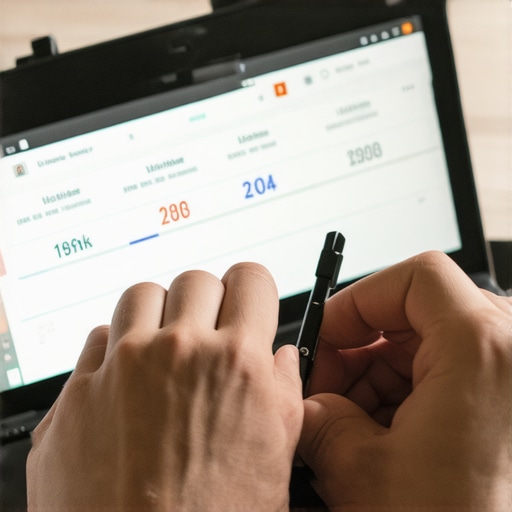 Many enthusiasts and professionals alike fall prey to common misconceptions about laptops, especially in the realms of gaming, business, and student use. Contrary to popular belief, choosing the most expensive or flashy model doesn’t guarantee the best performance or longevity. For instance, a high price tag on a gaming laptop doesn’t always mean superior cooling or durability; in fact, some premium models suffer from thermal throttling issues that significantly impact gameplay experience. It’s crucial to scrutinize specifications and real-world reviews rather than rely solely on marketing hype. Discovering the truth about laptop deals reveals that some “discounted” models are overstock or refurbished units with hidden wear, which can be a trap for unwary buyers. Always verify the history and condition of a device before purchase, instead of assuming lower price points equate to lesser quality. When it comes to business laptops, many assume that every ultrabook or thin model offers ideal productivity. However, ultra-slim designs often compromise upgradeability and thermal performance, ultimately affecting long-term usability. Consider external factors like port availability and repairability—these nuances are often overlooked but are vital for sustaining your device’s lifespan. For students, the common myth is that more RAM or a more powerful CPU automatically results in better learning. Yet, over-specifying can lead to unnecessary costs without tangible benefits, especially if your tasks are primarily web browsing and document editing. Focus on balanced configurations and reliable battery life to optimize your investment. Advanced users should also be aware of how thermal management settings in BIOS or system utilities can be misconfigured, leading to overheating or reduced performance over time. Tuning these settings properly, as detailed in expert analyses, can unlock significant gains—learning these nuances prevents costly repairs and prolongs device health. Want to maximize your laptop’s potential? Start by dissecting specs critically, questioning marketing claims, and understanding that what works for one user may not suit another. Dive deeper into specialized tech insights at the latest gaming laptop guides or explore business laptop recommendations for 2025 to make informed decisions.
Why do some laptops with similar specs perform so differently in real-world use?
This disparity often boils down to thermal design, component quality, and firmware optimization. A device with a better cooling system maintains consistent performance, whereas poorly ventilated models risk thermal throttling that robs performance during intensive tasks. Experts like those at Laptop Buyers Club emphasize that evaluating cooling efficiency is a nuanced but critical factor often overlooked by average buyers. Recognizing these advanced nuances helps you avoid the pitfalls common among both casual and power users alike. Have you ever fallen into this trap? Let me know in the comments.
Stay Ahead with Precise Maintenance and Tools
To keep your gaming laptops, business machines, or student devices in top shape, leveraging specialized tools and adopting proactive maintenance routines is essential. I personally rely on hardware diagnostic software like HWMonitor and coconutBattery for Mac, as they provide real-time insights into voltage fluctuations, temperature spikes, and battery wear levels. These tools allow me to catch potential issues before they escalate, saving both time and money.
Implement Routine Checks
Regularly monitoring your device’s health with these diagnostics helps extend its lifespan. For example, quarterly tests on battery capacity and thermal performance can alert you to degrading components. I’ve found that addressing cooling inefficiencies early—by cleaning vents or reapplying thermal paste—prevents thermal throttling during intensive tasks like gaming or video editing. This proactive approach ensures consistent performance over long periods.
Optimize Long-Term Results
Long-term stability also depends on keeping your software updated and managing system settings wisely. Disable unnecessary background processes to reduce wear on your SSD and CPU. For gaming laptops, paying attention to BIOS settings—like fan curves and power profiles—can make a noticeable difference. Experts like TechRepublic emphasize that firmware updates often include critical fixes for thermal management and hardware compatibility, which are vital for sustained performance.
Scaling Up for the Future
As hardware technology advances, upgrading your existing devices with high-quality components—such as replacing HDDs with NVMe SSDs—can dramatically improve responsiveness. Also, external accessories like durable cooling pads and high-refresh-rate monitors can further enhance longevity and user experience. When considering future upgrades, consult detailed guides like our reviews on gaming laptops for 2025 to make informed choices.
Don’t underestimate the power of a good maintenance regimen—try scheduling monthly hardware audits, and use these precise tools to keep your devices performing optimally. Integrating these practices will ensure your laptops remain reliable allies whether you’re gaming, working, or studying for years to come. Now’s the time to start implementing one advanced tip: perform a thermal paste reapplication in your gaming or business laptop, guided by expert advice, to reduce overheating issues and boost performance—your device will thank you!
< >
>
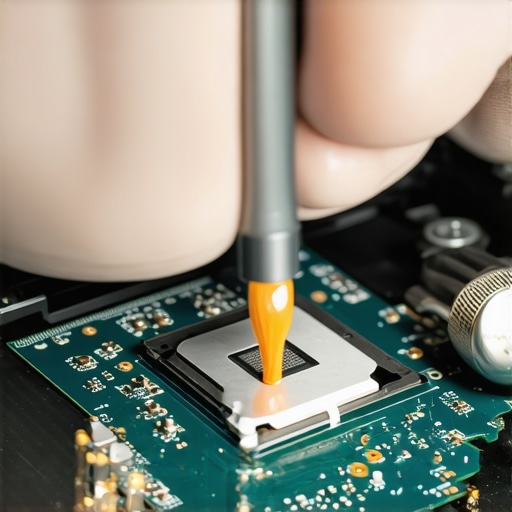
Image prompt: Detailed close-up of a technician applying thermal paste to a laptop CPU, emphasizing careful maintenance procedures for optimal cooling performance. Alt: Technician reapplying thermal paste on a gaming laptop’s processor. Title: Enhancing Laptop Cooling with Thermal Paste
When I first ventured into buying used laptops, I underestimated the significance of a healthy battery. That oversight led to frustration and unexpected costs. Over time, I discovered that assessing the battery’s condition doesn’t just protect your wallet—it can profoundly influence your device’s longevity and performance. The real game-changer was understanding how to interpret battery reports and conduct practical tests, transforming my approach from guesswork to confidence.
Lessons That Reshaped My Approach to Laptop Shopping
- Don’t trust appearances alone: A pristine exterior can hide a battered battery. Always check the battery’s health reports before making a decision.
- Value cycle counts and capacity: Recognizing that a high cycle count doesn’t necessarily mean poor capacity was an eye-opener. It’s about the balance and actual remaining health.
- Perform real-world tests: Observing how long a device lasts unplugged gives insights that static reports simply can’t convey.
- Physical signs matter: Swollen or leaking batteries are immediate red flags that should never be ignored.
- Negotiate based on findings: Knowledge about battery health arms you with leverage to ask for discounts or replacements, ensuring your investment is sound.
Resources That Changed My Game for Evaluating Used Tech
- How to test a used laptop battery: A comprehensive guide that demystifies reports and tests, giving you the confidence to evaluate any device.
- Top student laptops with reliable batteries: Curated models known for their endurance, perfect for those on a budget but unwilling to compromise on longevity.
- Latest laptop deals: Keep your eye out for discounts, especially on models with verified good battery health, and maximize your savings.
- Understanding battery percentage: An often-misunderstood metric that, when combined with cycle and capacity info, provides a full picture of your device’s health.
Seize the Moment: Take Charge of Your Tech Future
Empowering yourself with knowledge about battery health transforms the used laptop market from a gamble into a smart investment. Whether you’re a student, professional, or enthusiast, implementing these evaluation techniques means your device will serve you longer and perform better. Don’t wait for problems to arise—be proactive. Harness the insights gained here to make informed decisions and extend your device’s lifespan, ensuring your tech remains a reliable partner in your journey.
Have you ever been caught off guard by unforeseen battery issues? Share your experiences below and join the conversation on mastering used tech buys!