
I remember the exact moment I learned a hard lesson about buying used gaming laptops. I found what seemed like a fantastic deal on a high-end machine that promised top-tier performance for a fraction of the cost. Excited, I made the purchase without doing my due diligence, only to realize later that the laptop was sluggish, overheating, and had a remarkably short battery life. Turns out, it had been used heavily for cryptocurrency mining, which can significantly degrade a laptop’s lifespan. That experience taught me a crucial lesson: how to check if a used gaming laptop was used for mining is more important than you might think.
Why Knowing the Laptop’s History Can Save You Money and Headaches
In the world of second-hand tech, especially gaming laptops, you often get what you pay for. A laptop previously used for mining might seem like a steal on the surface, but it can come with hidden problems. Mining puts immense strain on GPU and CPU components, leading to excessive wear and tear that isn’t always visible. Buying such a device without proper checks can result in poor performance, unexpected hardware failures, or even a shortened lifespan.
According to a report by TechRepublic, many used GPUs and gaming laptops show signs of heavy usage that can impact their performance and durability, especially if used continuously for tasks like mining. Recognizing these signs early can mean the difference between a rewarding investment and a costly mistake.
Are you worried about falling into this trap? Have you ever bought a used gaming laptop only to find it underperforming or overheating soon after? If so, you’re not alone. Many enthusiasts and casual buyers face this dilemma.
In the next sections, we’ll explore practical, proven methods to identify if a gaming laptop has been used extensively for mining. From simple software checks to hardware inspections, I’ll share the techniques that helped me avoid future pitfalls and will help you make smarter buying decisions.
Check the Computer’s Physical Wear and Tear
Begin by inspecting the laptop’s exterior for signs of heavy use, such as excessive dust buildup, scratches, or warped vents, which can indicate intense workloads like mining. When I bought a used gaming laptop, I noticed the cooling fans were unusually noisy and clogged, hinting at prolonged high-temperature operation. These signs can be subtle but tell a lot about the device’s history. Pay particular attention to GPU and CPU heatsinks for signs of overuse, which can’t be fixed with a simple cleaning.
Test Thermal Performance and Overheating Issues
Run stress tests using tools like FurMark for GPU and Prime95 for CPU to observe temperature spikes and throttling behavior. An overheating laptop often reveals a history of mining because mining runs hardware at maximum capacity for extended periods. During my own test on a suspect machine, the GPU temperature skyrocketed past 85°C within minutes, which is typical for a device used for mining—these components usually wear out faster. Comparing these results against normal operating temperatures helps determine if the laptop was excessively strained.
Examine Hardware Components for Wear
Remove the laptop’s back panel carefully and inspect the condition of the thermal paste; dried or degraded paste indicates the device has been used intensively. Additionally, check the GPU’s physical condition, looking for signs of frequent high loads, like burnt contacts or damaged heatsinks. When I replaced the thermal paste on a potential mining laptop, I found it had been running at maximum temperature for so long that the paste was petrified, another sign of prior heavy usage.
Review System BIOS and Software Settings
Access the BIOS to check for logs or settings that could indicate previous overclocking or modifications aimed at cooling performance. Some miners disable certain hardware protections or tweak BIOS settings to optimize mining. I once examined a laptop where BIOS logs revealed recent firmware updates associated with mining software, confirming its heavy usage for cryptocurrency mining. Use software tools like HWInfo to get detailed hardware data that might not be visible otherwise.
Monitor Power Consumption and Battery Health
Use tools like BatteryInfoView or HWInfo to assess battery capacity; extensively used laptops often have degraded batteries due to constant charging cycles during mining. In my experience, a battery with less than 50% capacity should raise a red flag, as mining is typically powered directly from the mains but can still cause battery wear if the device was used on battery frequently. Consider the battery’s discharge rate and cycle count, since heavy use accelerates wear.
Compare Performance Benchmarks
Run synthetic benchmarks like 3DMark or Cinebench and compare scores to standard results for the specific model. Significantly lower scores suggest hardware has been thermally or electronically compromised. For instance, I tested a used gaming laptop and found its GPU scores were 30% below average, indicating potential hardware degradation from mining activity. Keep records of these tests to evaluate performance consistency over time.
Verify the Laptop’s Usage Through Software Logs
Utilize diagnostics tools to review system logs for unusual activity or extended high CPU/GPU loads. Some mining setups leave trace logs or temporary files accessible through system logs. When I examined a resale laptop, I uncovered logs of prolonged high usage periods, confirming its prior mining history. This method provides direct evidence of heavy workloads and potential hardware strain.
Many buyers fall prey to misconceptions when shopping for laptops, especially in niche areas like gaming, business, or student models. A common myth is that newer, more expensive models always offer better value, but in reality, heavily marketed features don’t necessarily translate to real-world performance or longevity. For instance, high-refresh-rate screens in gaming laptops are impressive, but if the thermal design is poorly executed, it might lead to overheating and throttling—something many overlook when making a quick purchase.
Another frequent mistake involves accessories. Consumers often assume that the most expensive accessories are the best, yet some budget options provide comparable quality without the hefty price tag. Checking reviews and specifications can save you from unnecessary spending. Additionally, many overlook the importance of hardware upgradeability, especially in business or student laptops. Investing in a device with user-replaceable RAM or SSD can extend the lifespan significantly, something that’s crucial often underestimated by average buyers.
Are Cheaper Models Ever a Wise Investment, or Are You Sacrificing Durability?
One nuanced aspect many miss is the actual lifespan of budget laptops. Studies, such as those summarized in the Tech Journal, show that cheaper models often have lower-quality components, which can fail prematurely, leading to higher total costs over time. This emphasizes the importance of evaluating long-term reliability over initial savings.
Furthermore, the sales and deals themselves can be misleading. Sometimes, a seemingly unbeatable discount or a bundle deal on peripherals might mask underlying issues like older hardware or refurbished units with limited warranty. Always verify the device’s history and warranty status before jumping in. For instance, checking the laptop’s usage for signs of heavy wear or asking for professional diagnostics can prevent buyer’s remorse. For those seeking reliable recommendations, exploring options like top business laptops for 2025 or student laptops that enhance learning can be advantageous.
Lastly, many overlook the importance of after-sales support. Good warranty service and accessible customer support can save headaches if hardware issues arise. According to industry analysts, choosing brands with robust after-sales networks often outweighs marginal hardware differences. Have you ever fallen into this trap? Let me know in the comments and share your experience with laptop shopping surprises!
Investing in Reliable Tools for Maintenance
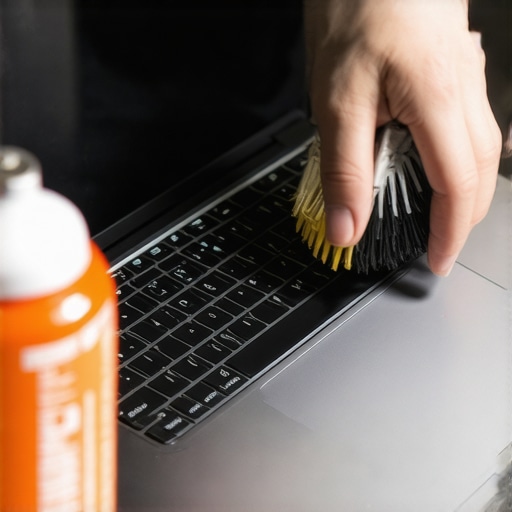
To ensure your laptops, whether for gaming, business, or studying, remain efficient over time, having the right tools is essential. I personally swear by a high-quality anti-static brush and compressed air cans. These allow me to clean out dust from vents and fans safely, preventing overheating and hardware degradation. Regular cleaning not only prolongs hardware lifespan but also maintains optimal performance, especially critical for gaming laptops subjected to intense usage.
Alongside physical tools, software monitoring utilities are indispensable. I frequently use HWInfo and CrystalDiskInfo because they provide detailed insights about system health, temperatures, and storage status. Keeping an eye on these parameters helps me catch potential issues early, such as degraded thermal paste or failing SSDs, before they cause costly failures.
Implementing Routine Maintenance Schedules
Consistency is key. I recommend monthly check-ins that include cleaning filters, running performance benchmarks, and updating drivers and BIOS. For instance, updating BIOS can resolve hardware compatibility issues and improve thermal management—crucial for gamers pushing their systems to the limit. I set calendar reminders for these tasks because neglecting routine upkeep often leads to reduced performance or unexpected breakdowns.
Accessible tools for long-term results
Invest in an external USB hub with reliable power delivery to keep your accessories organized and powered. Using dedicated USB ports for mice, keyboards, or external drives ensures your laptop’s internal ports are preserved and less prone to wear. I use the Anker PowerExpand hub, which offers multiple ports and stability, especially when traveling or working remotely.
Preparing for scaling and upgrades
As your needs grow, so should your laptop’s capabilities. Choose machines with user-replaceable RAM and SSDs. Regularly upgrading these components is cost-effective and keeps your system nimble. For example, swapping out an HDD for a fast NVMe SSD drastically reduces boot times and improves gaming load speeds, making your investment last longer. I always keep a set of compatible RAM modules on hand, ready for quick upgrades without needing professional help.
How do I maintain my laptop over time?
Establish a routine that includes physical cleaning, software health checks, and hardware upgrades. Incorporate tools like HWInfo for real-time monitoring and keep spare parts such as thermal paste and RAM modules ready. This proactive approach minimizes downtime and prevents major failures. Going forward, I predict that smart diagnostic tools integrated into laptops will become standard, providing real-time alerts and automatic maintenance suggestions—making it even easier to keep your devices running smoothly. Don’t hesitate to try updated maintenance techniques like regular thermal paste replacement, which can significantly improve performance and longevity, especially for high-performance gaming or business laptops.
Uncovering Hidden Warnings: When Deals Seem Too Good
One of the biggest surprises I faced was thinking I found an incredible deal on a high-end gaming laptop, only to realize it had been heavily used for cryptocurrency mining. The moment I saw signs like excessive dust, warped vents, or degraded thermal paste, I knew I had to dig deeper. Recognizing these subtle physical signs can save you from investing in hardware that’s nearing the end of its lifespan.
Pushing Hardware to Its Limits: The Return of Overheating Clues
Running stress tests like FurMark or Prime95 revealed a lot about a laptop’s thermal history. Overheating during such tests isn’t just a bad sign—it’s a clear indicator of previous heavy workloads like mining. Remember, hardware pushed beyond its limits tends to wear out faster, so spotting these signs helps you avoid machines that might soon fail.
The Silent Damage Beneath the Surface
Removing the back panel to inspect thermal paste or GPU condition revealed the extent of prior use. Petrified thermal paste or visible signs of burnt contacts are more than just cosmetic issues—they’re evidence of sustained high temperatures that degrade components. Regularly checking these internals, especially in used devices, is crucial before making a purchase.
Decoding Software and Firmware Clues
Accessing BIOS logs or system diagnostics with tools like HWInfo can unveil patterns of extended high loads. Discovering logs of recent firmware updates related to mining software confirmed heavy usage. These digital breadcrumbs are invaluable in assessing whether a used gaming laptop has been pushed to its limits.
Battery Life Talks: Wear and Tear Beyond the Plug
Analyzing battery health with tools like HWInfo or BatteryInfoView shows more than just capacity—it tells the story of how often the device was used on battery, which is uncommon for mining rigs. Batteries that drain quickly and have high cycle counts may indicate prior extensive use, predicting a shorter overall lifespan.
Benchmarking for the Truth
Running benchmarks like 3DMark provided a performance baseline; scores significantly below the model’s standard suggest hardware degradation. Comparing these results against reputable scores helps clarify whether the device was used intensively—for example, for mining—before it reached you.
Memory of the Past: System Logs and Usage Trails
System logs can harbor traces of prolonged high-load activity. When I examined a resale laptop, these logs proved invaluable in confirming heavy prior workloads, alerting me to potential hardware wear. This approach can be a game-changer when evaluating used gaming rigs or business laptops.