
I was sitting in my favorite corner of the local library, ready to dive into some heavy research on my student laptop, when I realized something was horribly wrong. The screen didn’t look right. It looked… aged. Like an old polaroid that had been sitting in a sunny window for twenty years. I panicked, thinking I’d finally managed to break the display on my primary work machine. I even started browsing unbeatable laptop deals in another tab, convinced I needed a replacement before the day was out. But after a few deep breaths and a bit of tinkering, I realized the ‘yellow’ wasn’t a broken screen—it was just a setting I’d accidentally toggled.
Stop Panicking Over That Weird Tint
It happens more often than you’d think. You’re working on a report or maybe checking out some must-have laptop accessories, and you suddenly notice the whites are definitely not white anymore. They’re a sickly, buttery shade that makes everything look a bit ‘off.’ Before you assume your GPU is toast, let’s look at the facts. Most of the time, this is a software issue designed to help your eyes, not a hardware failure trying to ruin your life. Have you ever opened your lid only to find the screen looking like an old newspaper? It’s a jarring feeling, but I promise we can get those colors back to normal in just a few clicks.
Is Your Screen Actually Dying or Just Settings-Confused?
This was my biggest fear. I thought my business laptop was on its last legs. The truth is, modern operating systems have baked-in features like ‘Night Light’ or ‘Night Shift’ that aim to save your eyes at the expense of color accuracy. According to a study published by Harvard Health Publishing, blue light can disrupt sleep patterns, which is why these yellow-tinted filters exist. But while they are great for late-night scrolling, they are a nightmare for anything requiring precision. If you’re trying to calibrate your laptop monitor for better color accuracy, these features are your worst enemy.
Why Bad Colors Kill Your Productivity
You might think a little yellow tint isn’t a big deal, but it matters more than you realize. I once spent six hours editing a batch of photos for a client on a screen that had a hidden ‘warm’ filter active. When I finally saw the photos on a properly calibrated display, the colors were a disaster—everyone looked like they had a bad spray tan. If you’ve invested in one of those gaming laptops with OLED screens, you want those colors to pop, not look washed out. Even something as small as the real difference between cheap and expensive HDMI cables can occasionally mess with your signal if you’re using an external monitor. Understanding why the tint is there is the first step to ensuring your work looks as professional as possible.
Disable the Software Sleep Filters
This is the most frequent culprit behind a weirdly warm display. Both Windows and macOS have native features—Night Light and Night Shift—that automatically warm up the color temperature as the sun goes down to reduce eye strain. I once helped a friend fix their student laptops that balance power and portability perfectly after they spent an hour panicked because they thought the screen was fried. We just went into the display settings and toggled off ‘Night Light.’ If you’re using top business laptops for productivity in 2025, these settings might even be managed by IT or a power-saving profile, so checking here first saves you a call to the help desk. Often, these features are set to a schedule you didn’t realize was active, turning on precisely when you need color accuracy for an evening project. 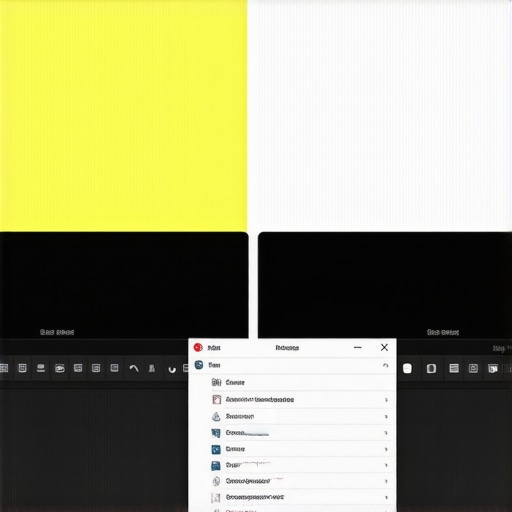
Reset Your System Color Profile
If the toggle doesn’t work, the system’s color profile might be corrupted or set incorrectly. Windows uses ‘.ICM’ profiles to tell the screen how to display colors. To fix this, search for ‘Color Management’ in your taskbar. Under the ‘Devices’ tab, ensure your monitor is selected and that ‘Use my settings for this device’ is checked. If there’s a weird profile there, remove it and add the ‘sRGB IEC61966-2.1’ profile as the default. This is a crucial step when you calibrate your laptop monitor for better color accuracy. I remember doing this on a used machine I got from one of those unbeatable laptop deals; the previous owner had set a custom profile for high-contrast reading that made everything look like an old, yellowed sepia photograph.
Check Graphics Driver Settings
Sometimes the operating system isn’t the one to blame. Companies like Intel, NVIDIA, and AMD include their own color-tuning software that can override Windows settings. If you have one of those game-changing gaming laptops for serious players in 2025, your GPU software might have a ‘Vivid’ or ‘Eye Care’ mode enabled by default. Open your graphics command center (like NVIDIA Control Panel or AMD Software) and look for ‘Display’ or ‘Color’ settings. Reset everything to ‘Standard’ or ‘Restore Factory Defaults.’ I’ve seen gaming rigs where the ‘Digital Vibrance’ or ‘Color Temperature’ sliders were bumped to one side after a driver update, turning a beautiful display into a yellow mess overnight.
Inspect Your External Hardware and Cables
If you are working with an external monitor and a docking station, the issue might be physical rather than digital. Cheap or damaged cables can fail to transmit full data, causing color channels to drop. The real difference between cheap and expensive HDMI cables often comes down to shielding and reliable signal transmission. Also, if you use must-have laptop accessories to boost your work setup like a USB-C hub, try plugging the monitor directly into the laptop to see if the tint disappears. I once spent two days troubleshooting software only to realize my cat had chewed slightly on the DisplayPort cable, cutting out just enough of the blue channel to make the screen look permanently sunset-orange regardless of my settings.
The Big Lie About Blue Light Filters
Many people assume that toggling a software filter is a perfect fix for eye strain, but here is the contrarian truth: relying on these filters can actually mask underlying hardware issues. I’ve seen cases where users ignored a developing yellow patch on their screen because they thought ‘Night Light’ was just being aggressive. In reality, their backlight was failing. If you are constantly looking for unbeatable laptop deals, you have to be extra careful. A yellow tint on a used machine might not be a setting; it could be ‘burn-in’ or adhesive degradation between the panel layers.
Why Do High-End Panels Still Drift After Calibration?
This is a question I get from serious creators all the time. Even if you follow a guide to calibrate your laptop monitor for better color accuracy, the result isn’t permanent. A technical analysis by TFTCentral notes that panel backlights actually shift their spectral output as they age, meaning that even if you disable software filters, your screen will naturally lean warmer over several thousand hours of use. This ‘panel drift’ is why pros recalibrate every month. If you’re using one of those game-changing gaming laptops for 2025 adventures, the high heat from the GPU can actually accelerate this color shifting by warming the panel from behind.
The Trap of Chasing Pure Power
We often think that the beefiest specs make for the best experience, but that’s a common mistake when looking at business laptops for professionals. People see a high-wattage GPU and think it’s better for everything, but they forget about the thermal profile. A thin laptop with too much power will ‘throttle,’ slowing itself down to prevent melting, which results in worse performance than a mid-range machine with better cooling. Also, watch out for the hardware ‘handcuffs.’ I always tell people to check the power situation; why we avoid buying laptops with proprietary power bricks is a lesson I learned the hard way when I left my charger at a hotel and couldn’t find a replacement anywhere in the city.
Don’t Mistake Used for Refurbished
When you’re hunting for top laptop deals in 2025, there’s a massive trap in the terminology. Many sellers list items as ‘refurbished’ when they are simply used and wiped with a microfiber cloth. True refurbishment involves stress-testing the components and often replacing the battery. You need to know how to tell if that refurbished deal is actually just used before you part with your cash. I once bought a ‘certified’ machine that had a battery cycle count in the hundreds; that’s not refurbished, that’s just exhausted. When I look at student laptops that balance power and portability perfectly, I notice most students prioritize resolution over brightness. That’s an advanced mistake. A 4K screen is useless if it only hits 250 nits of brightness because you won’t be able to see those pixels in a brightly lit classroom. I always suggest that students use their status to their advantage—why your student id is the best tool for laptop discounts isn’t just about the initial price, but about getting into higher-tier ‘Pro’ models with better longevity. Have you ever fallen into this trap of buying a deal that was too good to be true? Let me know in the comments below!If your screen is still looking like a slice of cheddar after all the software tweaks, we need to talk about the physical health of your machine. I’ve seen too many people give up on unbeatable laptop deals because they thought a hardware glitch was the end of the world. One thing I never travel without is the 10 tool every laptop owner should keep in their desk. It’s a simple precision driver set, but it’s the difference between a clean fan and a dead motherboard.
Keep Your Gear Alive with This Simple Kit
I personally use the iFixit Pro Tech Toolkit. Why? Because generic screwdrivers from the hardware store are too bulky and will strip your screws before you even get the backplate off. According to technical insights from iFixit’s 2024 repairability documentation, modern laptops are becoming increasingly difficult to service without specialized bits. If you’re rocking game-changing gaming laptops for serious players in 2025, you have to realize that heat is your primary enemy. Dust buildup in the intake vents can actually cook the adhesive on your screen panel, causing that permanent yellowing we’re trying to avoid. I make it a habit to use compressed air every two weeks and do a full teardown to clear the fins every six months. Before you even think about touching the internals, though, make sure you know how to properly ground yourself before opening your laptop to avoid a static discharge that could fry your RAM.
How do I maintain professional color accuracy over time?
Maintaining that perfect white balance isn’t a one-and-done task. For my top business laptops for productivity in 2025, I use a hardware colorimeter like the Datacolor Spyder. You stick it on the glass, and it measures exactly how much the LEDs have shifted. It’s one of those must-have laptop accessories for a seamless setup if you do any visual work. I’ve found that even high-end panels drift toward the warmer spectrum after about 500 hours of use. If the shift is too severe to fix via software, you might actually need to look into how to replace your own laptop fan in under 20 minutes because excessive heat is often what causes the pixels to degrade in the first place.
The Tools I Use for a Fresh Start
When a machine starts acting up, I don’t just reach for the settings; I reach for the cleaning supplies. You’d be surprised how much a dirty surface affects your perception of color. I always keep a specific cleaning slime in my bag—it’s the best way to clean a sticky keyboard without breaking the keys while also grabbing the dust that migrates toward the screen hinge. If your thermal performance is dropping, knowing how to choose the right thermal paste for your machine can lower your temps by 10 degrees, which keeps the screen from getting baked by internal heat.
The Coming Era of Self-Calibrating Screens
Looking ahead, I predict we will see AI-integrated sensors built into the bezel of every student laptop that automatically adjust for panel aging in real-time. We’re already seeing the first stages of this with ambient color sensors, but the future is true, hardware-level auto-calibration. My big tip for you today? Go into your BIOS and check if there is a Battery Threshold setting. Limiting your charge to 80% will double the life of your cell, preventing the swelling that often pushes against the bottom of the screen and causes those weird color blotches!
Three Things I Learned the Hard Way About Screen Health
Over the years, I’ve realized that screen issues are rarely isolated hardware failures. First, if you’re using student laptops that boost productivity and learning, that yellow tint is almost always a sneaky software setting like Windows Night Light or a poorly configured power-saving mode. Second, never ignore the physical cleanliness of your device; I found that the best keyboard cleaning slime we actually tested helps keep debris out of the hinges where fragile display cables live. Finally, before you jump on unbeatable laptop deals to replace a ‘broken’ machine, always check the panel’s white balance in person. I once bought a used machine that had permanent yellow burn-in because I didn’t verify the color profile before paying.
My Personal Rescue Kit for Color and Care
To keep my displays in top shape, I rely on a few specific tools that prioritize longevity. I always suggest using the most reliable USB-C hubs for multi-monitor setups to ensure your signal doesn’t degrade and cause unwanted color artifacts on your external screen. For daily maintenance, understanding why we still carry a microfiber cloth in our laptop bags is a lesson in simplicity—oils from your fingers can actually etch into some screen coatings over time. For deeper technical fixes, how to find official repair guides for your exact model is my go-to starting point when a simple reset doesn’t fix a persistent tint.
Get Your Vivid World Back
You don’t have to settle for a washed-out, yellowed display that makes your work look unprofessional. Whether you are rocking game-changing gaming laptops for serious players in 2025 or a reliable daily driver, accurate color is essential for everything from creative work to late-night entertainment. Take a moment today to dive into your graphics settings and give your screen the crisp, white refresh it deserves. Have you ever struggled with a weird screen tint that just wouldn’t go away no matter what you clicked? Let me know in the comments below!