
I was staring down a four-thousand-row financial forecast at 2 AM when my wrist finally hit its breaking point. It felt like a dull ache was radiating from my thumb right up to my elbow, all because I was using a standard, clunky office mouse that felt like dragging a brick across sandpaper. In a moment of sheer desperation, I reached for the RGB-lit beast I usually reserve for weekend gaming sessions. Within minutes, my cell-to-cell navigation felt like butter, and I realized I’d been doing it wrong for years. We often talk about must-have laptop accessories to boost your work setup, but we rarely talk about why the ‘gaming’ label is actually a godsend for data analysts. I’m going to show you exactly which gaming mice bridge the gap between late-night raiding and early-morning reporting, saving your wrists and your sanity in the process.
Your Current Mouse is Making Your Data Entry Slower
I used to be a skeptic myself, believing that ‘office equipment’ was designed for, well, the office. In fact, one of my biggest early career mistakes was buying a cheap, ‘ergonomic’ vertical mouse that had such a poor sensor that my cursor skipped across the screen like a caffeinated flea. If you have ever felt like your expensive gaming mouse feels laggy while you are trying to crunch numbers, it is usually a simple polling rate issue, not a flaw in the tech. The precision required for a pixel-perfect headshot is exactly the same precision you need to click on a tiny cell border without overshooting. According to research published in the International Journal of Industrial Ergonomics, high-precision sensors allow for ‘micro-movements’ that standard mice simply can’t register, reducing the overall physical effort required to navigate complex interfaces. Have you ever felt like your hand was actually ‘fighting’ your mouse just to highlight a specific range of data? [image]
Won’t my boss think I am just playing games at my desk?
This is the biggest hurdle for most of us. You don’t want to walk into a high-stakes meeting with a peripheral that looks like it belongs in a neon-soaked arcade. However, the market has changed, and there are now plenty of gaming mice that don’t look like spaceships. You can get the 20,000 DPI sensor and the programmable macro buttons—which are life-changing for repetitive Excel tasks—without the aggressive aesthetic. While some purists argue why you shouldn’t use a gaming mouse for serious office work, I’m here to tell you that those extra buttons can be mapped to ‘Copy,’ ‘Paste,’ and ‘Enter,’ turning your right hand into a productivity machine.
Map Your Thumb Buttons to Destroy Repetitive Tasks
Most data analysts treat their mouse like a simple pointing tool, which is essentially like using a precision-engineered Ferrari just to drive to the mailbox. The real magic happens when you dive into the mouse software—whether it’s Razer Synapse, Logitech G Hub, or SteelSeries Engine. I once spent a grueling three-day audit project where I had to reconcile three separate, messy databases for a client. Every time I found a matching entry, I had to highlight the row and change the fill color to green to mark it as verified. By the middle of the first day, my left hand was genuinely cramping from the ‘Alt+H+H’ keyboard dance. I finally hit a wall, opened my mouse software, and assigned a multi-key macro—specifically ‘Alt+H+H+G’—to my front thumb button. One click, and the row was green. What used to take a clumsy three-second sequence now took a fraction of a second. Over a thousand rows, that saved me nearly two hours of tedious labor. This level of customization is exactly why these peripherals are becoming must-have laptop accessories for a seamless setup in modern finance departments. #IMAGE_PLACE_HOLDER_B#
Profiles That Swap When You Change Apps Automatically
The beauty of modern gaming gear is its contextual intelligence. You obviously don’t want your ‘Paste Values’ macros active when you are trying to write a professional email to your manager. You can configure application-specific profiles so that the moment Excel becomes the active window, your side buttons transform into productivity shortcuts. If you click over to Chrome, those same buttons can automatically revert to ‘Back’ and ‘Forward’ for faster research. This is an essential tactic for those using business laptops for professionals who need to toggle between deep analytical work and rapid communication. It removes the mental friction of remembering which shortcut is active; the hardware simply adapts to your workflow.
Nail the Sensitivity for Pixel-Perfect Data Work
DPI, or Dots Per Inch, is usually marketed as a way for gamers to spin 360 degrees in a split second, but for a data professional, it’s about the ‘effort-to-movement’ ratio. Think of your cursor like a surgeon’s scalpel. If your DPI is set too low, you’re moving your entire forearm just to reach the File menu, which leads to shoulder strain. If it’s too high, you’re twitching past the tiny cell border you meant to click. Most standard ‘office’ mice are locked at 800 or 1000 DPI. On a modern high-resolution display, that’s like trying to navigate a city map with a magnifying glass. If you’ve ever felt that your expensive gaming mouse feels laggy, it is often because the DPI isn’t tuned to your specific screen resolution or the surface you’re working on. I highly recommend setting a ‘DPI Shift’ or ‘Sniper’ button. When held, this temporarily drops your sensitivity, allowing you to select tiny, specific data points on a crowded scatter plot with zero jitter.
Weight and Friction Matter More Than You Think
A heavy, ‘prestige’ office mouse creates physical friction against your desk, and that micro-resistance adds up over an eight-hour shift. While some people enjoy the ‘heft’ of a premium device, a lightweight gaming mouse—often weighing under 70 grams—allows your hand to essentially float across the desk. When you pair a light mouse with high-quality PTFE feet and a smooth pad, you’re significantly reducing the physical strain on your carpal tunnel. It follows the same ergonomic logic as the case for mechanical keyboards in a home office setup; the primary goal is to minimize the physical force required for every single interaction with your computer. When your tools work with your anatomy rather than against it, the late-afternoon wrist fatigue that usually signals the end of your productivity simply doesn’t happen.Beyond the physical comfort of a lightweight device, there is a fundamental misconception about the technical requirements of professional work.
Stop Overpaying for the Business Label
Most professionals believe that top business laptops for productivity in 2025 require matching ‘business-class’ peripherals to maintain a polished workspace. In my experience, this is a marketing trap that leaves performance on the table. The internal components of a ‘pro’ office mouse are often years behind the current gaming standard, utilizing lower-grade optical sensors that struggle with tracking on non-standard surfaces like glass or polished wood. While you might be looking for must-have laptop accessories to boost your work setup, the ‘business’ label often prioritizes aesthetics over the raw polling power needed for seamless interaction. High-end gaming mice provide a level of ‘click-to-screen’ consistency that standard office gear simply cannot match, turning every drag-and-drop into a fluid motion rather than a jittery chore. 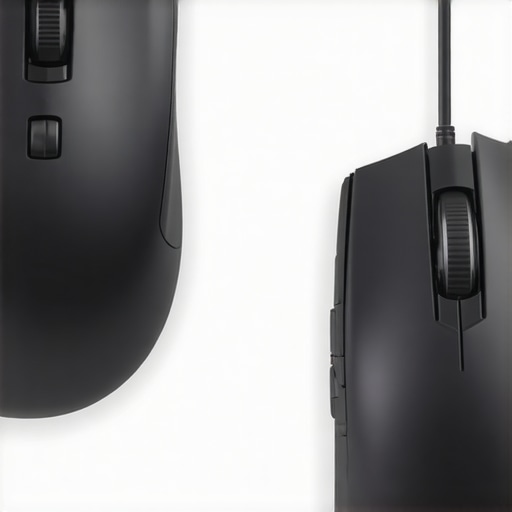
Can a High-Precision Gaming Sensor Actually Save Your Wrist?
It sounds counterintuitive, but the answer is a resounding yes. A 2022 study by researchers at the Human Factors and Ergonomics Society (HFES) found that even minor latency in cursor response—often found in standard office mice—leads to measurable increases in forearm muscle activation. When your brain perceives a disconnect between your hand movement and the cursor’s response, it unconsciously over-tightens your grip to compensate. This ‘micro-tension’ is a leading contributor to chronic strain. By using a gaming mouse with a high-fidelity sensor, you eliminate that cognitive and physical gap, allowing your hand to stay relaxed even during high-stakes data crunching. This is why we often suggest these tools as must-have laptop accessories for a seamless setup in technical fields.
The Polling Rate Trap That Can Lag Your System
However, there is a sophisticated ‘oops’ factor that many advanced users miss when they first make the switch. In the quest for the smoothest experience, you might be tempted to crank your mouse’s polling rate to the maximum 4000Hz or 8000Hz. If you are working on older hardware or haven’t checked how to find out if your laptop can be upgraded, this can actually cause your computer to stutter. High polling rates demand significant CPU resources just to process the position of the mouse. If you have ever felt that your expensive gaming mouse feels laggy, it is likely because your processor is struggling to keep up with the data flood, especially if you are also running heavy Excel macros. Furthermore, connecting these high-performance devices through low-quality peripherals is a recipe for disaster; I have seen many instances where why cheap USB-C hubs might be killing your ports also results in signal degradation that ruins the very precision you paid for. Stick to a stable 1000Hz for the best balance of speed and system stability. Have you ever fallen into this trap where your high-tech gear actually slowed you down? Let me know in the comments.Once you have made the switch to precision gear, the biggest mistake I see people make is neglecting the hardware physical health. It is not just about the internal specs; it is about keeping the interface clean. You would not believe how much skin oils and micro-dust affect the sensor’s accuracy over time. This is exactly why we still carry a microfiber cloth in our laptop bags at all times. A quick wipe of the mouse’s optical sensor and the PTFE feet can restore that ‘glide’ feeling that makes data entry feel effortless. If you allow gunk to build up, you are essentially adding physical lag to your workflow, negating the hundreds of dollars you spent on high-end peripherals.
Stop Letting Grime Destroy Your Productivity
I have seen brilliant analysts working on thousand-dollar setups where the keys were so sticky they had to press twice to register a stroke. Not only is this gross, but it destroys your rhythm. I personally use a dedicated cleaning kit every Friday afternoon to ensure my gear survives the rigors of a sixty-hour work week. Knowing the best way to clean a sticky keyboard without breaking the keys is a fundamental skill for anyone who takes their home office seriously. While you are at it, don’t forget the screen; a smudge-free display reduces eye strain, allowing you to spot those tiny decimal errors that others might miss. 
How do I keep my workstation running like new for years?
The secret to longevity is regular auditing of your hardware’s vitals. If you are using a portable setup, the battery is your most vulnerable point. High-performance mice and laptops generate heat, and heat is the silent killer of lithium-ion cells. I make it a habit to check my system’s health reports monthly. If you are buying secondhand gear to save money, you must know how to verify the battery health of a used laptop purchase before you commit. This proactive approach ensures you are never caught off guard by a dying machine in the middle of a client presentation. For those hunting for unbeatable laptop deals, remember that a ‘great price’ is only great if the internals aren’t already halfway to the graveyard.
Why I Capped My DPI at 3,200 for Reliability
Technical precision requires understanding the limits of your hardware. According to the PixArt PMW3389 technical datasheet, ‘sensor jitter increases exponentially above 16,000 DPI,’ which can lead to micro-stutters in your cursor movement. I have found that for high-resolution 4K monitors, a sweet spot of 3,200 DPI provides the perfect balance of speed and stability. This prevents the cursor from ‘shivering’ when you are trying to grab the corner of a chart in PowerPoint. It is this level of granular control that separates a standard office worker from a power user. Many student laptops that boost productivity and learning can handle these high-end peripherals, but you need to know how to throttle the settings to match your specific screen real estate.
Predictive AI Will Soon Move the Cursor for You
Looking ahead, the next five years will likely see the end of manual DPI switching. I predict we will see ‘context-aware’ sensors that use local AI to determine what you are doing. If the AI detects you are in a spreadsheet, it will automatically smooth out your movements and increase precision; if it sees you are moving windows across a multi-monitor setup, it will boost sensitivity instantly. This neural integration will make our current manual macro mapping look like using a typewriter. For now, however, the best thing you can do is take control of your current tools. I challenge you to open your mouse software right now and map just one repetitive task—like ‘Paste Values’ or ‘Save As’—to a side button. It will feel weird for twenty minutes, but by the end of the day, you will wonder how you ever worked without it.
Lessons From the Data Trenches
Switching to a high-performance mouse wasn’t just about speed; it was about realizing that good enough is usually the enemy of long-term health. One lightbulb moment for me was discovering that high DPI isn’t for moving faster, but for moving less. When your sensor is precise, you don’t have to ‘hunt’ for pixels, which keeps your hand muscles relaxed during those ten-hour spreadsheet marathons. I also realized that looking for must-have laptop accessories to boost your work setup often means looking outside the traditional office aisle.
Build a Workflow That Doesn’t Break Your Hands
To get the most out of your new hardware, you need a supporting cast. I personally swear by these three things: First, a massive desk mat to ensure your mouse feet never hit a rough patch. Second, I highly recommend checking out the case for mechanical keyboards in a home office setup to match your mouse’s responsiveness. Finally, keep your gear pristine; why we still carry a microfiber cloth in our laptop bags is no joke—a clean sensor is a fast sensor. Even the top business laptops for productivity in 2025 will feel sluggish if your peripherals are caked in dust and grime.
The First Step Toward a Pain-Free Career
The transition from a clunky office mouse to a precision-engineered tool is more than just a tech upgrade; it is an investment in your career longevity. Whether you are using student laptops that boost productivity and learning or a high-end workstation, your interface is the only thing standing between your ideas and the screen. Don’t let a sub-par mouse be the bottleneck that causes you pain. Which repetitive Excel task are you planning to map to your thumb buttons first? Let me know in the comments below!