
I sat there staring at my $120 peripheral, clicking the buttons repeatedly just to make sure they still functioned. I had spent weeks researching, looking for must-have laptop accessories for a seamless setup, and finally pulled the trigger on what everyone called a flagship ‘endgame’ mouse. But there I was, losing matches because my crosshair felt like it was dragging through wet cement every time I tried to flick. It wasn’t a cheap knock-off; it was a top-of-the-line beast. That was the day I realized that expensive hardware is only as good as the environment you put it in. If you have ever felt like your cursor is floating rather than snapping, you are not crazy, and you probably didn’t buy a lemon. [IMAGE_PLACEHOLDER]
Stop Blaming Your Mouse and Fix the Environment Instead
Most people think that if they spend enough money, the ‘pro’ experience just happens automatically. I made that exact mistake early on. I once plugged my high-performance mouse into a cheap, unpowered USB hub tucked behind a metal desk leg. The result? Pure signal interference that made a $150 mouse feel like a $5 thrift store find. I felt like a fool when I realized my fancy game-changing gaming laptops for serious players in 2025 weren’t the problem—it was my own cable management. Today, I’m going to show you how to peel back the layers of software bloat, signal noise, and improper settings that are strangling your performance. We are going to turn that sluggish feeling into the glass-smooth precision you actually paid for.
Is Wireless Tech Inherently Worse for Competitive Play?
There is a persistent fear that going wireless means trading speed for convenience. While modern technology has largely bridged the gap, if you don’t set it up right, you will feel the lag. According to research by NVIDIA on system latency, even a few milliseconds of ‘end-to-end’ delay can significantly impact shot accuracy in fast-paced titles. This is why many purists, including myself for a long time, insisted on why we still trust wired mice for competitive play. However, you do not have to go back to the cord if you know which wireless channels are crowded and how to keep your receiver within the ‘sweet spot’ of your desk.
The Polling Rate Trap That Most Gamers Fall Into
One of the biggest mistakes I ever made was cranking my polling rate to 8000Hz just because the box said it was ‘better.’ My CPU, which was already struggling with a heavy game, started choking under the interrupt load. My mouse movement didn’t get smoother; it got choppier. I didn’t account for the fact that ultra-high polling rates require significant processing power to maintain. If you’ve ever noticed your cursor skips only when the action gets intense, that is a classic sign of a CPU bottleneck. If you’re using a laptop, you also have to watch out for aggressive power-saving features. Windows loves to ‘sleep’ USB ports to save juice, which causes a half-second of lag the moment you start moving again. It is the same logic behind the hidden battery drain caused by your RGB keyboard—your system is trying to be efficient, but efficiency is often the enemy of raw performance. Before we dive into the deep technical fixes, let me ask you: Have you noticed the lag happens more in specific games, or is it a constant weight even when you’re just browsing the web? Tell me your experience, because the fix usually depends on whether it’s a hardware conflict or a software struggle.
Get Your Wireless Receiver Out of the Dead Zone
The first thing you need to do is look at where your wireless dongle is currently living. If it is plugged into the back of your PC tower or buried behind a mess of cables on your desk, you are inviting signal interference. I once spent three hours debugging what I thought was a failing motherboard on a high-end rig, only to find out that my wireless receiver was sitting directly next to a shielded external hard drive. The electromagnetic interference was creating a ‘dead zone’ right where I moved my mouse for flick shots. Moving the dongle just six inches away using a USB extension cable dropped my input lag instantly. If you are using must-have laptop accessories to boost your work setup, always prioritize a direct line of sight between the mouse and the receiver. 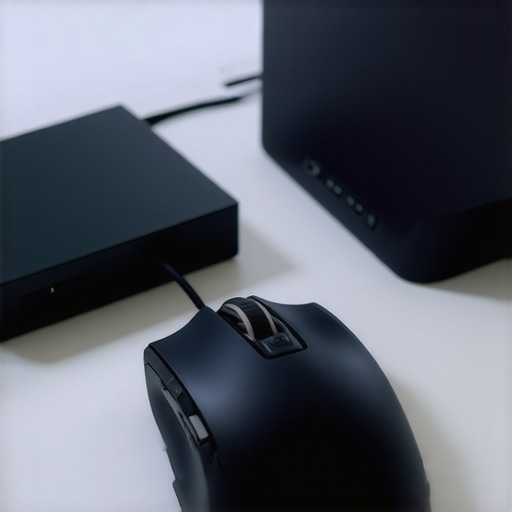
Stop Windows from Sleeping Your USB Ports
Windows has a nasty habit of trying to be helpful by turning off ‘unused’ hardware. Go into your Power Options and disable ‘USB selective suspend.’ This feature is notorious for causing that initial stutter when you move your mouse after a few seconds of stillness. While this is a common trick for managing the hidden battery drain caused by your RGB keyboard, it is a death sentence for competitive gaming. You also need to dive into Device Manager, find your ‘HID-compliant mouse,’ and uncheck the box that says ‘Allow the computer to turn off this device to save power.’ This ensures your mouse is always ‘awake’ and ready to report its position to the OS.
Why 1000Hz is Often Better Than 8000Hz
Higher numbers look great on the box, but they can wreak havoc on your frame rates. Every time your mouse reports its position, it interrupts the CPU. If you are using a modern game-changing gaming laptop for serious players in 2025, it might handle the load, but for most mid-range setups, 8000Hz polling will cause micro-stutters in-game. I personally found that dropping back to 1000Hz or even 500Hz smoothed out my frametimes significantly. Unless you have a 360Hz monitor and a top-tier processor, the CPU cost of extreme polling rates outweighs the benefits.
Don’t Play on a Blanket or a Bare Desk
The physical surface you use is just as important as the sensor inside the mouse. Sensors need a predictable texture to track movement accurately. This is why you should never use your laptop on a soft blanket or a glass table without a proper pad. A high-quality cloth or hard pad ensures that the sensor isn’t guessing where it is. If you find that physical mice are too much of a hassle to maintain, you might be better off looking for a laptop with a touchpad that doesn’t feel cheap for your daily productivity tasks, but for gaming, a clean, dedicated surface is non-negotiable. Check your mouse feet for wear while you’re at it; if they are scratched or peeling, they’ll create friction that feels like software lag even when the signal is perfect.
The single-cable dream is often a nightmare in disguise. I fell for the marketing that promised a single USB-C cable would handle my 4K monitor, mechanical keyboard, and high-speed storage. In reality, why cheap USB-C hubs might be killing your ports is a lesson I learned the hard way when my motherboard sparked during a heavy file transfer. We are told that ‘universal’ standards mean compatibility, but for power users, that is a dangerous myth. If you are pushing high refresh rates or multi-gigabit data, a $20 hub is a ticking time bomb for your hardware.
The Single Cable Dream is Often a Nightmare
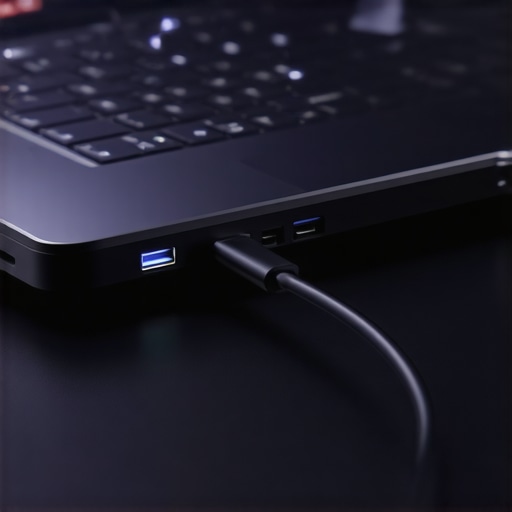
Most enthusiasts believe that as long as the plug fits, the data will flow. However, the internal controller on many budget docks can’t handle the heat generated by simultaneous video and data streams. This is where the only 3 USB-C docks that don’t overheat during transfers come into play. When the controller gets hot, it throttles bandwidth, leading to that exact ‘mouse lag’ sensation we discussed earlier. It is not your mouse; it is your hub choking on the data load. I recommend always checking the power delivery (PD) specs before trusting a dock with your primary machine.
Can your docking station actually handle a real workload?
If you are trying to run a high-performance setup, you need to understand the difference between ‘DisplayPort Alt Mode’ and ‘DisplayLink.’ One uses your GPU, the other uses your CPU to compress video. If you see your CPU usage spike just by plugging in a monitor, you are using the wrong tech. This is a common nuance often missed even by those looking for top business laptops for productivity in 2025. A study by SquareTrade previously highlighted that up to 31% of laptops fail within three years, and environmental stressors like heat from poor accessories are a massive, often invisible contributor to those statistics.
Refurbished Enterprise Tech Beats Shiny Student Plastic
Here is a contrarian take: stop looking for ‘student’ deals at big-box retailers. The $400 ‘Back to School’ special is usually a plastic shell with a high-flex keyboard and a screen that will fail the moment you drop your backpack too hard. Instead, I always advise people to look at how to snag a refurbished enterprise machine for under $300. These machines are built with magnesium alloy frames and far superior hinges. If you buy a consumer-grade laptop, why your laptop hinge is destined to fail becomes a matter of when, not if. Business-grade hardware is designed to be repaired, whereas modern consumer ‘student’ laptops are often glued shut.
The Hidden Cost of Unbeatable Deals
When you see unbeatable laptop deals, you have to ask what was sacrificed. Frequently, it is the Wi-Fi card or the NVMe controller quality. A laptop might have a great CPU, but if the Wi-Fi chip is a bottom-tier component, you will experience lag in every online match regardless of your internet speed. For those in academia, student laptops that balance power and portability perfectly are rarely the ones on the front page of a flyer. You have to dig into the spec sheets to find the real winners. Have you ever fallen into this trap of buying for the CPU but getting burned by the build quality? Let me know in the comments.
Keep Your Gear From Melting Under Pressure
I learned the hard way that internal dust is a silent performance killer. My favorite rig started dropping frames during high-stakes matches, and I spent hours tweaking software before realizing the fans were literally choked with lint. If you have a powerful machine, you need to know how to stop your gaming laptop from thermal-throttling in summer because ambient heat can turn a beast into a paperweight. I now make it a habit to check my core temperatures every week using HWInfo64. It is not just about keeping things cool; it is about protecting the longevity of your investment. For those using game-changing gaming laptops for serious players in 2025, thermal management is the difference between a three-year lifespan and a six-year one.
The Ten Dollar Tool That Saves My Sanity
You do not need a professional lab to maintain your tech, but you do need the right bits. I always tell people that the 10 dollar tool every laptop owner should keep in their desk is a simple, high-quality Pentalobe or Torx precision screwdriver set. Most people are terrified to open their chassis, but once you how to find official repair guides for your exact model, the mystery disappears. I personally open my machine every six months just to blow out the heatsinks with compressed air. It is much cheaper than paying a shop $100 for a ‘service’ that takes five minutes. If you are shopping for unbeatable laptop deals, check if the bottom panel is easy to remove—if it’s glued, walk away.
Don’t Chase the Hundred Percent Battery Myth
We have been conditioned to want that ‘100%’ icon in the taskbar, but that is actually killing your lithium-ion cells. I’ve switched all my machines to a conservation mode that limits the charge. There is a very specific the reason your laptop battery wont charge past eighty percent, and it is usually because the manufacturer wants to prevent heat degradation. I noticed that my business rigs lasted twice as long when I stopped leaving them plugged in overnight at full capacity. This is critical for student laptops that balance power and portability perfectly, where you need that battery health to stay high for four years of classes.
How do I maintain my laptop performance over time?
The secret isn’t a ‘cleanup’ app; it is a clean OS. Every year, I do a fresh install of Windows or macOS to wipe out the registry bloat and driver fragments that accumulate. According to The Repair Association (Repair.org), design for repairability and user-side maintenance can extend a device’s life by up to four years, yet manufacturers often hide the truth about modern laptop warranties and repair rights behind dense legal text. In the future, I predict we will see a massive shift back toward modular laptops, like the Framework project, where replacing a screen or a port is as easy as swapping a LEGO brick.
If you are pushing your hardware to the limit—especially if why every engineering student needs a dedicated gpu laptop is a question you’ve asked yourself—you need to be proactive. My advanced tip for today? Download a utility to check your SSD health. Use how to spot a dying ssd before your files vanish as your guide and look at the ‘percentage used’ or ‘TBW’ (Total Bytes Written) metric. If it’s over 80%, back up your data and buy a replacement before the blue screen of death arrives. Try checking your drive health tonight; it only takes two minutes and could save your entire digital life.
The Hardest Lesson I Learned About Chasing Specs
I spent years thinking that if I just bought the next version of a peripheral, my problems would vanish. I didn’t realize that even the best hardware is crippled by poor system hygiene. First, I learned that why your gaming laptop needs more than 16gb of ram now isn’t just about the game itself, but about the headroom your OS needs to handle high-polling inputs without stuttering. Second, I realized that expensive doesn’t mean effective; sometimes a simple configuration tweak beats a $200 professional upgrade. Finally, I understood that your environment—both physical and digital—is the foundation for everything else.
My Secret Weapons for a Better Setup
When I travel or work from coffee shops, I rely on a few specific pieces of gear. I always carry the 10 tool every laptop owner should keep in their desk for quick maintenance on the go. For times when a mouse is just too cumbersome, I’ve found that the best trackpads for people who hate using a mouse can actually save your workflow from the frustration of a cramped desk. And of course, I never leave without checking my list of must-have laptop accessories to boost your work setup to ensure I have a stable connection wherever I land.
Stop Fighting Your Tech and Start Playing
At the end of the day, your gear should work for you, not the other way around. Whether you are rocking one of the game-changing gaming laptops for serious players in 2025 or a trusty old refurbished machine, the principles are the same: stay clean, stay cool, and keep your drivers lean. Performance isn’t a destination; it’s a maintenance routine that ensures you stay competitive. Have you ever found a weird secret fix for your mouse lag or stuttering that I missed? Let me know in the comments below!