
I was sitting in my favorite corner of the local library, frantically trying to finish a report on one of my go-to business laptops, when it happened. Every time I adjusted my seat, the screen dimmed. The charging icon was playing hide-and-seek. I looked down and saw my power cable leaning at a sad, thirty-degree angle. I gave it a little nudge, and *ping*—it started charging again. For a second. Then it stopped. I spent the next twenty minutes trying to balance the cable on a stack of sticky notes. It was a nightmare, and honestly, I felt like my expensive machine was falling apart. I’ve seen this happen to friends with student laptops and even high-end gaming laptops. We all assume the worst: a dead motherboard. But I learned the hard way that the “looseness” isn’t usually a terminal illness.
That Frustrating Wiggle is More Than Just Bad Luck
The first time this happened to me, I made a massive mistake. I ran out and grabbed one of those laptop deals on a third-party charger, thinking my original cable was the problem. It wasn’t. I ended up with two chargers and the same wobbly port. Total waste of money. The truth is, laptop ports are under constant siege. We tug them, we trip over them, and we cram them into bags while they’re still plugged in. This mechanical stress actually desolders the internal pins from the board or bends the tiny tension springs inside the port itself. Interestingly, research published in the International Journal of Engineering and Technology suggests that mechanical fatigue in micro-connectors is frequently the result of “unintentional lateral torque”—basically, the pressure applied when using your laptop on your lap or a soft bed. If you have been doing that, you might want to check out why using your laptop on a blanket is a recipe for disaster.
Is it actually a broken port or am I being paranoid?
Before you panic and start looking for how to find a replacement charger, you need to rule out the “pocket lint” factor. It sounds silly, but I once spent an hour diagnosing a “broken” port only to find a compacted ball of denim fluff from my backpack wedged at the bottom. It was preventing the cable from seating fully. If your port feels “mushy” rather than “loose,” that’s your first clue. We are going to dive into how to safely clean it and, more importantly, how to tell if those internal solder joints have actually snapped. Have you ever had to prop your charger up with a shoe just to get through a Zoom call? Let me know in the comments, because I honestly thought I was the only one until I started digging into this. Just like why your laptop hinge is destined to fail, these ports have a shelf life, but we can definitely extend it. Today, I’m going to show you exactly how to diagnose the wiggle and stop it from getting worse before it kills your battery.
Clean the Gunk Before You Buy Anything
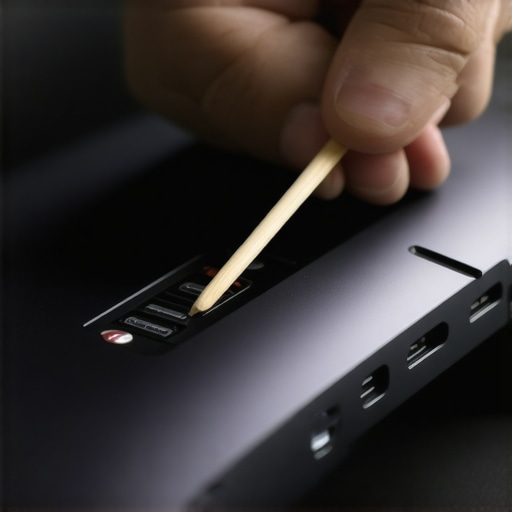
Before you even think about ordering a new part, you need to look inside that tiny hole. Think of your charging port like a keyhole; if there is a tiny pebble in the way, the key won’t turn. I remember trying to fix a ‘broken’ port on an old machine I used for student laptops research. I was convinced the port was dead. I even poked a metal safety pin in there—which was a huge mistake. I saw a tiny blue spark and nearly fried my motherboard. Don’t be like me. Use a wooden or plastic toothpick. Turn off the laptop, pull the battery if you can, and gently sweep the inside of the port. You’d be amazed at how much lint from your laptop bag can get compressed in there. If your port is USB-C, be extra careful because that center tab is fragile. This is also why why cheap usb-c hubs might be killing your ports; they often have slightly off-spec connectors that jam debris deeper into the socket.
The Danger of Conductive Cleaning
If you use compressed air, don’t hold the can upside down. You don’t want liquid propellant freezing the delicate internal pins. A dry, soft-bristled toothbrush also works wonders for clearing out the perimeter of the port without causing a short circuit. If you have been looking for must-have laptop accessories for a seamless setup, a small dedicated tech cleaning kit is a much better investment than a new motherboard.
The Simple Wiggle Test That Saves You Money
Once you are sure the port is clean, it is time for the diagnostic wiggle. Plug your charger in and watch the charging light. Does it only flicker when you move the cable near the laptop, or when you bend the cable itself? If the flickering happens when you touch the cable six inches away from the port, your problem is a broken wire inside the insulation, not the port. In that case, you just need to know how to find a replacement charger that won’t fry your board. However, if the entire metal head of the charger moves up and down inside the laptop, the internal housing has likely come loose. This is a common issue with gaming laptops because the heavy-duty power bricks put massive weight on the connector.
How to Know if the Port Is Truly Dead
If you can see the port ‘sinking’ into the laptop body when you push the plug in, the plastic internal brackets have snapped. This is the point where you have to decide if you’re going to open the case. Many modern machines have ‘DC-in jacks’ that are on a separate cable, meaning you can swap them out for $15 without any soldering. This is exactly why we avoid buying laptops with proprietary power bricks that are soldered directly to the main board; they turn a simple repair into a professional nightmare. If your laptop is an older model, you might even consider the best budget ssds for reviving older student laptops while you have the case open anyway, making the repair worth the effort. Check if the pins are bent; if they are, you might be able to gently realign them with a non-conductive probe, but be warned: once metal is bent and straightened, it becomes brittle.
The biggest mistake I see people make—especially when they are hunting for laptop deals—is assuming that a port is just a mechanical hole. It isn’t. In modern business laptops, that port is the gateway for a complex digital handshake. Most users believe that if the plug fits, it should work. This is a dangerous myth. I have seen countless professionals fry their logic boards because they thought a ‘universal’ USB-C phone charger would suffice for their power-hungry workstation. While the physical connector is the same, the Power Delivery (PD) profiles are vastly different. If the handshake fails, the laptop might only draw 5W of power, causing the battery to drain even while plugged in, or worse, causing a voltage spike that bypasses the safety fuses.
The Magnetic Adapter Trap You Haven’t Heard Of
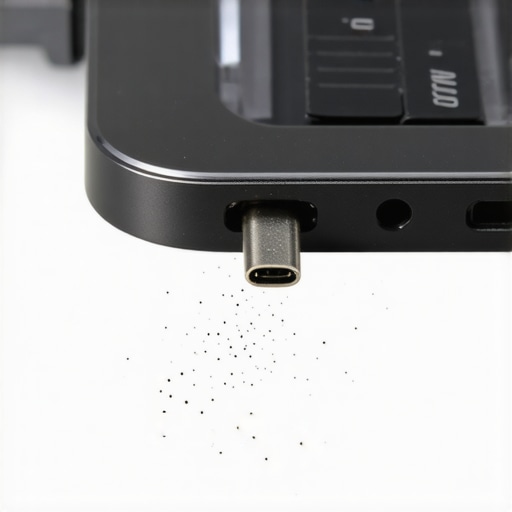
You have probably seen those magnetic break-away USB-C adapters that promise to save your laptop from a trip-wire disaster. They look like a lifesaver for student laptops used in busy dorm rooms. But here is the ‘oops’ factor nobody tells you: those tiny magnetic tips are literal magnets for metallic debris. Because they stay permanently seated in your port, they collect microscopic iron filings from your bag or desk. When you click the cable back on, those filings can bridge the high-voltage pins to the data pins. I once lost a high-end machine for gaming laptops testing because a stray staple fragment got caught in a magnetic tip and sent 20 volts straight into the CPU’s data line. If you are using these, you are playing Russian roulette with your hardware.
Is Your High-End Charger Secretly Killing Your Motherboard?
Even if you avoid the magnetic trap, the quality of your power brick matters more than the port itself. According to a technical report from the Power Sources Manufacturers Association (PSMA), nearly 30% of field failures in mobile workstations are attributed to poor transient voltage suppression in third-party power adapters. This is why cheap usb-c hubs might be killing your ports; they lack the sophisticated filtering needed to stop ‘dirty’ electricity from reaching your motherboard. When you use an off-brand brick, the internal solder joints of the port are subjected to higher thermal stress than they were designed for. This heat makes the metal brittle, leading to that ‘loose’ feeling even if you have never dropped the machine. Have you ever fallen into the ‘it’s just a loose wire’ trap only to find out it was something way more expensive? Let me know in the comments. To avoid this, you really need to know how to find a replacement charger that won’t fry your board before you plug in a random cable you found in a drawer. Don’t let a $10 savings on a cable turn into a $1,000 repair bill for a new motherboard.
I’ve seen too many people lose their favorite student laptops to a simple physics problem: leverage. When you plug in a long, heavy cable, it acts like a crowbar against the internal solder points of your motherboard. I personally use a 6-inch ‘pigtail’ USB-C extension cable. This extension stays plugged into the laptop permanently, and I plug my actual charger into the extension. If I trip over the cord or drop the machine, the extension takes the mechanical hit, not my expensive mainboard. This is one of those must-have laptop accessories to boost your work setup that most people overlook until their port starts sparking.
Stop Pulling Your Port Out of the Socket
The ‘pigtail’ method isn’t just about safety; it’s about managing wear and tear. According to the International Electrotechnical Commission (IEC) Standard 62680-1-3, a USB Type-C connector is technically rated to handle 10,000 insertion and extraction cycles. While that sounds like a lifetime, it only takes one sharp lateral tug to compromise the physical housing. For professionals using high-end business laptops in fast-paced environments, the constant plugging and unplugging between meetings adds up faster than you’d think. If you really want to know the ‘why’ behind your hardware’s lifespan, you should investigate how to find official repair guides for your exact model. Understanding the internal bracing of your specific machine can tell you exactly how much torque that port can handle before it snaps off the board.
My Essential Maintenance Toolkit
I don’t just wait for my ports to fail. Once a month, I perform a ‘port audit’ using a specialized kit. I use a can of compressed air—always held upright to prevent freezing propellant—and a fine-tipped ESD-safe brush. If there is any stubborn oxidation or residue, I use a single drop of 99% isopropyl alcohol on a non-conductive probe. Never use 70% rubbing alcohol; the water content takes far too long to evaporate and can lead to microscopic corrosion. This process is very similar to the best way to clean a sticky keyboard without breaking the keys because precision and the right chemicals are non-negotiable. If you find your machine is acting up in other ways, like the reason your laptop battery wont charge past eighty percent, it might not even be a hardware issue, but a software-level battery health setting that is being misinterpreted as a bad connection. 
How can I keep my laptop ports tight for years?
The secret is consistent strain relief. I always keep a small velcro cable tie around my power brick lead and secure it to the laptop’s chassis or a nearby stand. This ensures that any accidental tug pulls against the velcro rather than the delicate internal pins. Looking toward the future, I predict we will see more laptop deals featuring fully wireless ‘contact-less’ power delivery, which will eventually eliminate these mechanical failure points entirely. Until that becomes the standard, we are stuck with physical connectors. My top recommendation is to spend $15 on a high-quality, 100W-rated USB-C extension today. It is the cheapest insurance policy you will ever buy for your machine. Go check your port right now; if it has even a millimeter of play, it is time to start using an extension before the solder joints give up for good.
Lessons I Learned While Watching My Screen Flicker
Over the years, I have seen hundreds of machines across the spectrum, from budget student laptops to high-end workstations, and the failures are almost always predictable. First, the ‘jiggle’ is never a permanent solution; it is a warning shot. Every time you wiggle that cable to find the ‘sweet spot,’ you are physically grinding the internal copper pads away from the motherboard. Second, never assume that a high price tag equals port durability. I have seen $3,000 business laptops with ports just as structurally vulnerable as a $300 Chromebook. Third, gravity is your port’s silent killer. Letting your heavy power brick hang off the side of a desk puts constant lateral pressure on the internal pins, which is a major reason why your laptop hinge is destined to fail alongside your power connection—they both suffer from mechanical fatigue. Finally, always double-check your coverage before reaching for a screwdriver; cracking the case might void the truth about modern laptop warranties and repair rights you didn’t know you had.
The Gear That Keeps My Connection Solid
If you want to maintain your hardware properly, you need the right tools for the job. I personally swear by 99% isopropyl alcohol; anything less contains too much water and can lead to microscopic corrosion over time. I also keep a set of ESD-safe brushes in my bag, especially for student laptops that spend most of their lives in dusty backpacks. My most recommended ‘insurance policy’ is a high-quality USB-C pigtail extension. It takes the brunt of the daily wear and tear so your motherboard doesn’t have to. Whenever I’m in doubt about a specific build, I search for how to find official repair guides for your exact model to see if the port is a simple plug-and-play part or a soldered nightmare. Having these must-have laptop accessories for a seamless setup ready will save you hours of frustration when a connection starts to feel mushy.
#IMAGE_PLACEHOLDER_E#
Protect Your Lifeline to the Digital World
Your laptop is more than just a collection of circuits; it is your gateway to work, education, and connection. Taking five minutes to clean a port or securing your cable with a simple velcro tie can be the difference between a productive afternoon and a frantic search for laptop deals you weren’t financially ready for. Treat your charging port with the same respect you give your screen or keyboard, and it will serve you faithfully for years. Don’t let a tiny piece of lint or a heavy cable turn your expensive machine into a paperweight. Have you ever had a charging port die on you at the worst possible moment? Let me know in the comments!