
I’ll never forget the smell of slightly toasted electronics. It was a Tuesday night, and my trusty gaming laptop was practically vibrating on my desk. The fans were spinning so fast I thought the thing might actually achieve liftoff. I touched the chassis and nearly burned my fingertips. That’s the moment I realized the silent killer—dust—had moved in and started paying rent. But here was the catch: I am not a technician. The thought of unscrewing those tiny, fragile screws and staring at a motherboard made my palms sweat. I didn’t want to break it; I just wanted it to stop sounding like a leaf blower. If you’ve ever looked at your expensive business machine and wondered why it is suddenly sluggish, you aren’t alone. Today, I am going to show you exactly how I reclaimed my performance without ever touching a screwdriver.
Stop Your Laptop From Choking on Dust Bunnies
The truth is, most of us wait far too long to maintain our gear. We buy premium laptop accessories and high-speed drives, but we ignore the literal dirt clogging the vents. Early on, I made a massive mistake: I grabbed my powerful upright vacuum and tried to suck the dust through the keyboard. Not only did it do nothing for the internal heatsink, but the static electricity nearly fried my board. You can read more about why you should never use a vacuum on your keyboard here. It is a common blunder that can turn a two-thousand-dollar investment into a paperweight. Research actually shows that dust is a leading cause of hardware failure; a report by the thermal management experts at Electronics Cooling notes that even a thin layer of dust can significantly increase thermal resistance and trap heat inside sensitive components.
Is Blowing Air into the Vents Just Pushing Dust Further In?
This is the biggest fear I hear from my neighbors and friends. They worry that using compressed air will just pack the carpet of dust tighter against the fan blades. While that is a valid concern if you do it wrong, there is a specific technique—a short-burst method—that actually coaxes the debris out through the exhaust. We are not just blasting blindly. We are strategically dislodging. This is especially crucial for those of us who tend to use our machines in less-than-ideal spots, like when we are trying to stop a laptop from overheating on a bed. Have you noticed your laptop getting uncomfortably hot lately? If so, you are exactly where I was six months ago. We are going to walk through the No-Entry cleaning method that saves your warranty and your sanity. By the time we are done, you will know how to lower your fan noise in seconds using nothing more than a can of air and a little bit of patience. Let us get that airflow back to factory standards.
Power Down Before You Start
I’ve learned the hard way that you don’t need to be a surgeon to perform a deep clean, but you do need to respect the hardware. Think of your laptop’s cooling system like a set of lungs. If the heat pipes are covered in gunk, the CPU has to work twice as hard just to stay alive. Before you even touch a can of air, shut the machine down completely. Do not just put it in ‘Sleep’ mode. You want those fans stationary and the electrical current at a minimum. If you are working on high-performance game-changing gaming laptops for 2025 adventures, this is non-negotiable. Static and moving parts are a recipe for disaster. Once the screen is black, unplug every single accessory. If you are using one of the only laptop stands that don’t shake while you type, remove the device from the stand and place it on a flat, non-carpeted surface. This prevents any stray fibers from being sucked in while you are trying to push the old ones out.
Master the Three-Second Burst Technique
Here is where most people go wrong. They treat a can of compressed air like a garden hose, holding the trigger down until the can turns freezing cold. I did exactly this with my first high-end rig. The fan inside started spinning at a speed it was never designed for, emitting a high-pitched whine that sounded like a jet engine about to explode. I genuinely thought I had snapped the bearings. Instead, use short, sharp one-to-two-second bursts. This provides enough pressure to dislodge the ‘carpet’ of dust without over-spinning the delicate fan blades. Aim the nozzle at an angle into the intake vents—usually found on the bottom or sides—to break the dust loose, then blast the exhaust vents to clear the exit path. This is one of the best ways to cool your laptop without a bulky pad, as it restores the factory-intended thermal path.

Clear Out the Keyboard and Ports
Once the vents are clear, the dust hasn’t just disappeared; much of it has likely migrated under your keys or into your USB slots. For the keyboard, tilt the laptop at a 75-degree angle. Spray the air in a zig-zag pattern across the keys. If you have been snacking while working, you might need to look into the best way to clean a sticky keyboard without breaking the keys for the more stubborn debris. This step is vital because dust in the keyboard eventually falls through the chassis and right back into the fans you just cleaned. Move to the ports next. A quick blast into the USB and charging ports can prevent that annoying ‘loose connection’ feeling. Even the most robust business laptops for professionals can suffer from port failure simply because a tiny lint ball is blocking the pins.
Wipe Away the Residual Grime
The final step is managing the surface dust that settled during the process. This is how to lower your gaming laptop fan noise in seconds permanently—by ensuring the intake area stays pristine. Use a dry, high-quality cloth to wipe the exterior. This is why we still carry a microfiber cloth in our laptop bags at all times. Avoid paper towels, as they shed their own fibers and can scratch those expensive screens. Focus on the area around the hinges and the base of the screen, where dust loves to hide. By following this No-Entry method once a month, you maintain the internal airflow without ever risking the delicate ribbon cables or stripping those tiny screws that hold the bottom panel in place.
While blowing out the dust is a massive first step, there is a nuance to thermal management that most people miss. We often assume that as long as the vents are clear, the machine should run like new. But here is the contrarian truth: a clean laptop can still overheat if you are relying on the wrong ‘solutions.’ For instance, many people rush to buy the best ways to cool your laptop without a bulky pad because they realize that external fans are often just a band-aid. If your internal thermal interface is failing, you are essentially trying to cool a furnace by blowing a desk fan at the brick exterior. It just doesn’t work.
Why Your Specs Might Be Lying to You
The biggest trap I see people fall into when hunting for top laptop deals in 2025 is looking only at the CPU and GPU names. You see an ‘i9’ or an ‘RTX 4080’ and assume it will scream. However, the ‘oops’ factor here is the Total Graphics Power (TGP) and the chassis thickness. Manufacturers often throttle these powerful components in slim designs to prevent them from melting. This is the hidden downside of ultra-thin gaming laptops—you are paying for premium silicon that can only run at 60% of its potential because the cooling system can’t keep up. Real expertise means looking at the wattage, not just the sticker on the palm rest.
Is Your Factory Thermal Paste Actually Holding You Back?
This is a question for those who want to go beyond the compressed air. Even on game-changing gaming laptops for serious players in 2025, the factory-applied thermal paste is often applied by a machine in a ‘one-size-fits-all’ manner. Over time, this paste can dry out or suffer from ‘pump-out,’ a phenomenon where thermal expansion and contraction literally push the paste away from the center of the chip. A study published in the Journal of Electronic Packaging highlights that the degradation of thermal interface materials can increase operating temperatures by as much as 10 to 15 degrees Celsius over a few years of heavy use. That is why some enthusiasts find that why we swapped the thermal paste on our brand new laptop resulted in a more stable machine than any external cleaning could provide.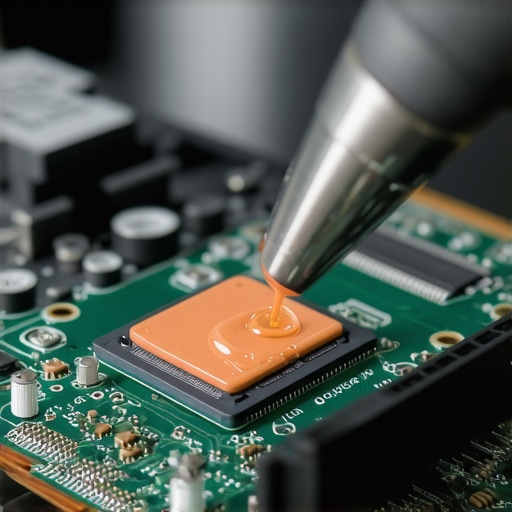
Avoid the Cheap Hub Trap
Another advanced mistake involves the accessories we use. We spend thousands on top business laptops for productivity in 2025 and then plug in a ten-dollar adapter. I’ve seen countless ports ruined because of why cheap usb-c hubs might be killing your ports through poor voltage regulation and heat transfer back into the motherboard. If the hub feels like it’s burning your hand, it’s sending that heat directly into your laptop’s logic board. Always prioritize quality over a bargain when it comes to power delivery. Have you ever fallen into this trap or noticed your ‘high-spec’ laptop underperforming? Let me know in the comments.
The Software Dashboard Every Power User Needs
I personally never trust the Windows battery icon or the standard task manager—they are often the last to know when something is actually wrong. To really stay ahead of the curve, I rely on HWInfo64. It is the gold standard for monitoring sensors in real-time. I use it to keep a hawk-eye on the ‘Battery Wear Level’ and the specific junction temperatures of my GPU. If you see your wear level jumping by more than 5% in a single month, you need to investigate how to find a replacement charger that wont fry your board, as inconsistent voltage is a silent battery killer. Similarly, I use CrystalDiskInfo to monitor the health of my storage; it is the only way to spot a dying SSD before your files vanish into the digital ether. Most people wait for a blue screen to take action, but with these tools, I can see a hardware failure coming months before it actually happens.
How do I keep my battery healthy for the long haul?
This is the question I get asked most by friends who just picked up student laptops that balance power and portability perfectly. The secret isn’t a magic app; it’s a charging habit. I always enable ‘Battery Conservation Mode’ in the BIOS or manufacturer software. This is the reason your laptop battery won’t charge past eighty percent, and it is a lifesaver. According to the technical experts at Battery University, a Lithium-ion battery charged to only 80% of its capacity can endure significantly more discharge cycles than one constantly pushed to 100%. If you keep your machine plugged in at your desk all day without this limit, you are essentially slow-cooking the cells. You should also regularly check the chassis for any bulging, as learning how to tell if your laptop battery is swelling before it bursts is a critical safety skill that every portable user needs.

Why Your Next Laptop Will Manage Its Own Thermals
Looking toward the future, I predict we are moving away from manual fan control and toward AI-driven thermal architectures. We are already seeing the first wave of this in game-changing gaming laptops for serious players in 2025, where machine learning models predict heat spikes based on in-game telemetry and ramp up cooling before the temperature actually rises. This ‘predictive cooling’ will eventually filter down to even the most affordable unbeatable laptop deals, making the dreaded ‘thermal throttling’ a thing of the past. However, even with AI, the physical hardware still matters. This is why I always prioritize the only 3 brands that still make easily repairable laptps. No matter how smart the software gets, you still need to be able to swap out a fan or a battery without a degree in engineering. If you really want to stay ahead of the game, I challenge you to download a sensor monitor today and check your current battery wear level—you might be surprised by what you find.
The Hardest Lesson I Learned About Keeping My Laptop Alive
After years of troubleshooting everything from student laptops that balance power and portability perfectly to high-end workstations, I realized that maintenance is 90% environment and 10% effort. If you live with pets or use your device in a dusty workshop, ‘once a month’ isn’t a suggestion; it’s a survival requirement. I’ve seen machines where the ‘digital dust’—background apps and bloatware—was just as heavy as the physical stuff. Most importantly, I learned to look for the only 4 brands we trust for rugged build quality when I know a laptop is going to live a hard life. It is much easier to maintain a machine designed for it than one that’s glued shut.
My Essential Toolkit for Peak Performance
If you want to move beyond the occasional blast of air, you need a reliable set of references and tools. First, stop guessing about repairs and how to find official repair guides for your exact model. I never open a chassis without the manufacturer’s manual on a second screen. For those hunting for upgrades or replacements, I swear by the hidden price history tools every deal hunter needs to ensure I’m not overpaying for parts. Finally, for the students in the audience, knowing how to pick a student laptop that lasts all four years starts with looking at the hinge design and port placement, not just the flashy specs.
Your Path to a Machine That Lasts
Your laptop shouldn’t be a source of anxiety. Whether you are rocking one of the latest game-changing gaming laptops for serious players in 2025 or a reliable second-hand find, a little respect for the hardware goes a long way. Don’t wait for the fans to scream or the frame rates to drop. Set a recurring reminder on your calendar, grab your microfiber cloth, and give your tech the breathing room it deserves. When you take care of your gear, it takes care of you. Have you ever opened up your laptop only to find a ‘carpet’ of dust inside, or do you keep things pristine? Let me know in the comments below!