
I was thirty minutes into the most important pitch of my life. My boss was there, the client was nodding, and then came the dreaded words: “Hey, we’re getting a lot of static from your end, can you repeat that?” I looked down at my expensive machine and felt a wave of heat hit my face. I sounded like I was broadcasting from inside a jet engine. It wasn’t the Wi-Fi, and it wasn’t a broken component; it was simply that I hadn’t tuned my hardware for the room. I spent months thinking my hardware was the problem, when really, it was just poor optimization and a few bad habits I’d picked up. [image placeholder]
My Most Embarrassing Zoom Fail and What It Taught Me
The truth is, most built-in laptop mics are an afterthought for manufacturers. Even on top-tier business laptops for professionals, the microphone is usually a tiny $2 component tucked right next to a noisy cooling fan. I made the classic mistake of thinking a fancy name-brand headset would solve everything, but I quickly realized why most gaming headsets are just overpriced plastic. They didn’t fix the echo or the background hum; they just added a bulky wire to my desk. Today, I’m going to show you exactly how to bypass those hardware limitations. We are going to strip away the digital mud and make you sound like you’re sitting in a soundproof booth, even if you’re actually at a kitchen table. We will cover everything from gain staging to the secret software filters that clean up your audio in real-time.
Is it actually possible to make a built-in mic sound good?
I get it. You’ve probably tried adjusting the volume slider in Windows and ended up with more static than voice. You might think your only option is to buy expensive must-have laptop accessories. While an external mic helps, you can achieve 80% of that quality just by tweaking your environment. According to research by the Audio Engineering Society, the Signal-to-Noise Ratio (SNR) is the single most important factor in perceived voice clarity, and that’s something you can control without spending a dime. Have you ever been told you sound like a robot during a call, even when your internet was perfect? Let me know, because that’s usually the first sign your software is over-processing your voice and needs a manual touch.
Stop Letting Your Software Muffle Your Natural Tone
We often let Windows or macOS “enhance” our audio automatically, but these features frequently do more harm than good. They try to cancel out a barking dog but end up clipping the ends of your sentences. If you’ve been searching through top laptop deals hoping a newer model has a better mic, hold your breath. Even the best hardware needs the right configuration to shine in a professional setting. My early mistake was leaving “Automatic Gain Control” turned on, which made my breathing sound like a hurricane whenever I stopped talking. By taking manual control, we ensure your voice stays consistent, crisp, and authoritative, regardless of the fan noise or the acoustics of your home office.
The Inverse Square Law is your best friend
Physics dictates your audio quality far more than your sound card does. The Inverse Square Law essentially means that if you double the distance between your mouth and the mic, the signal doesn’t just drop by half—it drops by three-quarters. Most people lean back in their chairs, forcing the laptop to crank up its internal ‘gain’ to hear them. This doesn’t just make you louder; it makes the background hiss louder too. I once had to record a high-stakes keynote from a marble-floored hotel room in Chicago. Every word I spoke bounced off the walls like a rubber ball. I ended up pulling two extra pillows from the bed and propping them up behind my laptop to create a makeshift ‘dead zone.’ It looked like a blanket fort for a ten-year-old, but the client asked if I had rented a local studio. By reducing the distance and dampening the reflections, I bypassed the need for expensive must-have laptop accessories to boost your work setup.
#IMAGE_PLACE_HOLDER_B#
Turn off the digital help you never asked for
Windows has a nasty habit of trying to be helpful with ‘Audio Enhancements.’ In your Sound Control Panel, you’ll often find a tab for ‘Enhancements’ or ‘Advanced’ settings. Uncheck ‘Enable audio enhancements.’ These are intended for student laptops that boost productivity and learning by suppressing keyboard clicks, but they usually make your voice sound underwater. Instead of using these software crutches, address the source. If your cooling fans are screaming, it’s better to look into 5 quiet fans that won’t annoy your coworkers rather than letting a low-quality filter mangle your vocal frequencies. Software filters are like digital zoom on a camera—they might get you closer to the ‘subject,’ but the quality degrades the moment you use them.
Gain staging is the secret to a crisp signal
Think of your microphone gain like a magnifying glass. If you zoom in too far on a low-resolution image, you just see bigger, uglier pixels. Setting your microphone level to 100% in Windows is almost always a mistake because it introduces ‘clipping.’ Aim for 70% to 80% and speak with a projected, clear voice. This gives your hardware ‘headroom.’ If you’ve ever wondered why most business laptops have terrible speakers, the answer is usually poor vibration management. The same applies to mics. Even if you aren’t an audiophile, you can use the hidden trick to getting better audio from tiny speakers principles by ensuring your laptop is on a solid, non-vibrating surface like a wooden desk rather than a hollow plastic one.
The pillow trick for instant studio quality
If you’re in a room with a lot of hard surfaces—hardwood floors, glass windows, or bare walls—your microphone is catching your voice twice: once when you speak, and again when it bounces off the wall. This is what creates that ‘hollow’ sound. You don’t need a professional booth; you just need to break up those flat surfaces. Placing a simple towel or a thick sweater on the desk directly behind the laptop can absorb those immediate reflections. It’s a common tactic used by field reporters when they can’t get to a studio. This works even on budget machines, proving that a high-end top business laptop for productivity in 2025 can sound identical to a budget model if the acoustics are handled properly.
The noise suppression trap you need to avoid
Everyone tells you to toggle on every ‘Noise Cancellation’ and ‘AI Enhancement’ setting available in your meeting app. Here is the contrarian truth: these features are the fastest way to strip the authority from your voice. When you use aggressive digital signal processing (DSP), the software essentially ‘guesses’ which parts of your voice are background noise and chops them out. This results in a phenomenon called ‘phase smearing,’ where your voice loses its natural low-end warmth and starts to sound metallic. A study by the Audio Engineering Society suggests that audio artifacts—the weird chirps and watery sounds caused by heavy filtering—actually increase ‘listener fatigue.’ This means your clients or teammates are subconsciously working harder to understand you, making them more likely to tune out. Instead of relying on these crutches, focus on hardware placement. Even the best top business laptops for productivity in 2025 struggle when the software is trying to be too clever.
Does high-bitrate recording actually matter for Zoom calls?
You might see settings for 48kHz or 96kHz in your sound properties and think ‘more is better.’ For a standard video call, this is a myth. Most conferencing platforms compress your audio down to a much lower sample rate anyway. The real nuance lies in the ‘bit depth.’ If you have the option, stick to 24-bit audio but keep your sample rate at 44.1kHz or 48kHz. This provides a wider dynamic range, which helps the laptop’s internal converter handle your voice without peaking when you get excited or laugh. Have you ever fallen into the trap of cranking every setting to the maximum only to have someone tell you that you sound like a robot? Let me know in the comments, because I’ve spent hours troubleshooting this exact issue on everything from budget Chromebooks to game-changing gaming laptops for serious players in 2025.
Avoid the gaming gear trap in professional meetings
The most common ‘oops’ factor I see is the assumption that a gaming headset is a professional upgrade. I’ve written before about why most gaming headsets are just overpriced plastic, and this applies double to their microphones. These mics are tuned for high-frequency ‘shouting’ during gameplay, not for the nuanced tonality of a board meeting. They often emphasize sibilance—those harsh ‘S’ and ‘T’ sounds—which can be incredibly grating over a long call. If you are browsing top laptop deals to find a better machine for remote work, don’t assume the internal hardware will save you if your peripheral choices are poor. A simple pair of wired earbuds often provides a more natural frequency response than a $200 ‘gamer’ rig. For those who want the absolute best results on business laptops for professionals, the real secret isn’t more must-have laptop accessories; it is understanding how to manage your ‘gain staging’ so your hardware never has to struggle to be heard.
Use OBS to hide your environment’s flaws
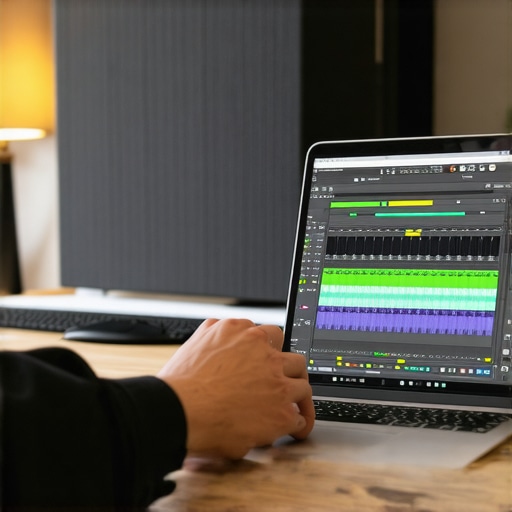
If you really want to step up your game, you need to stop relying on the basic Windows settings and start using what the pros use: Open Broadcaster Software (OBS). I don’t just use it for streaming; I use it as a virtual filter for every meeting I join. By installing the ReaPlugs VST suite, you can add a ‘Noise Gate’ that completely shuts off your mic when you aren’t talking, and a ‘Compressor’ that keeps your voice at a steady, professional level even if you lean back. This is one of those must-have laptop accessories to boost your work setup that doesn’t actually cost a cent—it’s purely a software-based power move. I personally set my threshold so that my mechanical keyboard clicks don’t even register, ensuring my colleagues only hear my voice and not my frantic typing during a deadline.
How do I maintain my audio setup over time?
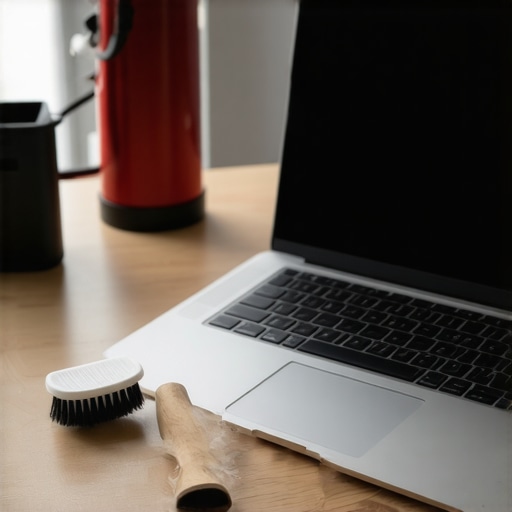
Consistency is the enemy of entropy. Once you find that ‘sweet spot’ for your gain and your filters, take a screenshot of your settings. Windows updates are notorious for resetting audio drivers or ‘re-enabling’ the very enhancements you worked so hard to disable. I check my levels every Sunday night as part of my prep for the week. Additionally, you need to ensure the physical path to your microphone stays clear. Over months of use, skin oils and ambient dust can clog the microscopic mesh screens that protect your laptop’s internal mic. This is why learning the best way to clean your laptop keyboard from crumbs and oil is actually a secret audio maintenance tip—it prevents debris from migrating into the chassis ports where your sensors live.
Physical cleaning is actually an audio hack
We rarely talk about how heat affects audio, but it’s a massive factor. When your laptop gets hot, the fans spin faster, and that high-pitched whir is the hardest frequency for software to filter out without making you sound like a robot. I’ve found that taking ten minutes to learn how to clean the dust out of your laptop without opening it can lower your fan noise by several decibels. If your machine is older and the fans are starting to rattle, you might need the specific screwdriver kit you need to open 90% of modern laptops to give it a proper deep clean. According to Shure’s technical guide on the Proximity Effect, the clarity of your ‘signal’ is always competing with the ‘noise floor’ of your hardware. By keeping your internals cool, you’re effectively lowering that noise floor and giving your voice more room to breathe. Even the $10 tool that fixes every squeaky laptop hinge can help, as it prevents those annoying creaks and pops from being picked up by the chassis mic when you adjust your screen mid-call.
Local AI will soon make these manual tweaks obsolete
Looking ahead to late 2025 and 2026, we are seeing a massive shift toward on-device NPU (Neural Processing Unit) audio processing. Soon, you won’t need to manually set gates or compressors; your laptop will use local machine learning to identify your specific vocal print and isolate it from everything else in real-time with zero latency. Until that becomes the standard on every machine, your best bet is to master the tools you have. If you find your internal mic is truly a lost cause, I often suggest people why we skip the built-in webcam and use a $20 external one, as those often come with surprisingly decent microphones that are physically separated from the noisy laptop fans. My challenge to you today: Go into your sound settings right now, find your microphone ‘Properties,’ and uncheck ‘Enable audio enhancements.’ It’s the single fastest way to hear an immediate, honest difference in your tone.
What No One Tells You About Those Shiny Corporate Headsets
After years of tweaking audio for high-stakes calls, I’ve realized that expensive gear is often just a mask for poor setup. First, audio quality is almost 90% environment and 10% hardware. Even the most expensive business laptops for professionals will sound like they are underwater if you are sitting in a room full of glass and tile. Second, the ‘Mute’ button is your best friend, but a properly configured Noise Gate is your secret weapon; it ensures you only exist when you speak. Finally, never trust a driver update. Windows has a habit of ‘resetting’ your carefully tuned levels, so I always keep a quick sticky note of my ideal gain percentages on the bezel of my screen.
My Personal Setup for Studio-Level Clarity
You don’t need a massive budget to sound like a broadcaster. I swear by OBS Studio, which is free and allows you to host professional VST plugins for your mic. For the actual processing, the ReaPlugs suite is the gold standard for removing hum without making your voice sound like a robot. To keep your machine running quiet so the fans don’t interfere, I always keep the specific screwdriver kit you need to open 90% of modern laptops nearby for a quick dusting every few months. If you are tired of internal mics, I often suggest looking at top laptop deals in 2025 to find machines with dedicated NPU chips that handle AI noise cancellation natively, as this is the future of remote work.
Stop Hiding Behind the Static
It is time to stop apologizing for your audio and start owning the room. Whether you are using a budget machine or one of the top business laptops for productivity in 2025, the principles of physics and gain staging remain the same. Take five minutes today to test your levels, throw a rug on that hardwood floor, and disable those ‘helpful’ Windows enhancements. You’ll be surprised how much more authority your voice carries when it isn’t fighting through a digital haze. Your professional presence deserves to be heard clearly. Have you ever had a moment where your audio completely failed during a big meeting? Let me know in the comments below!