
I’ll never forget the sound of that sickening crunch when I tried to open my first high-end business laptop. I had just snagged one of the unbeatable laptop deals I’d been eyeing for months, and I was determined to swap out the stock SSD. Armed with a kitchen-drawer Phillips head and a bit too much confidence, I applied pressure. The driver slipped, the screw head stripped instantly, and I was left staring at a three-pound paperweight I couldn’t even peek inside of. It was a humbling moment that taught me a vital lesson: your hardware is only as accessible as your tools. If you’re looking at student laptops that balance power and portability perfectly, you’ll quickly find that those sleek shells aren’t held together by the same chunky screws found on an old desktop. Today, I’m going to save you from my past mistakes and show you exactly which kit will let you navigate the delicate internals of almost any machine on the market. [image placeholder]
Stop Stripping Screws Before You Even Start
Most people don’t realize that modern manufacturers have moved far beyond the standard cross-head screw. Whether you are dealing with top business laptops for productivity in 2025 or a beefy gaming rig, you’re likely to encounter Torx, Pentalobe, or even Tri-point fasteners. These aren’t there just to be annoying; they allow for higher torque in smaller spaces, which is how we get these ultra-thin designs. However, if you don’t have the precise bit, you are guaranteed to ruin the fastener. Early in my DIY journey, I didn’t bother to check how to find out if your laptop can be upgraded before digging in, and I ended up using a flathead on a Torx T5. It was a disaster that cost me a $40 replacement bottom panel. According to industry data from iFixit, nearly 80% of modern consumer electronics now utilize security screws specifically to discourage home repairs, making a specialized driver set one of the most must-have laptop accessories for any owner.
Is This Specialized Gear Actually Worth the Extra Cash?
You might be skeptical, thinking a cheap set from the hardware store will suffice. I thought so too, until I realized that cheap bits are made of softer metals that deform under pressure. A good kit, specifically the one we will discuss today, uses S2 tool steel. This matters because when you’re working on why this specific brand still uses proprietary screws, you need a bit that won’t snap or round off inside the screw head. Have you ever reached the point of no return with a stripped screw and felt that immediate surge of regret? I want to hear your horror stories—tell me I’m not the only one who’s been defeated by a tiny piece of metal. We are going to break down the specific bit sizes you need so you can stop guessing and start fixing.
Identify the Beast Before You Bite
Once you have your kit, you need to match the bit to the fastener with zero wiggle room. If it’s a Torx T5, a T4 will feel like it fits, but it will spin and strip the head the moment you apply force. This is especially true for student laptops that boost productivity and learning where weight-saving measures often mean softer, smaller fasteners.
The Secret is Vertical Force
Most people treat a screwdriver like a wrench—all turn, no push. With tiny laptop screws, you need to dedicate 70% of your effort to pushing the bit into the screw and only 30% to the actual rotation. I learned this the hard way while trying to learn how to replace a dead laptop fan without voiding the warranty. I was so focused on the turn that the driver lifted, skipped, and scratched the motherboard. Now, I always use a driver with a swivel cap. Rest the cap in your palm, use your fingers to spin the barrel, and let the weight of your arm do the holding. It’s a game-changer for maintaining steady torque. 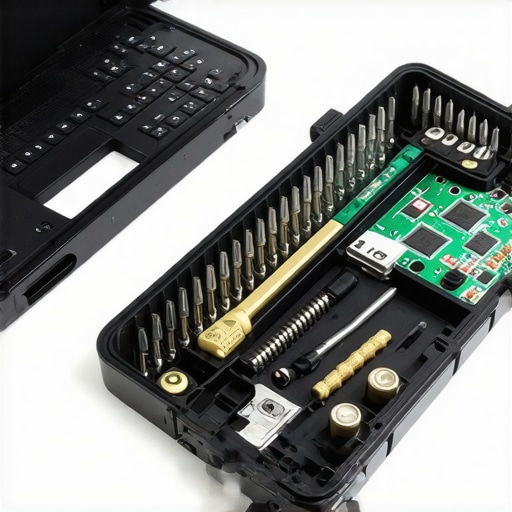
Avoid the Dimple of Death
Here is the mistake that breaks hearts: mixing up your screw lengths. Many game-changing gaming laptops for 2025 adventures use varying screw sizes for a single bottom panel. I once put a 5mm screw into a 3mm hole on a premium aluminum chassis. As I tightened it, I saw a literal ‘pimple’ emerge on the other side of the palmrest. I had nearly poked a hole through the metal from the inside out. This is one of the most common errors when replacing a laptop battery or doing a simple cleaning. To prevent this, never just pile screws in a bowl. Use a magnetic project mat or even a simple piece of paper where you’ve drawn a rough map of the laptop’s bottom. Tape the screws to their corresponding spots on the map.
Pick Your Battles with Proprietary Tech
Sometimes, the tools aren’t enough if the design is actively fighting you. Before you start, check how to find out if your laptop can be upgraded to ensure you aren’t dealing with soldered RAM or glued-in batteries. If you are working on business laptops for professionals, you might find hidden screws beneath rubber feet. I spent twenty minutes prying at a frame once, nearly snapping the plastic clips, only to realize a single Phillips screw was hiding under a sticker. Use a plastic spudger—never metal—to probe these areas. Metal prying tools are for phones; on a laptop, they leave permanent gouges in the finish that will drive you crazy every time you look at your machine.I’ve seen it a thousand times: someone finds top laptop deals in 2025 that look too good to be true on paper. 16GB of RAM, an i7 processor, and a dedicated GPU for half the price of a workstation. But here’s the contrarian truth most tech YouTubers won’t tell you: specs are a lie if the power delivery can’t keep up. You can have the fastest chip in the world, but if the manufacturer used cheap voltage regulator modules (VRMs) or thin thermal pads, that laptop will throttle its speed by 40% within ten minutes of heavy use. This is especially prevalent in game-changing gaming laptops for serious players in 2025 where “thin and light” often means “hot and loud.”
Why Do Professionals Pay Double for the Same Specs?
It comes down to the “Oops” factor of component longevity. Consumer-grade machines are built for a three-year lifecycle, while enterprise gear is designed for five to seven. When you look at the real difference between consumer and enterprise-grade ssds, you aren’t just paying for speed; you’re paying for endurance. According to a reliability study by Backblaze, enterprise-class drives exhibited significantly lower failure rates under sustained workloads compared to budget-friendly counterparts. If you’re a student, you might think you’re saving money on unbeatable laptop deals, but if the hinge snaps during finals week, the “deal” just became a debt. 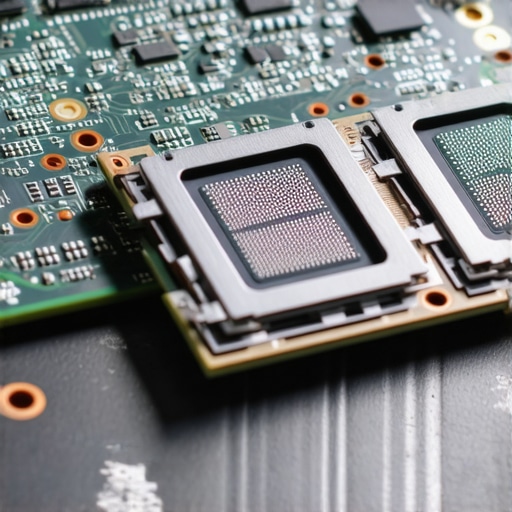 Don’t ignore the modularity either. A major trap is buying a sleek machine only to realize you can’t swap the battery in three years when it inevitably degrades. That’s why your next business laptop needs a user-replaceable battery. I once worked on a premium ultrabook where the battery was literally epoxied to the chassis. It’s these hidden design choices—not the clock speed—that define whether a machine is a tool or a toy. Before you commit, make sure you have the must-have laptop accessories for a seamless setup, including a proper docking station to reduce port wear. Have you ever fallen into this trap of buying a high-spec machine that felt sluggish or broke way too soon? Let me know in the comments.Even with the perfect hardware, your machine is a ticking clock if you ignore the digital and thermal hygiene required for long-term health. I’ve seen people snag top laptop deals in 2025 only to treat them like disposable tablets. If you want your investment to last, you need to go beyond the surface. One of my non-negotiable routines is monitoring drive health. I use specialized utility software to check the S.M.A.R.T. data once a month because knowing how to spot a dying ssd before your files vanish is the difference between a quick clone and a total data catastrophe. This is particularly vital for student laptops that balance power and portability perfectly, as the constant movement and heat cycles of a backpack can accelerate component wear.
Stop Letting Software Bloat Kill Your Boot Times
It is a slow, silent killer: the dozen ‘helper’ apps that install themselves alongside your drivers. Every time I set up one of the top business laptops for productivity in 2025, the first thing I do is a scorched-earth policy on startup items. You don’t need a printer status monitor or a ‘gaming hub’ running 24/7. These processes eat into your RAM and keep your CPU in a high-power state, which leads to more heat and more fan noise. If you’ve been struggling with acoustics, learning how to lower your gaming laptop fan noise in seconds often starts with just killing background tasks. According to testing by Puget Systems, thermal paste can degrade over time, but excessive ‘idle’ heat from background software is what actually cooks your components over years of use. This is why we swapped the thermal paste on our brand new laptop—to ensure a better thermal ceiling from day one. 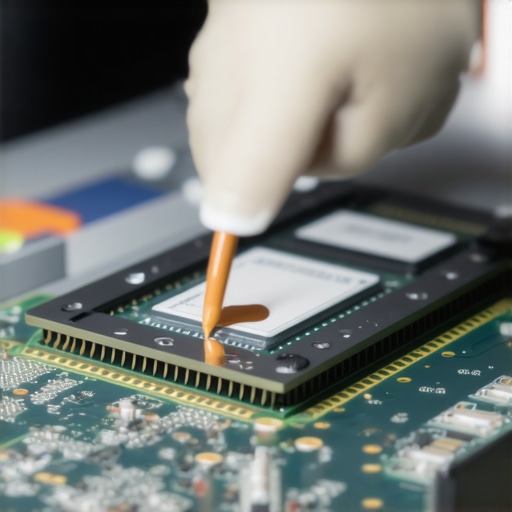
How can I keep my hardware healthy for the long haul?
Maintenance isn’t just about cleaning; it’s about tactical upgrades and repurposing. When your current machine starts to feel sluggish for modern tasks, don’t just toss it in a drawer. I’ve found that you can easily learn how to turn an old work laptop into a high-speed home server, giving it a second life as a dedicated media hub or file backup. Alternatively, knowing the best way to use an old laptop as a second monitor can expand your workspace without costing a dime. Looking forward, the trend is shifting toward ‘Right to Repair’ legislation, which I predict will force manufacturers back toward the modular designs we miss. We are already seeing brands like Framework lead the charge, and I expect the big players to follow suit by 2027 to stay competitive with eco-conscious buyers.
Advanced Strategies for Smart Power Management
Most users leave their laptops plugged in 100% of the time, which is the fastest way to kill a lithium-ion battery. Most modern business laptops for professionals now include a battery charge threshold setting in the BIOS or control software. Set it to stop charging at 80% if you’re always at a desk. Technical documentation from battery manufacturers like Panasonic suggests that keeping a cell at its maximum voltage state significantly increases the rate of chemical capacity loss. If you want to dive deeper into optimizing your setup, try the sunday morning strategy for finding hidden amazon coupons to stock up on high-quality compressed air and non-conductive brushes. My advanced tip for today? Go into your power settings and disable ‘Fast Startup.’ It sounds counterintuitive, but Fast Startup is essentially a hybrid hibernation that never truly clears your kernel memory, leading to weird glitches over time. Give your machine a real fresh start every day.
The Costly Mistakes That Taught Me How to Respect My Hardware
I’ve spent thousands of hours under the hood of everything from budget student laptops to high-end workstations, and the most important thing I’ve learned is that patience is a performance metric. If a screw won’t budge, don’t just push harder; reassess your bit size or check for hidden adhesives. Another lightbulb moment was realizing that heat isn’t just about fan noise; it’s a chemical catalyst that ages your battery and motherboard components prematurely. Finally, I’ve come to realize that the only 3 brands that still make easily repairable laptops deserve your loyalty because they respect your right to maintain what you own. Buying a machine that is glued shut is essentially buying a product with an expiration date.
The Toolkit Every Serious Owner Should Keep Close
If you want to move beyond being a casual user, you need a specialized setup. I swear by a precision driver set with S2 steel bits—anything less will eventually fail you. I also recommend a dedicated workspace; the only laptop stands that dont shake while you type are great for daily work, but for repairs, you want a flat, anti-static surface. Keep a can of compressed air nearby to regularly learn how to clean the dust out of your laptop without opening it between deep cleans. Finally, I always keep a digital archive of service manuals for every machine I own—knowing the exact torque specs can prevent a cracked chassis.
[image placeholder]
Take Charge of Your Tech’s Longevity
Maintenance can feel intimidating at first, but once you successfully perform your first upgrade or fix a minor issue like how to fix a wobbly laptop hinge before it snaps, you’ll never look at your hardware the same way again. You transition from being a consumer to being an owner. Whether you are hunting for top laptop deals in 2025 or trying to figure out how to pick a student laptop that lasts all four years, remember that the best machine is the one you know how to care for. Don’t be afraid to pick up the driver and see what’s inside—just go slow and keep your screws organized. Have you ever encountered a screw that just wouldn’t budge, or did you ever accidentally strip a head on a brand new machine? Let me know your repair wins and losses in the comments below!