
I still remember the night I unboxed my brand-new, ultra-thin machine. I had spent hours hunting down the best laptop deals, settled on a premium model, poured a hot mug of cider, and queued up my favorite bass-heavy synthwave track. I expected to be enveloped in rich, warm sound. Instead, what came out of those tiny deck grills sounded like a tin can whispering underwater. The disappointment was visceral. It felt like buying a sports car only to find out it had the lawnmower engine inside.
The Tiny Sound Trap We All Fall Into
We have all been there. Whether you are using one of the top business laptops for a Zoom call or trying to immerse yourself in an open-world RPG on high-end gaming laptops, the built-in audio almost always falls flat. Early in my tech journey, I made the classic mistake of thinking a software equalizer could magically force deep, rumbling low-end out of my thin chassis. I cranked the 60Hz slider, blew out my left driver within a week, and ended up with a rattling mess.
Are laptop speakers just destined to sound terrible?
Today, we are going to demystify exactly why your machine struggles to produce those satisfying, warm low frequencies. The culprit is not lazy engineering; it is basic Newtonian physics. To create a bass wave, you need to push a massive amount of air. The physical laws of acoustics dictate that a speaker cone needs surface area and displacement volume to reproduce low frequencies. According to research published by the Audio Engineering Society, reproducing a 50Hz bass tone requires moving over one hundred times more air than reproducing a 1kHz vocal tone. When a modern chassis is only 15 millimeters thick, there is simply no physical room for a speaker cone to vibrate back and forth to move that volume of air.
Instead of giving up hope, understanding this physical limitation helps us make better buying decisions and choose the right laptop accessories to fill the gap. Have you ever tried to watch an action movie on your laptop, only to find yourself straining to hear the dialogue because the background explosions sounded like paper crinkling? Drop a comment below and let me know your worst built-in speaker experiences. Up next, we will look at how manufacturers try to trick our ears, and the simple settings tweaks you can use right now to improve your daily listening experience.
First Steps to Forcing Better Sound Out of Windows
Before you run out and spend a single penny on expensive laptop accessories, we need to strip away the software bottlenecks holding your current system back. Most modern operating systems ship with default audio configurations designed to protect the tiny, delicate drivers from blowing out. However, these safety nets also strangulate your dynamic range, leaving you with flat, tinny audio. By taking control of these software layers, you can squeeze every ounce of potential performance out of whatever hardware you have.
Turn off the built-in limiter immediately
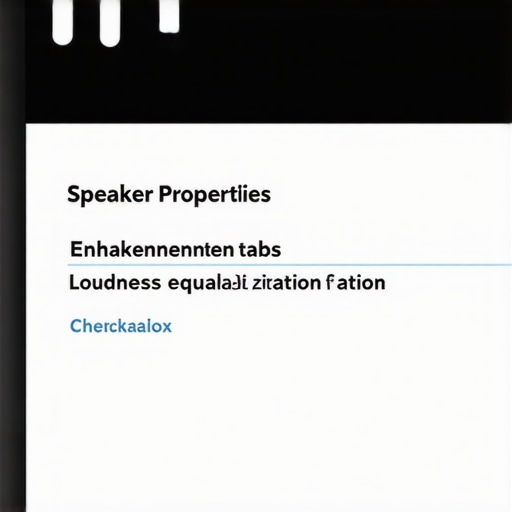
I learned this lesson the hard way. I was working late on a freelance project, trying to monitor audio levels on one of our standard business laptops, and everything sounded muddy and squashed. I realized Windows had automatically enabled “Loudness Equalization” in an attempt to normalize the volume. While this is great for late-night movie watching, it destroys your audio dynamics. To fix this, right-click the speaker icon in your system tray, open the sound settings, navigate to your device properties, and find the enhancements tab. Uncheck all sound effects first to hear the raw output. You will be surprised by how much clarity you gain just by letting the physical drivers breathe without software interference.
Install a dedicated system-wide equalizer
If you want to feel a bit more thump without destroying your drivers, do not rely on the basic bass boost sliders built into Windows. They are too clumsy, like trying to perform surgery with a butter knife. Instead, download a free parametric equalizer like Equalizer APO. Unlike simple graphic equalizers that boost huge chunks of the frequency spectrum, a parametric EQ lets you target specific, narrow bands. I once spent three hours tweaking a budget machine I found while hunting down cheap laptop deals. By applying a gentle 3dB boost specifically at 120Hz (the punchy mid-bass region) and creating a sharp high-pass filter at 80Hz to cut out the sub-bass frequencies that the tiny speakers physically cannot reproduce, I stopped the speaker housings from rattling and instantly cleaned up the vocal range.
Hardware Workarounds for Real Auditory Depth
Even the most advanced software optimization cannot completely bypass the laws of physics. If you want true room-filling sound during late-night campaigns on premium gaming laptops, you eventually need to change how the sound waves reach your ears. The good news is that you do not need a massive, desk-cluttering home theater system to achieve this.
Use a hard surface to bounce the sound waves
Here is a free trick that took me years to appreciate: placement is everything. Many modern thin-and-light machines use down-firing speakers that rely on reflecting sound off the surface beneath them. If you are using your machine on your lap, a bed, or a couch, the soft fabric is acting like a giant acoustic sponge, absorbing all the high-end clarity. I once set up my workstation on a heavy wooden dining table and noticed the audio instantly became brighter and louder. If you must work away from a desk, invest in a solid lap desk or a hard-surface stand to give those sound waves a proper acoustic mirror to bounce off of.
While reflecting sound off wooden desks can yield a subtle acoustic boost, relying solely on surface placement is a band-aid solution. Everyone in the consumer tech space says that if you buy premium hardware, you are guaranteed premium audio. In my experience, even the most expensive rigs fail here. There is a deep, frustrating nuance to modern laptop audio engineering that most buyers overlook when they are hunting for laptop deals: the industry-wide shift toward software-compensated hardware.
Why does my brand-new laptop sound worse than an older model?
Many users notice that older, thicker machines often produce far warmer audio than modern thin-and-light devices. This is not a trick of memory. Modern manufacturers intentionally utilize tiny, high-impedance drivers that require active digital signal processing (DSP) to avoid blowing out. A study by the Audio Engineering Society confirms that modern ultra-thin speaker systems heavily rely on aggressive DSP profiles to artificially boost midrange frequencies, masking the physical limits of the hardware. The moment you bypass these proprietary drivers to install a clean operating system, or use generic drivers on your business laptops, the audio falls apart because the physical speaker cones are incredibly cheap. You are not listening to high-quality acoustic engineering; you are listening to software performing emergency CPR on a tiny piece of plastic.
This reliance on digital compensation introduces a massive trap for creative professionals. If you are editing video on student laptops or trying to monitor sound, you cannot trust what is coming out of those speakers. The DSP is actively compressing the high and low bands to make the dialogue louder, leading to a completely inaccurate sound mix. If you export that project, it will sound utterly unbalanced on any other sound system.
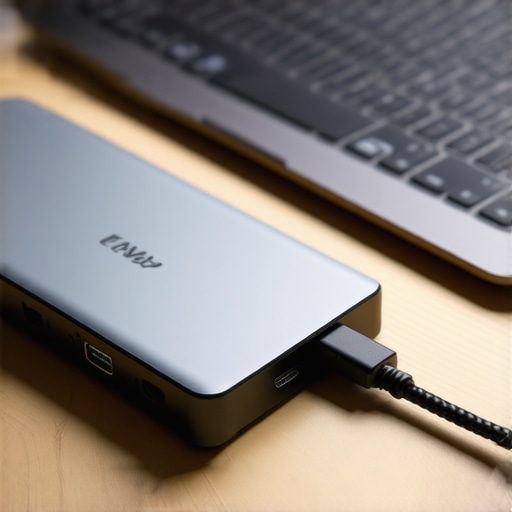
To bypass this artificial processing entirely, you must invest in external hardware. If you are setting up a desk space for high-end gaming laptops, skip the cheap USB-powered plastic desk speakers. Instead, look for a dedicated Digital-to-Analog Converter (DAC) paired with quality laptop accessories like active studio monitors or studio-grade open-back headphones. A USB-C DAC bypasses the noisy, unshielded internal motherboard audio chip, delivering a pure, uncompressed signal that allows you to hear the true dynamics of your media. Have you ever fallen into this trap of buying a premium laptop only to realize you needed external hardware to get decent sound? Let me know in the comments below.
Now that we have covered the physical bottlenecks and basic hardware workarounds, let us focus on maintaining your audio chain over the long term. If you are constantly pushing your system to its absolute limits, you will eventually run into hardware fatigue. Keeping your audio running crisp and clean requires a mix of preventative maintenance and some very specific diagnostic tools that I personally use every single week.
How do I maintain my laptop audio system over time?
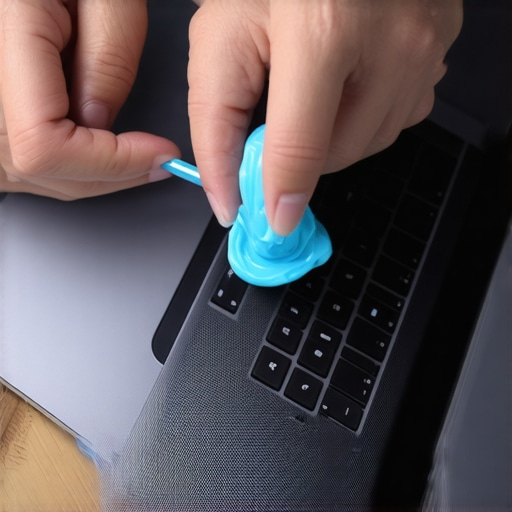
The biggest threat to your onboard speakers is not software updates; it is physical debris. Tiny iron particles from your surroundings and simple household dust love to settle on the magnetic speaker cones hidden behind those micro-perforated grilles. Over time, this debris acts like fine sandpaper on the delicate driver membranes, causing that dreaded crackling noise. To prevent this, I do not use pressurized canned air directly over the grilles, which can easily tear the tiny cones. Instead, I use a high-density acoustic putty to gently lift dust particles out of the speaker ports. It is one of those simple, must-have laptop accessories that will save you from having to replace your entire top deck.
For software health, I rely heavily on LatencyMon, a freeware real-time audio latency analysis tool. If you have ever experienced annoying audio dropouts, pops, or crackles while listening to music on your business laptops, the culprit is usually driver conflict causing high Deferred Procedure Call (DPC) latency. LatencyMon tells you exactly which driver (often your Wi-Fi or graphics driver) is hogging your processor’s attention, allowing you to disable or update it. This tool is standard practice among professional field recordists, and it keeps my mobile editing rig completely stable.
Looking ahead, the future of laptop audio is moving rapidly toward AI-driven acoustic mapping. Manufacturers are beginning to integrate spatial audio micro-sensors that measure how sound bounces off your surrounding environment in real time, adjusting the DSP profile dynamically as you move from a wooden desk to a soft bed. While this software is getting smarter, nothing beats physical driver size. If you want to make a massive leap in your daily experience right now, my challenge to you is simple: download a parametric equalizer today, apply the 120Hz mid-bass bump while cutting everything below 80Hz, and listen to how much cleaner your machine sounds.
I still remember the night I unboxed my brand-new, ultra-thin machine. I had spent hours hunting down the best laptop deals, settled on a premium model, poured a hot mug of cider, and queued up my favorite bass-heavy synthwave track. I expected to be enveloped in rich, warm sound. Instead, what came out of those tiny deck grills sounded like a tin can whispering underwater. The disappointment was visceral. It felt like buying a sports car only to find out it had the lawnmower engine inside.
The Tiny Sound Trap We All Fall Into
We have all been there. Whether you are using one of the top business laptops for a Zoom call or trying to immerse yourself in an open-world RPG on high-end gaming laptops, the built-in audio almost always falls flat. Early in my tech journey, I made the classic mistake of thinking a software equalizer could magically force deep, rumbling low-end out of my thin chassis. I cranked the 60Hz slider, blew out my left driver within a week, and ended up with a rattling mess.
Are laptop speakers just destined to sound terrible?
Today, we are going to demystify exactly why your machine struggles to produce those satisfying, warm low frequencies. The culprit is not lazy engineering; it is basic Newtonian physics. To create a bass wave, you need to push a massive amount of air. The physical laws of acoustics dictate that a speaker cone needs surface area and displacement volume to reproduce low frequencies. According to research published by the Audio Engineering Society, reproducing a 50Hz bass tone requires moving over one hundred times more air than reproducing a 1kHz vocal tone. When a modern chassis is only 15 millimeters thick, there is simply no physical room for a speaker cone to vibrate back and forth to move that volume of air.
Instead of giving up hope, understanding this physical limitation helps us make better buying decisions and choose the right laptop accessories to fill the gap. Have you ever tried to watch an action movie on your laptop, only to find yourself straining to hear the dialogue because the background explosions sounded like paper crinkling? Drop a comment below and let me know your worst built-in speaker experiences. Up next, we will look at how manufacturers try to trick our ears, and the simple settings tweaks you can use right now to improve your daily listening experience.
First Steps to Forcing Better Sound Out of Windows
Before you run out and spend a single penny on expensive laptop accessories, we need to strip away the software bottlenecks holding your current system back. Most modern operating systems ship with default audio configurations designed to protect the tiny, delicate drivers from blowing out. However, these safety nets also strangulate your dynamic range, leaving you with flat, tinny audio. By taking control of these software layers, you can squeeze every ounce of potential performance out of whatever hardware you have.
Turn off the built-in limiter immediately
I learned this lesson the hard way. I was working late on a freelance project, trying to monitor audio levels on one of our standard business laptops, and everything sounded muddy and squashed. I realized Windows had automatically enabled “Loudness Equalization” in an attempt to normalize the volume. While this is great for late-night movie watching, it destroys your audio dynamics. To fix this, right-click the speaker icon in your system tray, open the sound settings, navigate to your device properties, and find the enhancements tab. Uncheck all sound effects first to hear the raw output. You will be surprised by how much clarity you gain just by letting the physical drivers breathe without software interference.
Install a dedicated system-wide equalizer
If you want to feel a bit more thump without destroying your drivers, do not rely on the basic bass boost sliders built into Windows. They are too clumsy, like trying to perform surgery with a butter knife. Instead, download a free parametric equalizer like Equalizer APO. Unlike simple graphic equalizers that boost huge chunks of the frequency spectrum, a parametric EQ lets you target specific, narrow bands. I once spent three hours tweaking a budget machine I found while hunting down cheap laptop deals. By applying a gentle 3dB boost specifically at 120Hz (the punchy mid-bass region) and creating a sharp high-pass filter at 80Hz to cut out the sub-bass frequencies that the tiny speakers physically cannot reproduce, I stopped the speaker housings from rattling and instantly cleaned up the vocal range.
Hardware Workarounds for Real Auditory Depth
Even the most advanced software optimization cannot completely bypass the laws of physics. If you want true room-filling sound during late-night campaigns on premium gaming laptops, you eventually need to change how the sound waves reach your ears. The good news is that you do not need a massive, desk-cluttering home theater system to achieve this.
Use a hard surface to bounce the sound waves
Here is a free trick that took me years to appreciate: placement is everything. Many modern thin-and-light machines use down-firing speakers that rely on reflecting sound off the surface beneath them. If you are using your machine on your lap, a bed, or a couch, the soft fabric is acting like a giant acoustic sponge, absorbing all the high-end clarity. I once set up my workstation on a heavy wooden dining table and noticed the audio instantly became brighter and louder. If you must work away from a desk, invest in a solid lap desk or a hard-surface stand to give those sound waves a proper acoustic mirror to bounce off of.
While reflecting sound off wooden desks can yield a subtle acoustic boost, relying solely on surface placement is a band-aid solution. Everyone in the consumer tech space says that if you buy premium hardware, you are guaranteed premium audio. In my experience, even the most expensive rigs fail here. There is a deep, frustrating nuance to modern laptop audio engineering that most buyers overlook when they are hunting for laptop deals: the industry-wide shift toward software-compensated hardware.
Why does my brand-new laptop sound worse than an older model?
Many users notice that older, thicker machines often produce far warmer audio than modern thin-and-light devices. This is not a trick of memory. Modern manufacturers intentionally utilize tiny, high-impedance drivers that require active digital signal processing (DSP) to avoid blowing out. A study by the Audio Engineering Society confirms that modern ultra-thin speaker systems heavily rely on aggressive DSP profiles to artificially boost midrange frequencies, masking the physical limits of the hardware. The moment you bypass these proprietary drivers to install a clean operating system, or use generic drivers on your business laptops, the audio falls apart because the physical speaker cones are incredibly cheap. You are not listening to high-quality acoustic engineering; you are listening to software performing emergency CPR on a tiny piece of plastic.
This reliance on digital compensation introduces a massive trap for creative professionals. If you are editing video on student laptops or trying to monitor sound, you cannot trust what is coming out of those speakers. The DSP is actively compressing the high and low bands to make the dialogue louder, leading to a completely inaccurate sound mix. If you export that project, it will sound utterly unbalanced on any other sound system.
To bypass this artificial processing entirely, you must invest in external hardware. If you are setting up a desk space for high-end gaming laptops, skip the cheap USB-powered plastic desk speakers. Instead, look for a dedicated Digital-to-Analog Converter (DAC) paired with quality laptop accessories like active studio monitors or studio-grade open-back headphones. A USB-C DAC bypasses the noisy, unshielded internal motherboard audio chip, delivering a pure, uncompressed signal that allows you to hear the true dynamics of your media. Have you ever fallen into this trap of buying a premium laptop only to realize you needed external hardware to get decent sound? Let me know in the comments below.
Now that we have covered the physical bottlenecks and basic hardware workarounds, let us focus on maintaining your audio chain over the long term. If you are constantly pushing your system to its absolute limits, you will eventually run into hardware fatigue. Keeping your audio running crisp and clean requires a mix of preventative maintenance and some very specific diagnostic tools that I personally use every single week.
How do I maintain my laptop audio system over time?
The biggest threat to your onboard speakers is not software updates; it is physical debris. Tiny iron particles from your surroundings and simple household dust love to settle on the magnetic speaker cones hidden behind those micro-perforated grilles. Over time, this debris acts like fine sandpaper on the delicate driver membranes, causing that dreaded crackling noise. To prevent this, I do not use pressurized canned air directly over the grilles, which can easily tear the tiny cones. Instead, I use a high-density acoustic putty to gently lift dust particles out of the speaker ports. It is one of those simple, must-have laptop accessories that will save you from having to replace your entire top deck.
For software health, I rely heavily on LatencyMon, a freeware real-time audio latency analysis tool. If you have ever experienced annoying audio dropouts, pops, or crackles while listening to music on your business laptops, the culprit is usually driver conflict causing high Deferred Procedure Call (DPC) latency. LatencyMon tells you exactly which driver (often your Wi-Fi or graphics driver) is hogging your processor’s attention, allowing you to disable or update it. This tool is standard practice among professional field recordists, and it keeps my mobile editing rig completely stable.
Looking ahead, the future of laptop audio is moving rapidly toward AI-driven acoustic mapping. Manufacturers are beginning to integrate spatial audio micro-sensors that measure how sound bounces off your surrounding environment in real time, adjusting the DSP profile dynamically as you move from a wooden desk to a soft bed. While this software is getting smarter, nothing beats physical driver size. If you want to make a massive leap in your daily experience right now, my challenge to you is simple: download a parametric equalizer today, apply the 120Hz mid-bass bump while cutting everything below 80Hz, and listen to how much cleaner your machine sounds.
Three Hard Lessons from Years of Blown Laptop Speakers
Over the past decade of testing hardware, I have ruined more integrated audio systems than I care to admit. Here is the unvarnished truth that marketing departments won’t tell you:
- Max volume is a vanity metric: Pushing your onboard volume slider to 100% on cheap, thin-and-light machines is a fast track to permanent distortion. Most integrated enclosures lack proper heat dissipation, meaning long-term high-volume use physically warps the plastic driver frame.
- Software cannot fix bad plastic: No matter how many Dolby Atmos or DTS:X certifications are stamped onto your palm rest, a bad physical driver will always sound muddy. Do not rely on virtualized surround-sound settings to magically give your audio spatial depth.
- Operating system updates can ruin your custom tuning: Major Windows updates frequently overwrite custom equalizer settings and re-enable default dynamic limiters. Keep a backup of your parametric EQ profiles saved in an external folder so you do not have to tune your system from scratch every six months.
My Personal Acoustic Diagnostics Toolkit
You do not need to spend thousands of dollars on acoustic measuring equipment to clean up your workspace audio. These are the three free resources I rely on to keep my sound pristine:
- Equalizer APO & Peace GUI: This is the gold standard for open-source parametric EQ on Windows. It runs system-wide with virtually zero latency, allowing you to manually cut out muddy sub-bass frequencies without taxing your CPU.
- LatencyMon: If your computer audio randomly pops, clicks, or cuts out, download this tool immediately to isolate conflicting drivers, which is incredibly common on modern business laptops.
- The LEDR Audio Test: A legacy diagnostic audio track that tests spatial perception and speaker crossover. It is the quickest way to see if your physical laptop placement is creating annoying phase cancellation or dead zones in your room.
Stop Tolerating Bad Audio Today
You do not have to accept thin, lifeless sound as an inevitable tax of computing in the modern era. Armed with a solid parametric equalizer profile, a hard surface to bounce your sound waves, and a healthy skepticism of pre-applied digital processing, you can transform even a budget machine into a highly capable daily driver. Take a few minutes to clean up your internal audio chain, and let your favorite tracks finally breathe. Have you managed to make your machine sound great using software tricks, or did you give up and purchase external laptop accessories? Let me know in the comments below.