
I still remember the exact moment I realized my trackpad was no longer my friend. I was sitting in a quiet, crowded coffee shop trying to finalize a client proposal. Suddenly, my cursor started jumping wildly across the screen, selecting text I didn’t want to highlight, and closing tabs on its own. I tried pressing harder. I tried using the corner of my sleeve. Nothing worked. It felt like my laptop was possessed. In reality, it was just coated in a microscopic layer of finger oils, hand lotion, and crumbs. If you are using premium business laptops or high-end gaming laptops, a dirty trackpad isn’t just an eyesore; it actively ruins your productivity. Today, we are going to fix that. I will show you how to clean your laptop trackpad properly without causing permanent moisture damage.
The Day I Ruined My Trackpad with Glass Cleaner
Years ago, before I knew any better, I made the ultimate rookie mistake. I grabbed a bottle of blue glass cleaner, sprayed it directly onto my trackpad, and wiped it down. I thought I was being thorough. Within ten minutes, the liquid seeped past the tiny physical gap around the edges of the trackpad, shorting out the underlying touch controller. A costly repair bill taught me that trackpads are incredibly sensitive electrostatic sensors, not kitchen counters. In fact, modern trackpads rely on capacitive touch technology, which measures the electrical charge of your skin to track movement. Liquid acts as a conductor, throwing off this delicate balance, while thick oils act as insulators. Since then, I have refined my cleaning routine down to a science, ensuring my gear remains pristine without risking the internal electronics. If you have ever experienced that frustrating moment where your cursor starts lagging, you might even suspect your trackpad has stopped working periodically for good, but most of the time, it just needs a safe, proper cleaning.
Is Isopropyl Alcohol Safe for Modern Trackpads?
You might be tempted to douse a paper towel in rubbing alcohol and scrub away. However, many modern laptops use delicate oleophobic coatings or physical glass surfaces that can degrade if you use harsh chemicals or rough materials. According to official device maintenance documentation from major manufacturers like Apple, using cleaning agents containing bleach, hydrogen peroxide, or high concentrations of solvents can strip away these protective layers instantly. Instead, we must use a highly controlled, gentle approach. Have you ever noticed your cursor behaving erratically after a long typing session, or did you accidentally spill a drink near your tracking area? Tell me about your trackpad horror stories in the comments below! Before we dive into the step-by-step physical cleaning process, make sure your machine is completely powered down and unplugged from any power source. If you also have smudges on the screen, check out my guide on how to clean laptop screen smudges without leaving streaks to get your entire setup looking brand new.
The Dry Wipe and the Toothpick Method
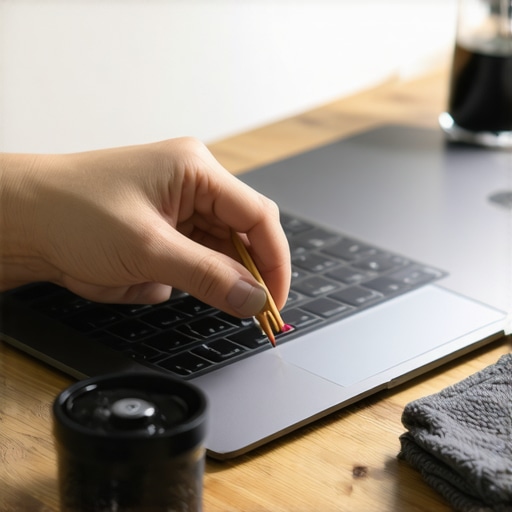
To begin, you need to clear away the dry, physical debris that lodges itself into the tiny perimeter gap of your tracking surface. Think of this gap like the gutters on a house; when they get clogged, everything overflows. On one occasion, I spent twenty minutes trying to figure out why my click mechanism felt completely mushy, only to discover a single, hardened grain of rice wedged in the corner. I used a wooden toothpick to gently slide along the edge. Metal sewing pins are too hard and can easily scratch the plastic or aluminum chassis, so stick to wood or plastic. Gently trace the perimeter to lift out lint, hair, and crumbs. After clearing the borders, use a dry, clean microfiber cloth to sweep the loosened debris off the surface. If you are using your machine on the go, investing in protective gear like the best laptop sleeve for maximum drop protection can prevent a lot of this debris from entering your bag and settling into your laptop in the first place.
Dampening the Cloth the Right Way
The most critical phase is applying your cleaning solution, which should ideally be 70% isopropyl alcohol or plain water. Never spray anything directly onto the machine. Instead, spray a tiny amount of the liquid onto a microfiber cloth. The cloth should feel slightly damp, almost dry to the touch, rather than wet. To test this, squeeze the cloth tightly; if even a single drop of liquid wrings out, it is far too wet. I learned this lesson the hard way when a damp cloth left a streak of moisture that seeped under the keyboard deck of one of my older student laptops that boost productivity and learning. The keys survived, but the trackpad registered phantom touches for a week. 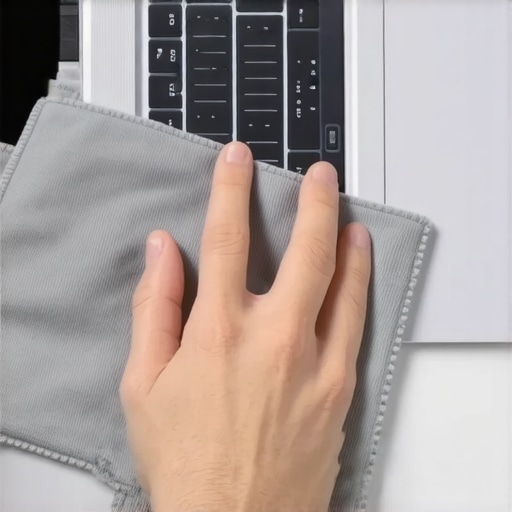
Executing the Circular Wipe Technique
With your lightly damp cloth, wipe the trackpad using firm, circular motions. Start from the center and spiral outward toward the edges. This circular motion helps lift stubborn skin oils and grease spots without pressing the grime deeper into the side seams. If you encounter sticky spots, do not scrub aggressively. Instead, hold the damp portion of the cloth over the sticky residue for ten seconds to let the alcohol break down the adhesive or grease, then gently wipe it clean. For those who rely heavily on precise inputs, keeping the surface spotless is just as important as choosing high-quality must-have laptop accessories for a seamless setup. Once the oils are gone, immediately follow up with a completely dry section of the microfiber cloth to buff away any residual moisture, leaving a perfectly smooth, non-stick finish.
Is Friction Actually Your Trackpad’s Best Friend?
Everyone tells you that a perfectly smooth, frictionless trackpad is the ultimate goal. However, in my experience, over-cleaning or stripping away the natural texture of your tracking surface actually ruins precision. When you polish a glass or plastic trackpad too aggressively, you remove the micro-texture that allows your finger to glide consistently. This creates a physical phenomenon known as ‘stiction’—where your finger repeatedly sticks and slips, causing erratic cursor jumps that look exactly like driver failure. To combat this, some users resort to using external pointing devices entirely, explaining why we prefer physical mice over trackpads for work when precision is absolutely paramount.
The hidden nuance lies in how modern operating systems calibrate capacitive sensors. According to a landmark study on human-computer interaction by the Human Factors and Ergonomics Society, capacitive sensors constantly recalibrate their baseline electrical capacitance based on environmental humidity and surface residue. When you strip the surface completely bare using heavy solvents, the sudden shift in baseline capacitance can cause the controller to misinterpret static air as a finger touch. This leads to the infamous ‘ghost touch’ phenomenon, especially on high-performance business laptops and premium gaming laptops that run hot and alter the internal chassis temperature.

Why Does Your Trackpad Misbehave Only When Plugged In?
If you have ever noticed your cursor jumping wildy only when your machine is charging, you are dealing with electromagnetic interference (EMI) rather than physical dirt. This is the ultimate ‘oops’ factor that misleads thousands of users into thinking their hardware is broken. Cheap or damaged power adapters leak high-frequency electrical noise through the grounding pin directly into the laptop chassis. Because capacitive trackpads rely on measuring minute electrical fields, this noise floods the sensor, making accurate tracking impossible. If you are hunting for unbeatable laptop deals, always ensure you are using original equipment manufacturer (OEM) chargers, as budget third-party bricks are notorious for this flaw. Have you ever fallen into this trap and blamed your cleaning habits? Let me know in the comments below! If you are setting up a permanent desk, pairing your machine with high-quality must-have laptop accessories for a seamless setup like grounded power strips can eliminate this electrical noise entirely, ensuring your trackpad remains as precise as the day you unboxed it.
How do I maintain my trackpad over the long haul?
To avoid physical wear and chemical damage, I rely on a highly specific maintenance kit. Instead of using generic cleaning sprays, I keep a dedicated 12×12 inch 400GSM microfiber cloth and a small dropper bottle of 99% anhydrous isopropyl alcohol in my desk drawer. Why 99% instead of the standard 70%? It evaporates almost instantly, leaving absolutely zero water residue behind to seep into the touch controller board. According to specialized repair documentation from the technicians at iFixit, the capillary action of water is the number one killer of capacitive sensors during cleaning. By switching to anhydrous alcohol and applying it with a precision dropper directly to the cloth, you eliminate this risk entirely.
For those using premium business laptops daily, I also suggest checking your trackpad surface alignment once every few months. If one side sits slightly lower than the chassis, it creates a larger physical gap that acts as a magnet for dust and skin oils. If you notice your cursor drifting even after a thorough clean, you might actually be experiencing system lag; in that case, look into the real reason your trackpad stops working periodically to rule out driver conflicts before opening up your machine.
The Future of Touch Tracking Technology
Looking ahead, the physical mechanical click is rapidly becoming obsolete. High-end gaming laptops and modern ultrabooks are shifting toward solid-state haptic trackpads. These systems use force sensors and linear resonant actuators to mimic the feel of a physical click without any actual moving parts. This is a massive win for longevity because it completely seals the edges of the tracking area, preventing dirt and moisture from entering the chassis. However, these haptic systems are even more sensitive to surface oils, which can confuse the force sensors into registering false clicks.
If you want to keep your current setup in pristine condition without spending a fortune, I highly recommend adopting a preventative habit. Keep a pack of keyboard-safe cleaning wipes in your bag, and pair your device with must-have laptop accessories for a seamless setup, like a high-quality protective sleeve. If you are a power user who spends eight hours a day editing or coding, you will find that a clean physical environment directly translates to fewer input errors and less hand fatigue. Try the dry toothpick method on your machine tonight to see just how much hidden debris has accumulated in those tiny outer seams!
When you use your computer for hours every day, maintaining the tracking surface is about more than just aesthetics—it is about keeping your primary input device responsive and accurate. Let us dive into the ultimate lessons for maintaining this critical hardware component safely.
The Hardest Lessons I Learned Cleaning Touch Sensors Over the Years
- The friction threshold is highly dynamic: A micro-layer of natural skin oil actually prevents sticking and slipping. Stripping your glass surface completely bare with harsh solvents can trigger frustrating physical stiction.
- Moisture is highly patient: Just because your pointer works immediately after a wet wipe-down does not mean it is safe. Capillary action can slowly draw minute water droplets under the bezel over several hours, leading to delayed corrosion.
- OEM power bricks are non-negotiable: Electromagnetic noise from cheap chargers can easily masquerade as a physically damaged or dirty tracking sensor. Always verify your power source before assuming your hardware is broken.
My Essential Maintenance Toolkit for Pristine Inputs
Rather than relying on generic screen sprays or kitchen chemicals, I recommend assembling a specialized hardware care kit to protect your investment:
- 99% Anhydrous Isopropyl Alcohol: Unlike 70% rubbing alcohol, the 99% formulation evaporates almost instantly, leaving zero water behind to threaten delicate circuitry. This is crucial for maintaining high-performance business laptops.
- 400GSM Microfiber Cloths: Thick, high-density microfiber lifts oils without requiring aggressive, surface-scratching pressure.
- Wooden Toothpicks: The ultimate, non-conductive tool for clearing debris from tight physical seams.
- Surge Protectors: To keep electrical noise from interfering with your inputs, make sure you are using grounded setups. I explain this further in our guide on why we only use high-quality surge protectors for laptops.
Protecting Your Tech Workspace Long Into the Future
Taking care of your computer hardware is a rewarding habit that directly impacts your daily productivity and the eventual resale value of your machine. By adopting the dry toothpick and anhydrous alcohol cleaning methods, you can ensure your pointing device remains incredibly precise for years. If you want to keep your entire workspace in pristine condition, consider pairing your setup with the right gear, such as must-have laptop accessories for a seamless setup.
Have you ever experienced a jumping cursor that you couldn’t seem to fix with a simple wipe? Let me know in the comments below!