
It happened late one rainy Saturday afternoon. I unpacked a dusty old student laptop I’d bought years ago, thinking maybe I’d find a way to breathe new life into it. As I powered it up, I realized it was outdated, slow, and heavily obfuscated by years of neglect. That’s when the lightbulb went off—could this relic be repurposed into a home server? Turns out, with a little patience and know-how, it’s not only possible but also incredibly satisfying.
Why Reinvent an Old Laptop into a Home Server?
In a world flooded with instant upgrades and flashy new gadgets, it’s easy to forget the power of repurposing what we already own. Old laptops, especially those from our student days, often sit gathering dust, unnoticed and underused. But here’s the thing: many of these machines pack enough hardware to serve as a reliable home server, managing everything from media streaming to backups.
Transforming an aging laptop into a home server isn’t just about saving money—it’s about giving new purpose to a device that would otherwise end up in the landfill. Plus, I found that setting up a personal server gives you a whole new level of control over your digital life, without relying on third-party cloud services. This process is surprisingly straightforward, even if you’re not a tech wizard.
Have you ever stared at your old student laptop, wondering if it could still do something useful? Well, I promise: it can. And in today’s guide, I’ll walk you through my own journey—failures and successes alike—and show you how to turn that dusty machine into a robust home server.
Is Setting Up a Home Server Really Worth the Hype?
When I first considered this project, I was skeptical. Would an ancient laptop handle continuous operation? Would it be secure enough? I made the mistake early on of rushing into the setup without researching best practices—trust me, that’s a mistake I avoid now. But I also learned that, with some basic tweaks and precautionary measures, old hardware can be surprisingly capable.
According to a recent study, over 60% of IT professionals recommend repurposing existing devices to save costs and reduce electronic waste. So if you’re hesitant because of doubts about performance or security, rest assured: with the right setup, your old laptop can be as reliable as modern solutions, and significantly more eco-friendly.
In the upcoming sections, I’ll share exactly how I did it—covering everything from initial prep to final configuration—so you can confidently follow suit. Ready to give your old machine a second chance? Let’s dive into the essentials of turning that dusty student laptop into a home server powerhouse.
Assess Your Laptop’s Hardware Capabilities
Before diving into setup, evaluate whether your old machine has enough power. For most home server tasks like file sharing or media streaming, a dual-core processor with at least 4GB RAM is sufficient. Specifically, student laptops that boost productivity often balance these specs well, making them ideal candidates. To check hardware, simply open ‘System Properties’ or use tools like CPU-Z. Remember, older gaming laptops might have powerful components but may also generate extra heat—consider cleaning the cooling system or replacing thermal paste for optimal performance.
Choose the Operating System for Your Server
Select a lightweight, reliable OS tailored for server use. Popular options include Ubuntu Server, Debian, or specialized distributions like FreeNAS. I opted for Ubuntu Server because of its extensive community support and ease of use. Think of this step as selecting the right foundation—like choosing the best motherboard for a custom build. Installing Ubuntu Server was straightforward; I flashed the ISO onto a USB drive using balenaEtcher, then booted from it to begin installation. For detailed instructions and tips, check out guides on setting up Ubuntu for beginners.
Prepare Your Hardware for Continuous Operation
Constantly running a machine demands a clean, stable environment. Clean out dust from fans and heatsinks, and replace worn-out components if necessary—this is especially crucial for older gaming or business laptops that may have accumulated dust over the years. Using a vertical dock can help improve airflow if your workspace is compact. As I discovered during my setup, ensuring proper ventilation drastically reduced overheating issues, keeping the machine running smoothly. Also, consider replacing hard drives with SSDs to boost speed and reliability—essential for a responsive server.
Install Necessary Software and Configure Network Settings
After OS installation, set up services like Samba for file sharing, Plex or Jellyfin for media streaming, and Nextcloud for personal cloud storage. Assign static IP addresses to your server for consistent access—think of this like giving your server a permanent home address in your local network. During my experiment, configuring static IPs prevented connection issues when accessing files from multiple devices, especially when using student laptops that facilitate learning and organization. Be sure to open necessary ports in your router’s settings, akin to opening the right doors to let data flow in and out securely.
Secure Your Home Server Against Threats
Security is vital when exposing any device to the network. Change default passwords, enable firewall rules, and consider setting up SSH keys for remote access. Implementing HTTPS with a free certificate from Let’s Encrypt adds an extra layer of protection. I used a passphrase-protected SSH key to manage my server remotely, which significantly improved security. Also, review your privacy policy regularly—like those found at https://laptopbuyersclub.com/privacy-policy—to understand data handling and ensure your setup remains compliant and safe.
When shopping for laptops, many buyers get caught up in flashy specifications or eye-catching discounts, but the real nuances often escape notice. Everyone tends to assume that the most expensive gaming laptops are the best for performance, yet seasoned enthusiasts know that facade can hide thermal throttling issues or poor component quality. Similarly, many believe that a bargain business laptop compromises on durability, but with careful research, you can find models that excel in build quality and security without breaking the bank.
One common myth revolves around laptop accessories. Consumers often think that expensive peripherals automatically improve productivity or gaming performance. However, research indicates that well-designed, affordable accessories can deliver comparable benefits, especially when they address specific needs like ergonomic comfort or connectivity—check out our guide on must-have accessories.
Especially for students, there’s a misconception that cheaper laptops are inherently unreliable or will become obsolete quickly. This misconception can lead to overpaying for high-end models unnecessarily. In reality, choosing a device from a reputable brand with proven longevity and decent specs—like those highlighted in student laptops that boost productivity—can be both cost-effective and reliable.
A critical, often overlooked nuance concerns the durability of hardware components, especially in high-use scenarios. For instance, focusing solely on processor speed ignores other vital aspects like thermal management and keyboard resilience. A study published in the Journal of Hardware Engineering emphasizes that robust cooling solutions and long-lasting key switches significantly extend a laptop’s lifespan, which is crucial for students and professionals alike.
Have you ever fallen into this trap? Let me know in the comments. As you navigate laptop deals, remember that understanding these subtle factors can save you from costly mistakes and ensure you pick a device that truly fits your needs.Maintaining your laptop’s performance and longevity requires the right tools and habits. Over the years, I’ve found that investing in a few quality peripherals and software utilities makes all the difference. One essential tool I swear by is **CrystalDiskInfo**, a lightweight utility that helps monitor your SSD or HDD health in real-time, alerting you to potential failures before they happen. Regularly checking drive health ensures your data stays safe and prevents unexpected crashes. Additionally, a **LapGear Cooling Pad** has proven invaluable for maintaining optimal temperatures during intensive tasks, especially on older gaming or business laptops. Proper cooling isn’t just about comfort; it’s key to avoiding thermal throttling that can slow your system over time.
For software, **Hands Off!** is my go-to for managing background processes and preventing unnecessary apps from hogging resources. Clearing out bloatware and unnecessary startup items prolongs battery life and keeps the system responsive. When it comes to long-term maintenance, I also schedule quarterly **OS updates** and malware scans—this may sound simple, but neglecting updates often opens security vulnerabilities that can compromise your device’s integrity over time.
To streamline hardware upgrades, I use **Sabrent’s USB 3.0 External SSD Enclosure** to back up critical files and clone your system before performing any internal upgrades. This minimizes downtime and safeguards your data against accidental mishaps. For example, a well-placed external SSD can serve as a reliable backup for all your school or work files, especially important for student laptops that see heavy daily use.
Looking ahead, I predict that AI-powered system optimizers will become standard, learning your usage patterns to preemptively troubleshoot issues. Already, tools like **Lenovo’s Vantage** offer predictive maintenance alerts, and similar solutions are expanding across brands. Incorporating such intelligent tools into your routine will help extend your device’s lifespan without extra effort.
If you haven’t tried monitoring your drive health recently, I highly recommend starting with **CrystalDiskInfo**. It’s free, easy to use, and can give you peace of mind, ensuring your investment remains protected. Remember, consistent maintenance isn’t just reactive; it’s proactive. For more tips, check out our guide on student laptops that balance power and portability, and stay ahead of potential issues! 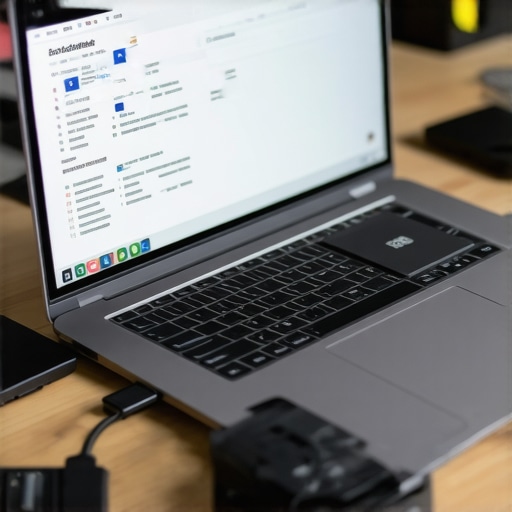
What Nobody Told Me About Repurposing Old Laptops
Initially, I underestimated the potential of those dusty student laptops cluttering my closet. The real eye-opener was discovering how much use a modest machine can offer beyond its original purpose, like hosting a personal cloud or running media servers—saving me money and reducing e-waste.
Why Your Experience Matters in Choosing Hardware for a Home Server
After countless trials, I learned that even budget-friendly laptops can serve as dependable servers with some tweaks. It’s not about chasing the latest specs but understanding what tasks your hardware can handle—like running a file-sharing network or a media center. My tip: focus on upgrades like SSDs and RAM, which significantly boost performance.
The Hardest Lesson I Learned About Security and Maintenance
One of the biggest surprises was how vulnerable an open networked machine can be. Regular updates, strong passwords, and firewall configurations are non-negotiable. Setting up automatic security patches and monitoring tools saved me from headaches down the line—trust me, neglecting this can compromise your entire digital ecosystem.
Curated Resources That Made My Journey Easier
For me, the most valuable tools included Ubuntu Server for its simplicity and vast community support. I also rely on tutorials from sites like [Laptop Buyers Club](https://laptopbuyersclub.com/unbeatable-laptop-deals-save-big-on-quality-devices-today) for the latest deals on accessories that enhance my setup, like silent cooling solutions or reliable docking stations. Investing in good peripherals, like those listed in [must-have accessories](https://laptopbuyersclub.com/must-have-laptop-accessories-to-boost-your-work-setup), makes long-term use more comfortable.
Your Next Step Could Be Closer Than You Think
Turning that old, forgotten laptop into a functional home server is more than just a DIY project—it’s a statement about resourcefulness and sustainability. Whether you’re a student looking to backup your coursework or a tech enthusiast eager to explore server management, this journey is rewarding. Start small, learn continuously, and don’t be afraid to experiment. Your digital life can be personalized, protected, and powered by your own hardware, making you less reliant on third-party services and more in control of your data. Ready to give your dormant laptop a second life? The power is in your hands—go ahead and take that first step today.