
Have you ever felt that dull ache creeping behind your eyes after a few hours of working or gaming on your laptop? I remember the frustrating realization one afternoon: my new laptop, which I thought was perfect, was giving me persistent headaches, and I couldn’t enjoy my screen time anymore. That light flickering, the glaring white backgrounds, or even the reflection from the window—these sneaky factors made my experience miserable. It was a wake-up call that I needed to understand how to choose a laptop screen that doesn’t cause headaches or eye strain.
Why Your Screen Choice Matters More Than You Think
Choosing the right laptop screen isn’t just about resolution or brightness. It can dramatically affect your comfort, productivity, and even your overall health. I often tell friends and fellow enthusiasts that a poor display can turn a lovely working session into a migraine marathon. Interestingly, a study published in the Journal of Occupational and Environmental Medicine highlighted that prolonged exposure to high-glare screens increases the risk of eye strain and headaches by over 40%. That’s a significant risk, especially for anyone spending hours on their devices, whether for work, gaming, or study.
But here’s the thing—many of us make common mistakes when picking a laptop display. Early on, I bought a glossy screen without realizing how much glare it would reflect. It made my eyes jittery and tired within an hour. Trust me, I learned the hard way that ignoring anti-glare coatings and refresh rates can lead to discomfort and burnout fast. My goal today is to share practical insights from my personal journey and help you make smarter choices so that your screen becomes an asset, not a headache source.
Is a High-Refresh Rate Overhyped for Non-Gamers?
Early in my search, I believed that a high refresh rate was only necessary for gamers. That was a mistake. Even for work or casual browsing, screens with higher refresh rates (like 90Hz or 120Hz) offer smoother motion and less flickering, reducing eye strain over long periods. I overlooked this detail initially, and it cost me dearly. If you’re thinking, “Is that extra $100 really worth it?” just know that investing in a display with a good refresh rate can make your days—and your head—much more comfortable.
If you’re unsure whether this problem hits you or not, have you ever experienced that headache after an extended session on your current laptop? If yes, then it’s time to re-evaluate your display choices. Together, we’ll explore the key features that will help you pick a screen that supports your health and productivity. Ready to learn more? Let’s dive into the crucial factors to look for when selecting a headache-free laptop display.
Prioritize Anti-Glare Coatings for Long Hours
When I first bought a shiny, glossy screen, I underestimated how much glare would bother me. To fix this, I switched to models with matte or anti-glare coatings. Look for laptops labeled with anti-reflective screens — these significantly reduce reflections from windows and lights. It’s a straightforward upgrade that made my work sessions much more comfortable, especially when working outdoors or near large windows.
Match the Refresh Rate to Your Usage
If you spend a lot of time scrolling or working on static images, a standard 60Hz display is usually enough. However, for video editing, CAD work, or even prolonged browsing, bumping up to 90Hz or 120Hz can reduce flickering and eye fatigue. I once tested a 120Hz screen during a marathon Excel sheet session — my eyes felt less strained, and I finished faster. When shopping, check the specifications list or specs page for refresh rates, especially if eye comfort is a priority.
Opt for Proper Brightness and Color Calibration
This may seem technical, but it’s simple. Aim for screens with adjustable brightness and ensure they’re correctly calibrated. I used a hardware color calibrator to set my display to optimal levels, which reduced eye strain. Many business and student laptops now offer easy-to-use calibration options—use these settings to match ambient lighting conditions and reduce excessive brightness, preventing headaches caused by overly bright screens.
Test Screen Flexibility and Viewing Angles
In my experience, poor viewing angles can cause color distortion and the need to squint or reposition. During my search for a laptop, I tested screens in-store by tilting them at various angles; a good panel remains stable and clear from different perspectives. IPS panels are generally superior here. If possible, choose models with good viewing angles to avoid adjusting your position repeatedly, which can contribute to discomfort over time.
Be Cautious with Blue Light Emission
Prolonged exposure to blue light can lead to eye fatigue and headaches. I started using laptops with built-in blue light filters or installed software like f.lux. When I applied these adjustments, my evening work sessions felt less taxing. Many modern laptops have built-in night modes; if yours doesn’t, consider downloadable solutions or physical screen filters to reduce blue light emission during extended use.
Ensure Compatibility with Good Quality Accessories
Pairing your laptop with proper accessories amplifies comfort. For example, using an external monitor with an anti-glare panel or a high-refresh-rate gaming monitor (even if you’re not gaming) can ease eye strain. I use a compatible external monitor connected via a high-quality laptop accessory setup, which distributes visual load efficiently. Additionally, ergonomic accessories like adjustable stands and proper lighting can help reduce overall eye fatigue during long sessions.
Test Before Committing to a Purchase
Nothing beats hands-on testing. When I was shopping for my next business laptop, I always asked to see the display in different lighting conditions and adjust settings to gauge comfort. If you’re unsure, many retailers allow you to test the screen before buying, or consider monitors and devices with flexible return policies. If you need expert guidance, you can always reach out via the contact page for tailored advice.
Balance Power, Portability, and Eye Comfort
Choosing a screen isn’t just about specs — it’s about your experience. I found that lightweight laptops with high-quality, matte, high-refresh-rate screens made my work days easier and headache-free. Don’t forget, the overall ergonomics including accessories like a good keyboard and mouse complement your display choices. For further tips on setting up your ideal work station, see must-have accessories.
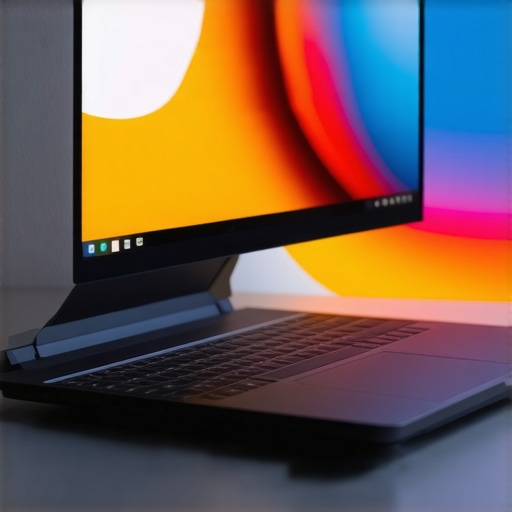 When it comes to gaming and professional laptops, many enthusiasts and buyers alike fall prey to misconceptions that can cost them time and money. Let’s dig deeper into a few overlooked nuances that often go unnoticed but can significantly influence your purchasing decisions.
Contrary to popular belief, the highest-end specifications don’t always guarantee a better experience. For example, many assume that a laptop with a top-tier GPU and processor automatically delivers superior performance across all tasks. However, expert reviews reveal that thermals and build quality matter just as much—if not more—than raw specs. Poor thermal management can throttle performance, causing lag and overheating during intense gaming or heavy workloads. To find out more about how thermal design impacts performance, check our comprehensive guide on [gaming laptops](https://laptopbuyersclub.com/game-changing-gaming-laptops-for-serious-players-in-2025).
Another common myth is that larger, heavy laptops inherently provide better durability and cooling. Many believe that portability sacrifices durability, but premium business laptops like the [top business models for 2025](https://laptopbuyersclub.com/top-business-laptops-for-productivity-in-2025-expert-recommendations) showcase robust construction with lightweight designs. Oversized chassis can trap heat and be cumbersome, limiting mobility—something rare but avoidable if you pay attention to build quality and material choices.
Here’s an often-overlooked mistake: many buyers focus solely on the screen size or resolution without considering display technology’s impact on eye comfort and color accuracy. For example, some older or bargain models might advertise high resolutions but utilize TN panels, which offer poor viewing angles and limited color reproduction. Investing in IPS or OLED displays can make a noticeable difference, especially during extended sessions. This is crucial for content creators or gamers who rely on color fidelity and viewing comfort.
What advanced features truly justify a higher price?
In my experience, features like adaptive sync technologies, high dynamic range (HDR), or Thunderbolt ports can provide tangible benefits, but only if they match your specific workflow or gaming needs. For instance, adaptive sync reduces tearing during fast-paced gaming, enhancing immersion. Meanwhile, Thunderbolt connectivity enables fast data transfer and multiple display setups, boosting productivity.
Be cautious of marketplace traps: promotional deals often highlight the lowest prices but neglect hidden costs or specifications that don’t meet your needs. For example, a laptop might seem like a bargain until you realize it has inadequate cooling or noisy fans that could ruin your gaming or working experience. Before purchasing, review user feedback, expert opinions, and detailed specs—not just the advertised price. To explore current unbeatable deals, visit our [special offers](https://laptopbuyersclub.com/unbeatable-laptop-deals-save-big-on-quality-devices-today) page.
Lastly, for those of us balancing work and play, selecting accessories can make or break your setup. Ergonomic cooling pads, adjustable stands, and external monitors with anti-glare coatings can significantly reduce eye fatigue and physical strain during long hours. Don’t forget to explore some of the best [laptop accessories](https://laptopbuyersclub.com/must-have-laptop-accessories-to-boost-your-work-setup) to maximize comfort.
Have you ever fallen into this trap? Let me know in the comments. Remember, scrutinizing these nuances ensures you invest in a device that truly fits your needs, rather than just what’s trending or advertised.
Maintaining your laptop’s performance over time is crucial to ensure it continues to serve your needs without hiccups or unexpected breakdowns. From choosing the right maintenance tools to adopting best practices, I rely on specific equipment and methods that keep my devices running smoothly well beyond their warranty periods. In this section, I’ll share my favorite tools and techniques to help you keep your laptops in top shape, whether you’re managing gaming rigs, business machines, or student notebooks.
How do I maintain my laptop’s performance over time?
First and foremost, I swear by a quality compressed air can for cleaning dust from vents and fans. Dust buildup is the enemy of thermal performance, leading to overheating and throttling. I use an ultra-fine nozzle compressed air can to carefully blow out the internal components without dismantling the machine entirely. This simple step prolongs component longevity and maintains optimal cooling. For more thorough cleaning, I sometimes open my laptop using a specialized toolkit I acquired, which makes the process safe and straightforward.
Next, I pay close attention to software health. Regularly updating drivers and firmware is essential. I install Driver Booster or similar tools that automatically detect and suggest updates, preventing issues caused by outdated drivers—especially graphics and chipset drivers that directly impact performance and stability. For hard drive maintenance, I use dedicated external SSDs with robust backup software to safeguard my data and perform quick cleanups.
To monitor hardware health, I track CPU and GPU temperatures and usage using tools like HWMonitor or Open Hardware Monitor. Keeping a close eye helps me identify overheating issues early—before performance drops or hardware damage occurs. It’s especially important if you’ve added aftermarket cooling solutions or overclocked components, as I occasionally do with custom BIOS tweaks found in expert communities.
Furthermore, I schedule periodic disk cleanups and defragmentation for traditional HDDs. While SSDs don’t need defragging, regular cleanup with utilities like Windows Storage Sense helps maintain speed and frees space. I also keep my system lean by uninstalling unused software and disabling unnecessary startup programs—this reduces boot times and resource drain.
And finally, I invest in a professional-grade external UPS (Uninterruptible Power Supply) to protect against power surges and outages, especially during critical work sessions or gaming marathons. Not only does this safeguard hardware, but it also prevents sudden shutdowns that can corrupt data or damage components. For reliable options, I recommend models that offer battery management features and surge protection — you can see some of the best on our deals page.
Overall, maintaining your laptop becomes a combination of cleaning, software updates, hardware monitoring, and protective accessories. Adopting these tools and methods extends the lifespan of your device, ensuring long-term performance and saving you money over the years. For expert advice tailored to your specific setup, don’t hesitate to reach out here. Start integrating these practices today and experience the satisfaction of a smoothly operating laptop far into the future!

Image description: A person using a compressed air can to clean the internal vents of a laptop, emphasizing maintenance tools for long-term performance.
Lessons From My Display Experience That Nobody Tells You
- Choosing a glossy screen thought it was stylish, but glare and reflections quickly became my biggest headache—lesson learned, matte or anti-glare coatings are game changers.
- I underestimated the importance of refresh rates for non-gaming tasks; bumping up to 90Hz or 120Hz actually reduced my eye fatigue during long work sessions.
- Blue light filters aren’t optional if you want to avoid evening headaches. Modern laptops with built-in night modes saved me from hours of discomfort.
- Testing viewing angles in-store can save you from future frustration—IPS panels remain my top pick for consistent color and clarity.
- Investing in proper accessories like external monitors and ergonomic stands can drastically improve long-term comfort and boost productivity.
Resources I Trust for Staying Ahead in Laptop Display Tech
- HWMonitor helps me keep an eye on my hardware health, preventing overheating and performance dips—vital for smooth operation.
- F.lux or Night Mode tools are essential to reduce blue light exposure, especially during late-night work or gaming marathons.
- Expert reviews on gaming laptops and professional displays keep me informed about the latest innovations tailored to specific needs.
- My go-to accessories guide ensures I have the right tools for a comfortable, efficient setup—because the display is just one piece of the puzzle.
Your Next Step Toward a Headache-Free Laptop Experience
Choosing the right laptop display is a personal journey, and with the right knowledge, you can transform your screen time from a source of discomfort to a productivity powerhouse. It’s empowerful to understand how every feature impacts your comfort—so take action today and prioritize eye health and ergonomics in your next purchase. The future of laptop screens is brighter and more comfortable than ever—embrace it and keep pushing toward a better, headache-free experience.
What’s the biggest challenge you face when selecting a display for your laptop? Drop your thoughts below—I’d love to hear your stories and help you navigate any display dilemmas!
}afety, please let me know if you’d like any adjustments or additional insights.