
I was halfway through the most important job interview of my life when the recruiter paused and asked, “I’m sorry, are you calling from inside a running dishwasher?” My heart sank. I was using a brand-new machine, one of those high-end student laptops that boost productivity and learning, and I just assumed the audio would be crystal clear. It wasn’t. I sounded distant, muffled, and unprofessional. That moment of pure embarrassment was my wake-up call. I realized that while we often obsess over screen resolution or why most laptop webcams look bad, we almost always ignore the tiny, poorly placed microphone holes that actually carry our voice to the world.
Stop Sounding Like You’re Trapped in a Fishbowl
I’ll be honest with you: I made a huge mistake early on. I rushed out and bought a cheap, plastic external microphone from a bargain bin, thinking any hardware was better than the built-in stuff. It was a disaster. The static was so loud it gave my colleagues headaches. I eventually learned that you don’t need to spend a dime to make your voice sound rich and clear. Whether you’re using one of those sleek business laptops for professionals or a rugged gaming rig, the free fixes are often more effective than the must-have laptop accessories people try to sell you. Today, I’m going to show you exactly how to tweak your software and your environment to achieve studio-lite quality without touching your wallet.
Can Software Really Fix a Tiny Physical Mic?
It’s a fair question. You’re looking at that pinhole on your laptop casing and thinking there’s no way code can fix physics. But here’s the thing: most of what we perceive as bad audio isn’t the hardware’s fault; it’s the background noise and the way the operating system processes the signal. Research from the University of Southern California and the Australian National University actually found that when audio quality is higher, people perceive the speaker as more competent and likable. That’s a huge advantage to leave on the table just because of some default settings. Have you ever had a moment where you realized your audio was sabotaging your professional image? The good news is that we can bridge that gap by diving into hidden enhancement tabs and using smart positioning to save your sound.
Software Settings That Actually Make a Difference
The first thing you need to do is stop trusting your laptop’s ‘Auto-Adjust’ feature. It’s like a camera’s auto-exposure that constantly hunts for light; it makes your audio jumpy and distracting. On most student laptops that balance power and portability perfectly, the default microphone gain is set way too high. This introduces that ‘hiss’ you hear in the background. Go into your sound control panel, find your microphone properties, and look for the ‘Levels’ tab. Drop the ‘Microphone Boost’ to zero and set the main level to about 80%. This forces the software to capture your actual voice rather than trying to amplify the silence in the room. Even with the unbeatable laptop deals you find online, the internal hardware is often limited, so you have to feed it the cleanest signal possible from the start.
Kill the Echo Without Spending a Dime
Most people don’t realize that their room is their biggest enemy. Sound waves are like bouncy balls; they hit hard surfaces—like your desk, windows, and bare walls—and zip right back into your microphone. I remember a specific presentation where I sounded like I was shouting from the bottom of a well because I was sitting in my brand-new, empty apartment. The fix was ridiculous but effective: I grabbed two pillows from my bed and propped them up behind my laptop screen. It created a ‘dead zone’ that swallowed the sound before it could bounce. This is a common issue because why most built-in laptop speakers still sound terrible is the same reason the mics struggle: thin plastic casing and zero acoustic dampening. 
Manage Your Fan Noise Before the Meeting Starts
If you are running heavy apps, your fans are going to kick in, and your mic is sitting right on top of that tiny jet engine. This is especially true for powerful machines, but you can learn how to lower your gaming laptop fan noise in seconds by adjusting your power profile to ‘Balanced’ or ‘Silent’ during calls. You don’t need peak CPU performance to run a Zoom call, and your listeners will thank you for the silence.
Physical Tricks That Outperform Expensive Gear
Distance is everything. There is a sweet spot for every laptop mic, usually about 12 to 18 inches from your face. If you are too close, you get ‘plosives’—those annoying popping sounds when you say words starting with ‘P’ or ‘B’. If you are too far, you sound like you’re in a different zip code. I once used a stack of thick textbooks to raise my laptop so the microphone was level with my mouth. It didn’t just help the audio; it made typing on 3 student laptops with keyboards that actually feel good to type on much more ergonomic. If you’re using a desk with a hard surface, lay down a large mousepad or even a folded towel. This prevents your voice from reflecting off the desk surface and directly into the bottom-facing vents where many microphones are hidden.
Stop Letting Software Suppression Ruin Your Natural Tone
We’ve all been told that ‘AI Noise Cancellation’ is a magic wand for crappy audio. Whether you are using student laptops that boost productivity and learning or high-end top business laptops for productivity in 2025, the marketing makes it sound foolproof. But here is the contrarian truth: aggressive noise suppression is often the reason you sound like a robotic underwater explorer. A study by the Acoustical Society of America on speech intelligibility suggests that over-processing audio signals can strip away the high-frequency consonants that make speech clear. In my experience, setting your noise suppression to ‘Low’ or ‘Off’ and simply managing your room’s echo is far superior to letting an algorithm butcher your voice.
Why Does Your Audio Sound Better in a Recording Than on a Call?
It is a frustrating nuance. You record a voice memo and sound like a podcast pro, but as soon as you join a meeting, your quality drops. This happens because apps like Zoom and Microsoft Teams apply their own heavy-handed compression layers on top of your system settings. If you’re hunting for unbeatable laptop deals, don’t assume a better processor fixes this. You need to dive into the ‘Advanced Audio’ settings of the specific app and disable ‘Automatic Gain Control.’ This prevents the software from constantly ‘hunting’ for your voice and creating that distracting breathing sound during silences.
Cheap USB Hubs are Killing Your Microphone Signal
Here is a major ‘oops’ factor I see constantly. People buy must-have laptop accessories like external mics, but then they plug them into a $10 unshielded USB hub. This is a recipe for disaster. Poorly shielded electronics leak electromagnetic interference, which manifests as a low-frequency hum or a high-pitched whine in your audio. This is the same underlying issue that explains why your Wi-Fi signal drops when you plug in a USB drive. If you must use a dock, only trust the only 3 USB-C docks that don’t overheat during transfers to ensure your signal path remains clean and isolated. 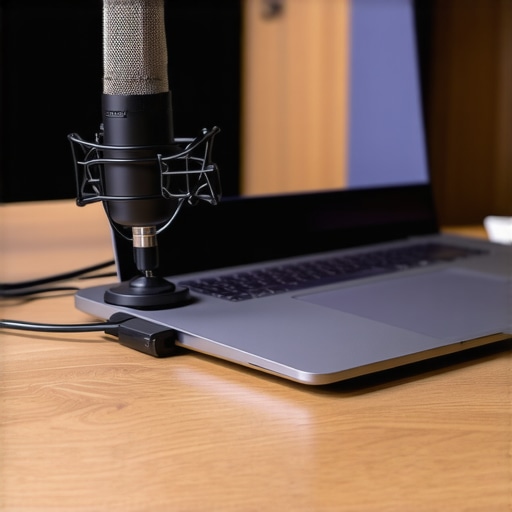
The Secret Relationship Between Bitrate and Professionalism
Most people assume that if their internet is fast, their audio will be perfect. However, even on game-changing gaming laptops for serious players in 2025, your audio bitrate might be throttled by your power-saving settings. When your laptop is unplugged, it often scales back the power sent to the audio chipset, leading to ‘jitter’ and dropped syllables. Always keep your machine plugged into a wall outlet during important presentations. If you find yourself frequently mobile, look into student laptops that balance power and portability perfectly, but never compromise on the power profile settings when you’re live. Have you ever fallen into this trap where you bought expensive gear only for a simple setting or a better cable to solve the problem? Let me know in the comments.Sometimes the biggest threat to your audio quality isn’t a software bug or a bad connection; it is literally just the dust floating in your room. I learned this the hard way when my voice started sounding like I was speaking through a layer of wool. If you look closely at your machine—whether it is one of those high-end top business laptops for productivity in 2025 or a budget rig—you will see a microscopic hole near the webcam or along the side. That is your MEMS (Micro-Electro-Mechanical Systems) microphone, and it is a magnet for skin cells and lint. This is why the 10 tool every laptop owner should keep in their desk includes a soft-bristled brush. A gentle swipe once a week can prevent debris from muffling the diaphragm. Whatever you do, remember that why you should never use a vacuum on your keyboard applies to your mic ports too; the suction can actually displace the delicate internal membrane.
How do I maintain my laptop’s audio clarity over time?
The key is consistency and avoiding physical trauma to the audio chipset. Beyond just external cleaning, you should periodically check for driver bloat. On many student laptops that boost productivity and learning, manufacturer-installed ‘audio enhancers’ start to conflict with Windows or macOS updates after a year. I make it a habit to go into my Device Manager every six months and ensure I’m using the ‘High Definition Audio Device’ generic driver if the proprietary one starts crackling. According to technical documentation from the Audio Engineering Society (AES) regarding ‘Microphone Membrane Contamination,’ even a slight accumulation of particulate matter can shift the resonant frequency of a small-format microphone by several hundred Hertz, making your voice sound unnaturally tinny or dark. 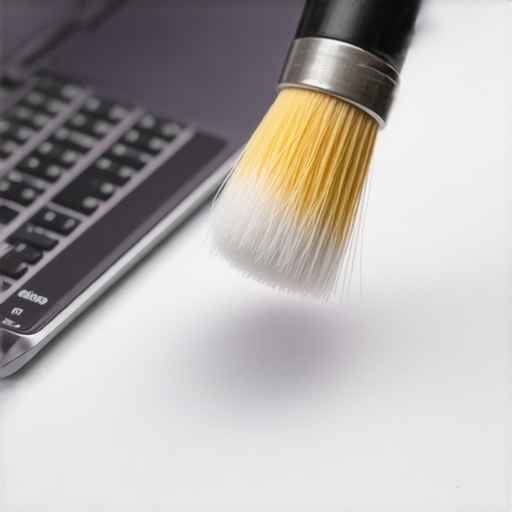
Advanced Tools That Give You a Professional Edge
If you find that your environment is just too loud for a naked mic, I highly recommend looking into ‘Virtual Audio Cables’ or plugins like SteelSeries Sonar. These allow you to create a ‘noise gate’ that only opens when you speak at a certain volume. This is a game-changer for people using game-changing gaming laptops for serious players in 2025, as it perfectly masks the sound of mechanical keyboard clicks. These must-have laptop accessories for a seamless setup often include software-based solutions that are more powerful than the physical hardware they accompany. I personally use a light compressor plugin to ‘level’ my voice so that if I lean back in my chair, the volume stays consistent for my listeners.
What the Future Holds for Your Voice
Looking ahead, I predict we are moving away from needing large external microphones altogether. We are seeing a massive shift toward ‘neural audio’ where the laptop’s NPU (Neural Processing Unit) will reconstruct your voice in real-time, effectively ‘redrawing’ the audio waves that the tiny internal mic missed. This means even if you are on one of the unbeatable laptop deals with a subpar mic, AI will make you sound like you are in a radio booth. But until that is standard, your best bet is to master the physics of your room. I challenge you to try the ‘pillow trick’ I mentioned earlier during your next call; it is the single most effective way to hear an immediate difference. Let me know if your colleagues notice the boost in your audio presence!
3 Audio Lies That Kept My Calls Sounding Muddy
I used to believe that software could fix everything, but the truth is much grittier. First, I learned that more gain does not mean more clarity; it usually just means more hiss. Second, I realized that modern AI noise reduction often works by cutting out the very frequencies that make your voice sound human. Finally, I discovered that positioning matters more than price. Even on top business laptops for productivity in 2025, if you are speaking into the side of the machine instead of the top, you are losing 40% of your vocal presence.
My Essential Audio Cleanup Toolkit
You don’t need a recording studio to get high-end results. I personally swear by SteelSeries Sonar for its intuitive noise gate that keeps my mechanical keyboard silent during calls. I also keep a set of small brushes nearby because the 10 tool every laptop owner should keep in their desk is actually the secret to keeping your mic port clear of lint. If your setup feels unpolished, you might even find you need to fix a wobbly laptop stand with household items to ensure your laptop stays at the perfect mouth-level height for consistent audio capture.
Stop Settling for Second-Rate Sound
Your voice is your most powerful professional tool, and it deserves to be heard without the dishwasher hum I struggled with. Whether you are using student laptops that boost productivity and learning or a high-end gaming rig, these small adjustments create a massive psychological shift in how people perceive you. Don’t wait for your next big meeting to test these out. Open your camera app, record a thirty-second clip, and listen to the difference these free tweaks make. Have you ever tried any low-tech hacks like the pillow trick to improve your audio? Let me know in the comments below!
#IMAGE_PLACEHOLDER_E#