
I’ll never forget the moment I realized my gaming laptop’s performance was hampered—not because of the processor or RAM, but because of my limited graphics capabilities. As a casual gamer and someone constantly battling sluggish rendering, I felt stuck. The dream of turning my humble laptop into a powerhouse was fading simply because I didn’t know how to upgrade my graphics without breaking the bank.
That’s when I stumbled upon the world of budget-friendly graphics cards for external laptop enclosures. Suddenly, I saw a real path to empower my machine without splurging on a new one. If you’re like me, you’ve probably faced similar frustrations—wondering if you have to buy an entirely new setup or if there’s an affordable way to boost your graphics. Well, good news: there is.
Why External Graphics Needn’t Break the Bank
Many believe that upgrading graphics performance requires a hefty investment or a whole new laptop. But that’s only half the story. The innovation of external GPU (eGPU) enclosures coupled with budget graphics cards has made high-end graphics accessible for those on a tight budget. Not only does this extend your laptop’s capabilities, but it also offers flexibility that desktops can’t match.
Early on, I made the mistake of overestimating the cost—thinking I needed a top-tier card to make a difference. Turns out, you don’t need to spend hundreds of dollars to see meaningful performance gains. In fact, many affordable options can breathe new life into your existing setup, whether you’re into gaming, content creation, or demanding business tasks. For a comprehensive look at how this can change your mobile computing experience, check out this guide to game-changing gaming laptops.
Is a Budget GPU Enough to Make a Difference?
Here’s the truth: a lot of early adopters, myself included, worry about whether cheap graphics cards can really handle the latest games or intensive applications. The misconception is that only high-end cards deliver quality. But recent advancements have made budget GPUs quite effective, especially when paired with an external enclosure. These setups can handle 1080p gaming, video editing, and 3D rendering more comfortably than you might think. According to industry insights, some budget options now rival mid-tier internal cards, making them a smart choice for flexible, wallet-conscious upgrades.
So, if you’ve been hesitant because of budget constraints or fear of incompatibility, you’re not alone—and you’re not out of options. Together, we’ll explore the best affordable graphics cards that will turn your mundane setup into a capable, versatile workhorse.
Choose the Right External GPU Enclosure
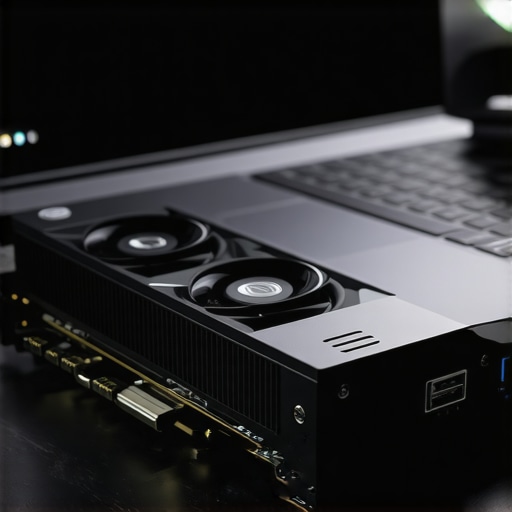
Start by selecting an enclosure compatible with your laptop’s ports, typically Thunderbolt 3 or 4. Think of this enclosure as a caddy that houses your new graphics card—it’s essential to find one with good build quality and adequate airflow. I once rushed into a cheap enclosure without research, only to find it overheating during gaming sessions; a future-proof choice saved me from repeated failures.
Assess Your Compatibility
Before purchasing, confirm your laptop supports external GPUs through BIOS or hardware specifications. For instance, most modern gaming and business laptops have Thunderbolt ports that facilitate eGPU connections, but some ultrabooks lack this feature. Using a compatibility checker or contacting the manufacturer can prevent costly mismatches.
Select a Budget-Friendly Graphics Card That Packs a Punch
Focus on mid-tier or entry-level cards like the NVIDIA GTX 1650 or AMD RX 6400. These cards are like the Swiss Army knives of the GPU world—affordable yet capable. During my first build, I bought a used GTX 1650, akin to finding a hidden gem in the used market, which delivered excellent 1080p gaming performance without breaking my budget.
Research Performance Benchmarks
Look up online benchmarks to compare performance for your intended use—gaming, video editing, or 3D rendering. Don’t just go for the newest or most expensive; sometimes, older models like the GTX 1050 Ti offer excellent value, especially when paired with a quality enclosure.
Assembling and Installing Your Setup
Power down your laptop and connect the enclosure via the compatible port. Insert the graphics card into the enclosure’s PCIe slot, then connect power cables if needed. Think of assembling this setup as building a mini desktop—careful handling and static precautions matter. I once failed to ground myself, causing a spark; subsequent grounding prevented repeated sparks.
Install Drivers and Test Performance
Power on your laptop, boot into your operating system, and install the latest drivers from the GPU manufacturer’s website. Once installed, run graphics-intensive applications to verify proper operation. I documented my first test session, noting frame rates and stability, which helped me fine-tune settings for optimal performance.
Optimize for Better Performance and Longevity
Adjust settings within your games or applications to balance visuals and frame rates, similar to fine-tuning a musical instrument. Keep the enclosure in a well-ventilated area and periodically clean dust to prevent overheating. My experience with a dusty enclosure taught me the value of maintenance—after a simple cleaning, temperatures dropped noticeably, boosting performance.
Remember, upgrading your graphics via an external enclosure is a cost-effective way to breathe new life into your existing laptop. It’s like giving your aging vehicle a turbocharger—simple, impactful, and within reach. For more insights into creating the perfect gaming setup, visit this comprehensive guide.
< >Many believe that buying the latest laptop accessories or snagging the biggest deal guarantees a smarter purchase, but in my experience, there’s a hidden nuance that many overlook. For example, people often assume that all high-priced accessories are worth it, yet quality and compatibility matter more than price. A common trap is purchasing flashy gadgets without verifying their actual benefit or whether they integrate well with your existing setup. This oversight can lead to wasted money and frustration. When it comes to laptop deals, the misconception is that bigger discounts always translate into better value; however, aggressive sales may hide underlying issues like limited warranty or return policies, which can be problematic long-term. Moreover, some students and professionals focus exclusively on specifications like RAM or CPU without considering the overall ecosystem—such as accessory compatibility or future upgrade paths—which influences usability and longevity. Considering these nuances is essential for making truly informed choices. For instance, selecting a business laptop with an open architecture might initially be pricier, but it offers flexibility for upgrades and repairs, saving money over time. Advanced buyers also recognize the importance of examining reviews about accessory durability and driver support, rather than relying solely on marketing hype. A savvy approach involves researching the specific needs of your workflow—whether for gaming, business, or study—and aligning accessory choices accordingly. This detailed awareness is what separates casual buyers from true experts. One often-overlooked aspect is the impact of accessories like external cooling pads or portable docks, which, if poorly chosen, can negatively affect portability or thermal performance. Avoid falling into the trap of overspending on unnecessary features; instead, prioritize compatibility, build quality, and actual performance gains. For instance, a high-quality, mid-range portable monitor paired with your existing laptop can boost productivity more than an expensive peripheral that doesn’t fit your needs. So, the next time you’re tempted by a flashy deal or new accessory, pause and evaluate whether it genuinely adds value to your setup. Want more insights on smart laptop upgrades? Check out our tips on finding the best deals or learn about must-have accessories that actually improve your workflow. Remember, an informed decision today can save you hundreds tomorrow. Have you ever fallen into this trap? Let me know in the comments.
Keeping Your Laptop Running Smoothly Over Time
Proper maintenance of your laptop isn’t just about cleaning dust or updating drivers; it’s about creating a sustainable routine that ensures longevity and optimal performance. As someone who has struggled with sluggish laptops despite regular use, I’ve come to rely on specific tools and methods that really make a difference. For instance, I swear by CrystalDiskInfo for monitoring storage health—the detailed SMART data it provides helps me spot failing drives before they cause data loss. Regularly checking your SSD or HDD’s health allows you to plan timely upgrades, preventing unexpected downtime.
How do I maintain my laptop’s health over time?
First, I schedule monthly clean-ups using compressed air to clear out dust that accumulates in vents and fans—this TIP prevents overheating, which can throttle performance. Next, I use driver management tools like Driver Booster to keep all device drivers current, reducing compatibility issues. For software upkeep, I leverage Malwarebytes to scan for potential threats weekly, especially when downloading files or visiting risky websites. These automated scans keep my system secure and responsive.
Beyond routine checks, I also manage storage proactively. Applications like WinDirStat give me a visual map of disk usage, enabling me to identify and delete unnecessary files or backups, freeing up space that can be repurposed for critical tasks. An often-overlooked point is firmware updates—they might sound complex, but manufacturers like Dell and Lenovo make it straightforward. Regular firmware upgrades can improve hardware stability and compatibility, especially when adding new peripherals or accessories.
The Future of Laptop Maintenance
Looking ahead, I predict smarter, AI-driven diagnostic tools will become standard, guiding users through maintenance routines tailored to their specific hardware configurations. Integrated health dashboards could warn you about potential failures days or weeks in advance, much like battery health indicators do today. Embracing these innovations will make keeping your machine in top shape easier and more proactive.
If you haven’t already, I suggest trying out CrystalDiskInfo or similar SMART monitoring tools today. They’re free, easy to set up, and can save you money and frustration down the line. Regular maintenance isn’t just about fixing issues—it’s about optimizing your setup for future upgrades and scalability, especially if you plan to extend your laptop’s life or upgrade components like RAM or storage.
For instance, when considering scalability, choosing a business laptop with user-upgradable parts—like those highlighted in our business laptop guide—can save you from costly replacements in the future.
Remember, maintaining your laptop isn’t a one-time event but an ongoing process. Stay vigilant, utilize specific tools, and keep abreast of emerging maintenance technologies. Doing so will ensure your device remains an effective tool for years to come.
< >
>
Embarking on the journey to upgrade and maintain your laptop setup has taught me that real value lies in the lessons learned along the way. Beyond just choosing the right components or tools, I’ve discovered that understanding the nuances of compatibility, maintenance routines, and budget-smart decisions can significantly extend your device’s lifespan and performance.
One of my most impactful realizations was that aggressive sales or flashy accessories often mask underlying issues or hype. It’s more beneficial to focus on quality, compatibility, and actual needs rather than succumbing to marketing tricks. For example, knowing which budget graphics card delivers the best bang for your buck has made my gaming and creative work smoother without draining my wallet.
Keeping your laptop running at its best isn’t just about isolated tweaks but developing an ongoing habit of maintenance, like monitoring storage health or routinely cleaning vents. Tailoring these routines to your specific hardware can save you money and prevent frustration down the line.
Ultimately, the secret to tapping into your laptop’s full potential is a combination of informed decision-making, patience, and proactive care. Every upgrade or maintenance task becomes more rewarding when you see tangible improvements, and that boost of confidence encourages more exploration and fine-tuning. Remember, your device is a powerful tool—treat it well, and it will reward you with reliable performance for years.