
I remember sitting there at midnight, the blue light of two screens reflecting off my glasses, feeling like a total idiot. I had just snagged one of those incredible laptop deals I’d been hunting for months, but my excitement vanished as soon as I tried to move 400GB of video projects from my old machine. I grabbed a dusty USB stick from the drawer, hit ‘paste,’ and watched the estimated time climb from two hours to… three days. My coffee went cold, my patience snapped, and I realized that most of us treat file transfers like an afterthought until we’re staring at a frozen progress bar.
Stop Letting Slow Transfers Eat Your Productivity
Moving your digital life shouldn’t feel like a chore, but we often make it one by relying on outdated hardware or flaky connections. I used to be the person who thought must-have laptop accessories were just marketing fluff—until I realized a decent Thunderbolt cable could have saved me six hours of my life. Whether you’re setting up student laptops for a new semester or migrating to high-end business laptops, the method you choose determines whether you’re working by morning or still troubleshooting at 3 AM. One massive mistake I made early on was trying to transfer files over a public network without checking my settings. Not only was it slow, but I also didn’t realize how to secure your data properly, leaving my sensitive documents exposed to anyone on the same node. [image]
Is cloud syncing actually a trap for large files?
Many people swear by Dropbox or OneDrive, but let’s be real: if your internet upload speed is sluggish, you’re just begging for a headache. According to data from IEEE Spectrum, physical connection standards like USB 4 can theoretically hit 80Gbps, which absolutely destroys even the fastest residential Wi-Fi. I once spent an entire afternoon trying to sync a game folder via the cloud, only to have my router restart and corrupt the whole thing. It’s why I now always keep a high-quality external hard drive nearby. Have you ever lost a half-finished transfer because your Wi-Fi decided to take a nap? It’s a gut-punching feeling. Today, we’re going to skip the amateur moves and look at the fastest, most reliable ways to get your data from Point A to Point B without losing your mind.
Don’t Settle for Cheap Cables
To get those blistering speeds you see on the box, you have to treat your connection like a highway. If you’re using a cable that came with a $10 phone charger, you’re effectively putting a speed limiter on your data. I once spent an hour wondering why my new setup was crawling, only to realize I was using a power-only cable that didn’t even support data transfer. For anyone using modern business laptops, the gold standard is a certified Thunderbolt 4 or USB4 cable. These aren’t just wires; they have chips inside to manage the signal. If you are connecting multiple peripherals, ensure you use the only 3 USB-C docks that don’t overheat during transfers to avoid the dreaded thermal disconnect.
Swap Your Old Thumb Drive for an NVMe SSD
We all have that drawer full of plastic USB sticks we got for free at career fairs. Throw them away. Or at least don’t use them for anything larger than a Word doc. If you want to move 100GB of 4K footage or a massive Steam library between game-changing gaming laptops, you need an external NVMe drive. It’s the difference between a freight train and a bicycle. I remember trying to help a friend migrate his project files using a generic drive he bought off a social media ad. It failed halfway through because the controller couldn’t handle the sustained heat. You have to be careful when shopping; knowing how to spot a fake NVMe drive on marketplace will save you from buying a glorified SD card in a fancy case. 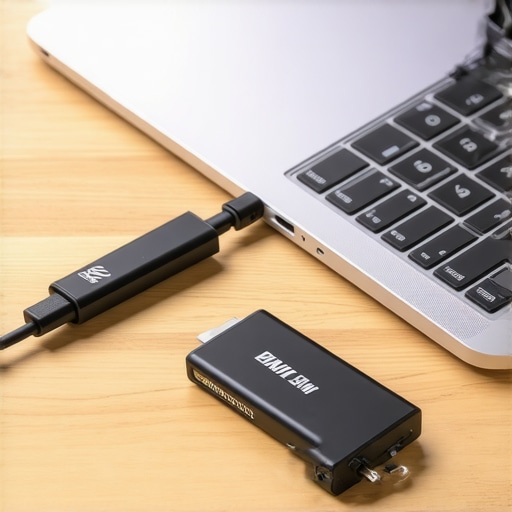
Wired Ethernet is Still the Secret Weapon
When you don’t have an external drive handy, the fastest way to move data between two machines is a direct LAN connection. Most people try to do this over Wi-Fi and then wonder why it takes six hours. If your machines have the ports, plug them both into your router with Cat6 cables. This is especially vital for professional environments where why your business laptop needs a physical ethernet port becomes incredibly obvious the moment you need to sync a local server. I once moved 2TB of data over a weekend using just a crossover cable and a prayer—it was still ten times faster than my ‘high-speed’ wireless mesh system.
Keep Your Laptop Cool During Huge Transfers
Large file transfers aren’t just hard on your storage; they make your processor work overtime to manage the data flow. If you’re pushing your machine to its limit, especially in the summer, you need to know how to stop your gaming laptop from thermal throttling in summer. I’ve seen transfers drop from 500MB/s to 20MB/s simply because the internal SSD got too hot and the firmware decided to slow everything down to prevent a meltdown. If you’re working on older student laptops, consider using the best budget SSDs for reviving older student laptops as an internal upgrade first. A fresh, cool-running drive is often the best insurance against a failed migration.
But here is the nuance that most people miss: speed isn’t just about the drive or the cable. It’s about the thermal headroom of the entire chassis. Everyone tells you to buy the highest specs you can afford, but in my experience, a top-tier processor in a chassis that is too thin is a recipe for disaster. I’ve seen enthusiasts hunt for laptop deals on i9 processors, only to find their performance drops below an i7 because the system can’t dissipate the heat. This is the hidden downside of ultra-thin gaming laptops—you are paying for power you can only use for ninety seconds before the fans scream and the clock speeds plummet.
The Total Graphics Power Myth
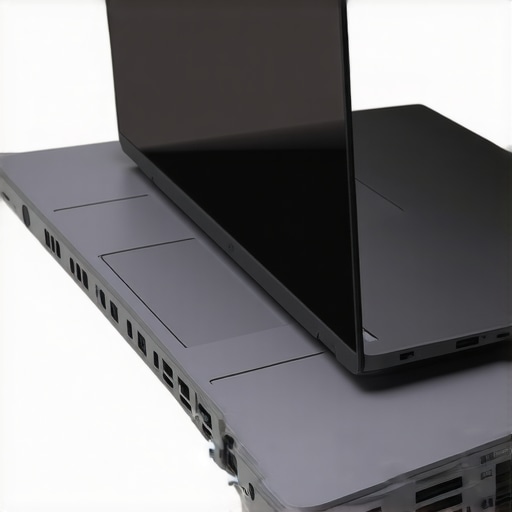
When you are looking at game-changing gaming laptops, don’t just look at the model number of the GPU. A 140W RTX 4070 will consistently outperform a 60W RTX 4080 found in a slim machine. According to research from NotebookCheck, the variance in Total Graphics Power (TGP) can result in a 30% performance gap between identical-looking chips. If you don’t check the wattage, you are essentially gambling with your frame rates. I once bought a ‘pro’ machine for video editing and realized too late that the GPU was capped so low it felt like I was working on a tablet. It was a painful lesson in why we often prefer heavy laptops for serious video production. Heavy often means more copper, and more copper means sustained performance.
Don’t Ignore the Quality of Life Basics
The ‘oops’ factor usually hits when you realize you focused on the CPU but ignored the interface. I cannot stress this enough: why you should never buy a laptop with a 720p screen becomes painfully obvious the first time you try to open two spreadsheets side-by-side. It’s 2025; a low-resolution panel is a productivity killer. Similarly, I see people buying high-end business laptops but then strangling their airflow by working on a couch. Please, why you should never use your laptop on a soft blanket should be common knowledge, yet I still see people wondering why their ‘premium’ machine died after eighteen months. Dust and heat are the silent killers that ensure why most gaming laptops fail right after the warranty expires.
Do you really need Windows Pro for your home office?
Many freelancers assume they need to pay the premium for Enterprise or Pro versions of Windows. While there are 5 key differences between enterprise and home windows, the reality is that unless you need BitLocker encryption or remote desktop hosting, you are often throwing money away. For student laptops, the Home edition is almost always sufficient. Spend that saved money on must-have laptop accessories like a high-quality mouse or a second monitor instead. Have you ever fallen into the trap of over-speccing a machine only to realize the hardware was held back by the build quality? Let me know in the comments.
I don’t just buy a machine and hope for the best; I treat it like a high-performance engine that needs a regular tune-up. If you’ve spent weeks hunting for the top laptop deals in 2025, it’s a tragedy to let that investment rot because of poor software hygiene or a dusty heat sink. I’ve seen $3,000 rigs turn into paperweights in two years, while my old ‘workhorse’ is still snappy after five. The difference isn’t luck; it’s the specific set of tools and habits I use to keep the hardware from eating itself alive.
Stop Charging to 100 Percent Every Night
The biggest mistake I see people make with business laptops is leaving them plugged into a dock 24/7. Modern lithium-ion batteries hate being full. According to the experts at Battery University, a battery kept at 100% charge in a warm environment loses its capacity significantly faster than one kept at 50%. This is the reason your laptop battery won’t charge past eighty percent on many pro-sumer models—it’s an intentional feature to save the cells. I personally set my threshold to 60% if I’m at my desk for the week. If you don’t manage this, you’ll eventually need to know how to tell if your laptop battery is swelling before it bursts, which is a terrifying experience I wouldn’t wish on anyone.
My Favorite Tools for Real-Time Monitoring
I am a bit of a nerd when it comes to telemetry. I never run game-changing gaming laptops without HWiNFO64 running in the background. It’s a free tool that gives you the exact temperature of every single component. If I see my hotspot temperature hitting 95°C, I know it’s time to crack the case open and clean the fans. Most people wait until the fans sound like a jet engine, but by then, the damage is already happening. I also keep a strict eye on my SSD health. You should learn how to spot a dying SSD before your files vanish because, unlike a clicking hard drive, a solid-state drive usually dies in total silence.
How do I keep this thing fast for the long haul?
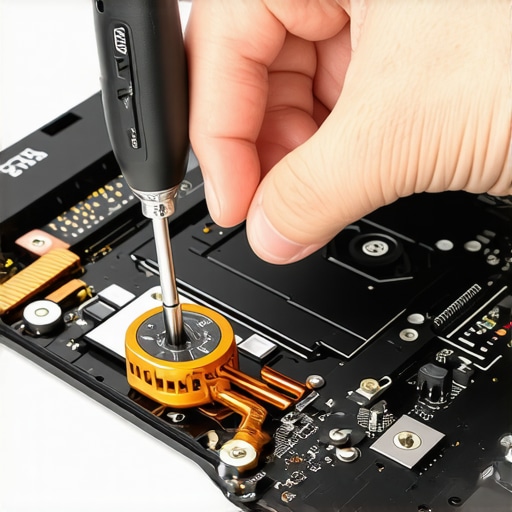
Maintenance is both physical and digital. Once every six months, I use a specialized toolkit to check the internals. I always look up how to find official repair guides for your exact model before I start unscrewing anything, as many modern student laptops use hidden clips that are easy to snap. Digitally, I’m ruthless about my startup apps. If it’s not essential, it’s disabled. I also think why your next business laptop needs a user-replaceable battery is going to be the most important question of the next decade. As we move toward better ‘Right to Repair’ laws, the trend is shifting back toward modularity. In the future, I expect the ‘disposable’ laptop to become a mark of a low-quality brand, while premium manufacturers will compete on how easy it is to swap a motherboard or a screen.
Before you close your laptop tonight, I want you to do one thing: check your battery wear level using a tool like BatteryInfoView. If it’s over 15%, it’s time to start looking at how to find out if your laptop can be upgraded or replaced. Don’t wait for a total failure to start caring about the hardware that carries your entire digital life. And for goodness’ sake, why we still carry a microfiber cloth in our laptop bags isn’t just about vanity; it’s about keeping skin oils from etching into your screen coating permanently.
Lessons from a Decade of Fried Motherboards
I have spent enough time in the guts of laptops to know that what looks good on a spec sheet often falls apart in the real world. Here are the hard-won truths that I now live by:
- The ‘Deal’ is often a trap: Many top laptop deals in 2025 are actually clearance sales for models with known thermal issues. If the price is too good to be true, check the cooling vent design.
- Hinges are the first point of failure: I’ve seen more powerful machines die because a plastic hinge snapped and took out the display cable than because of a CPU failure. Always look for metal reinforcement.
- Future-proofing is a myth, but maintainability is real: Instead of buying the fastest chip you can’t afford, focus on how to find out if your laptop can be upgraded later. Adding RAM in three years is cheaper than buying a whole new machine today.
The Specific Gear I Use to Fight Tech Decay
I don’t leave my hardware’s health to chance. My daily setup includes a few non-negotiables that keep my system running at peak performance without constant troubleshooting. First, I never travel without the best laptop bags that don’t scream steal me because physical protection is the first line of defense against data loss. For connectivity, I stick to the only 3 USB-C docks that don’t overheat during transfers, which prevents the thermal throttling that kills productivity during long work sessions. I also carry a specialized toolkit; it sounds simple, but why we still carry a microfiber cloth in our laptop bags is about more than just a clean screen—it prevents keyboard oils from permanently etching the delicate display coatings during transport.
[image]
Build a Machine That Serves You for Years
Your tech shouldn’t be a source of stress. Whether you are hunting for game-changing gaming laptops or a reliable daily driver for school, the goal is to create a symbiotic relationship with your hardware. When you treat your machine with a bit of respect—cleaning the fans, managing the battery cycles, and knowing how to spot a dying SSD before your files vanish—you transition from a passive user to a master of your digital environment. Don’t be afraid to open a case or tweak a setting. These machines are tools, and the better you understand the tool, the more effectively you can build your future. What’s the one piece of tech advice you wish you’d known before your last big laptop purchase? Let me know in the comments below!