
I remember sitting at my desk last summer, trying to finish a render on my new workstation while the sun beat through the window. The fans were screaming—seriously, it sounded like a jet engine preparing for takeoff—and then, silence. A thermal shutdown. Right in the middle of an unsaved project. I had invested heavily in one of those game-changing gaming laptops for serious players in 2025, and yet there I was, staring at a black screen because I didn’t understand the basics of airflow. In a moment of pure panic, I actually considered putting a bag of frozen peas under the chassis. Please, never do that. Condensation is a far quicker killer than heat. That failure was my wake-up call to find real, portable ways to keep things cool without carrying a bulky plastic tray everywhere. Today, I’m sharing the hard-won lessons that will save your hardware and your sanity.
Give Your Laptop Room to Breathe
Most of us treat our laptops like tablets, tossing them on pillows, blankets, or thick carpets. I used to be the king of the ‘bed-gamer’ lifestyle until I realized I was essentially putting a plastic bag over my computer’s intake vents. The secret to cooling isn’t always adding more fans; it’s making sure the fans you already have can actually move air. When I first started out, I thought high temperatures were just an unavoidable part of owning student laptops that balance power and portability perfectly. I was wrong. By simply elevating the back of the machine by an inch, you can drop internal temperatures by 5 to 10 degrees. It sounds too simple to work, but it’s all about the intake. I’ve spent years testing tactics to stop your laptop from overheating on your bed and found that the ‘propped-up’ method beats almost any cheap plastic cooling pad. Have you ever felt your keyboard getting uncomfortably warm during a long session and tried just lifting the back with a book? It’s a total game-changer.
Are these expensive cooling accessories just a scam?
It is a valid fear. We see these RGB-lit ‘mega-chillers’ and think they are the only solution to a thermal throttle. But the truth is, many of them just blow dust directly into your delicate internal components. I made the mistake of buying a budget pad early on, only to find it actually blocked my laptop’s natural exhaust path. While some must-have laptop accessories to boost your work setup are incredibly useful, they can’t fix a fundamentally choked system. In fact, research from the University of Maryland’s Center for Advanced Life Cycle Engineering highlights that constant exposure to even slightly elevated temperatures is the leading cause of ‘electromigration’—the process that literally wears out your processor’s internal circuits over time. If you are using one of the top business laptops for productivity in 2025, you don’t want a massive, noisy fan pad ruining your professional aesthetic. You want stealthy, effective cooling that actually works. Sometimes, that means learning how to clean the dust out of your laptop without opening it to keep those tiny internal fins clear. Stick with me, and I’ll show you exactly how to optimize your setup for maximum performance.
Force the Software to Play Nice
While physical fixes are vital, the war against heat often starts inside the operating system. Think of your CPU like a high-performance athlete; it wants to run at 110% all the time, even when it is just doing a light warm-up. This inefficiency generates massive heat. Most game-changing gaming laptops for serious players in 2025 come with pre-installed ‘Turbo’ modes that push voltage to the limit. I found that by diving into the power management settings and slightly capping the maximum processor state to 99%, you can disable the aggressive boost clock that often triggers thermal throttling. This doesn’t just lower temperatures; it is one of the fastest ways how to lower your gaming laptop fan noise in seconds. If you are comfortable with third-party tools, undervolting is your best friend. It’s like giving your laptop the same amount of fuel but making the engine run 20% more efficiently.
Put Your CPU on a Power Diet
Many people fear that undervolting will void their warranty or break the machine. In reality, you are just finding the ‘sweet spot’ where your chip performs perfectly with less electricity. When I first tried this on my workstation, I was terrified of a blue screen. But after a few minutes of tweaking, my idle temperatures dropped from 50°C to 38°C without losing a single frame in my renders. It is especially useful for student laptops that balance power and portability perfectly, as these thin chassis struggle to dissipate heat during heavy study sessions or light gaming.
Master the Physical Airflow Battle
If your software is optimized but the vents are clogged, you are fighting a losing battle. Dust is the silent killer of hardware. It acts like a wool sweater wrapped around your copper heat pipes. You need to establish a routine for clearing the pathways. I recommend using a can of compressed air every two weeks. Hold the fan blades still with a toothpick through the vent grille before you spray; letting the fans spin freely from the air pressure can actually generate a current that damages the motherboard. Learning how to clean the dust out of your laptop without opening it is a foundational skill for any owner. 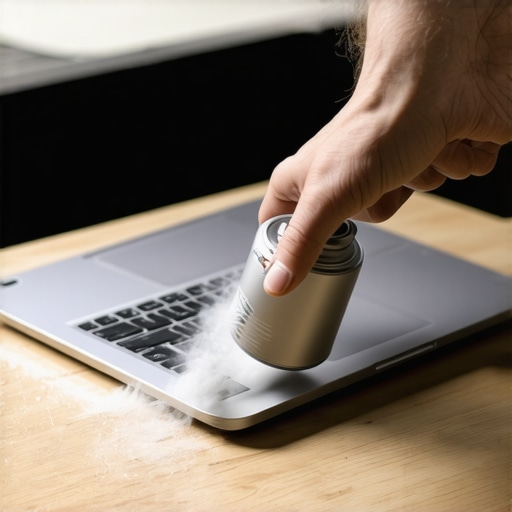
Swap the Factory Gunk for High-Performance Paste
This was the messiest but most rewarding lesson I ever learned. About two years ago, I noticed my laptop was hitting 95°C just by opening a web browser. I decided to crack the case open and saw that the manufacturer’s thermal paste had dried into something resembling crumbly chalk. I spent an hour delicately cleaning the dies with isopropyl alcohol and applied a pea-sized amount of high-grade compound. The result? A massive 15-degree drop under load. This is why why we swapped the thermal paste on our brand new laptop even before the first boot on some models. It ensures the heat moves from the chip to the heatsink as fast as possible.
Elevate the Chassis Without Losing Stability
You don’t need a bulky cooling pad with neon lights to get results. The goal is to maximize the gap between the bottom intake vents and the hard surface of your desk. I’ve tested everything from expensive risers to simple rubber feet. The key is to find the only laptop stands that dont shake while you type, because a wobbly screen will drive you crazy during a long workday. For those with thicker machines, the simple hack for better airflow on thick gaming rigs is often just using a small aluminum fold-out stand that fits in your pocket. It’s a low-cost, high-impact way to keep the air moving.
People often assume that if they buy the most expensive model, it should handle its own thermals perfectly. In my experience, that’s a dangerous assumption. We’re currently seeing a trend where ‘thinner is better,’ but the hidden downside of ultra-thin gaming laptops is that they simply lack the physical surface area to move heat away from the silicon. I’ve seen $3,000 machines throttle within five minutes because the chassis was designed for aesthetics over airflow. If you’re looking at the hidden costs of choosing an ultra-thin business laptop, remember that heat equals noise and shortened lifespans. You are paying a premium for a form factor that actively fights against the longevity of your hardware.
Why does your laptop stay hot even when the fans are off?
The answer usually lies in ‘thermal soak.’ Components like the VRMs (Voltage Regulator Modules) and even the battery generate heat that stays trapped in the casing long after the CPU has cooled down. Research from the Journal of Electronic Packaging suggests that thermal cycling—the constant heating and cooling of internal components—is actually more damaging to solder joints than staying at a steady, slightly elevated temperature. This is why I always leave my laptop on a flat surface for ten minutes after a heavy session before packing it into a bag. Putting a hot machine into a tight sleeve essentially bakes the internal components in their own residual energy.
Avoid the Vacuum Cleaner Trap
One massive ‘oops’ factor I see constantly involves cleaning. When you see dust in the keys, your instinct is to grab the household vacuum. Stop. Why you should never use a vacuum on your keyboard comes down to static electricity. A vacuum nozzle can generate a massive electrostatic discharge (ESD) that can fry a motherboard in a millisecond. Use compressed air or specialized brushes instead. I once watched a friend lose a high-end workstation because he thought he was being efficient with a shop-vac. It’s a heartbreaking and expensive mistake to make.
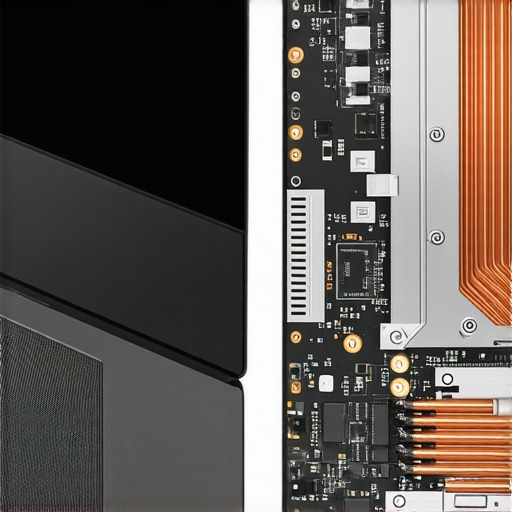
Also, consider your peripherals. We focus so much on the laptop itself that we forget about the ‘heat anchors’ we plug into it. I’ve found that why cheap USB-C hubs might be killing your ports is often thermal-related; these hubs get incredibly hot and transfer that heat directly back into your laptop’s motherboard through the connector. It’s a silent killer. Even your furniture matters—why most gaming desks are actually terrible for laptops usually boils down to surface materials like glass or thick laminate that trap heat rather than dissipating it. Wood or mesh surfaces are always superior for long-term stability.
Watch Out for Dirty Power
Always be wary of third-party power supplies too. Learning how to spot a fake charger before it fries your motherboard is just as important as monitoring your CPU temps. A bad charger can cause ‘dirty power’ that makes your internal voltage regulators work twice as hard, creating even more internal heat that the cooling system wasn’t designed to handle. Have you ever fallen into this trap of prioritizing looks or convenience over cooling? Let me know in the comments.
Get Real Data on Your Temps
I stopped relying on my fingers to tell me if my machine was too hot years ago. If you want to take this seriously, you need to install HWInfo64. It is the only tool I trust because it gives you granular data on every single sensor, from the VRM temperatures to the individual core clocks. I personally use it to monitor the T-Junction Max (TjMax) limit. According to Intel’s official technical documentation for their recent mobile architectures, once you hit that 100°C threshold, the system starts a process of aggressive thermal throttling to prevent permanent silicon damage. If you are constantly hitting that wall, even on business laptops for professionals essential picks 2025, you are leaving performance on the table and aging your components prematurely. I set up a custom alert that triggers a subtle tray icon change when my CPU hits 92°C. It’s my early warning system to back off the render or check for obstructions.

Your Storage Has a Lifespan Too
Heat doesn’t just affect your FPS; it slowly kills your data. I’ve seen high-end NVMe drives fail because they were sandwiched right next to a GPU without proper heat shielding. Most people don’t realize that SSDs actually prefer to be slightly warm while writing but cool while storing data. Extreme heat accelerates the wear on the NAND cells. Knowing how to spot a dying SSD before your files vanish is a critical skill for anyone using their machine for work. If you find unbeatable laptop deals save big on quality devices today, the first thing you should check is the drive health using a tool like CrystalDiskInfo. It’s a simple, free way to ensure your ‘new’ deal isn’t hiding a worn-out component.
How can I keep my laptop feeling brand new for three years?
Maintenance isn’t a one-and-done event; it is a seasonal rhythm. Every six months, I do a ‘deep audit’ of my hardware. This includes checking for loose screws on the bottom panel and inspecting the hinge movement. I always look for how to find official repair guides for your exact model before I touch a screwdriver. Being able to access the internal fans for a proper cleaning is what separates the people who replace their laptops every two years from those who keep them for five. I specifically look for the only 3 brands that still make easily repairable laptops when I recommend systems to friends, because longevity is directly tied to accessibility.
The Coming Era of AI-Driven Thermals
Looking ahead, the ‘dumb’ fan curves we use today are on their way out. We are starting to see the first wave of AI-managed power phases that predict heat spikes based on your workflow patterns. Instead of reacting to heat after it happens, these systems will pre-throttle or spin up fans in anticipation of a heavy load. This is going to be a standard feature in game-changing gaming laptops for 2025 adventures. It means less noise and more consistent clock speeds. I suggest you try this one advanced tip today: Download a monitoring tool and identify your ‘idle delta’—the difference between your room temperature and your CPU temp at rest. If it’s more than 15°C, it’s time for a cleaning.
Hard-Won Lessons from a Decade of Fried Motherboards
After years of tinkering, I’ve realized that cooling isn’t just about blowing air; it’s about managing expectations. I spent too much time early on chasing a 50°C load temperature that simply isn’t realistic for modern, high-performance silicon. I learned that silence is often more expensive than raw speed; if you want a quiet machine, you have to invest in better thermal conductivity like high-grade paste, not just more fans. Another lightbulb moment was realizing that ‘Gaming’ branded furniture often traps more heat than a simple mesh office desk. Finally, don’t let a ‘Turbo’ button dictate your experience. You are the pilot of your hardware, and sometimes, flying at 90% throttle keeps you in the air much longer without the risk of a crash.
The Tools I Use to Keep My Silicon Happy
If you’re serious about maintenance, you need the right kit. I personally swear by HWInfo64 for data—it’s the only tool that doesn’t sugarcoat the numbers. For physical cleaning, I avoid those cheap electronic vacuums and stick to high-pressure compressed air and a simple pack of 99% isopropyl alcohol for cleaning the heat sinks. I also keep a bookmark for how to find official repair guides for your exact model because memory is fickle, and knowing exactly which screw goes where saves lives. If you are looking for long-term reliability before your next purchase, I always point people toward the only 3 brands that still make easily repairable laptops, as they make these maintenance tasks significantly easier and more accessible for the average user.
Take Control of Your Thermal Destiny
Your laptop is a significant investment, whether you’re hunting for unbeatable laptop deals save big on quality devices today or you’ve already picked up one of those game-changing gaming laptops for serious players in 2025. Don’t wait for a thermal shutdown to start caring about airflow. It takes five minutes to lift the back of your machine and thirty seconds to check your internal temperatures. Treat your hardware with respect, and it will return the favor with years of high-speed performance. You’ve got the knowledge; now go out and keep those temps low. Have you ever tried undervolting or repasting your machine and been surprised by the results? Let me know in the comments below!