
I’ll never forget the sound of my first real laptop failure. It wasn’t a spectacular crash or a blue screen of death; it was the agonizingly slow ‘click-wait-click’ rhythm of a mechanical hard drive struggling to open a simple PDF while I was trying to finish a client proposal in a crowded cafe. I felt that hot prickle of embarrassment as the person next to me breezed through their work on a sleek new machine while I sat there, staring at a spinning wheel. I almost ran out and blew my rent money on the first of many unbeatable laptop deals I could find. But instead, I took the machine home and opened it up. That day, I learned a hard truth: 90% of what you read online about ‘speeding up’ a computer is complete nonsense designed to sell you sketchy software. You don’t need a registry cleaner, and you certainly don’t need to ‘optimize’ your desktop icons. You need to address the actual hardware bottlenecks that are choking your processor. Today, I’m showing you the only three ways to genuinely bring a sluggish machine back to life. We’re moving past the Band-Aids and performing some much-needed surgery.
Stop Buying Software to Fix Hardware Problems
The biggest mistake I made early on—and it’s one I still see professionals making with their business laptops—is thinking that a slow computer is a ‘messy’ computer. I used to spend hours deleting temporary files and running ‘system tuners’ that did absolutely nothing but eat up more background resources. According to a technical study by Kingston Technology, upgrading from a traditional spinning hard drive to even a basic SATA SSD can improve system responsiveness by up to 300%. No software update in the world can compete with that kind of raw physical speed. Before you give up on your current rig, you need to how to find out if your laptop can be upgraded because, more often than not, a $50 part can outperform a $1,000 replacement. Have you ever felt that ‘laptop rage’ where you’re ready to snap the screen in half because it’s so slow? Drop a comment below and let me know which model is currently testing your patience.
[image_placeholder]
Is my laptop too old for these upgrades to matter?
I hear this all the time from students trying to squeeze one more year out of their gear. They worry that their processor is just too ‘tired.’ The reality is that CPUs rarely ‘slow down’ over time; they just get bogged down by modern websites and apps that demand more memory and faster data access. By picking up some best budget SSDs for reviving older student laptops, you’re removing the primary bottleneck that makes the whole system feel sluggish. It’s like giving a runner a clear track instead of making them sprint through mud. However, you do have to be careful—knowing how to spot a dying SSD is crucial before you start transferring your life’s work onto new hardware. We’re going to look at the three specific areas where you can actually see a difference: storage, memory, and thermal management.
Upgrade Your Drive Before You Give Up
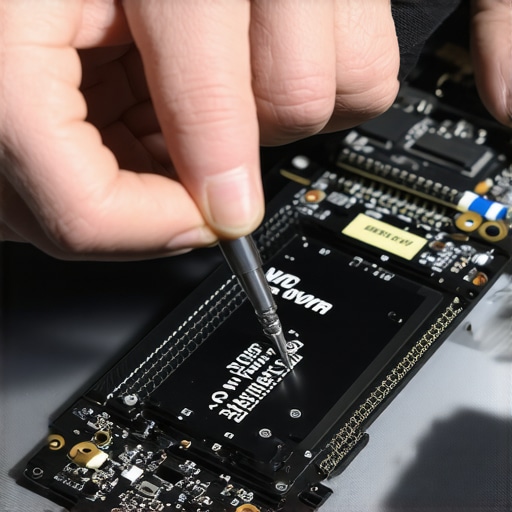
The single most effective way to turn a paperweight back into a powerhouse is to ditch the mechanical hard drive. Think of your hard drive as the library where your computer stores its books. A traditional HDD is like a librarian who walks at a snail’s pace to find a single page. An SSD is like a librarian who teleports. If you’re still hearing that faint whirring or clicking sound, your machine is begging for retirement. Knowing how to find out if your laptop can be upgraded is the first hurdle you need to clear. Most laptops from the last decade use a standard 2.5-inch SATA slot, but newer, thinner models might require an M.2 stick. Don’t wait until you see the ‘no bootable device’ error. I’ve seen too many people lose years of photos because they didn’t know how to spot a dying SSD or HDD before it completely gave up the ghost. Swapping the drive takes about fifteen minutes and a single Phillips-head screwdriver, yet it delivers a more noticeable speed boost than buying a brand-new mid-range machine.
Stop Running Out of Digital Desk Space
If the hard drive is the library, RAM is your actual physical desk. You can have the fastest librarian in the world, but if your desk is only the size of a postage stamp, you can only work on one document at a time. This is where most student laptops that boost productivity and learning fail—they ship with 4GB or 8GB of RAM that gets swallowed whole by three Chrome tabs and a Zoom call. When I learned the best way to configure a new business laptop, I realized that 16GB is the modern bare minimum for anyone who doesn’t want to see their computer stutter every time they switch windows. If your laptop feels ‘jerky’ when multitasking, your RAM is likely maxed out, forcing the CPU to use the much slower storage drive as ‘virtual memory.’ It’s a performance killer that no software patch can fix.
Clean the Vents or Watch Your CPU Melt
Heat is the silent assassin of electronics. I once spent three hours trying to ‘defragment’ a friend’s old laptop that was hitting 95 degrees Celsius just by opening a web browser. It wasn’t until I took a screwdriver to it and saw the thick ‘carpet’ of dust blocking the fan that I realized my software tweaks were like trying to put out a forest fire with a water pistol. When a processor gets too hot, it intentionally slows itself down—a process called thermal throttling—to prevent itself from melting. This is why you should learn how to lower your gaming laptop fan noise in seconds by clearing those obstructions. Beyond just dust, the thermal paste—the gunk that transfers heat from the chip to the heatsink—dries out over time. It sounds intimidating, but why we swapped the thermal paste on our brand new laptop isn’t just for enthusiasts; it’s a necessary maintenance step for any machine older than three years. Fresh paste can drop your temperatures by 10 to 15 degrees, instantly unlocking the speed your processor was actually designed to deliver.
Spec Sheets Lie More Than You Think
Everyone tells you that more power is always better, but I’ve seen top-tier i9 processors get outperformed by mid-range i5s just because the latter had a better cooling system. In my experience, chasing the highest clock speed on a sticker is the quickest way to waste a month’s salary. This is a massive issue with some business laptops for professionals where manufacturers prioritize a thin profile over actual airflow. A performance study by Puget Systems on mobile workstations reveals that high-end components can lose up to 25% of their effective speed when thermal throttling kicks in. You are essentially paying a premium for performance that your machine’s chassis literally won’t let you use. If you want a machine that actually delivers, you have to look past the marketing fluff and check the thermal headroom first.
The Proprietary Part Trap You Must Avoid
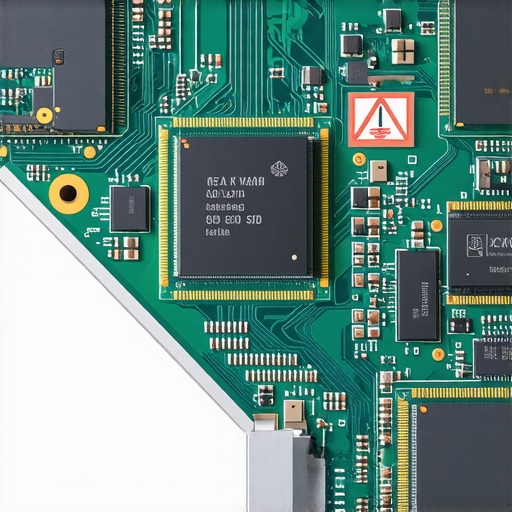
Here is the ‘Oops’ factor that catches even seasoned techies off guard: the rise of soldered components. Many of the most tempting unbeatable laptop deals feature memory and storage that are permanently fused to the motherboard. I’ve seen clients buy a machine thinking they’ll upgrade it later, only to find out they are stuck with 8GB of RAM forever. This is why why we avoid laptops with proprietary ssd slots and soldered memory whenever possible. If a single memory chip fails outside of warranty, you aren’t just replacing a $40 stick of RAM; you’re replacing the entire $600 motherboard. It’s a planned obsolescence tactic that turns a minor repair into a total system loss.
Why does my high-end machine feel slower than my old one?
This is the most common question I get from people who just dropped two grand on a new rig. The culprit is often ‘bloatware’ and aggressive power management settings that manufacturers use to hit those ’15-hour battery life’ claims. When you first get a machine, even the game-changing gaming laptops for 2025 adventures, they are often set to a balanced power profile that caps the CPU at 50% capacity. Beyond that, the sheer amount of telemetry data modern operating systems send back to the mothership can choke a system’s responsiveness. Before you assume your hardware is a dud, ensure you know the best way to configure a new business laptop by stripping out the manufacturer’s ‘support’ utilities that do nothing but eat up background cycles. Have you ever fallen into this trap of buying a high-spec machine that felt like a turtle out of the box? Let me know in the comments.
Don’t Mistake Used for Refurbished
There is a nuanced difference between a ‘refurbished’ unit and a ‘used’ one, and ignoring it is a recipe for disaster. When looking for top laptop deals in 2025, many third-party sellers on social media will list a dusty, three-year-old machine as ‘refurbished’ simply because they wiped the fingerprints off the screen. True refurbishment involves stress testing the battery, checking for SSD wear levels, and ensuring the hinges aren’t about to snap. I always tell people to learn how to tell if that refurbished deal is actually just used before handing over any cash. A ‘deal’ isn’t a deal if the battery has 900 cycles on it and is ready to expand like a spicy pillow. Stick to certified outlets or learn the diagnostic commands to check the hardware health yourself the moment you unbox it.
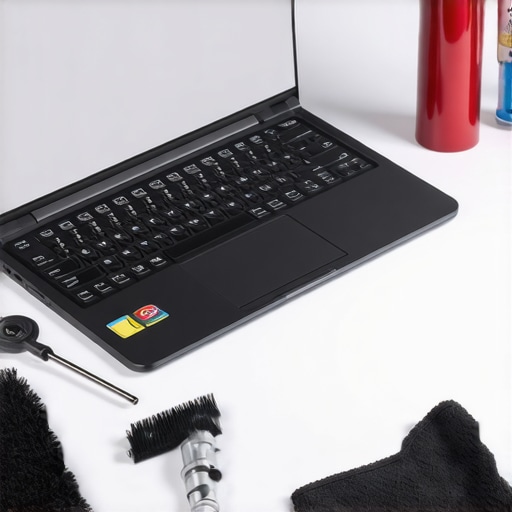
Maintenance isn’t just about deleting old downloads; it’s about the physical and systemic hygiene that keeps your hardware from degrading. I’ve seen $3,000 machines turned into sluggish paperweights in eighteen months because the owners treated them like disposable appliances. If you want your investment to last, you need to treat it like a high-performance engine. That means having a dedicated toolkit. I’m not talking about a basic screwdriver set, but a curated selection of must-have laptop accessories to boost your work setup that actually serve a protective purpose. For me, that starts with the basics: why we still carry a microfiber cloth in our laptop bags is simple—oils from your skin will permanently etch into your screen coating and keyboard plastic if left unchecked. It’s a small habit that preserves the resale value and clarity of your machine more than any software update ever could.
Monitoring Your Hardware Without the Bloat
To keep a close eye on your system’s health, you need to move away from the flashy ‘optimization’ suites and toward raw data. I personally rely on HWiNFO and CrystalDiskInfo. These tools don’t ‘fix’ anything; they simply tell you the truth about your temperatures and drive wear levels. According to iFixit’s 2024 Laptop Repairability Report, the average consumer laptop loses nearly 30% of its peak efficiency after three years due to unaddressed thermal issues and battery degradation. By monitoring your ‘battery wear level,’ you can plan for a replacement before the internal cells start to warp the chassis. This is especially vital for those trying to figure out how to pick a student laptop that lasts all four years—longevity is a data game, not a guessing game. If your temps are creeping up during simple tasks, it’s time to stop looking at software and start looking at your fan intakes.
How do I keep my laptop running like day one for four years?
The secret isn’t a magic setting; it’s a combination of thermal management and storage discipline. I keep a 20% buffer on my SSD at all times because SSDs slow down drastically once they hit 80% capacity. I also use the best keyboard cleaning slime we actually tested once a week to ensure debris doesn’t migrate under the keys and jam the switches. For my professional gear, I stick to the only 3 brands that still make easily repairable laptops, ensuring that if a fan dies or a port fails, I can swap the part in twenty minutes rather than buying a whole new motherboard. This ‘right to repair’ mindset is the only way to beat the planned obsolescence cycle that most manufacturers rely on to keep you spending.
Why Modular Design is the Only Way Forward
Looking ahead, the trend of soldering everything to the board is finally facing a backlash. We are seeing a slow but steady shift toward modularity where users can swap out entire I/O blocks or upgrade their own RAM without a heat gun. I predict that within the next five years, the most successful business laptops for professionals won’t be the thinnest ones, but the ones that offer the longest documented lifecycle. We are moving away from the ‘thinness at all costs’ era because professionals are tired of paying $2,000 for a machine that can’t be fixed by a local technician. If you want to stay ahead of the curve, prioritize repairability over aesthetics every single time. I want you to try one thing today: run a battery report on your machine. On Windows, type ‘powercfg /batteryreport’ into your command prompt. It will tell you exactly how many cycles you’ve used and what your actual capacity is compared to when it was new. Knowing the truth about your hardware is the first step to making it last.
What Pro Techies Rarely Mention About Real Performance
After years of tearing down everything from budget rigs to high-end workstations, I’ve realized that performance is often about the things you don’t do. First, ignore the urge to ‘clean’ your registry; it is a relic of the Windows XP era that has no place in 2025. Instead, focus on the 20% rule: once your storage hits 80% capacity, performance drops off a cliff. This is conceptually similar to the reason your laptop battery wont charge past eighty percent—manufacturers often prioritize longevity and stability over raw capacity. Second, never trust a ‘factory’ thermal application on a mid-range machine. Manufacturers often use cheap, mass-produced pads that dry out within a year. Finally, always check the only 3 brands that still make easily repairable laptops before you buy your next device. If you can’t open it, you don’t really own it.
The Minimalist Tech Toolkit I Actually Use
I don’t believe in cluttered desktops or background utilities that drain your resources. If you want to keep your system in peak condition, you only need three reliable things. First, use a dedicated hardware monitor like HWiNFO to keep an eye on thermal throttling. Second, always keep a bookmark for how to find official repair guides for your exact model so you aren’t guessing where the hidden screws are located. For those who travel, I also recommend adding a few must-have laptop accessories to boost your work setup, like a quality cooling pad or a compact precision toolkit. Keeping your hardware physically clean and ventilated is 50% of the performance battle.
Your Machine Deserves a Second Chance
It’s incredibly tempting to just give up and look for top laptop deals in 2025 the moment your current rig starts to lag. But there is a unique satisfaction in taking a ‘slow’ computer and making it feel brand new for the price of a nice dinner. Whether you are using student laptops that boost productivity and learning or high-stakes business laptops, the physical hardware remains the foundation of your experience. Don’t be afraid to grab a screwdriver and take control of your technology. You might just find that your ‘old’ laptop has another three years of life left in it. Have you ever managed to fix a ‘dead’ laptop with a simple hardware swap or a fresh bit of thermal paste? Let me know your success stories below!