
I was thirty slides into a sixty-slide deck, the room was silent, and the CEO was actually nodding along. Then—total darkness. My laptop decided that because I hadn’t touched the keyboard in five minutes, I must have retired for the evening. I spent the next forty-five seconds frantically typing my password while my face turned a shade of red that probably glowed in the dark. It was humiliating. I’ve spent years testing everything from must-have laptop accessories to the most powerful business laptop configurations, and this sleep issue is the most common ‘pro’ fail I see. Even if you’ve snagged one of the best unbeatable laptop deals, the default settings are designed for the average office worker who leaves their desk for coffee, not a speaker in the middle of a high-stakes flow. If you’ve ever felt that cold spike of adrenaline when your screen dims mid-sentence, this is for you. We’re going to fix your power plan once and for all, so you can focus on your audience, not your sleep timer.
Stop Your Screen from Going Dark Mid-Pitch
I used to be the guy who would frantically tap the shift key every two minutes just to prove to my computer that I was still alive. It’s a terrible way to live and it makes you look incredibly nervous to your audience. I made the classic mistake early on of thinking I could just ‘jiggle the mouse’ or use one of those laptop stands that supposedly keep the machine ‘engaged’ via better airflow. It didn’t work. The problem is deep-coded efficiency. A report by the American Council for an Energy-Efficient Economy notes that aggressive sleep settings are a primary driver for meeting federal energy standards, which is why your laptop is practically begging to turn off the second you stop typing. But when you’re in the spotlight, that efficiency is your worst enemy.
Is this actually worth the effort for a short talk?
You might think, ‘Hey, I only speak for ten minutes, I’ll be fine.’ Trust me, ten minutes is exactly when the ‘dimming’ phase kicks in. Whether you’re using student laptops in a seminar or a beastly machine from the latest gaming laptops lineup, the ‘Modern Standby’ feature can be incredibly aggressive. I’ve seen presentations stall, videos freeze, and projectors lose sync all because a laptop tried to save five cents worth of electricity. Have you ever had a tech glitch happen at the worst possible moment? It’s a gut-punch that takes minutes to recover from. We’re going to look at a simple, built-in Windows tool that basically tells your computer to stay caffeinated until you say otherwise. No third-party apps, no sketchy downloads—just one clean tweak that every professional needs to know.
Build a Power Plan That Never Quits
If you want to stop the blackouts, you need to stop relying on Windows to guess your needs. The best way to handle this is to create a dedicated Presentation Profile. This is essentially a specialized ‘do not disturb’ sign for your CPU. Think of it like a coffee shop: normally, the barista clears your table if you haven’t taken a sip in ten minutes. On a presentation plan, you’re telling the barista you’ve rented the table for the whole day, and they aren’t allowed to touch your cup until you leave.
Jump Straight into the Control Panel
Avoid the fancy ‘Settings’ app; it often hides the granular controls you actually need. Press the Windows key, type ‘Control Panel,’ and head to ‘Power Options.’ This is where the best way to configure a new business laptop truly begins. You aren’t just looking for the ‘High Performance’ toggle—you want the ‘Create a power plan’ link on the left-hand sidebar. Name it ‘Presentation Mode’ so you can find it instantly next time. I once had a client demo on a top-tier business laptop where the ‘Balanced’ mode decided to update my drivers mid-pitch. It was a disaster. Now, I manually set ‘Turn off the display’ and ‘Put the computer to sleep’ to Never for both ‘On battery’ and ‘Plugged in.’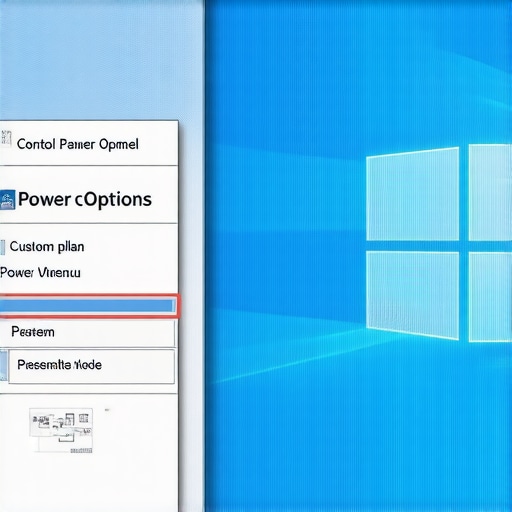
Why High Performance isn’t enough
Many people think switching to the ‘High Performance’ preset solves everything, but it’s a trap. Even on game-changing gaming laptops, that mode often still has a default 15-minute display timeout to prevent burn-in. You need to dive into the ‘Advanced power settings’ menu. Here’s the secret: find the ‘Hard disk’ section and set ‘Turn off hard disk after’ to 0 (which means Never). If you’re running a complex demo, a sleeping hard drive can cause a three-second stutter when you click the next slide. That three seconds feels like three hours when a CEO is staring at you.
Kill the hidden battery drainers
If you are presenting on the go with student laptops that balance power and portability, you have to be even more aggressive. You should check for the hidden battery drain caused by your RGB keyboard or other flashy lights. When I was presenting at a tech expo last year, my laptop nearly died because my backlighting was on full blast. I also recommend checking your wireless adapter settings in that same advanced menu; set them to ‘Maximum Performance’ so your connection doesn’t drop when the laptop tries to save power. Depending on whether you have enterprise and home windows versions, some of these settings might look slightly different, but the core logic remains the same. Finally, always make sure you have the right must-have laptop accessories to boost your work setup, specifically a high-wattage charger, because Windows can still throttle your CPU if it detects a low-power source during a heavy slideshow.While everyone chases the thinnest, lightest frame possible, I’ve found that the obsession with sleekness often masks a fatal flaw in high-stakes environments: thermal throttling. We’ve been conditioned to believe that a higher price tag automatically equals better performance, but in my experience, the the hidden downside of ultra-thin gaming laptops and even premium enterprise machines is their inability to move air. When you’re thirty minutes into a demo and your machine starts to chug, it isn’t a software bug—it’s your hardware gasping for breath because it was designed for aesthetics over sustained load.
Your High-End Machine Has a Secret Weakness
Most people think that buying a business laptop from a top-tier brand makes them immune to glitches. It’s a common myth. In reality, these machines are often the most aggressive with ‘Modern Standby’ (S0) power states, which can cause your laptop to wake up in your bag, overheat, and be at 20% battery by the time you reach the podium. I’ve seen more ‘Pro’ users fail because of these hidden power-saving ‘features’ than because of actual hardware failure. A study by the consumer advocacy group Which? highlighted that premium thin-and-light models often suffer from higher-than-average failure rates in the first three years, largely due to internal heat buildup. If you’re hunting for top laptop deals in 2025, don’t just look at the CPU speed—look at the vent placement.
How Do I Stop My CPU From Bottlenecking During a Pitch?
The answer isn’t just a cooling pad; it’s managing the ‘Processor Power Management’ settings hidden deep in your advanced power plan. By default, even student laptops that boost productivity are set to ‘Minimum processor state: 5%’ on battery. When you transition from a static slide to a video, the delay while the CPU ramps up can cause a visible stutter. I manually set my minimum to 30% when plugged in for presentations. This keeps the ‘engine’ idling at a higher speed, ensuring instantaneous response. Have you ever fallen into this trap where your laptop felt ‘slow’ despite having great specs? Let me know in the comments.
Don’t Let a Cheap Accessory Kill Your Investment
This is the ‘Oops’ factor most people ignore: the USB-C hub. We often find unbeatable laptop deals and then proceed to plug in a $15 generic dongle. This is a massive mistake. I’ve personally witnessed why cheap USB-C hubs might be killing your ports through a process called back-feeding, where a poorly regulated hub sends voltage back into the motherboard. 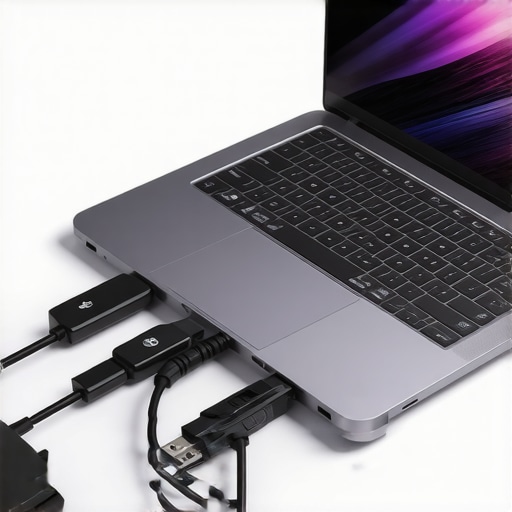 Always look for hubs with ‘Power Delivery’ (PD) protection. Furthermore, I always advocate for avoiding the ‘Thinness Trap’ by ensuring your setup includes must-have laptop accessories to boost your work setup that prioritize reliability over size. Also, be wary of proprietary tech; it’s one reason why we avoid buying laptops with proprietary power bricks whenever possible. If you can’t charge your machine with a standard 65W PD charger in a pinch, you’re one forgotten cable away from a disaster. Stick to the standards, keep your ‘Presentation Mode’ active, and you’ll never have to apologize to a room full of people again.Maintaining a high-end machine isn’t about being obsessed with specs; it is about protecting a multi-thousand dollar investment. I have seen far too many people score top laptop deals in 2025 only to watch those machines throttle within twelve months because they never bothered to clean the vents. If you want to know why most gaming laptops fail right after the warranty expires, it is almost always due to chronic overheating caused by dust and degraded thermal interface material. I am so committed to thermal health that why we swapped the thermal paste on our brand new laptop became a standard ritual in my office. Manufacturers often use ‘good enough’ industrial paste that dries out under heavy load. By replacing it with a high-performance compound, we regularly see a 10-degree drop in peak temperatures, which saves the motherboard from long-term stress.
Keep the Heat Away or Your Frame Rate Drops
A technical report from the University of Michigan’s School for Environment and Sustainability notes that extending a laptop’s lifespan from four to seven years can reduce its overall carbon footprint by nearly 40%—but that longevity requires proactive care, not just luck. For those using business laptops for professionals, this means more than just wiping the screen. You need to address the gunk you cannot see. I personally use the best keyboard cleaning slime we actually tested to pull debris from the chassis before it gets sucked into the internal fans. Never use a standard household vacuum; the static discharge is a silent killer. Instead, follow the rules on why you should never use a vacuum on your keyboard and stick to compressed air or specialized electronic brushes.
How do I keep my laptop running like new for five years?
The secret is a combination of physical maintenance and software discipline. Once a month, I perform a ‘hardware audit’ where I check for screw tightness and port integrity. For students, learning how to pick a student laptop that lasts all four years is only half the battle; the other half is knowing how to find official repair guides for your exact model so you can swap a dying fan or a loose hinge yourself. I also recommend a clean OS install every eighteen months to wipe out the registry bloat that slows down even the fastest game-changing gaming laptops.
The Future Belongs to the Repairable
Looking ahead, I expect we will see a major shift toward AI-driven power management that does not just throttle your CPU, but actually predicts your usage patterns to prevent heat spikes before they happen. However, the biggest trend will be the return of modularity. We are already seeing the only 3 brands that still make easily repairable laptops gain massive traction because users are tired of disposable tech. If you want to stay ahead of the curve, try this one advanced tip today: Go to your manufacturer’s support site, download the official ‘Service Manual’ for your specific serial number, and simply locate where your fans and SSD are. Knowing where the ‘heart’ of your machine sits is the first step to making sure it never stops beating.
The Hardest Lesson I Learned About Business Laptop Reliability
Over the years, I have learned that Windows updates are like silent predators; they often reset your custom power plans to “Balanced” without any notification. I once walked onto a stage only to realize my “Never Sleep” settings had been wiped by a patch the night before. Now, my ritual always includes a thirty-second check of the power options before the mic goes live. Another hard-won lesson: a laptop on a battery is a laptop that is actively looking for ways to throttle its performance. Even with the top business laptops on the market, I never present without a physical power connection. Relying on 90% battery is a gamble that your machine won’t hit a thermal spike and decide to cut your CPU speed in half to save juice.
My Private List of Presentation Essentials
I don’t leave things to chance anymore. My toolkit isn’t just about the machine; it’s about the must-have laptop accessories for a seamless setup that bridge the gap between “it works” and “it’s flawless.” For those using student laptops that boost productivity, I highly recommend carrying 7 small items every student should keep in their laptop bag, particularly a reliable HDMI-to-USB-C adapter and a high-quality GaN charger. I’ve seen enough cheap dongles fail mid-meeting to know that saving twenty dollars isn’t worth the professional embarrassment. Finally, I always keep a digital copy of my machine’s service manual on my phone; knowing how to find official repair guides for your exact model has saved me more than once when a fan started rattling or a port felt loose right before a trip.
#IMAGE_PLACEHOLDER_E#
Your Technology Should Work for You
At the end of the day, you’ve put in the hours to build your expertise; your equipment should be a silent partner, not a hurdle. Whether you are hunting for unbeatable laptop deals or tweaking a high-end workstation, the goal remains the same: total control over your environment. By taking fifteen minutes to set up a dedicated presentation profile and keeping your cooling system in check, you eliminate the variables that lead to tech-glitch apologies. Take charge of your business laptop today, and keep the focus where it belongs—on your message. Have you ever had a screen go dark or a laptop freeze right as you were making a major point? Let me know your horror stories in the comments below.