
I still remember the afternoon I almost smelled smoke coming from my laptop bag. I had just snagged one of those game-changing gaming laptops and thought I’d be smart by carrying a massive 140W power brick to ensure I never ran out of juice. My fingertips actually stung when I touched the casing. That was my wake-up call. I realized that while we all hunt for unbeatable laptop deals, we rarely talk about the silent killer hiding in our power cables. Today, I’m going to pull back the curtain on high-wattage charging and show you how to keep your battery healthy for years, rather than months. Have you ever noticed your laptop getting suspiciously hot while plugged in?
Stop Overheating Your System with Excess Watts
I made a classic rookie mistake a few years back: I bought a generic, high-wattage charger from a random marketplace because I wanted to save twenty bucks. It was a disaster. Not only did it feel like a space heater, but I eventually learned the real reason your laptop power brick is getting extremely hot isn’t just about the workload—it’s about poor voltage regulation. Even on premium business laptops, pushing too much power too fast creates internal resistance. According to the experts at Battery University, exposing a lithium-ion battery to high heat while it is fully charged is the fastest way to degrade its total capacity. If you’ve been wondering why your machine feels sluggish or why the reason your laptop battery wont charge past eighty percent seems to be a permanent hardware limitation, the answer is likely sitting right there on your floor.
Does Fast Charging Actually Shorten Your Laptops Life?
It’s the question I get asked most often by students and professionals alike. The short answer? Yes, but it’s complicated. Most modern devices are smart enough to negotiate the power they need, but using a charger that isn’t optimized for your specific hardware can lead to micro-cycles of heat that wear down the chemistry of the cells. If you’re a digital nomad, you might prefer the best lightweight chargers for digital nomads that balance portability with safe power delivery. You don’t need to be a scientist to protect your gear; you just need to know how to spot a fake charger before it does permanent damage to your motherboard. Let’s dive into the practical steps you can take right now to balance speed and longevity.
Treat Your Power Supply Like a Precision Tool
Think of your laptop battery like a balloon. If you shove air in as fast as humanly possible, the rubber stretches, heats up, and eventually loses its elasticity. Using why we only use 100w pd chargers for our workstations is often the sweet spot because it provides enough juice for heavy lifting without the thermal runaway associated with 140W or higher bricks. I remember sitting on a six-hour flight to Seattle, trying to render a complex video on my lap. I had my high-wattage charger tucked into the seatback pocket because the cord was too short. Halfway through, the pocket felt like it was literally on fire, and my CPU started throttling so hard the mouse cursor was lagging across the screen. I had to pull the plug and let everything cool down for twenty minutes just to stop the system from crashing. Since then, I’ve learned to check the labels on every brick before I plug in. You want to match the voltage exactly, but you can be flexible with the amperage—as long as the charger offers at least what the laptop requires. Pushing it too far the other way with a generic, uncertified brick is how you end up needing how to spot a fake charger before it fries your motherboard.
Limit the Charge Level to Save Your Cells
One of the most effective moves you can make isn’t physical—it’s digital. Most top business laptops for productivity in 2025 come with BIOS or software-level charging limits. If your laptop stays plugged into a dock 90% of the time, set the maximum charge to 80%. This prevents the battery from ‘sitting’ at high voltage, which is like keeping that balloon inflated to its absolute limit for days on end. If you’ve wondered about the reason your laptop battery wont charge past eighty percent, it’s usually this specific safety feature doing its job. By keeping the chemistry in a relaxed state, you can effectively double the cycle life of the pack. #IMAGE_PLACE_PLACEHOLDER_B#
Keep the Air Flowing While You Juice Up
Heat is the absolute nemesis of high-speed charging. When I first started testing game-changing gaming laptops for serious players in 2025, I’d leave them charging on my duvet while I grabbed a snack. I’d come back to a machine that was screaming its fans off just to handle the power intake. Now, I never charge on a soft surface. You need to use tactics to stop your laptop from overheating on your bed, like using a hard book or one of the only laptop stands that dont shake while you type to ensure the bottom vents can actually breathe. Even on student laptops that boost productivity and learning, the charging circuit is usually located right near the CPU or GPU. If you don’t give that heat an exit strategy, you aren’t just slowing down your charge time—you’re baking your internal components. It’s also worth looking into must-have laptop accessories to boost your work setup that include better cable management to keep that heavy power brick off the carpet and in the open air where it can dissipate heat properly.
People often tell me that the beauty of modern tech is that ‘everything is USB-C now.’ But here is the contrarian truth: assuming all USB-C chargers are interchangeable is a gamble that could cost you a motherboard. While the connector looks the same, the communication protocol between the brick and your device is a complex ‘handshake.’ I’ve seen users try to save money on top laptop deals in 2025 only to fry their new machines with a non-compliant cable. The USB Implementers Forum (USB-IF) has strict specifications for Power Delivery (PD), yet the market is flooded with sub-par hardware that skips these safety checks to save pennies.
Stop Assuming Every USB-C Cable Is Your Friend
In my experience, the biggest mistake is focusing on the wattage while ignoring the quality of the cable’s E-marker chip. If you are using business laptops for professionals, you aren’t just looking for juice; you are looking for stability. A cheap cable can report that it can handle 100W when it can actually only safely manage 60W, leading to a catastrophic failure at the port level. If you’ve noticed the real reason your laptop charge port feels loose, it might not just be physical wear—it could be slight heat deformation from these micro-spikes in voltage. I always tell my colleagues to invest in must-have laptop accessories for a seamless setup that are certified, rather than the cheapest option on the shelf.
Can Your Docking Station Actually Damage Your Internals?
This is the ‘Oops’ factor most people miss: the danger of power passthrough. Many student laptops that boost productivity and learning are now paired with cheap USB-C hubs to add more ports. When you plug your high-wattage charger into the hub, and the hub into the laptop, you are introducing a middleman that often lacks proper surge protection. I recently read a technical breakdown from the USB-IF suggesting that ‘back-powering’—where a hub sends voltage back into a system incorrectly—is one of the leading causes of PD controller burnout. This is exactly why cheap usb-c hubs might be killing your ports. If you are building a professional environment, look for the best budget docking stations for home offices that have been stress-tested, rather than a generic $15 dongle from a social media ad.
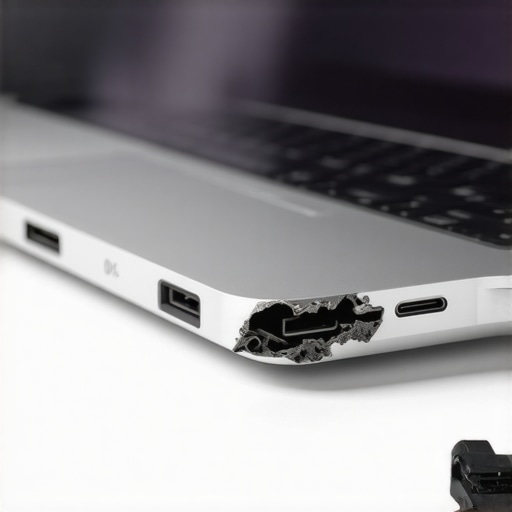
Even when you are browsing unbeatable laptop deals, remember that the power system is the heart of the machine. I’ve transitioned to using the best way to configure a new business laptop by immediately setting a 70% charge threshold if I know I’ll be docked all day. It feels counterintuitive to not ‘fill the tank,’ but that last 20% of charging is where the most heat and chemical stress occur. If you are using top business laptops for productivity in 2025, you likely have these tools built-in. Have you ever fallen into the trap of using a random phone charger for your laptop and regretted it later? Let me know in the comments. We need to stop treating power supplies like commodities and start treating them like the precision tools they are. If you’re ever in doubt, sticking to the only 4 brands we trust for rugged build quality usually ensures the internal charging circuitry can handle a bit of real-world variability, but why take the risk?
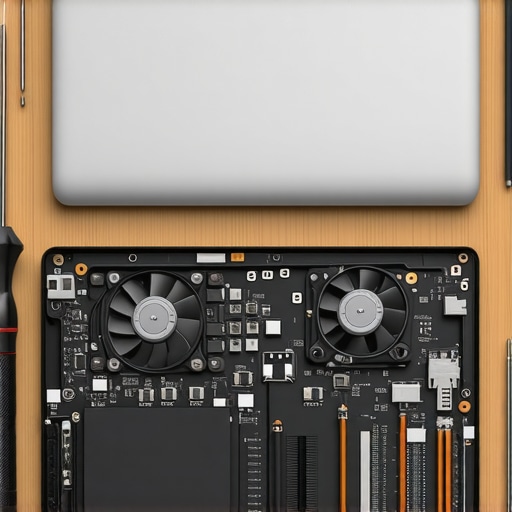
Maintaining a machine isn’t just about deleting old files or running a virus scan; it’s about the physical grit that accumulates inside. I learned this the hard way when my favorite workstation started sounding like a jet engine every time I opened a Chrome tab. Most people look for unbeatable laptop deals but forget that the real cost of ownership is the maintenance they ignore. I now dedicate one Sunday every six months to a deep clean of my hardware. I don’t just use canned air; I actually open the chassis to inspect the fans. If you’re nervous about it, start by learning how to find out if your laptop can be upgraded so you understand the layout of your motherboard before you start poking around.
Get the Right Tools Before You Strip a Screw
There is nothing more heart-sinking than the ‘crunch’ of a proprietary screw stripping because you used a cheap hardware store driver. I swear by the specific screwdriver kit you need to open 90 of modern laptops. It’s an iFixit-style set with the specialized Pentalobe and Torx bits that manufacturers use to keep casual users out. While I’m in there, I often perform what many consider a ‘pro-only’ move: why we swapped the thermal paste on our brand new laptop. Factory paste is often applied poorly and dries out fast. By switching to a high-grade compound, I’ve seen temps drop by 10 degrees Celsius instantly. According to technical documentation from the Intel Thermal Design Guide, maintaining a lower junction temperature directly correlates to the longevity of the silicon by reducing electromigration—the slow, permanent degradation of your processor’s circuits.
How do I maintain peak laptop performance over time?
It comes down to a combination of thermal management and mechanical care. Use the 10 tool that fixes every squeaky laptop hinge to keep the chassis from fatiguing. If you aren’t comfortable opening the case, you should at least learn how to clean the dust out of your laptop without opening it using localized vacuuming on the vents. Looking ahead, I predict we will see more ‘solid-state’ active cooling solutions, like the Frore Systems AirJet, which use ultrasonic membranes instead of rotating fans to move air. This will eventually eliminate the need for manual cleaning, but until then, you have to be the janitor of your own hardware. Finally, ensure you are investing in must-have laptop accessories for a seamless setup that prioritize airflow. If your charge port is starting to wobble, address the real reason your laptop charge port feels loose before it requires an expensive motherboard repair. My advanced tip? Go into your BIOS tonight and find the ‘Peak Shift’ or ‘Battery Health’ setting. Set it to stop charging at 80% while you are at your desk. This simple software change is more effective than any external cooling pad you can buy.
The Hardest Lessons I Learned Managing High-Wattage Power
Over the years, I’ve realized that more watts isn’t always better. I once pushed a high-wattage charger onto a mid-range machine, thinking it would speed up my workflow, but it only triggered thermal throttling that made my mouse cursor crawl. The real secret to longevity isn’t just power—it’s precision. If you’ve been struggling because your laptop battery only lasts one hour, it is likely a sign that the battery chemistry has been stressed for too long by heat cycles.
- Cables carry more than just juice: They carry data protocols. If the handshake between the brick and the laptop fails, your motherboard is the one paying the price for the surge.
- Software is your first line of defense: Tools that limit charge levels to 80% are more effective than any cooling pad you can buy.
- Heat is cumulative: Every time you charge on a soft surface, you are essentially shaving days off your hardware’s life by trapping thermal energy inside the chassis.
My Go-To Kit for Hardware Longevity
I don’t leave my hardware’s health to chance. I always keep the specific screwdriver kit you need to open 90 of modern laptops nearby for bi-annual dusting and thermal paste checks. For those who travel, I highly recommend looking at the best lightweight chargers for digital nomads to avoid carrying dangerous, uncertified bricks that skip safety checks. And if you are still in the buying phase, I have found that sticking to the only 3 brands that still make easily repairable laptops saves me thousands in repair costs down the line because you can actually swap the ports when they wear out.
Take the Reins on Your Laptop’s Lifespan
You have spent a lot of time and money hunting for unbeatable laptop deals, so do not let a generic ten-dollar cable or a dusty fan ruin that investment. It only takes a few minutes to adjust your BIOS settings or clean your vents, but those minutes can add years to your device’s usability. Your laptop is an extension of your work and creativity; treat the charging system with respect, and it will return the favor with years of stable performance. Have you ever noticed your laptop slowing down significantly when it gets too hot while charging? Let me know in the comments below.