
It was a lazy Sunday afternoon when I finally hit my breaking point with a brand-new business laptop. After unboxing it, I realized I couldn’t even access the internals without risking a warranty violation. That moment hit me hard—this sleek, shiny machine looked perfect on the outside, but the moment I tried to upgrade or even clean the fans, I was met with a wall of tamper-proof screws and sealed cases. Frustrating? Absolutely. But it was also a lightbulb moment.
The Power of Openability: Why It Matters More Than You Think
For years, I used laptops that I could easily open with a trusty Phillips head screwdriver, and that simple ability made the difference between a smooth upgrade and a frustrating, expensive repair nightmare. I realized that most high-end non-removable models, while attractive, come with a hidden trap—you’re locked out of essential maintenance, upgrades, and repairs. Over time, this lockout restricts what you can do, forcing you into costly service centers or buying a new device altogether.
This realization wasn’t just about convenience. According to a study from iFixit, nearly 60% of laptop repairs are more cost-effective and faster when the user can perform basic upgrades or fixes themselves. That stat — supported by personal experience — underscores why I now insist on one criterion before purchasing: an accessible panel that opens easily with a standard bit.
If you’ve faced the same hurdle—struggling to replace a battery or clean out dust because of proprietary screws or sealed cases—you’re not alone. And today, I want to share how I turned this frustration into a simple buyer’s rule that saves me time and money.
Are you tired of feeling helpless when your laptop needs repairs or upgrades? If yes, stick around. We’ll explore the key signs of openability in laptops and how to prioritize this feature during your next purchase. Trust me, a tiny Phillips head screwdriver can be your best friend—just like it has become mine.
Prioritize Models with Simple Access Panels
Start by researching models known for their accessible internal panels. Think of it like choosing a kitchen with a removable backsplash—you can easily get to the insides without destroying the wall. During my last purchase, I checked the manufacturer’s manual or dedicated forums to find laptops that offer quick access to RAM and storage slots, saving hours of frustration.
Learn to Identify Tamper-Proof Screws and Sealed Cases
Examine the underside of potential laptops for proprietary screws—like Philips, Torx, or security screws. Sealed cases often have rubber gaskets or glued components. When I bought a refurbished ThinkPad, I made sure it had standard Phillips screws and a removable bottom panel, which made upgrades straightforward instead of a nightmare.
Gather the Necessary Tools Beforehand
Invest in a quality screwdriver set—preferably with various Phillips and Torx bits. Think of it as assembling your toolbox before starting a DIY project. I kept a compact set in my bag, so every time I needed to upgrade or clean my laptop, I was ready. This avoids the common mistake of improvising with unsuitable tools and damaging screws.
Consult Service Manuals and Disassembly Guides
Use online resources like iFixit or manufacturer support pages to access detailed teardown guides. For example, I followed a step-by-step guide for my Dell Latitude, which highlighted every screw and clip I needed to remove. Having this roadmap prevents accidental damage and ensures I can reassemble without issues.
Test Upgradability During the Buying Process
When shopping, request or verify if the laptop supports easy upgrades—much like checking if a sports car has a removable engine cover. Some brands, like Lenovo ThinkPads or Dell XPS, are renowned for their upgrade-friendly design. I made a point to ask the seller about internal access and looked for videos demonstrating the disassembly process.
Handle Internal Components with Care
While opening the case, disconnect batteries before touching internal parts to prevent short circuits—think of it as turning off the main switch before working on electrical wiring. During my own upgrade, I carefully flagged and recorded connector placements, which made reassembly smoother, and avoided damaging delicate components like the Wi-Fi card or motherboard.
Balance Aesthetics with Functionality
Although sleek, sealed laptops look attractive, they often sacrifice repairability. Prioritize function if you plan to upgrade or repair regularly. For instance, I chose a model with a matte plastic bottom panel instead of a glass-like cover, because I knew I could open it without special tools or risking warranty voids.
Utilize External Resources and Communities
Join forums or Reddit communities dedicated to laptop repair or upgrades. Sharing experiences—like how I sourced a affordable replacement battery—can save time and money. Knowledge from others’ success stories can guide you through model-specific quirks, ensuring you don’t get caught off guard by complex sneaky design choices.
When it comes to selecting the perfect laptop—whether for students, business professionals, or gamers—many believe they’ve grasped the fundamentals, but the reality is far more nuanced. A common misconception is that specs like higher RAM or a faster processor always guarantee better performance. In truth, optimal performance depends on how well these components integrate into your specific workflow. For instance, a powerful CPU is wasted if your storage drive is slow, which is why considering must-have accessories can make a tangible difference.
One of the traps many overlook involves the importance of thermal management and real-world usability. High-performance gaming laptops, for example, are often scrutinized for their impressive specs, but their cooling systems and fan noise levels can severely impact comfort during extended use. As experts suggest, paying attention to deals that include professional-grade cooling can save you headaches.
A critical misconception related to laptop accessories is that they are optional luxuries. In reality, choosing quality peripherals—like ergonomic mice, external monitors, and portable docks—can significantly enhance your productivity and ergonomics. For example, I always recommend exploring options such as the deal quality becomes essential.
### What’s the trap with gaming laptops and professional workstations?
The myth that gaming laptops are overkill for professional tasks or that workstation-grade models are too conservative can mislead buyers. Modern gaming laptops often incorporate tech suitable for intense workloads, blurring the line between entertainment and productivity. Conversely, professional workstations sometimes lag behind in portability or aesthetics, yet they offer unmatched durability and specialized hardware options.
It’s vital to match your laptop choice with your use case, factoring in business needs or student productivity. Be aware that a higher price doesn’t automatically translate to better value—consider repairability, accessory compatibility, and future upgrade paths.
In sum, the real nuance in buying laptops lies beneath the surface of specs and flashy deals. Prioritizing your specific workflow, understanding the importance of accessories, and assessing long-term support can make your investment truly worthwhile. Have you ever fallen into this trap? Let me know in the comments.
Maintaining your laptop’s performance over time isn’t just about swapping out parts or running basic cleaning routines. It involves a combination of vigilant preventive measures, utilizing the right tools, and adopting efficient methods to troubleshoot and optimize your device regularly. Personally, I rely on a suite of specific equipment and software that make this process seamless, ensuring my laptops stay reliable whether for student projects, business tasks, or gaming marathons.
How do I maintain my laptop for the long haul
First and foremost, investing in the right tools is crucial. I always keep a high-quality screwdriver set at hand, specifically one with various Phillips and Torx bits. This makes small repair tasks straightforward and reduces the risk of damaging screws or internal components. For example, a quick SSD upgrade becomes feasible when I have the right tools, extending the device’s lifespan significantly.
Additionally, I rely heavily on software solutions like CrystalDiskInfo to monitor SMART data from SSDs and HDDs. This helps me catch early signs of drive failure, allowing preemptive replacements rather than reactive repairs that can be costly and time-consuming. For thermal management, I frequently use HWMonitor to keep an eye on CPU and GPU temperatures during intensive tasks, preventing overheating—especially relevant for gaming laptops or workstations under load.
Another often-overlooked aspect is cable and port health. Dust and debris can cause connectivity issues or hardware faults. To combat this, I keep a precision brush kit and compressed air canister to clean ports and vents regularly. This proactive maintenance keeps cooling systems working efficiently and prevents dust buildup that could lead to thermal throttling or component damage.
Next-level tips for sustained laptop health
One specific tip I recommend is implementing battery calibration. Proper calibration ensures your battery indicator remains accurate, avoiding unexpected shutdowns that could harm internal components over time. It involves fully charging, then discharging the battery in a controlled manner, which I do monthly using my portable charger and energy-efficient settings.
Looking ahead, I believe trend shifts like liquid-metal cooling and AI-powered diagnostics will further simplify long-term maintenance, making laptops even more resilient. To keep pace, I plan to experiment with automated monitoring tools and modular hardware designs that facilitate easier repairs and upgrades.
Finally, don’t forget the importance of routine software updates and privacy settings. Regularly patching your OS and firmware prevents security vulnerabilities, while tweaking settings (like disabling background apps) can extend your device’s lifespan and improve performance. For detailed manual updates, consult manufacturer support pages, or sometimes even find service manuals through dedicated online communities.
Now, I challenge you to try one advanced tip from this list—perhaps calibrating your battery or cleaning your ports with precision tools—and notice the improvement in your laptop’s performance. Maintaining your device with deliberate practices and reliable tools can save you time, money, and stress in the long run.
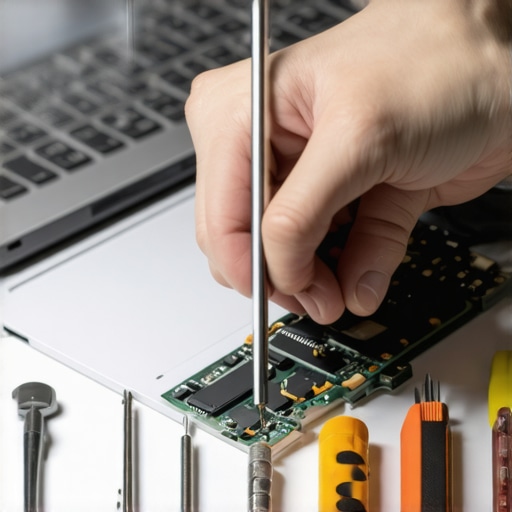
What I Wish I Knew Before My First Upgrade
One of the toughest lessons I learned was the value of choosing a laptop with accessible internals. Initially, I was drawn to sleek, sealed designs without considering repairability—only to find myself locked out when I needed a simple RAM upgrade. That experience taught me to prioritize internal accessibility over aesthetics, saving me both time and frustration in the long run.
When Overlooking the Details Costs You
I once bought a device based solely on specs, ignoring the importance of the screws and case design. It wasn’t until I attempted to clean the fans or swap out a battery that I realized how crucial easy access really is. This led me to dig deeper, learning to identify standard screws and avoid proprietary hidden fasteners—fundamental for DIY maintenance.
Tools Are Your Best Friends—Embrace Them
Having the right screwdriver set has been a game changer. I now keep a compact toolkit with Phillips and Torx bits, ready for maintenance or upgrades. Investing in quality tools prevented me from damaging screws and made every repair or upgrade feel more like a confident DIY task rather than a frustrating gamble.
The Secret Is Always in the Manuals and Guides
Using online disassembly guides and forums, like iFixit, has saved me countless headaches. They provided step-by-step instructions tailored to my device, ensuring I didn’t miss a clip or strip a screw. These resources are invaluable for new and experienced users alike who want to keep their laptops running smoothly.
Upgrade During the Buying Process—Don’t Wait
One mistake I see often is neglecting to verify upgradeability before purchasing. I now ask sellers and read reviews focusing on internal accessibility, much like checking if a car has a removable hood. This proactive approach ensures future upgrades are hassle-free, extending my device’s usability and value.
Care Is a Long-Term Investment
Recognizing that routine maintenance—like cleaning dust from vents or calibrating batteries—preserves performance has been crucial. Implementing simple practices, such as port cleaning with compressed air or battery calibration, has kept my laptops responsive and reliable far beyond the warranty period.
The Wisdom in Modest Accessories
Choosing quality external accessories like ergonomic mice and sturdy laptop stands has improved my workflow and device longevity. I no longer see these as luxuries but essentials that support managing heat, avoiding strain, and maintaining performance over time.
Community Insights Are Invaluable
Joining online communities and discussion forums has exposed me to real-world troubleshooting tips and upgrade hacks. Sharing experiences with others who understand your device’s quirks accelerates learning and often prevents costly mistakes, turning maintenance into a shared adventure rather than a solo chore.
Our Takeaway: Think Beyond the Specs
Beyond raw hardware specs, consider accessory ecosystem, repairability, and upgrade support when choosing your next laptop. This holistic view empowers you to build a device that adapts with you, whether for studies, work, or gaming, ensuring it remains a reliable tool amidst evolving needs.
Your Turn to Empower Your Setup
By applying these lessons—prioritizing accessible internals, investing in proper tools, and leveraging community knowledge—you can transform your laptop maintenance from a daunting task into an empowering experience. Remember, a thoughtful approach today guarantees a smoother, more reliable machine tomorrow.
What’s the one upgrade or maintenance tip you wish you’d learned earlier? Share your story below and let’s grow together!
proper initial HTML closing.