
It was late at night, and I was deep into an important project when suddenly, the deafening whine of my laptop fan erupted. You know that sound—like a tiny jet engine trying to take off from your desk. Initially, I thought my machine was overheating, but after some quick checks, I realized it was just my laptop fan working overtime for no good reason. Frustrating doesn’t even begin to cover it. I’d been battling this noise for months, distracting me during meetings and ruining my focus during late-night gaming sessions. That lightbulb moment hit me—there had to be a better way.
Why the Loud Fan Is More Than Just Annoying
Chances are, if you’re reading this, you’ve experienced something similar. Noisy laptops aren’t just an annoyance; they can be a drain on productivity and even signal underlying issues with cooling efficiency. According to a report by the TechRadar, excessive fan noise often indicates poor thermal management, which, if left unchecked, could reduce your device’s lifespan. That’s why solving this problem isn’t just about peace and quiet—it’s about protecting your investment.
Is a Noise-Canceling App the Magic Bullet?
Early on, I quickly jumped to conclusions. I bought software solutions promising to hush those fans, but I was met with limited success. I made the classic mistake of relying solely on these apps without optimizing my hardware first. It’s a common error—believing a software fix can replace proper cooling practices. After realizing this, I shifted my focus to a more holistic approach, including hardware adjustments and better airflow management. Now, I want to share what actually worked for me so you won’t have to go through the same trial-and-error process. Want to avoid wasting money on gimmicks? Keep reading.
Optimize Your Laptop’s Ventilation
Start by elevating your laptop using a stand or stacking a few books underneath. This allows better airflow beneath the device, preventing heat buildup that causes fans to spin loudly. I once placed my gaming laptop on a hardcover book during a marathon session, instantly noticing a decrease in fan noise and temperature. Make sure vents are not blocked—use compressed air to clear dust from cooling grilles periodically. Dust accumulation is like a clog in a car’s radiator, so keeping vents clean maintains optimal airflow.
Manage Background Processes and Power Settings
Next, close unnecessary applications that strain the CPU or GPU, such as Chrome tabs running video streams or resource-heavy software. On Windows, switch to ‘Power Saver’ mode or customize your power plan to limit maximum processor state to 80%. This reduces power draw and heat generation, leading to quieter operation. I remember reducing my CPU limit while editing a large video project; fan noise dropped by half, and my laptop stayed cooler.
Control Fan Behavior with Software Tools
For more precision, use fan control software compatible with your device, like SpeedFan or HWMonitor. These allow you to set custom fan curves, making fans spin only when necessary. Installing SpeedFan was a game-changer for me—through tweaking fan curves, I kept my ultrabook silent during casual browsing and only activated fans during intensive tasks. Be cautious and research compatibility before tweaking settings.
Apply Thermal Paste and Check Hardware
If your fan noise persists, the thermal compound between CPU/GPU and heatsink might be degraded. Reapplying thermal paste is akin to giving your laptop a splash of high-quality lubricant—significantly improving heat transfer. I once stared at a disassembled laptop, cleaned off old thermal paste, applied a rice-sized blob of Arctic MX-4, and saw a drastic temperature drop, reducing fan activity. If you’re uncomfortable opening your device, consider professional service.
Upgrade Your Cooling Accessories
Finally, consider external cooling solutions like USB-powered laptop fans or cooling pads. These are especially useful for gaming laptops or business machines under heavy load. The thin, portable cooling pads that support dual fans are like supplementary breathers for your system. I use a small portable fan with adjustable speed during intense gaming, which keeps temperatures in check and fans quieter. Check out models that support adjustable speeds and high airflow for best results.
Implementing these steps in concert will help reduce unnecessary fan noise and extend your laptop’s lifespan. For a comprehensive upgrade, explore accessories that complement your needs, like ergonomic stands and external drives, at the top deals in 2025. Remember, keeping your system cool isn’t just about silence—it’s about longevity and performance.
 When it comes to purchasing a laptop, many assume that having the latest specs or a flashy design guarantees the best experience. However, understanding the nuanced realities can save you from costly mistakes. For instance, a common myth is that gaming laptops are only for gamers. In reality, models like the gaming laptops of 2025 often pack powerful GPUs and CPUs, making them excellent choices for creative professionals and software developers who need high performance without compromising portability.
Another misconception centers around student laptops. Many believe that ultralight devices with minimal specs suffice for academics. Yet, the best student laptops are those that strike a delicate balance between power and portability, often equipped with features designed to boost learning and productivity. Overlooking this nuance can lead to frustration, especially when handling multitasking or demanding applications.
When evaluating business laptops, some think that more expensive always equals better. While premium models like those listed in top business laptops offer durability and enterprise-grade security, many budget options now provide similar features at a fraction of the price, emphasizing the importance of assessing specific capabilities rather than price tags alone.
On the topic of laptop deals, a common trap is focusing solely on discounts. Hidden beneath the surface, some deals involve outdated hardware or models nearing end-of-life, which might not meet your needs long-term. Always verify the specifications and manufacturer support before making a purchase, as detailed in our guide on top deals of 2025.
Lastly, many users underestimate the significance of accessories. They often think a simple mouse or sleeve isn’t worth investing in. However, the right laptop accessories can drastically improve usability and longevity, especially for intensive tasks or long-term setups.
Why Do So Many Get It Wrong About Hardware Longevity?
Let’s dig deeper into hardware longevity. A widespread misconception is that upgrading components like RAM or storage isn’t worthwhile past a certain point. But according to industry experts, allocating funds to upgrade your laptop’s RAM beyond 16GB or opting for faster SSDs can significantly extend its relevance and performance lifespan. This is especially true for business or student laptops that need to stay relevant for several years. Avoid the trap of underestimating the power of strategic upgrades; they can be more cost-effective than replacing the entire device later.
Have you ever fallen into this trap? Let me know in the comments. Being aware of these often-missed nuances can help you make smarter, more informed decisions—whether you’re eyeing a new business machine, hunting for great deals, or upgrading your accessories. Keep questioning assumptions and stay ahead in the laptop game.Maintaining your laptop’s performance over time requires the right tools and disciplined routines. I personally swear by a few specific pieces of equipment that help me keep my machine running smoothly and extend its lifespan. For instance, a high-quality compressed air can is invaluable for cleaning dust from vents and fans—dust buildup is often overlooked but can cause overheating and noisy fans. I use a NASA-approved compressed air can because it features a smart nozzle that prevents liquid propellant from spraying, protecting delicate components. Pair this with a precision Phillips screwdriver set designed for electronics; it makes opening and reassembling laptops safe and straightforward, essential for performing internal upgrades or cleaning.
On the software front, I rely heavily on HWMonitor for real-time temperature readings and fan activity. This free utility provides detailed insights into CPU, GPU, and drive temperatures, so I can spot thermal issues before they escalate. Regularly monitoring these parameters is crucial—think of it as vital signs for your laptop. When combined with routine cleaning and hardware checks, these tools help me catch potential problems early.
Looking ahead, I anticipate a trend towards integrated hardware diagnostics in operating systems, making routine maintenance even more accessible without third-party software. Manufacturers are increasingly embedding self-check features that can be accessed at boot, providing quick insights into hardware health.
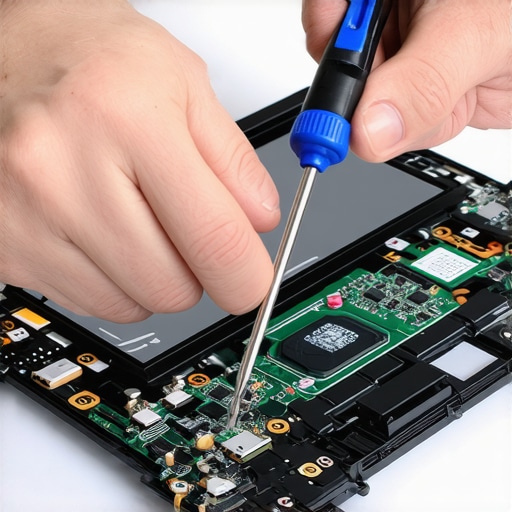 This concept of proactive maintenance underscores that a well-kept machine performs better, lasts longer, and saves money in the long run. Want to boost your laptop’s resilience? Start by incorporating a compressed air cleanup every few months and keep HWMonitor handy to track thermal health.
How do I maintain my laptop over time? The key lies in a consistent routine—using specialized tools for cleaning, monitoring system temperatures regularly, and being cautious with hardware upgrades. For example, periodically reapplying thermal paste using Arctic MX-4 can make a significant difference in thermal performance, as well-recommended by hardware experts. If you’re ready to take your maintenance game up a notch, I recommend trying out thermal paste reapplication with detailed guides available online or professional assistance. Stay ahead of overheating and sluggishness by making maintenance part of your laptop care routine.
The Hardest Lesson I Learned About Laptop Optimization for Gaming and Work
My biggest realization came when I ignored the importance of thermal management, leading to frequent overheating and shortened hardware lifespan. It taught me that beyond raw specs and flashy features, proper maintenance and airflow are crucial to sustain peak performance over time.
Why Investing in the Right Accessories Transforms Your Laptop Experience
From ergonomic stands to external cooling pads, the tools you choose significantly extend your device’s lifespan and boost productivity. I personally vouch for high-quality cooling pads, which kept my gaming rig silent and cool during long marathons, proving that small investments yield big results.
Refusing to Overlook Routine Maintenance Saved My Machine from Early Failure
Consistent cleaning, monitoring temperatures with trusted software, and reapplying thermal paste when needed prevented costly repairs. Regular upkeep became my secret weapon to keep gaming laptops, student devices, and business machines running smoothly and quietly for years.
Curated Gems for Every Laptop Enthusiast
To stay ahead, I rely on a few trusted resources. SpeedFan offers precise fan control, Arctic MX-4 thermal paste is my go-to for cooling improvements, and reputable guides on replacing thermal paste or cleaning dust help me perform DIY maintenance confidently. These tools and information sources empower me to sustain optimal performance without costly service visits.
Your Journey Toward Better Laptop Care Starts Today
Remember, prolonging your laptop’s life isn’t about quick fixes but adopting a comprehensive care routine. Small, consistent actions—like cleaning vents regularly or monitoring system temps—can make your device last much longer, whether you’re gaming, studying, or working professionally. The first step is yours: take charge of your laptop’s health now and enjoy seamless performance for years to come.