
It was a typical Thursday evening when I finally lost patience with my glossy laptop screen. I was trying to finish a report at my local coffee shop, but the glare from the window and the harsh indoor lighting made my eyes ache and my focus scatter. Frustration bubbled up as I kept adjusting my position, only to be met with the same stubborn reflection. That was my lightbulb moment—realizing how much a shiny screen could ruin my productivity and comfort. Ever since, I wondered: why do so many people still opt for tempered glass protectors and glossy displays when matte options are waiting to be discovered?
Bright Lights and Blinding Reflections: The Struggle is Real
Having played around with various screen protectors over the years, I found myself constantly battling reflections and glare that made working outdoors or in brightly lit rooms a nightmare. It’s not just about aesthetics; it’s about function. If you’ve ever been in the middle of an important video call or trying to read fine print and you can see your own face staring back at you instead of the content—trust me, you know what I mean. The transition to matte screen protectors transformed my entire experience, reducing glare and making the screen much easier on my eyes. And no, it’s not just a personal preference—research highlights that matte finishes help decrease eye strain during prolonged use (source: Healthline). But many still hesitate, thinking matte screens compromise clarity. Let’s clear that up.
Do You Fear Matte Screens Are a Step Back? Here’s Why That’s a Misconception
Early on, I made the mistake of assuming that matte meant dull or pixelated. I thought, maybe, I’d have to sacrifice detail for comfort. Turns out, modern matte screen protectors and displays maintain excellent clarity and vibrant colors—sometimes even better by reducing screen reflections that wash out images. The key is choosing the right protector or device with a high-quality matte finish. If you’re still on the fence, I invite you to consider this: How much easier would your work or gaming be if reflections and glare weren’t constantly pulling your focus away? Stay tuned, because I’ll walk you through how I made the switch and why it’s been a game-changer — and how you can do it too.
Decide on the Right Matte Protector or Display
Start by researching high-quality matte screen protectors compatible with your device. Think of it like choosing a matte finish paint for your walls—look for options that offer vibrant colors without the glare. When I replaced my glossy screen with a proper matte protector, I noticed immediate relief from reflections. For new devices, consider models with built-in matte screens—check out the selection of business laptops for professionals that come with matte displays.
Gather Necessary Tools and Materials
Acquire a microfiber cloth, a screen cleaning solution (preferably alcohol-free), and the matte screen protector itself. Think of it like assembling a toolkit before a DIY project—this ensures a smooth upgrade. I kept a small bottle of cleaning solution nearby as I prepared to clean my screen before application, which prevented dust and fingerprints from getting trapped beneath the protector.
Clean and Prepare Your Screen Carefully
Power down your device and disconnect all cables. Gently wipe the screen with the microfiber cloth, using a few drops of cleaner to remove dust, oil, and smudges—imagine polishing a window until it’s crystal clear. This step is crucial; I once skipped cleaning thoroughly and ended up with bubbles under my protector, which was a hassle to fix. Be meticulous to avoid dust particles that can cause air bubbles or uneven surfaces.
Apply the Matte Screen Protector Correctly
Align the protector with your screen edges, starting from one side and slowly laying it down. Use a plastic card or squeegee to eliminate air bubbles, pushing them toward the edges—think of smoothing out wrinkles in a plastic wrap. I found it helpful to peel back a small section of the adhesive backing, line it up carefully, then gradually peel as I pressed from the center outward, preventing dust entrapment and ensuring clarity.
Adjust Settings for the Best Experience
After installation, tweak your display settings for optimal visibility. Reduce brightness and enable night mode if needed, as matte screens can sometimes appear dimmer. I also adjusted color profiles to enhance vibrancy, making my work sessions more enjoyable. For further optimization, consider external accessories like a laptop stand or anti-glare filter.
Test and Fine-Tune Your Setup
Use your device in different lighting conditions to ensure glare is reduced and clarity is maintained. If reflections persist, reposition your workstation or experiment with different protector brands. I remember working outside on a sunny day, and my matte screen made a huge difference—no more squinting and strained eyes. Keep in mind, patience during application is key; a messy initial attempt can be re-done for perfect results, just like with any DIY task.
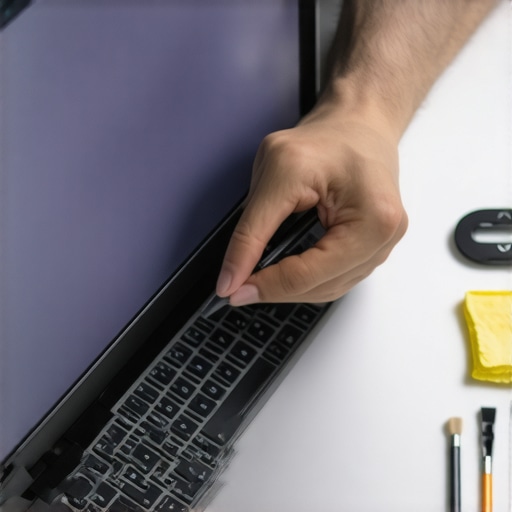 Many tech enthusiasts and casual users alike often assume that all laptop accessories or deals are created equal. However, there’s a hidden nuance that can make or break your experience or savings. For instance, it’s common to believe that the cheapest gaming laptop automatically offers the best value, but in reality, cutting corners on hardware quality and build can lead to frustrations later. The same applies to laptop accessories—buying cheap, generic chargers or mousepads may save money upfront but could compromise safety and durability over time. Researchers from Harvard Business School highlight that consumers frequently overlook the longevity and compatibility of accessories, leading to unnecessary expenses in the long run (source: Harvard Business Review).
Invest in Quality Screen Cleaning Supplies
Maintaining the clarity and longevity of your laptop screen hinges on using the right cleaning tools. I personally swear by a microfiber cloth specifically designed for screens, coupled with an alcohol-free cleaning solution to prevent coating damage. Unlike generic wipes, these are gentle yet effective at removing dust, oil, and fingerprints without scratching or leaving streaks. Regular cleaning with these supplies not only preserves display quality but also reduces the risk of long-term damage, making your device look professional and function flawlessly.
Select a High-Performance External Drive
Data security and quick access are vital. I recommend an external SSD with a robust heatsink to prevent overheating during mass transfers, especially when working on large project files or game assets. My go-to is the Samsung T7 Shield because of its durability and blazing-fast transfer speeds. Regular backups using an external drive like this ensure that your important files are safe from unforeseen hardware failures, and the portability helps you work seamlessly across different locations.
Optimize Your Power Settings
Long-term laptop health involves managing power consumption wisely. I advise disabling aggressive charging modes and enabling battery health features available in most BIOS/UEFI settings—like the battery conservation toggle. Doing so prolongs battery lifespan, reducing the need for costly replacements. Additionally, setting your power plan to
Switching to matte screens and quality accessories was a game-changer for me, but there’s always more to learn when it comes to optimizing your setup. From hidden features to overlooked tools, the real advantage lies in continual refinement and curiosity. I realized that investing in knowledge—be it through trusted resources or experimentation—can extend your laptop’s lifespan and boost productivity like nothing else. The hours I spent researching and testing have shown me that small adjustments—like customizing power settings or selecting the right external drives—make a big difference over time. Remember, the journey to a perfect laptop environment is ongoing, and every tweak gets you closer to seamless performance and comfort.
Lessons the Experts Don’t Always Share
- Many believe that matte screens are a compromise, but modern options deliver stunning clarity without glare. The key is knowing which models or protectors to select.
- Cleaning and maintenance aren’t just routine—they can prevent costly repairs down the line. Trust me, using dedicated cleaning supplies is worth every penny.
- Power management isn’t solely about saving battery; it impacts hardware longevity and overall performance. Fine-tuning your settings can save you money and trouble later.
Tools and Guides That Open Doors
- My favorite external SSD—the Samsung T7 Shield—combines durability with speed, ensuring your data stays safe and accessible. I rely on it daily for work and play.
- The laptop manual repository sites are goldmines for troubleshooting and upgrades. Knowing how to access and interpret these keeps your device running smoothly.
- Online communities like dedicated tech forums and YouTube channels offer practical advice and honest reviews, often revealing hidden features or shortcuts many overlook.
Your Laptop Journey Awaits
Empowering yourself with insider insights transforms a simple device into a tailored tool that matches your lifestyle. Whether you’re a student, a professional, or a gaming enthusiast, small changes can lead to big gains. Dive into exploring the right accessories, customize your settings, and stay curious—your ideal laptop experience is within reach. Remember, every expert was once a beginner who dared to learn more. Don’t wait for problems—prevention and knowledge are your best allies.
What’s the one upgrade or tweak you’re excited to try after reading this? Share your thoughts below and let’s learn together!