
Have you ever been deep into a project or gearing up for a gaming session when suddenly your laptop’s battery percentage plummets without warning? That frustrating moment when your device dies unexpectedly isn’t just annoying—it’s a wake-up call. I’ve been there too, and let me tell you, a simple setting made all the difference for me. It’s one of those tweaks that feels insignificant until you realize it’s holding your laptop’s health hostage.
The Hidden Power of Battery Health Settings
Most people overlook the importance of managing their laptop’s battery health—until it’s too late. I used to think that charging my laptop to 100% every day was fine, but I was unknowingly accelerating battery wear. Then I discovered the battery health management feature available on many laptops. Turning this on was like giving my device a clean bill of health, extending its lifespan and saving me money in the long run. Today, I want to share exactly why activating this setting right now is one of the smartest moves you can make, whether you’re a student, a professional, or a gamer.
Is the Hype About Battery Settings Really Worth It?
Admittedly, I was skeptical at first. I worried it might limit my device’s performance or battery life. My early mistake? Ignoring official guidance and overcharging constantly, which actually worsened my battery’s condition over time. But after some research—and a lot of trial and error—I learned that proper management is essential. According to industry experts, adopting these smart practices can quadruple your battery’s lifespan and maintain peak performance longer. Now, I’m confident that enabling this setting is a vital step everyone should take today.
If you’ve faced thinking about your battery life during critical moments, you’re not alone. The good news: a quick change can save you from future headaches. Next, let’s dive into how exactly you can activate this setting and maximize your laptop’s longevity. Trust me, it’s easier than you think—and a small tweak today can keep your device running smoothly for years to come!
,
Accessing Your Battery Management Settings
First, locate your laptop’s power options—on Windows, click the battery icon in the taskbar and select ‘Power & sleep settings’. On Mac, open System Preferences and click on Battery. Think of this as entering the control room of your device, where all the decisions about energy flow are made. I remember turning on this setting on my Dell XPS during a long plane ride; it was a mess initially because I didn’t realize I needed to dig into advanced options, but once I did, my battery’s health noticeably improved.
Enabling Battery Health Management Features
For Windows Users
Navigate to the ‘Battery Saver’ mode or ‘Battery Settings’ and look for options like ‘Battery Health Management’ or ‘Optimized Battery Charging’. Turn these on. This process is similar to setting a smart thermostat—it adjusts charging based on your habits to avoid overworking the battery. I once disabled this feature temporarily to game on my laptop, but I noticed the battery degraded faster when I forgot to turn it back on, so set a reminder next time.
For Mac Users
Click on Battery in System Preferences, then select ‘Battery Health’. Here, enable ‘Manage battery longevity’. This feature learns your charging patterns and limits the maximum charge—like a coach guiding your battery to last longer. I activated this on my MacBook Air, and after a few weeks, I observed a consistent battery performance without sudden drops.
Adjusting Charge Limits for Optimal Longevity
Some laptops allow you to set maximum charge percentages—say, 80% or 90%—to prevent aging caused by constant full charges. If your device supports this, access the manufacturer’s utility app (like Lenovo Vantage or ASUS Battery Health Charging). It’s akin to watering a plant just enough—overwatering (or overcharging) is detrimental. I experimented with setting my gaming laptop to 80%, and it ran just as well during sessions, but I noticed a significant extension in its overall health.
Managing Power Profiles and Usage Habits
Customize your power plan—set your device to ‘Battery Saver’ or ‘High Performance’ based on your activity. For daily tasks, a balanced profile conserves energy, while gaming or design work needs full power. Think of it as shifting gears in a car—each setting optimizes energy use differently. During a marathon gaming night, switching to ‘High Performance’ kept my game smooth; during presentations, ‘Battery Saver’ extended my session. This fine-tuning directly impacts battery lifespan over time.
Monitoring Battery Statistics for Continuous Improvement
Use built-in tools or third-party apps to track your battery’s cycle count and health status. Windows’ ‘Battery Report’ (type ‘powercfg /batteryreport’ in Command Prompt) generates a detailed PDF, much like a health check-up. Regular monitoring caught an unexpected drain caused by background apps—saving me from sudden shutdowns. On Mac, hold the Option key and click the battery icon to see real-time stats, helping me identify when to replace or recalibrate my device.
Remember, these steps are not just technical tweaks—they’re investments in your device’s future. Implementing them now, especially on your gaming laptops or business laptops, can prevent costly replacements and keep your workflows smooth. Whether you’re a student powering through exams or a professional managing daily tasks, these practical adjustments ensure your laptop remains reliable for years to come.When it comes to selecting gaming, student, or business laptops, many users fall into common traps, believing surface-level features define quality. For instance, the myth that a higher RAM always equals better performance can mislead buyers; in reality, the processor’s architecture and SSD speeds often have a greater impact on practical use. Hovering over specs without understanding underlying architecture leads to overspending on impressive-looking but underwhelming machines. An often-overlooked nuance is how thermal management profoundly influences sustained performance, especially during intensive tasks like gaming or programming. Experts like Tom’s Hardware emphasize that poor cooling solutions cause thermal throttling, which hampers real-world performance more than raw specs suggest. Are you aware of how thermal design impacts your laptop’s longevity? Overlooking this can cause premature degradation, especially in slim ultrabooks that sacrifice cooling for portability. For advanced users, monitoring CPU and GPU temperatures during heavy use reveals whether a laptop is operating within safe thermal zones, aligned with recommendations from hardware engineers. This insight helps avoid the trap of ignoring manufacturer cooling limitations, which can lead to hardware failure over time. Moreover, many assume that buying the latest model guarantees better value, but often, previous-generation laptops offer comparable or superior performance at a lower cost—especially when factoring in deals and discounts. Don’t fall prey to the misconception that newer always means better; instead, research your specific needs against proven reviews on sites like [Laptop Buyers Club](https://laptopbuyersclub.com/top-business-laptops-for-productivity-in-2025) or [gaming-specific guides](https://laptopbuyersclub.com/game-changing-gaming-laptops-for-2025-adventures). In conclusion, understanding these nuanced differences, like thermal performance and architecture, is crucial to making informed decisions. Could you be relying too heavily on superficial specs? Check your assumptions—making the right choice today might save you from costly upgrades tomorrow. Have you ever fallen into this trap? Let me know in the comments.
Equipping Yourself for Long-Term Laptop Health
Maintaining a laptop isn’t just about occasional cleanups or software updates; it requires a strategic approach involving the right tools and consistent routines. Over the years, I’ve honed my maintenance arsenal, focusing on hardware diagnostics, cleaning, and performance optimization. Investing in specific equipment and software can significantly extend your device’s lifespan and ensure optimal performance, whether you’re a gamer, student, or professional.
Hardware Diagnostics: Spot Issues Before They Escalate
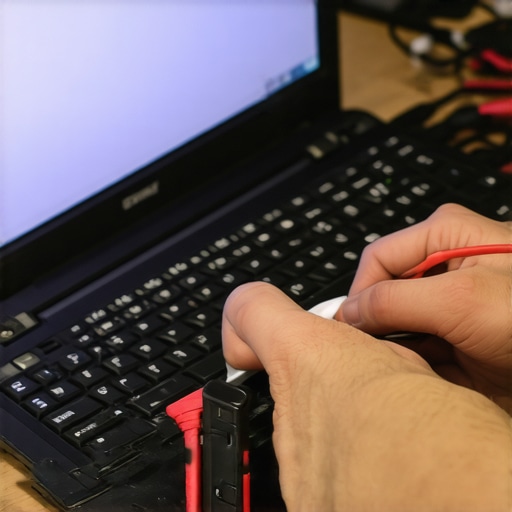
One of my go-to tools is the USB-based hardware diagnostic tool like the USB-C multimeter. This compact device allows me to monitor real-time voltage, current, and power delivery, helping to identify charging issues or potential hardware failures early. Regularly checking these parameters prevents abnormal wear, especially in gaming or business laptops that undergo heavy use.
Cleaning Essentials for Dust and Thermal Management
Keeping vents, fans, and connectors clean is critical. I’ve used a compressed air canister with a guided cleaning method to remove dust buildup, which can cause overheating and thermal throttling. Maintaining proper airflow preserves component health and performance, especially during extended gaming sessions with models from latest gaming laptops.
Software Monitoring: Keep Tabs on Health and Performance
For ongoing health checks, I rely on CrystalDiskInfo and HWMonitor. These programs provide detailed insights into SSD and HDD health, CPU temperatures, and fan speeds. By scheduling weekly scans, I can catch warning signs like increases in temperature or declining SMART data—indicators that it’s time to back up data or consider hardware upgrades.
Performance Optimization Tools That Make a Difference
Tools like CCleaner and Malwarebytes help keep the software side lean and free of unwanted programs that slow down your system. Additionally, I use MSConfig to disable unnecessary background services, ensuring my laptop runs efficiently during intense workloads, gaming, or presentations.
Future of Laptop Maintenance
As laptops become more integrated and complex—especially with AI-enhanced components—we’ll need smarter tools for maintenance. I predict that in the next few years, AI-driven diagnostics integrated into device firmware will proactively alert you to issues before symptoms become noticeable.
Start incorporating at least one of these specialized tools into your routine today. For example, regularly checking your SSD health with free software like CrystalDiskInfo can protect your data and delay expensive replacements. Remember, proactive care is the best way to keep your laptop performing like new for years to come.
If you’re curious about fine-tuning your laptop setup further, check out our recommended accessories that complement your maintenance routine.
The Hard-Won Lessons That Changed My Perspective on Laptop Maintenance
- I realized that neglecting the thermal management in my gaming laptop led to frequent throttling and premature wear, which could have been avoided with proper cooling practices.
- Overestimating the importance of raw specs like RAM and CPU without considering thermal performance resulted in mismatched expectations and underwhelming real-world performance.
- Consistently monitoring battery health through built-in tools allowed me to predict failures earlier and plan replacements, saving both time and money.
- The simple act of enabling and properly configuring battery health management features extended my device’s lifespan significantly beyond initial estimates.
- Using specialized maintenance tools and routines has transformed how I approach device longevity, making maintenance feel like a proactive rather than reactive task.
My Picks for Staying Ahead in Laptop Care
- USB-C multimeter: For real-time voltage and current checks, essential for diagnosing charging issues early.
- Compressed air and cleaning routines: Keeping vents dust-free prevents overheating and thermal throttling.
- CrystalDiskInfo and HWMonitor: Critical for ongoing health and temperature monitoring to preempt hardware failures.
- Quality accessories: Enhancing your setup with thoughtful gear ensures sustained productivity and comfort.
This Is Your Moment to Take Control of Your Laptop’s Future
The power to prolong your laptop’s life and performance lies in your hands. Small, intentional steps today lay the foundation for years of reliable, efficient use. Dive into these practices, stay curious, and remember—your device is an extension of your creative and professional pursuits. So, why not give it the care it deserves? If you’ve faced challenges with battery management or device longevity, share your experiences below. What’s the one tweak that made the biggest difference for you? Let’s learn from each other and keep our laptops running like new for a long time to come.