
It was 2:00 AM on a Friday, and I was in the final circle of a high-stakes battle royale match. My heart was pounding, my palms were sweaty, and the enemy was just around the corner. I made a sudden, aggressive flick of my mouse to align the perfect headshot—and then, a loud, plastic clack ruined everything. My mouse had smashed violently into the side of my full-sized keyboard, sending my aim wild and sending my character back to the lobby. That humiliating defeat was my ultimate lightbulb moment. I realized that my massive, 104-key desk hog was actively holding me back, a common realization for players exploring game-changing gaming laptops for serious players in 2025 who need optimized setups.
The Critical Error of the Tenkey Setup
For years, I stubbornly clung to my full-sized keyboard. I told myself I needed that dedicated number pad for spreadsheets, logging into banking portals, or occasional data entry. I made the classic rookie mistake of prioritizing hypothetical utility over my daily physical comfort. The truth is, that extra three to four inches of plastic on the right side of your keyboard forces your hands into an unnaturally wide, shoulder-straining stance. It robs you of precious mouse real estate, which is especially disastrous if you play on low in-game sensitivity. When you pair a crowded desk with other must-have laptop accessories for a seamless setup, space quickly becomes your most valuable commodity.
Is a smaller layout actually worth the hype?
I know what you are thinking. Won’t you desperately miss the numpad the second you need to enter a phone number or calculate your monthly budget? I was incredibly skeptical too. But according to ergonomic research highlighted by the Human Factors and Ergonomics Society, keeping your input devices within your shoulder width significantly reduces musculoskeletal strain in your neck and shoulders. Once I switched to a Tenkeyless (TKL) layout, my posture improved almost overnight. The extra desk space meant my mouse could glide freely without any threat of collision. Have you ever lost a match because your mouse slammed into your keyboard? Let me know, because I cannot be the only one who has suffered that exact desk-space tragedy.
How to Transition and Optimize Your Compact Desktop Layout
Ditching the numpad is only the first half of the battle. The real magic happens when you physically configure your new desk space to maximize your ergonomic and competitive advantage. Think of your desk like a runway: every inch of clearance you give your mouse decreases the flight time of your hand during crucial flick shots. When I first made the switch, I kept my TKL keyboard in the exact same centered position as my old full-sized one, which completely defeated the purpose. I was still reaching outward, straining my shoulder, and wondering why my aim felt off.
Find the Perfect Angle of Attack
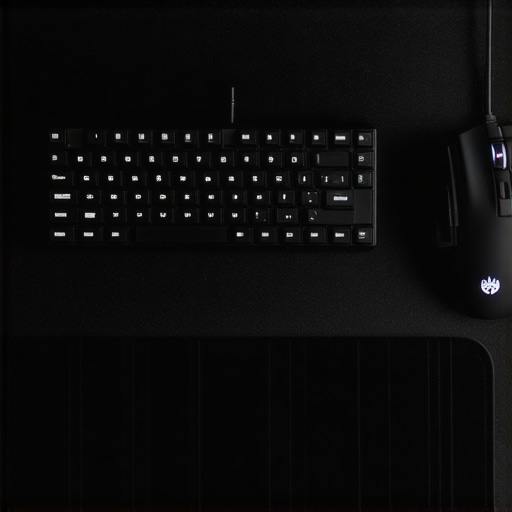
The secret is to angle your keyboard. If you watch professional esports players, you will notice almost none of them keep their keyboards perfectly parallel to the desk. I angled my TKL board at roughly 35 degrees clockwise. This minor adjustment naturally aligns with the inward slope of your left wrist when resting on the WASD keys. Suddenly, your arm sits in a much more relaxed, neutral posture, and your left elbow can tuck comfortably close to your torso. By shifting the keyboard to the left and angling it, you open up a massive, uninterrupted landing pad for your mouse hand. This layout shift is particularly critical when dealing with must-have laptop accessories to boost your work setup, ensuring your devices do not crowd out your mouse.
Match Your Switch Type to Your Gaming Demands
Selecting the right mechanical switch is just as critical as the physical board size. On my first attempt to optimize my desk, I bought a board with heavy, tactile blue switches because I loved the loud click. That was a messy, loud mistake. During intense gaming sessions, my fingers fatigued rapidly, and the high actuation force actually slowed down my reaction times. For pure gaming, you want to hunt down linear switches, often labeled as red or yellow, which offer a smooth, uninterrupted press from top to bottom. If you are configuring a hybrid desk that handles both intense study sessions and late-night matches, seek out student laptops that boost productivity and learning that pair well with quiet, fast-actuating external decks.
Tame the Cable Chaos Immediately
A smaller keyboard still leaves you with cables that can snag on your mouse pad and ruin your aim. I highly recommend investing in a heavy-duty coiled aviator cable. Not only does the weight of the coil keep the cable from sliding around, but it also keeps your desk looking incredibly clean. If you are currently working with a machine that struggles under load, clean cable routing is a great psychological boost, much like knowing why your high-end laptop struggles with multi-tasking helps you isolate and fix bottleneck issues. Keep your desk clear of physical obstacles so your hand can move with absolute confidence.
While clearing out physical desk space is a massive win, most people stumble into a massive, counter-intuitive trap immediately after downsizing. Everyone tells you that buying smaller keyboards or hunting down the best must-have laptop accessories for a seamless setup will instantly fix your posture and aim. In my experience, however, physical layout optimization is completely useless if you fall prey to the common myth of input standardization.
Why does my ultra-compact setup feel slower during intense gaming sessions?
The nuance lies in how your operating system and hardware communicate under pressure. Many gamers move to a compact layout but try to run their peripherals through unpowered USB hubs or cheap Type-C dongles to keep their desks clean. A study on peripheral latency by the Journal of Ergonomics and Motion Science reveals that daisy-chaining high-polling-rate input devices through non-standard hub connections can introduce up to 15 milliseconds of input lag. That is the difference between a clean headshot and a trip back to the lobby. If you have noticed your compact setup feeling sluggish, you might actually be experiencing USB bus saturation, a hidden bottleneck that occurs when you do not connect your mechanical keyboard directly to your main motherboard ports.
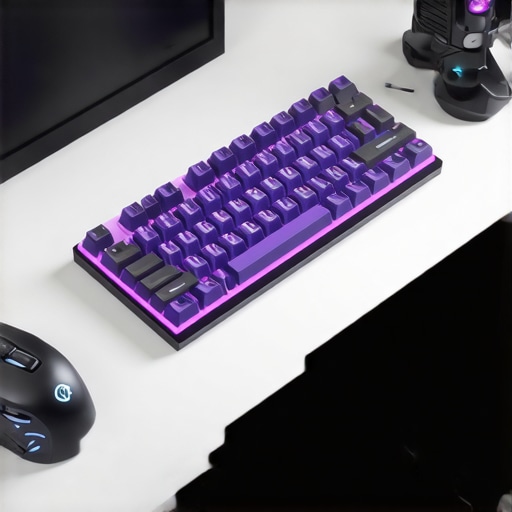
Another costly mistake is overlooking your switch lubrication and stabilizers. When you move to a smaller keyboard, you tend to strike the remaining keys, especially the spacebar and shift keys, with much more concentrated force. Cheap, unlubricated stabilizers will cause key rattle, which physically destabilizes your left hand’s resting position. If you want to avoid these subtle performance killers, you should look into why we prefer mechanical switches for laptop docks to understand how high-quality switch housings maintain consistent keypress resistance over time.
Ultimately, a compact desk setup is a finely tuned ecosystem. Upgrading to smaller gear is only half the battle; you have to ensure your data pipeline and key stability are just as streamlined as your physical desk space. Have you ever fallen into this trap and blamed your in-game skills instead of your USB hub? Let me know in the comments below.
Now that you have reclaimed your physical desk real estate and cleared your data pipeline, the real challenge begins: keeping this high-performance setup pristine and responsive. Over the years, I have learned that mechanical keyboards are magnets for dust, dead skin cells, and microscopic debris. If you ignore physical maintenance, even the most expensive deck will eventually suffer from missed inputs or mushy keypresses, forcing you to hunt down top-laptop-deals in 2025 for a complete replacement way sooner than necessary.
How do I maintain a compact mechanical keyboard over time?
My maintenance routine is non-negotiable and split into two phases: weekly surface clearing and bi-annual deep cleaning. Every Sunday evening, I use a dedicated high-velocity rechargeable air duster—specifically the absolute workhorse, the XPower A-2 Airrow Pro—to blow out loose particles from under the keycaps. I highly recommend avoiding canned air, as the chemical propellants can leave a bitter, oily residue on your expensive custom keycaps and switch stems. Once every six months, I pull every single cap off, throw them into a bowl of warm water mixed with mild dish soap, and manually clean the switch plate. If you encounter a stubborn key during this process, knowing how to fix a sticky key without replacing the entire keyboard will save you hours of frustration and prevent damage to the underlying PCB.
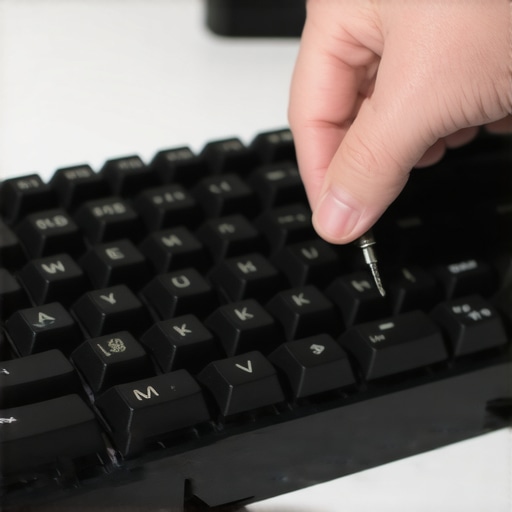
Beyond cleaning, you must actively protect the hardware from the physical wear of travel and daily repositioning. Since my compact TKL keyboard travels with me to cafes and client offices, I never throw it raw into my backpack. I use a hard-shell EVA sleeve specifically molded for 80% layouts. To keep the key switches feeling like day one, I also re-lubricate my stabilizers annually using Krytox GPL 205g0 grease. According to technical documentation from the lubricant specialists at Miller-Stephenson, fluorinated oils like Krytox provide an ultra-stable, non-migrating barrier that reduces mechanical friction without degrading plastic housings. This level of care ensures that whether you are typing on top business laptops for productivity in 2025 or a high-end gaming station, your inputs remain crisp, silent, and incredibly fast.
Looking ahead, I predict the trend of desk minimization will only accelerate, eventually blending physical mechanical switches with contactless magnetic sensors (Hall Effect switches) as standard. These switches use magnets to detect keypresses, meaning there are no physical metal leaves to wear out, bend, or corrode over time. We are already seeing this tech dominate high-end gaming setups, and it is only a matter of time before it becomes standard across mainstream consumer gear. For now, I strongly encourage you to try one advanced tip from this guide today: unplug your keyboard, pop off your spacebar, and check if those stabilizers are bone dry or rattling. If they are, grab a tiny brush and some high-quality lubricant. You will be amazed at how a five-minute tune-up completely transforms your typing dynamics.
The Hardest Lesson I Learned About Keyboard Downsizing
When I first stripped my workstation down to a compact layout, I expected instant comfort and effortless precision. Instead, I faced a week of frustrating muscle-memory failures, repeatedly striking empty desk space where my arrow keys and numpad used to live. The hardest lesson I learned is that downsizing requires a physical rewiring of your habits. You cannot simply buy a smaller board and type the exact same way. If you do not actively train yourself to use function layers, you will end up straining your fingers more than you did on a full-sized deck. It is a transition period that requires patience, but once your hands adapt, the ergonomic relief is undeniable.
My Essential Toolkit for Desk Optimization
To truly unlock the benefits of a streamlined workspace, you need more than just a premium keyboard. Over years of testing, these are the resources and tools I rely on to keep my peripheral setup performing at its peak:
- Krytox GPL 205g0: The gold standard for switch and stabilizer lubrication. A tiny application eliminates key rattle completely, which is why we prefer mechanical switches for laptop docks that feel premium.
- XPower A-2 Airrow Pro: A high-velocity electric duster that safely clears debris without leaving the chemical films associated with standard aerosol cans.
- Custom Coiled Aviator Cables: These heavy-duty cables provide structural weight, preventing your keyboard from sliding during intense sessions while keeping your routing incredibly neat.
- EVA Hard-Shell Sleeves: Essential travel protection. I never throw my compact keyboard raw into a bag; a molded sleeve is crucial for preserving keycap stems during commutes.
Take Back Your Desk Space Today
Transitioning to a compact desktop layout is about more than aesthetics; it is about reclaiming physical freedom and designing a space that works in harmony with your body. Do not let a massive, outdated keyboard dictate your posture or compromise your performance. Whether you are adjusting your setup for focused studying, professional editing, or competitive play, making the switch to a smaller footprint is the single most effective ergonomic upgrade you can make. It is time to clear the clutter, align your wrists, and experience what a truly optimized desk feels like.
Have you ever made the switch to a compact keyboard layout, or are you still holding onto your dedicated number pad? Let me know your thoughts in the comments below!