
I still remember the night my hands gave up. I was sitting at my kitchen table, desperately trying to finish a massive client proposal on a brand-new, ultra-thin ultrabook. It was beautifully sleek, lighter than a notebook, and cost a small fortune. But after just two hours of typing, my fingertips felt like they were repeatedly striking a concrete slab. There was absolutely no cushion, no depth, and zero feedback. I ended up making dozens of typos, slowing down to a crawl, and waking up the next morning with sore knuckles. That painful night taught me a harsh lesson: a beautiful design means nothing if the keyboard feels like a piece of flat glass.
The Real Reason Your Hands Hurt After Typing
Many of us spend hours hunting for the best business laptops or chasing down seasonal laptop deals, only to completely ignore the physical switch under each key. Manufacturers have spent the last decade shaving millimeters off their chassis designs. While thinness looks incredibly futuristic, it directly destroys key travel—the physical distance a key travels from its resting position to fully pressed down. When you do not have enough travel, you experience what enthusiasts call ‘bottoming out’ too quickly, which sends the shock of your keystroke directly back into your joints.
My biggest mistake early on was believing that all modern chiclet keyboards were basically identical. They aren’t. Choosing a laptop with at least 1.5mm of keyboard travel can completely transform your writing stamina, whether you are drafting code, writing essays, or typing up reports. To truly elevate your desk experience, you might also look into must-have laptop accessories like an ergonomic stand or a dedicated external board, but having a comfortable built-in keyboard is your first line of defense against repetitive strain injuries.
Is comfortable key travel dead on modern laptops?
You might think that finding deep, satisfying keys on a modern machine is a lost cause unless you carry around a heavy brick. Fortunately, that is a myth. While many ultra-thin consumer models have compromised on key depth, several stellar student laptops and premium business machines still prioritize deep, tactile switches. According to ergonomic research published by the Cornell University Ergonomics Web, typing on keys with extremely shallow travel and high activation force significantly increases muscular strain in the forearms. We do not have to accept this as the tax for portability. Have you ever bought a highly-rated laptop only to realize the keyboard felt completely mushy or stiff? Let me know in the comments below, because I know I am not the only one who has returned a machine for this exact reason. Let us look at how you can spot a winner before you buy.
How to Benchmark a Laptop Keyboard in Store or at Home
Finding a comfortable keyboard is not about reading spec sheets; it is about putting your hands on the keys and testing structural limits. When you walk into an electronics store or unbox a delivery from the latest laptop deals, your first move should be to perform a quick stress test. Place your hands on the home row and press down on the center of the deck with moderate force. If the plastic or aluminum chassis bends inward like a cheap trampoline, walk away. A flexing keyboard deck absorbs the force of your typing, creating a spongy feel that ruins otherwise decent key travel.
I learned this lesson the hard way when I grabbed a highly rated machine from a batch of student laptops for my younger cousin. On paper, it looked like a dream, but the structural flex was so terrible that the spacebar would occasionally register twice on a single press. We had to struggle through returns because I did not test the physical deck stiffness first. Now, I always perform a quick diagnostics run immediately after unboxing. If you find yourself in a similar situation with a sticky or unresponsive switch on an older machine, you might first try to fix a sticky key without replacing the entire keyboard to see if you can salvage the deck.

The Five-Minute Typing Test to Measure Real Finger Fatigue
To truly understand how a keyboard handles under pressure, open a blank text document and type continuously for five minutes. Do not just type random letters; write real paragraphs, like an email draft or a journal entry. Pay close attention to how your fingers feel when they reach the bottom of each stroke. If you feel a sharp shock traveling up your knuckles, the switches are bottoming out too quickly on a rigid base. This is especially common on ultra-thin models, but you will occasionally run into this issue even on robust business laptops designed for corporate use.
While you are testing, listen to the acoustic signature of the keys. A high-pitched clack often indicates cheap, thin keycaps that will wear down and become slippery over time. Look for a deep, muted thud instead. If you find that your hands naturally slip or that you need more desk customization to keep your wrists neutral, it might be time to pair your machine with highly-rated laptop accessories like an adjustable laptop riser or a wrist rest. For home workstations where you do not have to worry about carrying extra weight, we frequently recommend using a dedicated external board, which is why we prefer mechanical switches for laptop docks to completely bypass thin built-in keys.
Why You Must Ignore the Activation Force Spec Sheets
Many manufacturers brag about low activation force, claiming it makes typing effortless. This is a clever marketing spin to hide a lack of physical travel. Activation force—the amount of pressure needed to register a keystroke—must exist in perfect balance with key travel. If a keyboard has ultra-light activation force combined with a shallow 1.0mm travel distance, your fingers will constantly trigger accidental keypresses just by resting on the home row. You want a crisp tactile bump that resists accidental presses but collapses smoothly once you apply intent.
When you start browsing for high-end business laptops for professionals or checking out the newest top laptop deals, you are bombarded with marketing copy about how thinness and speed go hand-in-hand. But we need to challenge a massive industry myth: the idea that lighter switches are always better for your fingers. In my years testing everything from game-changing gaming laptops to basic educational machines, I have found the exact opposite. Ultra-light, hair-trigger keyboards actually cause your muscles to work harder because you are constantly tensing your hands to prevent accidental inputs. This isometric tension is the real silent killer of wrist comfort.
Why does a stiff keyboard deck cause chronic typing strain?
Many users assume their hand fatigue stems purely from the key switches, but structural flex is the true culprit. When you press down on a flimsy laptop chassis, the entire deck bends, absorbing the kinetic energy of your strike and dispersing it unevenly. To compensate for this spongy feedback, your fingers unconsciously strike the keys with up to twice as much force. A study on physical workstation ergonomics by the Human Factors and Ergonomics Society highlights that variable tactile resistance—which is exactly what happens when a keyboard deck flexes—increases muscle fatigue exponentially compared to a rigid typing surface.

This is why shopping purely by searching for cheap student laptops without checking chassis materials is a massive trap. You might save fifty dollars upfront, but you pay for it in physical discomfort. If you are stuck with a flexing, mushy deck on a budget machine, you can try to mitigate the strain by checking how to find the best viewing angle for your laptop stand. Elevating the rear of the machine changes your wrist approach angle, reducing how hard your fingers bottom out against a weak frame.
Another common mistake is relying on cheap soft accessories to fix a fundamentally flawed laptop design. People often purchase thick, generic wrist pads, only to realize their typing posture is worse than before because their wrists are forced into an unnatural upward extension. If you must use external aids, always look for low-profile, ergonomic must-have laptop accessories that keep your hands in a completely neutral, flat plane. Have you ever fallen into this trap of buying a sleek laptop only to realize the deck bent like cardboard under your hands? Let me know in the comments below, and let’s find a machine that actually protects your wrists.
Now that you know how to identify physical structural flex and measure key travel, the real battle begins: keeping that tactile response feeling brand new over months of heavy typing. As someone who writes thousands of words a week, I can tell you that keyboard degradation happens so slowly you won’t notice it until your typing speed has plummeted. Dust, skin oils, and microscopic crumbs gradually wedge themselves underneath the membrane dome or mechanical switch, slowly increasing the required activation force and turning a crisp deck into a mushy nightmare.
How do I maintain my laptop keyboard over time?
To prevent this gradual decay, I use a highly specific maintenance routine every Sunday night. First, I turn the machine off and hold it upside down at a 45-degree angle. I then use a specialized, pressurized air can with a static-free straw nozzle to blow out the debris using short, controlled bursts from left to right. Never hold the can upside down, as frozen liquid propellant can seep under the keycaps and damage the delicate circuitry below. For deep cleaning, I strongly recommend learning the best ways to clean a greasy laptop keyboard, which outlines how to safely use isopropyl alcohol without dissolving the protective coating on your keycaps.
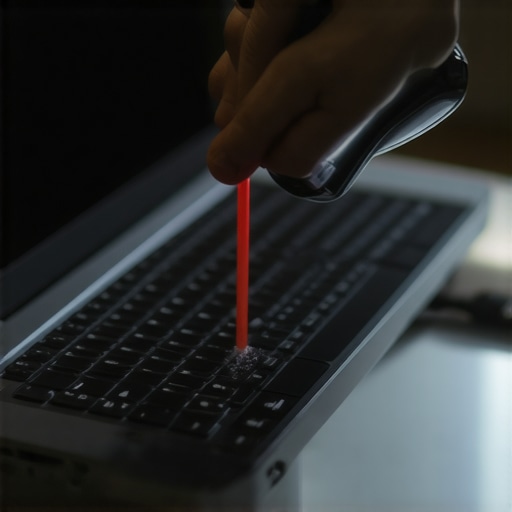
If you are using high-end business laptops for professionals or expensive game-changing gaming laptops for serious players in 2025, you cannot afford to let dirt compromise your hardware. For those who frequently work on the go, protecting the deck during transport is just as critical. I always slide a thin microfiber cloth between the keyboard and the screen before closing the lid. This prevents natural oils on the keys from permanently etching into your display coating. If your laptop travels in a packed bag, it is also smart to invest in the best laptop sleeve for maximum drop protection to shield the chassis from external pressure that can compress and damage the internal switches.
Looking ahead, the future of typing comfort is shifting rapidly. According to keyboard design documentation from Cherry MX, the industry is moving toward ultra-low-profile mechanical tactile switches that fit into thinner chassis without sacrificing travel. This means future consumer devices and ultra-portable student laptops will eventually offer the clicky, deeply satisfying feel of a desktop setup. Until those designs become standard, I highly encourage you to try my Sunday pressurized-air cleaning routine tonight. Taking five minutes to clear out hidden dust right now will immediately restore that crisp, out-of-the-box tactile feedback you have been missing.
I still remember the night my hands gave up. I was sitting at my kitchen table, desperately trying to finish a massive client proposal on a brand-new, ultra-thin ultrabook. It was beautifully sleek, lighter than a notebook, and cost a small fortune. But after just two hours of typing, my fingertips felt like they were repeatedly striking a concrete slab. There was absolutely no cushion, no depth, and zero feedback. I ended up making dozens of typos, slowing down to a crawl, and waking up the next morning with sore knuckles. That painful night taught me a harsh lesson: a beautiful design means nothing if the keyboard feels like a piece of flat glass.
The Real Reason Your Hands Hurt After Typing
Many of us spend hours hunting for the best business laptops or chasing down seasonal laptop deals, only to completely ignore the physical switch under each key. Manufacturers have spent the last decade shaving millimeters off their chassis designs. While thinness looks incredibly futuristic, it directly destroys key travel—the physical distance a key travels from its resting position to fully pressed down. When you do not have enough travel, you experience what enthusiasts call ‘bottoming out’ too quickly, which sends the shock of your keystroke directly back into your joints.
My biggest mistake early on was believing that all modern chiclet keyboards were basically identical. They aren’t. Choosing a laptop with at least 1.5mm of keyboard travel can completely transform your writing stamina, whether you are drafting code, writing essays, or typing up reports. To truly elevate your desk experience, you might also look into must-have laptop accessories like an ergonomic stand or a dedicated external board, but having a comfortable built-in keyboard is your first line of defense against repetitive strain injuries.
Is comfortable key travel dead on modern laptops?
You might think that finding deep, satisfying keys on a modern machine is a lost cause unless you carry around a heavy brick. Fortunately, that is a myth. While many ultra-thin consumer models have compromised on key depth, several stellar student laptops and premium business machines still prioritize deep, tactile switches. According to ergonomic research published by the Cornell University Ergonomics Web, typing on keys with extremely shallow travel and high activation force significantly increases muscular strain in the forearms. We do not have to accept this as the tax for portability. Have you ever bought a highly-rated laptop only to realize the keyboard felt completely mushy or stiff? Let me know in the comments below, because I know I am not the only one who has returned a machine for this exact reason. Let us look at how you can spot a winner before you buy.
How to Benchmark a Laptop Keyboard in Store or at Home
Finding a comfortable keyboard is not about reading spec sheets; it is about putting your hands on the keys and testing structural limits. When you walk into an electronics store or unbox a delivery from the latest laptop deals, your first move should be to perform a quick stress test. Place your hands on the home row and press down on the center of the deck with moderate force. If the plastic or aluminum chassis bends inward like a cheap trampoline, walk away. A flexing keyboard deck absorbs the force of your typing, creating a spongy feel that ruins otherwise decent key travel.
I learned this lesson the hard way when I grabbed a highly rated machine from a batch of student laptops for my younger cousin. On paper, it looked like a dream, but the structural flex was so terrible that the spacebar would occasionally register twice on a single press. We had to struggle through returns because I did not test the physical deck stiffness first. Now, I always perform a quick diagnostics run immediately after unboxing. If you find yourself in a similar situation with a sticky or unresponsive switch on an older machine, you might first try to fix a sticky key without replacing the entire keyboard to see if you can salvage the deck.
The Five-Minute Typing Test to Measure Real Finger Fatigue
To truly understand how a keyboard handles under pressure, open a blank text document and type continuously for five minutes. Do not just type random letters; write real paragraphs, like an email draft or a journal entry. Pay close attention to how your fingers feel when they reach the bottom of each stroke. If you feel a sharp shock traveling up your knuckles, the switches are bottoming out too quickly on a rigid base. This is especially common on ultra-thin models, but you will occasionally run into this issue even on robust business laptops designed for corporate use.
While you are testing, listen to the acoustic signature of the keys. A high-pitched clack often indicates cheap, thin keycaps that will wear down and become slippery over time. Look for a deep, muted thud instead. If you find that your hands naturally slip or that you need more desk customization to keep your wrists neutral, it might be time to pair your machine with highly-rated laptop accessories like an adjustable laptop riser or a wrist rest. For home workstations where you do not have to worry about carrying extra weight, we frequently recommend using a dedicated external board, which is why we prefer mechanical switches for laptop docks to completely bypass thin built-in keys.
Why You Must Ignore the Activation Force Spec Sheets
Many manufacturers brag about low activation force, claiming it makes typing effortless. This is a clever marketing spin to hide a lack of physical travel. Activation force—the amount of pressure needed to register a keystroke—must exist in perfect balance with key travel. If a keyboard has ultra-light activation force combined with a shallow 1.0mm travel distance, your fingers will constantly trigger accidental keypresses just by resting on the home row. You want a crisp tactile bump that resists accidental presses but collapses smoothly once you apply intent.
When you start browsing for high-end business laptops for professionals or checking out the newest top laptop deals, you are bombarded with marketing copy about how thinness and speed go hand-in-hand. But we need to challenge a massive industry myth: the idea that lighter switches are always better for your fingers. In my years testing everything from game-changing gaming laptops to basic educational machines, I have found the exact opposite. Ultra-light, hair-trigger keyboards actually cause your muscles to work harder because you are constantly tensing your hands to prevent accidental inputs. This isometric tension is the real silent killer of wrist comfort.
Why does a stiff keyboard deck cause chronic typing strain?
Many users assume their hand fatigue stems purely from the key switches, but structural flex is the true culprit. When you press down on a flimsy laptop chassis, the entire deck bends, absorbing the kinetic energy of your strike and dispersing it unevenly. To compensate for this spongy feedback, your fingers unconsciously strike the keys with up to twice as much force. A study on physical workstation ergonomics by the Human Factors and Ergonomics Society highlights that variable tactile resistance—which is exactly what happens when a keyboard deck flexes—increases muscle fatigue exponentially compared to a rigid typing surface.
This is why shopping purely by searching for cheap student laptops without checking chassis materials is a massive trap. You might save fifty dollars upfront, but you pay for it in physical discomfort. If you are stuck with a flexing, mushy deck on a budget machine, you can try to mitigate the strain by checking how to find the best viewing angle for your laptop stand. Elevating the rear of the machine changes your wrist approach angle, reducing how hard your fingers bottom out against a weak frame.
Another common mistake is relying on cheap soft accessories to fix a fundamentally flawed laptop design. People often purchase thick, generic wrist pads, only to realize their typing posture is worse than before because their wrists are forced into an unnatural upward extension. If you must use external aids, always look for low-profile, ergonomic must-have laptop accessories that keep your hands in a completely neutral, flat plane. Have you ever fallen into this trap of buying a sleek laptop only to realize the deck bent like cardboard under your hands? Let me know in the comments below, and let’s find a machine that actually protects your wrists.
Now that you know how to identify physical structural flex and measure key travel, the real battle begins: keeping that tactile response feeling brand new over months of heavy typing. As someone who writes thousands of words a week, I can tell you that keyboard degradation happens so slowly you won’t notice it until your typing speed has plummeted. Dust, skin oils, and microscopic crumbs gradually wedge themselves underneath the membrane dome or mechanical switch, slowly increasing the required activation force and turning a crisp deck into a mushy nightmare.
How do I maintain my laptop keyboard over time?
To prevent this gradual decay, I use a highly specific maintenance routine every Sunday night. First, I turn the machine off and hold it upside down at a 45-degree angle. I then use a specialized, pressurized air can with a static-free straw nozzle to blow out the debris using short, controlled bursts from left to right. Never hold the can upside down, as frozen liquid propellant can seep under the keycaps and damage the delicate circuitry below. For deep cleaning, I strongly recommend learning the best ways to clean a greasy laptop keyboard, which outlines how to safely use isopropyl alcohol without dissolving the protective coating on your keycaps.
If you are using high-end business laptops for professionals or expensive game-changing gaming laptops for serious players in 2025, you cannot afford to let dirt compromise your hardware. For those who frequently work on the go, protecting the deck during transport is just as critical. I always slide a thin microfiber cloth between the keyboard and the screen before closing the lid. This prevents natural oils on the keys from permanently etching into your display coating. If your laptop travels in a packed bag, it is also smart to invest in the best laptop sleeve for maximum drop protection to shield the chassis from external pressure that can compress and damage the internal switches.
Looking ahead, the future of typing comfort is shifting rapidly. According to keyboard design documentation from Cherry MX, the industry is moving toward ultra-low-profile mechanical tactile switches that fit into thinner chassis without sacrificing travel. This means future consumer devices and ultra-portable student laptops will eventually offer the clicky, deeply satisfying feel of a desktop setup. Until those designs become standard, I highly encourage you to try my Sunday pressurized-air cleaning routine tonight. Taking five minutes to clear out hidden dust right now will immediately restore that crisp, out-of-the-box tactile feedback you have been missing.
Crucial Lessons from My Decade in the Typing Trenches
Over the years of testing countless laptops, I have discovered a few hard-won truths about typing comfort that never show up in marketing brochures. First, the weight of the machine often dictates the stability of the keyboard. Ultra-lightweight frames flex more easily because they lack structural internal ribbing. Second, a layout with cramped arrow keys or weirdly placed power buttons can completely ruin your flow, no matter how good the switches feel under your fingertips. Finally, never buy a laptop based solely on one good review; hands-on testing is the only real way to guarantee your fingers won’t end up aching.
The Gear I Trust for Maximum Hand Comfort
If you want to save your wrists from early fatigue, you need a smart ecosystem. I personally use and highly recommend setting up an external layout on your main desk. I pair an ergonomic riser with must-have laptop accessories to boost your work setup, including a split mechanical keyboard. To keep my mobile setup safe when traveling between coffee shops, I always protect my gear with the best laptop sleeve for maximum drop protection. For those working on budget-friendly machines, matching your hardware with a solid stand is the easiest way to offset a bad typing angle.
Take Back Control of Your Daily Typing Flow
Your hands are your livelihood. Do not sacrifice your long-term health and daily comfort for a laptop that is merely half a millimeter thinner than its competitor. When you are looking for your next upgrade, prioritize deep keys, a rigid chassis, and tactile feedback. By choosing the right tool, you will enjoy a faster, pain-free workflow on the best business laptops for professionals. Have you ever struggled with finger fatigue or hand strain on a super thin laptop? Let me know your experiences in the comments below!