
It was a typical Tuesday afternoon when I caught myself rubbing my eyes more than usual after an hour of work on my laptop. I had recently upgraded to a high-refresh-rate screen, thinking it would boost my productivity and make long work sessions more comfortable. But instead of feeling energized, I felt jittery, distracted, and plain burned out.
That moment was a lightbulb. I realized I had fallen into the trap of believing that higher refresh rates automatically mean better productivity—especially for work tasks. But as I dug deeper, I discovered that many of us are chasing a tech myth that doesn’t quite hold up under real-world use.
Chasing the Illusion of Smoothness: What Really Matters for Non-Gaming Tasks
In my experience, the obsession with high-refresh screens is largely rooted in gaming culture where every frame counts. For non-gaming work—think coding, writing, spreadsheets, or video conferencing—the benefits of a 144Hz or even 240Hz display are often negligible. Instead, these screens can introduce eye fatigue, flickering, or unnecessary distractions. Plus, they tend to jack up the price of laptops without offering a true return on investment.
I want to share what I’ve learned from personal trial, error, and honest evaluation. My goal is to help you avoid the costly mistake I made early on: assuming that high-refresh screens are essential for all kinds of work. The truth is, most professionals and students will benefit far more from features like a matte finish, good color accuracy, and a comfortable viewing angle. And I’ll show you how to identify those.
Is Refresh Rate Just a Fad? My Early Mistakes
When I first started shopping for laptops, I got swept up in the hype around refresh rates. I thought bumping from 60Hz to 120Hz or higher would transform my workflow. But I overlooked critical factors like screen glare, resolution, and overall build quality. I ended up wasting money on a flashy feature I barely used, and I struggled with eye strain as a result.
For those of you hesitant to switch or unsure if you need high refresh rates, I get it. It’s a common concern rooted in a fear of missing out. But based on my firsthand experience and expert insights—like those from trustworthy sources—it’s clear that a high-refresh screen isn’t a one-size-fits-all solution. In the following sections, I’ll show you what features actually improve productivity and comfort in non-gaming environments, and how to find the best laptop for your needs. But first, let’s examine why so many of us have been convinced to buy into the hype in the first place.
Prioritize Features That Boost Your Productivity
Start by listing the core activities you perform daily—be it coding, writing, or virtual meetings. For instance, during my recent laptop upgrade, I realized that a matte screen significantly reduced glare during long writing sessions, enhancing my focus. Use this insight to filter out laptops with glossy screens that can cause eye strain. Check specs for anti-glare coatings and color accuracy, especially if visual clarity matters in your tasks. For detailed advice on selecting the right display features, visit this guide.
Match Your Budget with Critical Hardware
Set a clear budget based on your priorities. For students, affordable options with upgradeable RAM and storage can save money long-term; for professionals, investing in high-quality build quality and battery life pays off. I once bought a budget laptop with soldered RAM, which limited future upgrades, causing frustration. Instead, I found models that support user-replaceable components, saving me from premature obsolescence. Review this resource to learn about upgrade-friendly laptops.
Test for Comfort and Reliability
Physical comfort is often overlooked. During my shopping trip, I tested the keyboard layout and hinge sturdiness of different models, which prevented future annoyances. Carry your shortlisted laptops and spend time opening and closing them, checking for wobble or creaking. Also, assess the keyboard feel—if it cramped my hands during extended typing, I knew it wouldn’t suit long-term use. Don’t forget to evaluate weight and portability—especially if you commute often. For ergonomic accessories, see this list.
Evaluate Screen Quality for Long Sessions
An eye-friendly display reduces fatigue and distractions. I replaced my glossy screen with a matte alternative after noticing glare during late-night work. Inspect screens in-store for brightness, viewing angles, and flickering. Try to view screens in different lighting conditions to ensure they meet your needs. Additionally, consider the resolution—While 4K sounds appealing, a high-quality 1080p display with good color coverage often suffices for most work. For expert tips, explore this article.
Plan Your Setup with Accessories
Enhance your productivity with smart accessories. My setup improved drastically after adding an external monitor, ergonomic stand, and a wireless keyboard. These accessories, available at this page, turned my portable laptop into a desktop replacement, reducing neck strain and boosting workflow. Consider docking stations, external mice, or better lighting to customize your workspace. This step pays off especially if you spend hours at your desk daily.
Practice Testing Before Committing
Finally, simulate your typical workday with the shortlisted laptops. Use in-store demo models or if possible, borrow from friends. During my test phase, I discovered that a particular model’s fan noise distracted me during calls, leading me to choose a quieter alternative. Taking this extra step prevents buyer’s remorse and ensures your new laptop truly fits your needs. Remember, investing time in hands-on testing saves money and frustration later.
Many assume that choosing the right laptop is simply about specs like processor speed or storage capacity, but there’s more beneath the surface. For example, a common misconception among students is that the most powerful CPU ensures better performance, yet studies show that RAM and SSD speed often have a greater impact on daily productivity. Additionally, students tend to overlook the significance of keyboard ergonomics and screen glare, which can make or break long study sessions. These nuanced factors are frequently underestimated, leading to uncomfortable setups and reduced efficiency.
Contrary to popular belief, laptop deals aren’t always about the highest discounts; sometimes, a slightly higher upfront cost for a model with upgradeable components or better build quality results in long-term savings and durability. For instance, models with user-replaceable batteries and expandable storage offer flexibility that prevents early obsolescence—an important consideration often neglected.
Many gamers and enthusiasts focus heavily on GPU power, assuming it will benefit their productivity tasks. However, for most professional work, a balanced configuration with quality display calibration and reliable build quality yields better results than top-tier gaming-grade hardware. This myth about GPU dominance can tempt buyers into overspending on features they don’t need.
How Can Advanced Users Spot a Laptop’s Real Potential?
For the savvy buyer, understanding the importance of BIOS options, thermal management, and chassis design is crucial. Features like efficient cooling solutions and sturdy hinges often go unnoticed but have a profound effect on longevity. Experts suggest inspecting these details closely or consulting teardown reviews before making a purchase decision. For an in-depth analysis of what to look for, check out this detailed guide.
In the realm of accessories, many overlook how external devices can enhance or hinder productivity. Investing in ergonomic stands, quality mouse options, or external monitors can elevate a basic setup into a powerhouse workstation, especially when complemented by the right accessories listed here. Recognizing which accessories provide the best value and compatibility can make a significant difference.
Understanding these subtle yet impactful factors allows you to avoid common pitfalls and tailor your purchase to your actual needs. Have you ever fallen into this trap? Let me know in the comments.
Maintaining your laptop over time is essential to ensure consistent performance, extended longevity, and avoiding costly repairs. I personally rely on a combination of hardware health monitoring tools and disciplined maintenance routines to keep my devices in top shape. One indispensable tool I use is CrystalDiskInfo, which provides detailed insights into my SSD and HDD health, allowing me to catch potential failures before they happen. Regularly checking SMART data helps me schedule timely backups and replacements, preventing data loss and downtime.
For managing software health, I prefer CCleaner because it efficiently cleans temporary files, invalid registry entries, and browser caches that slow down performance over time. Running this program weekly keeps my laptop responsive and frees up valuable storage space. Additionally, I use Malwarebytes for periodic scans to guard against malware and spyware, which can stealthily compromise security and slow down essential operations. Combining these tools ensures my system remains optimized without the hassle of a full reinstall.
How do I maintain my laptop hardware over the long term?
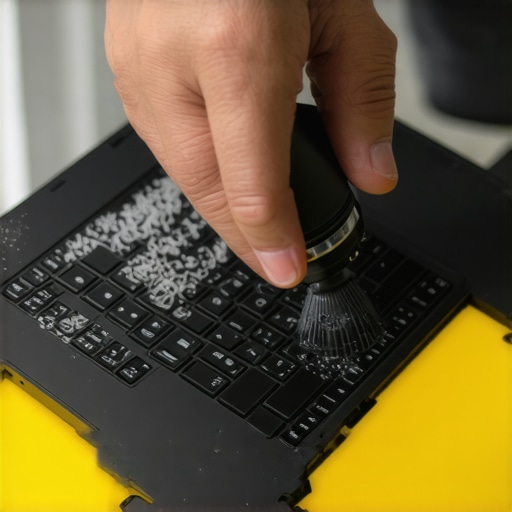
Beyond software, hardware upkeep plays a critical role. I perform physical cleaning every few months, using compressed air to remove dust from fans and vents—this simple step prevents overheating and thermal throttling. For example, I recently removed dust from my gaming laptop’s cooling system with a can of compressed air, which resulted in noticeably better thermal performance and quieter operation. Replacing thermal paste every couple of years also improves heat transfer, maintaining optimal CPU and GPU temperatures. Supplies like the thermal paste kit are affordable investments that pay off by extending your device’s lifespan.
Long-term results depend heavily on consistent maintenance practices. Setting reminders for hardware checks and regularly updating firmware and drivers ensures your laptop adapts to evolving software demands. Looking ahead, I predict that hardware diagnostic tools integrated into laptop firmware will become more user-friendly, making DIY maintenance easier for everyday users. In the meantime, adopting a routine based on trusted software like HWMonitor or Speccy helps me monitor temperatures, voltages, and fan speeds effortlessly. Pro tip: Try scheduling monthly hardware health checks so issues can be addressed proactively rather than reactively. Interested in more detailed hardware maintenance tips? Reach out through our contact page.
By combining reliable tools and a disciplined routine, you can keep your laptop performing at its best for years to come, saving money and frustration. Remember, a little preventive maintenance goes a long way—don’t wait for issues to arise before acting.
Lessons Learned from the Price Tags and Pixel Counts
- One of my biggest revelations was realizing that chasing the latest GPU or 4K display often distracts from what truly boosts productivity, like keyboard comfort and battery life. I once bought a flashy gaming laptop expecting it to excel at work—only to find that the noise and heat became barriers rather than assets.
- I’ve learned that the most expensive feature isn’t always the most practical. A laptop with a matte screen and upgradeable storage saved me time and money, embodying the idea that intentional choices trump impulse buys. This lesson pushed me to prioritize modularity and build quality over just raw specs.
- My eyes opened to the importance of real-world testing—carrying devices around, testing in different lighting, and simulating my daily workload. Without these steps, I risk missing critical comfort and durability issues that can cripple long-term use.
- Finally, I found that the hidden details—like hinge robustness or thermal management—can determine whether a laptop becomes a trusty tool or a source of daily frustration. Investing in these facets pays dividends in both peace of mind and performance longevity.
Tools That Changed How I Pick Gear
- CrystalDiskInfo became my go-to for monitoring SSD health, helping me catch issues early and avoid data loss. Its detailed SMART data gave me peace of mind as I planned my upgrades.
- HWMonitor kept tabs on my temperatures and voltages, ensuring my device ran smoothly under load. Regular checks with this tool extended my hardware’s lifespan.
- 7 Laptop Stands transformed my workspace, boiling down ergonomics into a simple, effective upgrade. A good stand not only improved posture but also cooled my device better, making long work sessions less draining.
- Significant discounts through online forums and clearance sections revealed high-quality models at a fraction of their original price—an essential tip for budget-conscious students and professionals alike.
Your Next Move Starts Today
Armed with these insights and tools, you’re better equipped to make a confident decision about your laptop. Whether you’re a student aiming for durability or a professional seeking efficiency, remember that true value lies in aligning features with your unique needs. Don’t wait for discomfort or obsolescence—start applying this knowledge today, and turn your laptop into a seamless extension of your ambitions. Have you ever discovered a feature or tip that made a real difference in your setup? Share your story below and inspire others on their journey—because the right tools and mindset can truly elevate your tech experience.