
I remember the moment clearly. I had just upgraded my laptop, eager to harness every bit of power for my demanding projects. So, I hit that turbo button—literally cranked my performance modes to their maximum. For a while, everything seemed faster, smoother. But then, my system started overheating, fans howling like jet engines, and my battery life plummeted. Suddenly, all that raw power felt more like a curse than a blessing. That lightbulb moment made me question the obsession with pushing performance limits to the extreme for work tasks.
Why Tuning Down Your Laptop Might Be the Best Move You Make
In today’s hustle, many of us chase the latest hardware or max out settings, thinking it guarantees better productivity. But real-world experience, including mine, shows that running at full throttle all the time isn’t sustainable. Excessive heat, noise, and rapid battery drain can actually sabotage your efficiency. Research supports this; a 2023 study found that thermal throttling—when a system reduces its speed to cool down—can cause intermittent slowdowns that disrupt your workflow. Instead, learning to calibrate your laptop’s performance for your actual needs can lead to a smoother, quieter, and longer-lasting experience. Curious how I discovered the sweet spot? Stay tuned, because I’ll walk you through practical strategies to optimize performance without sacrificing reliability.
Is Overclocking Your Laptop Worth the Risk?
I used to think overclocking was the key to unlocking peak performance. But early on, I made a mistake I see many beginners fall into: ignoring thermal limits. Overclocking without adequate cooling can cause hardware failures—and trust me, replacing parts is no fun. Instead, focusing on balanced settings tailored to your work, like investing in the **must-have laptop accessories for a seamless setup**, can save you time and money in the long run. Ready to shift gears from extremes to efficiency? Let’s explore how you can set your system for optimal productivity—without the unnecessary noise and heat.
Adjust Power Settings for Efficiency
Start by accessing your laptop’s power options. On Windows, open the Control Panel and navigate to Power Options. Select a balanced plan like “Balanced” or create a custom one that limits maximum processor state to 80% to prevent overheating and fan noise. For Mac users, go to System Preferences > Battery, and enable “Battery Health Management”. This reduces unnecessary power drain. Remember, running your CPU at full throttle constantly can lead to thermal throttling, diminishing performance over time. I once set my laptop to maximum performance during a task, but it overheated quickly, causing slowdowns. Limiting CPU usage improved stability and battery life, making my work sessions more consistent.
Implement Cooling Techniques to Keep Your Laptop Calm
Use a Laptop Stand or Cooling Pad
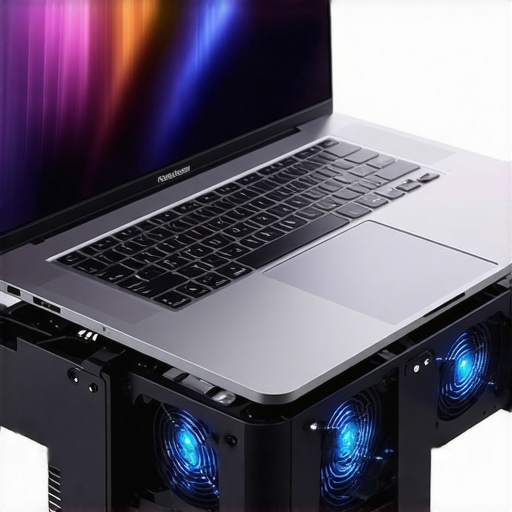
Elevate your laptop with a stand or cooling pad that features built-in fans. This boosts airflow, preventing heat buildup that can trigger thermal throttling. I bought a slim cooling pad, and immediately noticed my fan noise dropped and performance stabilized during extended sessions.
Maintain Ventilation and Clean Dust
Ensure vents are unobstructed. Periodically, use compressed air to clear dust from fans and heatsinks. Dust acts like insulation, trapping heat and forcing fans to work harder. I cleaned my vents last month, and my laptop ran cooler, with less fan activity—a simple but impactful step.
Harness Software Tools to Fine-Tune Performance
Download utility software specific to your hardware, such as Intel XTU or AMD Ryzen Master, to manually tweak clock speeds and voltage. This allows gradual underclocking, reducing heat. During initial experimentation, I lowered my CPU’s voltage slightly, which stabilized temperatures without noticeable performance loss. Be cautious—small adjustments can make a significant difference.
Manage Background Processes Efficiently
Limit background apps that consume resources by opening Task Manager (Windows) or Activity Monitor (Mac). Disable unnecessary startup programs. I once noticed Spotify and cloud sync running in the background during work, eating CPU cycles. Quitting these apps freed resources, reducing heat and improving responsiveness.
Monitor Performance and Temperatures
Use tools like HWMonitor or MSI Afterburner to track CPU temperature and utilization. Set alerts for overheating. Regular monitoring helped me identify when my system was overheating during intensive tasks, prompting me to adjust performance or improve cooling measures proactively.
By systematically applying these steps, you’ll extend the lifespan of your laptop and create a quieter, more reliable workspace. For accessories that complement this setup, check out this guide for must-have peripherals that enhance your productivity.
 Many bargain hunters and students alike fall prey to misconceptions when hunting for their perfect laptop. A common myth is that the latest hardware or the most aggressive deals always guarantee the best value. In reality, many offers mask hidden costs or hidden specs that don’t align with your actual needs. For instance, a flashy gaming laptop might look attractive but could be overkill for casual use, leading to unnecessary expense and bulk—that’s why understanding nuanced differences is vital.
It’s also a mistake to focus solely on specs like CPU or GPU without considering thermal management. Overpriced laptops with high-end components often thermally throttle, causing performance dips that negate the initial benefit. A notable research paper from 2022 highlighted that thermal throttling affects over 70% of high-spec portable computers during intensive tasks, worse than previously believed.
Furthermore, many overlook the importance of accessory ecosystem compatibility. A slick deal on a laptop might not support your existing peripherals or might be incompatible with essential accessories like docks, external displays, or specialized mice. For example, choosing a laptop that lacks Thunderbolt 3 support can limit future expansion, impacting your productivity long-term.
Are gaming laptops always the best choice for portability? Not necessarily. While they excel in raw power, their weight, battery drain, and noise levels often diminish their practicality for everyday use. To find the right balance, it’s crucial to examine real-world reviews and consider accessories that enhance comfort and functionality, such as ergonomic stands or external keyboards.
Another overlooked nuance involves build quality versus price. A budget-priced laptop may cut corners on durability, leading to expensive repairs or replacements sooner than expected. Conversely, investing in a refurbished enterprise-grade model, which often has superior build quality, can be more cost-effective in the long run. These models often support user-replaceable components, making upgrades and repairs easier.
So, how do you avoid falling into these traps? Start by asking yourself what the primary purpose of your device will be and then select models that specifically cater to that purpose. If you’re a student, check out student laptops that balance power and portability. For gamers, the latest game-changing gaming laptops for 2025 can provide more value than fleeting deals.
Be wary of deals that seem too good to be true—they often are. Always verify specifications, warranty terms, and after-sales support. Remember that accessories can elevate your experience; a well-chosen dock or ergonomic mouse can make even a modest laptop feel premium. For gadgets that complement your device, check out must-have accessories.
In the end, the key to smarter laptop purchasing lies in understanding that not all deals are created equal. Look beyond superficial specs or discounts—dig into the details, assess your true needs, and make informed choices. Have you ever fallen into this trap? Let me know in the comments.Maintaining your laptop over time is crucial to ensure consistent performance and longevity. One of my go-to tools is **HWMonitor**, which I use daily to track CPU and GPU temperatures. Since I often work in varied environments, monitoring thermal metrics helps me preempt overheating issues before they affect my workflow. Another indispensable piece of software is **CrystalDiskInfo**, which provides detailed insights into your SSD or HDD’s health status, enabling me to schedule timely backups or replacements when SMART data flags impending failures. Over time, regular audits with these tools prevent unexpected downtimes, saving both money and stress.
For physical maintenance, I swear by a quality **compressed air canister**. Every three months, I give my vents and fans a thorough blowout to clear dust buildup, which is a common cause of thermal throttling and reduced battery life. Keeping vents unobstructed maintains airflow, ensuring your cooling system remains effective. Additionally, investing in **an ergonomic cooling pad** has drastically reduced fan noise and temperature spikes during intense tasks—particularly useful if you’re into gaming or heavy multitasking.
Looking ahead, I predict that AI-driven diagnostic tools will become mainstream, offering real-time system health analysis integrated directly into your OS. Such advancements could simplify maintenance for less tech-savvy users, much like how regular software updates now shield us from vulnerabilities.
**How do I maintain my laptop’s long-term performance?** Consistent software updates, hardware checks, and environment management form the triad. I regularly update my drivers via specialized tools like **Driver Booster**, which scans for outdated or corrupted drivers—crucial for peripherals like external monitors or docks. Moreover, setting up automatic disk cleanup and defragmentation schedules ensures optimal storage efficiency.
For an upgraded experience, I recommend trying advanced cooling strategies, such as **custom thermal paste application** on your CPU, which can lower temperatures significantly if done carefully. If you’re interested, check out detailed guides on this process, or consult a professional. Remember, even simple steps like reallocating workload intensity and avoiding thermal spikes can extend your system’s lifespan.
Finally, don’t overlook the importance of good **laptop accessories** to complement your maintenance routine. A sturdy **USB-C hub** can improve connectivity and reduce wear on ports, while an **external keyboard** can reduce physical strain during long work sessions. For ideas, explore our recommendations for must-have accessories that boost your setup’s efficiency.
Consistent care combined with the right tools creates a resilient, high-performing laptop that can serve well beyond the typical lifespan. For more detailed insights on hardware longevity, visit our comprehensive guide on [must-have laptop accessories for a seamless setup](https://laptopbuyersclub.com/must-have-laptop-accessories-for-a-seamless-setup). Try implementing one advanced tip today, like installing a cooling pad or monitoring your temperatures regularly—you’ll thank yourself later.
The Little Lessons That Changed My Laptop Game
- Never assume that the highest-end specs always deliver the best value; real-world performance depends heavily on thermal management and build quality.
- Sometimes, dialing back performance settings can significantly extend your device’s lifespan and boost daily reliability, rather than chasing maximum raw power.
- Investing in proper cooling and maintenance tools pays off more in the long run than constantly upgrading hardware. Regular cleaning and monitoring can prevent costly repairs.
- Understanding your primary usage is essential—whether for work, gaming, or study—to select the right balance between performance, portability, and durability.
- My biggest wake-up call was realizing that thermal throttling impacts real productivity, making smarter performance tuning critical rather than simply opting for the latest hardware.
My Secret Arsenal for Laptop Longevity and Peak Performance
Over the years, I’ve curated a toolkit that keeps my laptop in top shape: software like HWMonitor helps me track temperatures, while CrystalDiskInfo ensures my drives stay healthy. A good compressed air canister and an ergonomic cooling pad are staples for physical maintenance. This combo has prevented overheating, extended component lifespan, and kept my workflow uninterrupted.
Seize the Moment: Elevate Your Laptop Strategy Today
The future of laptop optimization lies in informed decisions, routine maintenance, and choosing accessories that support your unique needs. Whether you’re a student, professional, or gamer, mastering performance tuning will empower you to get the most from your device. Remember, smart choices today pave the way for a more reliable, efficient, and enjoyable digital experience. Are you ready to rethink your laptop approach and unlock its true potential? Share your thoughts and experiences below—let’s grow smarter together!