
Have you ever left your business laptop in a crowded coffee shop, only to come back and find it gone or tampered with? That sinking feeling in your gut when you realize your valuable device isn’t where you left it is all too familiar for many of us. I remember a close call early in my career—leaving my laptop on a busy desk, thinking it would be safe, only to find it missing hours later. That lightbulb moment made me question: are we really taking enough precautions?
The Hidden Danger of Unsecured Laptops in Public Spaces
It turns out, your work laptop isn’t just a device; it’s a treasure trove of sensitive information, confidential documents, and personal data. And with the increasing incidents of theft—national statistics show that a laptop is stolen every 53 seconds in the United States alone—it’s clear this is a real threat that can’t be ignored. Think about the potential fallout: data breaches, compromised client info, or worse, identity theft. If you’ve ever experienced a “close call,” you know how unsettling it can be. That’s why I want to share a simple yet crucial security feature that many overlook—the Kensington lock slot.
Could a Lock Slot Really Make a Difference?
I used to think such locks were just gimmicks, a hassle to carry around. But early on, I made the mistake of neglecting this feature on my laptop. A quick tip: many professional-grade business laptops include a Kensington lock slot precisely for this purpose. It’s a simple device that anchors your laptop to a stationary object, effectively deterring opportunistic thieves. And let me tell you—once I started using a Kensington lock in shared workspaces and during travels, I slept a lot better at night.
So, how exactly does this feature work? And is it really worth the small effort to secure your device? That’s what I’ll explore next, along with practical tips on how to choose and use the right lock for your needs. If you’ve ever faced the stress of worrying about your laptop while you step away, you’re not alone. Let’s get into the details to help you keep your device—and your peace of mind—intact.
Install a Physical Locking Mechanism
Start with the basics: invest in a high-quality Kensington lock, which acts like a bicycle lock for your laptop. I recall buying one after a colleague’s laptop was stolen from a coworking space; it was a simple purchase that saved me from a similar nightmare. To begin, identify the lock slot on your device—most business laptops feature this tiny port on the side—and insert the lock’s cable around a sturdy immovable object like a desk leg or railing. Secure the lock tightly, ensuring there’s no slack. Remember, a thief’s game is quick; tight enclosures and anchoring significantly deter opportunists. For the best options, check out the latest professional-grade laptops with integrated security features.
Use BIOS Security Features Effectively
Next, dive into your laptop’s BIOS settings—think of this as the motherboard’s command center. Lock down any easy-entry options like boot device selection and enable password protection that activates before the OS loads. This move acts like a vault, preventing someone from booting your machine with a USB or external drive. I once assisted a fellow student who accidentally left their laptop in a library; by enabling BIOS passwords, they secured their data even when the device was physically accessed. To set this up, restart the laptop, press the BIOS key (often F2, Del, or Esc), and navigate to security options. For detailed guidance tailored to your device, review best practice tips.
Implement Encryption and User Authentication
Data encryption ensures that even if malicious actors access your files, they can’t interpret the contents. Enable full-disk encryption—Windows BitLocker or macOS FileVault are popular options. Combine this with strong password policies: use a mix of characters, avoid common phrases, and consider a password manager to keep track of them. During a trip, I found that encrypting sensitive files was vital; a stolen laptop means little if the data can’t be read. Additionally, set up multi-factor authentication for logins—security also acts as a second lock. Resources like this guide can help you configure these protections efficiently.
Manage Physical Access During Breaks
While technical safeguards are crucial, physical precautions matter just as much. Never leave your laptop unattended in public spaces, especially when traveling or working outdoors. Use a dedicated bag with hidden compartments—a step I learned after misplacing my bag once during a conference. When stepping away, place your device inside a secure, locked compartment or keep it on your person. For added reassurance, pairing a lockable bag with a theft alarm can alert you if someone tampers with your belongings. It might seem overkill, but layering physical and digital security creates a formidable barrier. For durable, discreet solutions, see these secure bags.
Regularly Update Your Security Settings
Cyber threats evolve constantly, so make it a habit to update your OS, security patches, and firmware regularly. Outdated software can have vulnerabilities that hackers exploit, similar to worn-out locks that are easy to pick. I schedule monthly checks, which take only a few minutes, but can prevent much bigger headaches down the road. Enable automatic updates where possible. Also, review your device’s security logs periodically to catch any unusual activity early. For tips on keeping your setup tight, visit these maintenance strategies. Keeping your device updated is a proactive step that significantly reduces risk.Many believe that high-end specifications alone guarantee the perfect device, but in my experience, the real nuances often go unnoticed. For example, a common misconception is that more RAM automatically translates to better performance; however, the importance of RAM type and its compatibility with the system can dramatically influence actual performance, as highlighted by experts in hardware optimization. Additionally, many users fall into the trap of prioritizing flashy features like 4K screens without considering practical aspects such as battery life and usability in different environments. It’s crucial to understand that the best laptop for your needs balances power, portability, and durability, rather than just raw specs. A frequent mistake is assuming that all gaming laptops suit serious gamers; in reality, many are overhyped and suffer from thermal throttling due to poor cooling design, an issue discussed extensively on technical forums. So, when choosing a device, scrutinize reviews focusing on real-world performance rather than marketing jargon. For instance, professional-grade business laptops offer durability and security features that mere specs can’t replace. Don’t overlook the importance of necessary accessories too—smart choices here streamline your workflow and protect your investment, as detailed in our accessory guide. Remember, knowledge of these subtle yet significant factors can make the difference between a good purchase and a regretful one. Have you ever fallen into this trap? Let me know in the comments.
Refining Your Maintenance Routine with Precision Tools
Maintaining your laptop’s performance over the long haul requires more than just routine software updates. Dedicated hardware and specialized software tools can significantly extend its lifespan and keep it running at peak efficiency. Personally, I rely on CPU thermal monitoring software like HWMonitor to keep an eye on temperature fluctuations that could indicate cooling issues. These metrics help me identify when to clean fans or reapply thermal paste—crucial steps that prevent overheating and ensure longevity. Additionally, using disk health diagnostic tools such as CrystalDiskInfo allows me to monitor SSD and HDD integrity proactively, catching potential failures before they become catastrophic. Regularly checking SMART data can alert you to impending drive failures, giving you time to back up essential data. Incorporate these into your maintenance cycle, and you’ll notice a tangible boost in stability and speed.
How Do I Maintain Long-Term Laptop Performance?
Long-term maintenance hinges on a combination of hardware vigilance and software discipline. Swap out worn or outdatedlaptop accessories—such as replacing stock thermal pads with high-quality alternatives—can make a dramatic difference. I prefer to use premium cooling pads and external fans during intensive tasks, especially when working on gaming laptops or high-performance workstations. These accessories improve airflow, which is vital for maintaining optimal temperatures. Moreover, scheduling monthly maintenance checks helps prevent accumulated dust and interference from diminishing performance. Referencing the official thermal management guidelines reveals best practices for keeping your system cool and efficient. A little effort goes a long way—so start with these tools and habits today.
Scaling Up with External Support
As your needs grow, consider integrating external hardware that complements your internal components. For example, external SSD enclosures with thermal management features allow for faster backups and data transfers, with minimized heat buildup. Similarly, installing a laptop cooling stand equipped with adjustable fans can lower operating temperatures during extended sessions. Proper cable management tools also prevent heat accumulation and facilitate airflow. Looking ahead, software automation will become increasingly vital; scheduled scripts can run diagnostics at set intervals, alerting you via email when issues are detected. These proactive measures ensure your laptop remains resilient in demanding situations, whether for business, gaming, or educational pursuits. Find the right combination of tools that fit your workflow, and you’ll maintain a high-performance setup that stands the test of time.
To start, I recommend integrating hardware monitor tools like HWMonitor and regular disk health scans. Also, consider investing in external cooling solutions—these small upgrades can have a significant impact on your device’s longevity. Don’t forget to automate routine checks; they might just save you from a costly repair. Feel inspired to try one of these strategies today? Remember, the key to keeping your laptop working perfectly over the years is consistency paired with the right tools.
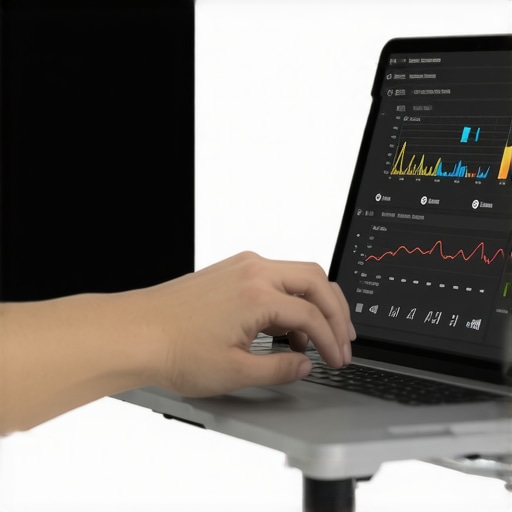
3 Hard-Earned Lessons That Changed My Perspective on Laptop Security
- Never Underestimate the Power of Routine Checks: Regularly inspecting your device and security setup helps catch vulnerabilities early. I once ignored firmware updates, only to face a malware attack that could have been prevented.
- Physical Security Matters Just as Much as Digital: Locking your laptop with a Kensington lock or keeping it in a secure bag can be the difference between data safety and disaster. I learned this after a colleague’s device was stolen during a conference.
- Beware of Complacency with Passwords and Encryption: Simple passwords and neglecting full-disk encryption leave your data exposed. Switching to strong, unique passwords and enabling encryption transformed my approach to digital safety.
- The User Is the Weakest Link: No matter how advanced your security tools are, human error can compromise everything. Educating myself about common scams and phishing helped me avoid potential breaches.
- Layer Your Defenses: Combining physical locks, BIOS security, encryption, and regular updates creates a robust shield. Real-world experiences taught me that relying on just one measure isn’t enough.
Tools and Knowledge That Keep Me Prepared
- HWMonitor and CrystalDiskInfo: These tools help me monitor my hardware health, catching issues before they escalate.
- Professional-grade laptops with security features: Devices like those from top business lines offer built-in security, reducing my reliance on external measures.
- Educational resources: Sites like these guides keep me informed about the latest security practices.
Embrace the Challenge of Protecting Your Tech Journey
Securing your business or student laptop isn’t a one-time task—it’s an ongoing process that requires awareness, discipline, and the right tools. Remember, each step you take today fortifies your defenses for tomorrow. Dive into these strategies, and you’ll not only safeguard your data but also gain confidence in navigating an increasingly connected world. Stay proactive, stay secure, and keep your digital life resilient. Are you ready to strengthen your laptop security habits today? Share your experiences or questions below and join the conversation!