
I remember sitting down late one Tuesday night to finish a project on my brand-new machine. I had just snagged one of those unbeatable laptop deals, and I was thrilled—until I looked at the screen. It wasn’t a crisp, clean white. It looked like someone had spilled a lukewarm cup of chamomile tea across the pixels. I panicked. Did I get a dud? Was the panel dying? I almost boxed it back up for a return before I realized it wasn’t the hardware at all. It was just a setting buried in the OS. If you are staring at a screen that looks like a vintage newspaper, take a deep breath. You probably do not need a new device. I am going to show you exactly how to get those whites looking brilliant again without spending a dime on repairs. Have you ever felt that instant regret of thinking your new tech was broken right out of the box?
Your Screen Isn’t Dying and Neither Is Your GPU
Most people assume a yellow tint means the backlight is failing. While that can occasionally happen on ancient student laptops that have seen better days, it is usually just a software feature designed to help your eyes. Modern operating systems are obsessed with blue light reduction. This is great for your sleep schedule, but it is a nightmare when you are trying to edit photos or simply want your business laptops to look professional. I have seen enthusiasts return perfectly good gaming laptops because they didn’t realize a single toggle was flipped in the display settings.
Is My Graphics Card Actually Failing?
It is the fear that keeps us up at night. I actually made the massive mistake of buying an expensive colorimeter early on, thinking I needed a professional calibration to fix a yellow tint on my workstation. I felt like a complete idiot when I found out the Night Light setting was just toggled on by default after a Windows update. According to research from Harvard Health, blue light suppression is a real benefit for our circadian rhythms, but it should not be forced on you 24/7. Whether you are using laptop accessories like external monitors or just the built-in panel, the fix is usually just a few clicks away. We are going to look at the most common culprits, from Windows Night Light to hidden manufacturer software that thinks it knows what is best for your eyes.
Kill the Night Light Settings First
The most common reason your screen looks like it has been aged in a cedar box is the Windows Night Light feature. It is essentially a digital filter that shifts your screen colors to the warmer end of the spectrum. I once spent forty minutes frantically searching for unbeatable laptop deals because I thought my monitor was toast, only to find out I had accidentally toggled this on with a keyboard shortcut. To fix this, click your Start button and type ‘Night Light.’ Open those settings and check if it is turned on. Even if it is off, check the ‘Schedule’ section. Sometimes it is set to kick in at sunset, which is why your student laptops look great at noon but turn yellow the second you start your late-night essay.
Check the GPU Command Center
If the Windows settings look fine, your graphics card software is the next suspect. Whether you are rocking integrated graphics or one of those high-end gaming laptops, there is likely a control panel (Intel Graphics Command Center, AMD Radeon Software, or NVIDIA Control Panel) running in the background. These programs often have their own ‘Eye Comfort’ or ‘Display Color’ presets that override Windows. I remember a specific instance with a new workstation where the Intel driver had a ‘Vivid’ mode that somehow defaulted to a heavy sepia tone. You need to dive into the ‘Display’ tab of your specific GPU software and look for anything labeled ‘Color Temperature’ or ‘Blue Light Reduction.’ Slap those back to default and watch the whites snap back to life. 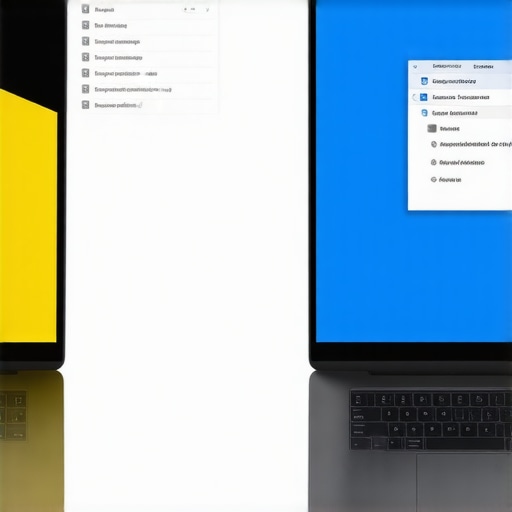
Stop Manufacturer Bloatware from Taking Over
Brands love to add their own ‘value-add’ software. If you are using business laptops from Lenovo or ASUS, you likely have ‘Lenovo Vantage’ or ‘MyASUS’ installed. These apps frequently include a ‘Reading Mode’ or ‘Eye Care Mode.’ This happened to me during a client presentation; my screen suddenly looked like a dusty parchment. I felt like a total amateur trying to explain it wasn’t a hardware failure. I eventually found a tiny toggle inside the proprietary manufacturer app that was trying to ‘protect’ my eyes without my permission. Check your system tray for any icons with a brand logo and dig through their display enhancement settings.
The Color Calibration Tool Hidden in Windows
If you have checked all the toggles and the tint persists, it might be a corrupted color profile. Windows has a built-in tool that can reset the balance. Type ‘Calibrate display color’ in the search bar. This tool is a lifesaver when the truth about anti-glare vs glossy screens is that both can fall victim to poor software calibration. Follow the prompts to adjust the gamma and brightness, but pay special attention to the ‘Color Balance’ page. This lets you move sliders for Red, Green, and Blue. If your screen is yellow, you likely need to pull back the red and green slightly or boost the blue. This is a much better solution than buying laptop accessories like external filters just to mask a software problem.Wait, before you start tweaking every slider, there is a contrarian reality most tech gurus ignore: sometimes, a ‘warm’ screen is actually more straining for your eyes. Everyone tells you to kill the blue light to save your retinas, but in my experience, a screen that is too yellow lacks the necessary contrast for sharp text. This forces your eyes to work harder to distinguish letters, which is exactly why your head hurts after an hour of reading on those student laptops that have ‘Reading Mode’ turned up to eleven. According to research from the International Commission on Illumination (CIE), excessive yellow-tinting can lower luminance to a point where visual performance actually drops. You are not saving your eyes; you are just making them struggle to see.
Stop Blaming Your Hardware for Software Sins
I have seen people hunt for unbeatable laptop deals only to complain that the panel is ‘yellowed’ out of the box. The ‘oops’ factor here is usually the ICC profile. Windows sometimes assigns a generic or corrupted color profile that treats your high-end display like a 2005 CRT monitor. If you are using one of those gaming laptops with a high refresh rate, the manufacturer might have bundled a ‘pro-gamer’ color profile that prioritizes visibility in dark corners over actual color accuracy. This often results in a washed-out, sepia-toned mess. Go to your ‘Color Management’ settings and ensure you are using the ‘sRGB virtual device model profile’ if the custom ones look funky.
Why Does the Screen Turn Yellow Only on Battery Power?
This is the ultimate advanced-user headache. You are at your desk, everything looks crisp, but the moment you unplug to go to a meeting, the screen shifts to a dull amber. This is not a battery failure, and it is not related to the reason your laptop battery won’t charge past eighty percent. Instead, it is a hidden power-saving feature inside your GPU control panel. Intel and AMD both have ‘Display Power Saving Technology’ that adjusts the white point and contrast to squeeze an extra ten minutes out of your charge. On business laptops, this is often the default. You have to go into the Intel Graphics Command Center (under ‘System’ > ‘Power’) and disable ‘Display Power Savings’ to keep your whites white while on the move. #IMAGE_PLACE_HOLDER_C#
Avoid the Trap of Eternal Eye-Care Mode
We often get blinded by the marketing of laptop accessories like blue-light blocking glasses, but the real fix is understanding your screen’s ‘White Balance.’ If you have gone through the Windows settings and GPU toggles and it still looks off, you might have ‘HDR’ toggled on without a compatible screen. HDR can sometimes force a warm tint on SDR content. I spent three hours once trying to ‘fix’ a screen before realizing Windows had just decided my mid-range panel was HDR-capable. It was not. Have you ever fallen into this trap of over-optimizing your settings until things actually looked worse? Let me know in the comments below, because we have all been there, staring at a yellow screen and wondering if we just wasted a thousand dollars. Stick to the basics: check your power profiles, kill the manufacturer ‘eye care’ bloatware, and only then reach for the calibration tools.Speaking of calibration tools, I used to think they were only for elite photographers. But the truth is, even the most unbeatable laptop deals can benefit from a professional touch. I personally swear by an open-source tool called DisplayCAL. It is a bit more complex than the built-in Windows sliders, but it uses the ArgyllCMS system to create incredibly precise ICC profiles. According to the ArgyllCMS technical documentation, the project focuses on achieving precise color through complex spectral data mapping, ensuring that the software-level ICC profile perfectly compensates for hardware-level color drift. If you really want to kill that yellow tint, getting a budget colorimeter and running it through DisplayCAL is the only way to be 100% sure your whites are actually white. It is one of those must-have laptop accessories that people overlook until they see the difference it makes.
How can I maintain a neutral white point for years?
Maintenance isn’t just about software; it is about physical upkeep too. I have noticed that grease and dust on the display can actually diffuse light in a way that makes the panel look warmer or more muddy than it actually is. That is why we still carry a microfiber cloth in our laptop bags at all times. A quick wipe-down once a week prevents that yellow-ish film from building up. Also, if you are setting up top business laptops for productivity in 2025, make sure you do not place your desk directly under warm-toned LED bulbs. Your eyes will naturally adjust to the ambient light, making your screen look yellow by comparison even if it is perfectly calibrated. If you suspect the yellowing is actually a hardware defect—like a failing backlight—you should how to find official repair guides for your exact model to see if it is a known manufacturing issue with that specific batch of panels.
The Future of Screens is Watching You Back
I predict that within the next two years, we won’t even have to worry about these toggles. We are already seeing the early stages of ambient sensing technology in high-end gaming laptops. These machines use the webcam and dedicated light sensors to detect the color temperature of your room and adjust the screen white balance in real-time. Interestingly, I have noticed that the hidden battery drain caused by your RGB keyboard can sometimes trigger aggressive power-saving modes that yellow the screen to save juice. In the future, AI-driven chips will balance power draw and color accuracy more intelligently without user intervention. For now, the best way to configure a new business laptop is still a manual audit of the display drivers, but the automated future is looking bright—and very, very white.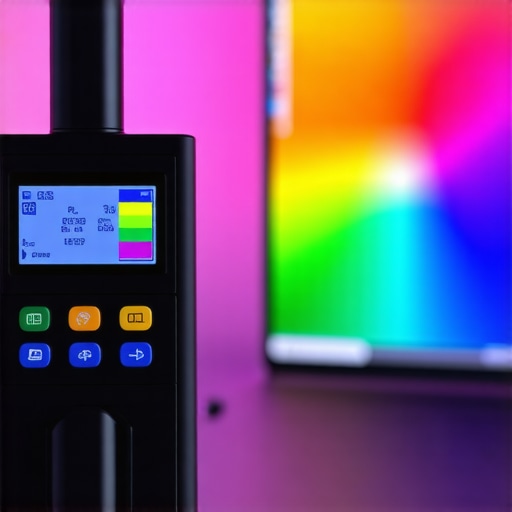 Don’t just take my word for it. My challenge to you today: go into your Color Management settings and hit that Reset to Defaults button just to see how much your settings have drifted. You might be surprised at how much yellow you have been living with. If it still looks off, try the DisplayCAL route I mentioned earlier. It is a rabbit hole, but one that leads to the best visual experience you have ever had on a portable machine.
The Subtle Traps of Adaptive Tech
One of the hardest lessons I learned while hunting for unbeatable laptop deals is that ‘Smart’ features aren’t always helpful. Many modern systems use a feature called Ambient Color or True Tone, which tries to match your screen to the light in your room. If you are working under warm incandescent bulbs, your laptop will intentionally turn yellow to ‘match’ the environment. It sounds clever until you realize it is destroying your color accuracy. Another hidden culprit is the Intel Display Power Saving Technology; it does not just dim the screen, it actually compresses the colors to save battery, often resulting in a muddy, yellowish tint that no amount of cleaning with a microfiber cloth will fix.
My Go-To Kit for Pixel Perfection
If you are serious about fixing this once and for all, I recommend a three-pronged approach. First, use f.lux if you want a better alternative to Windows’ built-in Night Light; it allows you to disable the tint for specific apps like Netflix or Photoshop automatically. Second, keep a link to the Lagom LCD test pages bookmarked. It is the fastest way to see if your white saturation is off without downloading heavy software. Finally, if you suspect the yellowing is a physical defect in the panel itself, check out the official repair guides for your exact model. Sometimes, a loose ribbon cable or a failing LED strip can cause color shifts, and knowing if it is a known issue can save you hours of software troubleshooting.
Take Back Control of Your Visual Experience
At the end of the day, your laptop is a tool, and you should not have to work through a sepia-toned filter unless you actually want to. Whether you have just unboxed one of the latest gaming laptops or you are reviving an old workhorse, getting the whites right is the first step toward a better workflow. Do not let manufacturer ‘Eye Care’ bloatware decide what is best for your vision. Now that you know why your laptop screen looks yellow, you can stop panicking about hardware failure and start enjoying a crystal-clear display again.
Did you find a specific software ‘Eye Care’ toggle that was hidden by your laptop manufacturer? Let me know which brand was the culprit in the comments below!