
I still remember the night I almost threw my laptop across the room. It was 2:00 AM, and I was frantically switching between fourteen different Chrome tabs, a half-finished research paper, and a coding terminal on a cramped 13-inch display. I felt like I was trying to paint a mural through a keyhole. My eyes were burning, my neck was stiff, and my productivity was in the gutter. I knew I needed more screen real estate, but as a student, my bank account was screaming at me to stick with what I had. I eventually caved and bought the cheapest no-name monitor I could find on a local marketplace, only for it to start flickering and eventually die right before finals week. It was a classic rookie error that cost me more in the long run than just buying a decent screen from the start. That is why I have spent the last few months testing gear that actually lasts. Today, I am showing you exactly how to snag a setup that rivals a professional office without eating into your rent money. We are going to look at three specific monitors that prove you do not need to spend a fortune to get a crisp, reliable display. [image]
Stop Squinting at Your Tiny Laptop Screen
Let’s be real: those student laptops that boost productivity are great for portability, but they are ergonomics nightmares for long study sessions. I learned the hard way that a single small screen is the fastest way to hit a mental wall. You might think you can handle the multitasking, but research from organizations like Jon Peddie Research suggests that using multiple monitors can increase productivity by as much as 42%. That is the difference between finishing your work at 9:00 PM or pulling an all-nighter. I used to think I was being frugal by not upgrading, but I was actually wasting my most valuable resource: my time. If you are still struggling with window management, you should also check out the best way to use an old laptop as a second monitor while you save up for a dedicated display.
Is a cheap monitor just a waste of money?
I get the skepticism. You see those $99 price tags and assume the colors will look like mud or the stand will be as wobbly as a Jenga tower. In the past, you were right. You should never buy a laptop with a 720p screen, and the same goes for monitors. However, the technology has trickled down. You can now get IPS panels with great viewing angles and decent refresh rates for a fraction of what they cost five years ago. My biggest mistake was focusing on ‘big’ instead of ‘good.’ I once bought a massive 32-inch screen that had such low pixel density I could see individual pixels from a foot away. It was a blurry mess. Have you ever bought a piece of tech that looked great on paper but was a total disaster once you plugged it in? Let me know in the comments because I have been there more times than I care to admit. We are looking for that sweet spot where price meets performance, and these three picks hit it perfectly.
Get the Specs Right Before You Spend a Dime
To avoid the mud-like colors I mentioned in my previous post, you need to look for three specific markers: IPS, 1080p, and 60Hz. IPS (In-Plane Switching) is the gold standard for monitors because it ensures you can actually see the screen if you aren’t sitting perfectly still at a precise ninety-degree angle. If you settle for a TN panel, moving your head three inches to the left makes the whole image look like a weird negative photograph. For most of us working in dorms or shared rooms, the truth about anti-glare vs glossy screens for office lighting is that anti-glare wins every single time. It stops your window’s reflection from killing your focus. I once tried to save twenty bucks on a glossy screen, but I spent the entire semester squinting at a reflection of my own tired face instead of my chemistry notes. It was a waste of money and a massive distraction.
Why Resolution and Refresh Rate Are Your Best Friends
Think of resolution like the sharpness of a kitchen knife. A 1080p screen on a 24-inch monitor is the “chef’s knife” of the tech world—versatile and sharp enough for everything. If you go for a larger screen without bumping the resolution to 1440p, everything starts to look pixelated and grainy. As for refresh rate, 60Hz is your baseline. Anything lower and your mouse cursor will look like it is teleporting across the screen, which is a one-way ticket to a headache. If you are also scouting for a machine to drive these pixels, check out some unbeatable laptop deals to see if you can find a bundle that leaves room in your budget for a second screen.
How to Hook Up Your Screen Without Frying Your Board
The biggest hurdle for most people is the physical connection. Modern student laptops that balance power and portability perfectly often ditch the HDMI port to stay thin. This means you are stuck in “dongle hell.” I learned this the hard way when I bought a generic five-dollar adapter from a gas station. It made my screen flicker every time I typed too hard, and the adapter got so hot I was afraid it would melt my port. It was not the monitor’s fault; it was the weak link in the chain. You need the most reliable USB-C hubs for multi-monitor setups if you want a stable, flicker-free connection. Look for hubs that support Power Delivery so you can charge your laptop and run your monitor through a single cable. It cleans up the “cable spaghetti” on your desk instantly and makes it easier to grab your laptop and go to class. 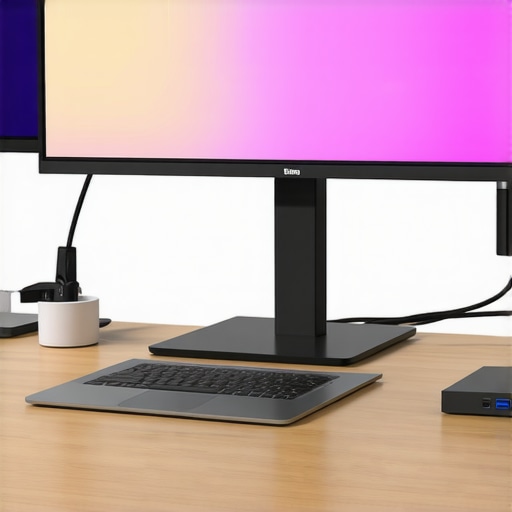
Stop Using Textbooks as a Monitor Stand
Height is everything. If your monitor is sitting too low, you will quickly develop the “scholar’s slouch,” which is basically a permanent neck ache caused by looking down at your desk. I spent months propping my screen up on a stack of old biology textbooks until they eventually slid out from under it during a late-night study session. It was a loud, expensive disaster. Instead, look for a cheap VESA-compatible arm or a dedicated riser. If your desk is already a bit shaky, you can learn how to fix a wobbly laptop stand with household items to save some cash. Pairing a stable stand with must-have laptop accessories for a seamless setup like a separate mechanical keyboard will transform your ergonomics. It keeps your screen at eye level and your hands at a comfortable height, allowing you to work for hours without feeling like a crumpled piece of paper.You have your monitor and desk ergonomics sorted, but let’s talk about the engine driving those pixels. Most people think that snagging an ‘i7’ or an ‘RTX’ badge from unbeatable laptop deals is a guaranteed win. Here is the nuance: not all chips are created equal. I have seen many people fall into the ‘thin and light’ trap, buying a sleek machine with high-end specs that actually performs worse than a bulkier budget model. This happens because of TGP (Total Graphics Power). A 60W GPU in a thin chassis will get absolutely crushed by a 115W version of a ‘lower’ tier chip in a thicker frame. The laws of physics do not care about your aesthetic; if heat cannot escape, the software throttles your performance into the ground. I once helped a friend troubleshoot a brand-new rig that was stuttering, only to find it was thermal throttling within minutes of booting a game. 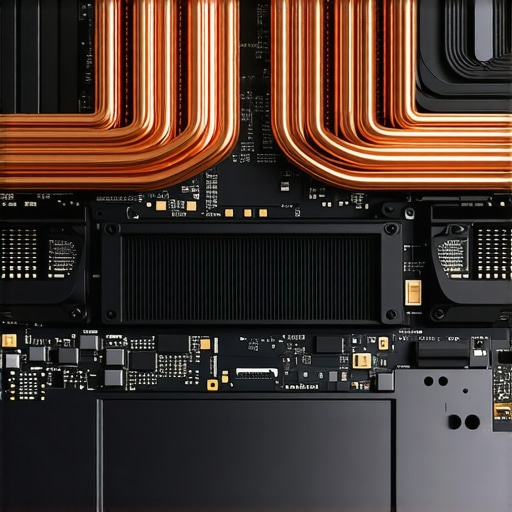
Can you really trust the spec sheet alone?
In my experience, the spec sheet is often a half-truth. Beyond power limits, you have to watch out for the ‘single-channel RAM’ mistake. Many manufacturers save ten dollars by putting one 16GB stick of RAM in the machine instead of two 8GB sticks. This effectively cuts your memory bandwidth in half, causing massive stutters in CPU-heavy tasks. According to a performance analysis by Hardware Unboxed, dual-channel configurations can improve frame rates by up to 20% in certain scenarios compared to single-channel setups. If you are looking at top business laptops for productivity in 2025, this might not matter as much for Excel, but for anything creative or gaming-related, it is a dealbreaker. Always check how to find out if your laptop can be upgraded before you buy, so you aren’t stuck with a sluggish machine that has soldered components.
Avoid the Warranty Trap and Hidden Costs
Another common error is ignoring the ‘long-term health’ of the device. High-performance machines generate intense heat that can degrade components over time. This is why most gaming laptops fail right after the warranty expires; the constant heat cycles eventually weaken the solder joints or the battery cells. I used to think extended warranties were a scam, but for high-heat machines, they are often a safety net for an inevitable failure. If you are shopping for student laptops that balance power and portability perfectly, prioritize a model with a proven cooling design over one that just has the flashiest CPU. Have you ever fallen into this trap of buying for the badge rather than the build? Let me know in the comments because it is a mistake almost everyone makes at least once.Once you have spent your hard-earned cash on a high-performance machine, the real work begins. Maintenance isn’t just about making things look pretty; it is about protecting your investment. I have seen beautiful, expensive machines turn into paperweights because the owners ignored basic upkeep. I personally carry a small maintenance kit in my bag at all times because I’ve learned that a little prevention saves a massive repair bill later. This is why we still carry a microfiber cloth in our laptop bags for daily smudge removal. It sounds simple, but skin oils are actually acidic and can eat away at the protective coatings on your screen over time. Furthermore, if you are a snacker like me, you need to be extremely careful with your keyboard. Whatever you do, remember why you should never use a vacuum on your keyboard; the static electricity generated by the nozzle can actually fry the sensitive internal components. I prefer using a dedicated air blower or a soft-bristled brush to keep the debris out of my switches. 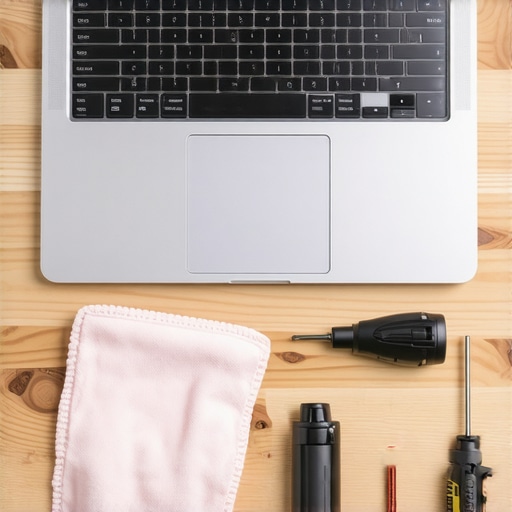
How do I keep my performance from dropping over time?
The secret is managing the things you cannot see: thermal paste and software bloat. According to technical guides from experts at iFixit, the thermal interface material (TIM) between your CPU and heatsink can dry out and lose efficiency in as little as two years of heavy use. If you notice your fans are constantly screaming, it might be time to learn how to choose the right thermal paste for your machine. Beyond the hardware, you need to monitor your drive health. I use a tool called HWInfo64 to keep an eye on my temperatures and S.M.A.R.T. data so I know how to spot a dying SSD before your files vanish. It’s also crucial to how to verify the battery health of a used laptop purchase or your current machine regularly. If your battery capacity has dropped below 80%, you’ll start seeing weird performance dips as the OS tries to compensate for the lower voltage.
Don’t Suffocate Your Hardware
One of the most common ways people kill their laptops early is by using them on their beds or couches. Fabric is a thermal insulator; it traps heat and blocks the intake vents on the bottom of the chassis. This is why you should never use your laptop on a soft blanket if you want it to last more than a year. I always use a hard surface or a simple riser to ensure a constant flow of fresh air. Looking forward, I predict we are entering an era where modularity will become the standard. With the rise of companies like Framework, the truth about modern laptop warranties and repair rights is shifting back into the hands of the consumer. Soon, we won’t be throwing away whole laptops; we will be swapping out mainboards just like we do with desktop PCs. For now, take ten minutes tonight to run a battery report (powercfg /batteryreport in Windows) to see exactly how much life your machine has left. It’s the single best way to avoid being caught with a dead machine during an important meeting.
Lessons from a Desk Setup Disaster
Looking back at the mountain of tech I’ve cycled through, the biggest lesson wasn’t about specs—it was about respect for the process. I used to think I could ‘power through’ a bad setup, but your environment dictates your output. One of the most important shifts I made was stopping the hunt for the ‘cheapest’ and starting the hunt for the ‘most durable.’ If you are looking for student laptops that balance power and portability perfectly, prioritize the build quality over a slightly faster processor. I also learned that the most reliable USB-C hubs for multi-monitor setups are worth their weight in gold because they prevent the constant screen flicker that used to drive me to the brink of insanity. Finally, never underestimate the power of a clean screen; keeping your workspace tidy actually keeps your mind focused during those high-stress finals.
The Tools That Saved My Sanity
To get the most out of your gear, you need more than just the hardware. I swear by software like HWInfo64 to keep a pulse on my internals so I’m never surprised by a thermal failure. For anyone trying to save money on unbeatable laptop deals, I highly recommend using the hidden price history tools every deal hunter needs to ensure you aren’t buying during a seasonal price spike. If something does go wrong, do not panic and buy a new machine immediately. Learn how to find official repair guides for your exact model and see if a simple part replacement can save your investment. These resources have turned me from a frustrated consumer into a confident owner who knows exactly how my machine works.
Your Desk Deserves a Better Version of You
You now have the roadmap to move from a cramped laptop screen to a professional-grade command center. Don’t feel like you need to buy everything at once. Start with the external monitor, then look into must-have laptop accessories for a seamless setup as your budget allows. The goal isn’t just to have a flashy desk; it’s to remove the friction between your ideas and your work. Your future self—the one who isn’t squinting at a tiny display or dealing with chronic neck pain—will thank you for the effort you put in today. Go build something great with your new student laptops and improved setup. What is the one thing in your current workspace that frustrates you the most? Let me know in the comments below!