
I’ll never forget the rainy Tuesday I spent at a gate in O’Hare, desperately trying to finish a presentation on one of my favorite business laptops. I had this tiny, “travel-sized” mouse I’d picked up for ten bucks. It was roughly the size of a large grape. Every time I tried to click a tiny cell in Excel, the cursor skipped like a flat stone on a pond. My hand started cramping within fifteen minutes. I was so frustrated I almost tossed the thing into a trash can right then and there. We’ve all been told that “travel” means small, but I learned the hard way that small often means unusable. Today, I’m going to show you the one mouse that actually survives my gear bag without making me want to scream. We aren’t just looking for something that fits in a pocket; we’re looking for the sweet spot between portability and actual productivity.
Stop Lugging Around Peripherals That Hate Your Hands
Most must-have laptop accessories promise the world but deliver a headache. I made the classic mistake of thinking I could just use my high-end gaming gear everywhere. While I love my setup at home, why you shouldnt use a gaming mouse for serious office work while on a tray table is a nightmare. They are too bulky, the wires get tangled in your coffee, and the sensors are often too sensitive for a literal piece of wood or a plastic airplane tray.[image_placeholder]I spent years searching for something that felt right. I tried the folding ones, the trackball ones, and the ones that look like pens. None of them stuck. The problem is that we often prioritize “thinness” over the natural curve of our palms. According to the Chartered Institute of Ergonomics and Human Factors, using a mouse that is too small for your hand for extended periods can lead to significant wrist strain and reduced motor control. That’s why I finally stopped looking for the “smallest” mouse and started looking for the “smartest” one.
Do You Really Need Another Gadget in Your Bag?
You might be thinking, “Can’t I just use the trackpad?” I used to say the same thing until I had to edit a 40-page PDF on a student laptop with a mediocre pad. It’s a slow torture. A real mouse gives you back your speed. The one we’re talking about today is one of the only gaming mice that work well for spreadsheets and travel alike. It’s light, it’s sturdy, and it doesn’t require a dongle that you’ll inevitably lose in the seat cushions. Have you ever found yourself fighting with a trackpad in a coffee shop, wishing you had just a little more precision? I want to hear about your most frustrating travel tech fail in the comments. Let’s get into why this specific mouse changed the game for me.
Choose Shape Over Size Every Single Time
When you are browsing for unbeatable laptop deals, the accessories section usually tries to sell you on the ‘ultra-portable’ dream. These mice are often flat, rectangular, and have zero arch support. Think of it like trying to hike a mountain in flip-flops; sure, they are light and easy to pack, but you’ll be in pain by the second mile. I’ve found that the best travel mice are ‘low-profile’ but still offer a slight contour that supports the base of your palm. This is crucial when you are working on business laptops for professionals during a four-hour layover. If your hand is flat against the table, your tendons are working overtime. Look for a mouse that tapers at the front but remains wide enough at the back to fill the ‘hollow’ of your hand. It shouldn’t feel like you are holding a pebble; it should feel like a natural extension of your arm.
The Connection That Won’t Fail Mid-Meeting
I once sat through a high-stakes Zoom call where my Bluetooth mouse decided to ‘sleep’ every thirty seconds to save power. Every time I needed to click ‘unmute,’ I had to vigorously shake the mouse like a Polaroid picture just to wake the cursor. It was embarrassing and made me look completely tech-illiterate. This is why I always check the polling rate and the sleep-wake settings. While why your expensive gaming mouse feels laggy is usually a software issue, in travel mice, it is often a cheap power-saving feature. You want a mouse that offers both a 2.4GHz dongle (for reliability) and Bluetooth (for when you forget the dongle). Reliability is the only thing that matters when you’re out of your element.
Why Your Mouse Needs to Work on Literal Glass
I learned this lesson the hard way in a London hotel lobby that featured nothing but sleek, transparent glass desks. My optical mouse, which worked fine on my wooden desk at home, was suddenly useless. I ended up having to use a greasy pizza box as a makeshift mousepad just to finish my emails. It was a messy, unprofessional sight that I never want to repeat.  Modern ‘Darkfield’ or high-end laser sensors are the only way to go. These sensors track the microscopic dust and scratches on glass rather than looking for a surface pattern. If you’re hunting for student laptops that balance power and portability, don’t skimp on the mouse sensor. You never know if your next workspace will be a granite countertop, a polished marble cafe table, or a shiny airplane tray. If the sensor can’t handle the shine, your productivity drops to zero.
Ditch the AA Batteries for Good
There is nothing more frustrating than your mouse dying at 30,000 feet when you don’t have a spare pair of AA batteries in your bag. I switched to USB-C rechargeable mice years ago and never looked back. Since most modern setups already include the best lightweight chargers for digital nomads, you can just plug your mouse into your laptop for five minutes to get enough juice for a full workday. It’s one less thing to carry and one less point of failure. If you are still trying to find a laptop with a touchpad that doesnt feel cheap, you’ll eventually realize that even the best pad can’t beat a dedicated, fast-charging mouse for serious workflow.
The High-DPI Marketing Myth
Everyone tells you that higher DPI (Dots Per Inch) is better, especially when looking at unbeatable laptop deals for high-end gear. But here is the truth: for productivity, a massive DPI is a curse. In my experience, cranking your mouse to 16,000 DPI on a small airplane tray table makes the cursor so twitchy that selecting a single word in a document becomes a game of Operation. High DPI is meant for large, multi-monitor setups, not for working on the go. If you find your cursor flying off the screen, it’s not because you’re ‘fast’; it’s because you’re fighting the sensor. This is exactly why your expensive gaming mouse feels laggy or imprecise when you transition from your desk to a mobile environment. Have you ever fallen into this trap and blamed the hardware instead of the settings? Let me know in the comments.
Can Your Mouse Actually Handle a 4K Display?
Here is the nuance most tech reviewers skip: the relationship between polling rate and resolution. If you have one of the latest top business laptops for productivity in 2025 with a 4K or high-refresh-rate screen, a cheap travel mouse will literally ‘stutter’ across the pixels. This happens because the mouse isn’t reporting its position often enough to keep up with the screen’s refresh. A study by the Journal of Physical Therapy Science highlights that micro-corrections caused by jittery input devices lead to significantly higher muscle fatigue in the forearm. You don’t need the highest specs, but you need specs that match your screen. When you configure a new business laptop, ensure your peripherals aren’t the bottleneck creating that subtle, exhausting lag.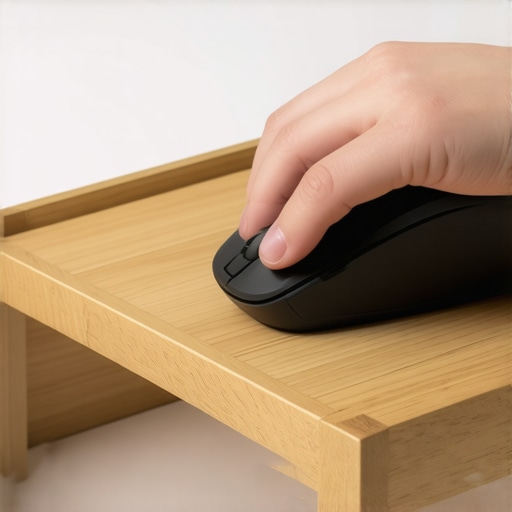
Don’t Let Bloatware Kill Your Professional Setup
The biggest ‘oops’ factor I see with advanced users is the software trap. Many high-end mice require heavy, 300MB driver suites to work correctly. While these are fine at home, they can be a nightmare for student laptops that balance power and portability. These programs eat up RAM, slow down your boot time, and sometimes even conflict with enterprise security software. I always recommend finding a mouse with ‘on-board memory.’ This allows you to set your preferences once on your home PC and then delete the software. The mouse remembers your buttons and DPI regardless of which machine you plug it into. This is a key reason why you shouldnt use a gaming mouse for serious office work if it relies entirely on cloud-based drivers. You want a tool that is smart enough to stand on its own without begging for an internet connection or a software update in the middle of a presentation.
I’ve realized that the greatest mouse in the world won’t save you if the machine it’s connected to is slowly choking on dust or thermal throttling into oblivion. We spend so much time hunting for top laptop deals in 2025, but we rarely talk about the ‘Sunday Morning Maintenance’ required to keep that hardware performing at peak levels. I’ve seen too many colleagues lose a presentation because their USB ports were filled with pocket lint or their fans sounded like a jet engine during a client meeting. If you want your gear to survive more than two years of heavy travel, you need a system.
Stop the Grime Before It Breaks Your Keys
I always start with the physical. Every time I get home from a trip, the first thing I do is wipe down my deck. I’ve found that skin oils are actually quite corrosive over time, especially on those soft-touch finishes common on premium business machines. It’s exactly why we still carry a microfiber cloth in our laptop bags at all times. A quick buff of the keys prevents that shiny, greasy look that makes a professional laptop look like a hand-me-down. If you’ve been eating lunch over your machine, you’ll definitely want to learn the best way to clean a sticky keyboard without breaking the keys before a single crumb jams a switch. I also take thirty seconds to learn how to clean a greasy trackpad without causing damage, as those glass surfaces can lose their ‘glide’ if they aren’t maintained.

Keep Your Storage from Unexpectedly Quitting
Maintenance isn’t just about what you can see. The health of your internal components is what actually determines if you’ll be productive or if you’ll be staring at a blue screen in an airport lounge. Micron Technology’s Technical Note TN-00-11 on NAND endurance reminds us that heat is the primary enemy of data retention and drive longevity. I make it a habit to check my S.M.A.R.T. status once a month. Learning how to spot a dying ssd before your files vanish is a non-negotiable skill for anyone working on the road. If you feel your laptop getting uncomfortably warm, stop using it on soft surfaces. I’ve seen countless people ignore tactics to stop your laptop from overheating on your bed, only to wonder why their performance drops by 40% after twenty minutes of work. Heat kills hardware; it’s that simple.
How do I keep my mobile gear running like new?
I personally use a three-tier approach: daily wipes, weekly software audits, and monthly hardware checks. The software audit involves killing those ‘startup’ programs that we discussed earlier, ensuring that my battery isn’t being drained by background tasks. I also recommend you learn how to verify the battery health of a used laptop purchase or even your current machine so you aren’t surprised by a sudden drop in capacity. In the future, I predict we will see AI-driven power management that goes far beyond ‘Battery Saver’ mode, predicting your travel schedule and adjusting thermal profiles before you even open your laptop. Until then, the responsibility is on us to monitor our sensors and keep our intake vents clear of debris. My biggest piece of advice? Today, I want you to run a quick diagnostic on your primary drive—it takes two minutes and could save your entire project from a catastrophic hardware failure tomorrow.
The Most Painful Lessons from My Years on the Road
I’ve learned that the ‘best’ gear isn’t necessarily the most expensive; it’s the gear that doesn’t fail when you’re four hours into a red-eye flight. First, never underestimate the power of a dual-connection mouse. Having both Bluetooth and a 2.4GHz dongle has saved me more times than I can count. Second, ergonomics always beats aesthetics. If a mouse is too small to support your palm, you’re just inviting carpal tunnel to your next meeting. Finally, stop ignoring your storage health. I’ve seen entire careers briefly stall because someone didn’t know how to spot a dying ssd before your files vanish.
The Survival Kit for Your Digital Life
Beyond the mouse, there are a few items I never leave home without. I always suggest looking into the best laptop bags that dont scream steal me to keep your investment safe while blending into the crowd. I also rely heavily on a solid dock at my destination; checking out the only 3 usb-c docks that dont overheat during transfers is a great place to start if you want to avoid thermal throttling. [image_placeholder] For those looking to dive deeper into ergonomics, I recommend following the design principles found in The Design of Everyday Things by Don Norman—it completely changed how I look at the physical touchpoints of my workspace.
Time to Stop Settling for Bad Gear
Choosing the right tools is the first step toward actual professional freedom. Whether you are hunting for top business laptops for productivity in 2025 or just trying to make your current machine last another year, remember that maintenance and peripherals are where the magic happens. Your gear should empower you, not frustrate you. It’s time to build a setup that respects your hands and your time. Have you ever had a tech failure in public that forced you to get creative with your setup? Let me know in the comments below!