
I remember the exact moment my face turned beet red at my favorite local roastry. I had just settled in with a vanilla latte, flipped open my flashy new rig, and hit the power button. Within three minutes of loading a project, the fans kicked in. It wasn’t just a hum; it was a full-blown Category 5 hurricane. People actually looked up from their books. The barista stopped steaming milk to see where the vacuum cleaner sound was coming from. I felt like I was trying to use a leaf blower in a library, and I ended up packing my bags in shame before the coffee even cooled.
Stop Being the Loudest Person in the Room
We have all been there. You invest in one of those game-changing gaming laptops thinking you will be the ultimate mobile professional, but the reality is often much louder and more embarrassing. The problem is that most manufacturers prioritize ‘thin and light’ aesthetics over actual thermal efficiency. This creates the hidden downside of ultra-thin gaming laptops: they are forced to spin tiny, high-pitched fans at 6,000 RPM just to keep the internal components from melting. In my early days, I made the rookie mistake of thinking I could just ‘ignore’ the noise, but after getting kicked out of a quiet study zone, I realized that thermal management is the most overlooked spec in mobile computing. Even an expensive machine can fail the coffee shop test if it cannot handle a basic workload without sounding like it is preparing for takeoff. According to research on ambient acoustics, a typical quiet coffee shop sits at about 50 decibels, while many gaming rigs under load can easily spike to 58 decibels—a level that OSHA notes can begin to interfere with normal conversation frequencies.
Is a truly silent gaming laptop actually a myth?
You might be skeptical. You have probably heard that if you want power, you have to accept the noise. I am here to tell you that is not entirely true. You do not have to settle for a machine that announces your presence to everyone within a fifty-foot radius. Today, I am going to show you how to find that sweet spot between high-end performance and public decency. We will dive into why these machines struggle so much and the exact steps you can take to lower your gaming laptop fan noise in seconds. Have you ever had a stranger give you the ‘death stare’ because your laptop was screaming through a simple task? I would love to hear your most awkward noise-related stories in the comments below. Let us get into the grit of why your cooling system is fighting a losing battle and how we can win it back.
Master the Art of Thermal Throttling Control
The secret to a quiet machine isn’t just buying the most expensive hardware; it’s about managing how that hardware consumes energy. Think of your CPU and GPU like a high-performance sports car. If you keep the engine redlined while you are just cruising through a school zone, the car is going to roar and overheat. Most game-changing gaming laptops come with factory settings that are far too aggressive. They push maximum voltage to the processor even when you are just browsing the web or typing a document. By reigning in these power limits, you can drastically reduce heat without actually feeling a dip in speed.
Stop Running at Full Throttle for Basic Tasks
The first thing I do with any new machine—whether it is a powerhouse rig or one of the student laptops that balance power and portability perfectly—is to dive into the power management settings. You do not always need ‘Ultimate Performance’ mode enabled. In fact, Windows ‘Balanced’ or ‘Silent’ profiles often cut the power draw by 30% or more. This prevents the chips from hitting those high temperatures that trigger the ‘panic’ fan response. If you are tech-savvy, you can even use software to ‘undervolt’ your components. This is essentially telling your laptop to do the same amount of work but with less electricity. Less electricity equals less heat, and less heat means your fans never have to leave their lowest gear.
Elevate the Base for Instant Airflow
It sounds too simple to be true, but the way your laptop sits on your desk is usually the biggest bottleneck. Most intake vents are on the bottom, and if they are flush against a flat surface, they are basically gasping for air. I used to use a stack of books to prop up the back of my machine, but that was a recipe for a sliding disaster. Now, I only trust the only laptop stands that don’t shake while you type because they create a clear path for cool air to reach the fans. If you are working on a bed or a couch, you are effectively suffocating your device. You need a hard, flat surface or the simple hack for better airflow on thick gaming rigs—simply lifting the rear by half an inch can drop temperatures by 5 to 7 degrees Celsius instantly. 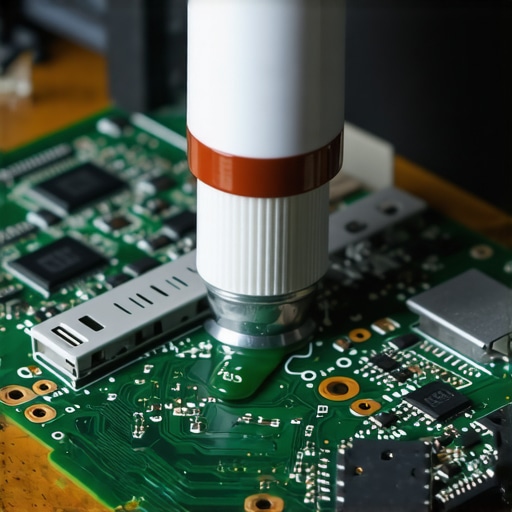
The Messy Reality of Re-Pasting Your Hardware
I’ll be honest: sometimes the software tweaks aren’t enough. I remember a specific instance with a premium workstation where the fans would scream if I just opened a Chrome tab. I decided to take matters into my own hands. I cracked open the chassis and found that the manufacturer had applied the thermal paste like a toddler with a glue stick—it was everywhere except where it needed to be. This is a common issue even in top business laptops for productivity. I spent a grueling afternoon cleaning off the old, crusty gunk with 99% isopropyl alcohol and applying a fresh, high-quality pea-sized drop. It was a nervous, messy experience, and I almost stripped a screw because this specific brand still uses proprietary screws that require a specialized kit. But the result? The machine went from a jet engine to a whisper. If you are feeling brave, knowing why we swapped the thermal paste on our brand new laptop might give you the courage to fix a factory defect that software can’t touch.
Keep Your Vents Free from Dust Rabbits
Even the best thermal management fails if your fans are clogged. Dust is the silent killer of performance. I make it a habit every three months to use a can of compressed air to blow out the exhaust ports. You would be shocked at the amount of debris that accumulates, especially if you carry your laptop in a backpack. If your machine is older, you might need to learn how to clean the dust out of your laptop without opening it to keep those internal pathways clear. When the air can’t move, the heat stays trapped, forcing the fans to work double-time just to keep up.Let’s dig deeper into a mistake I see almost every day in the tech forums. We have been conditioned to believe that ‘higher specs always equal better performance,’ but in the world of mobile computing, that is a total myth. I have seen people drop three thousand dollars on top-tier game-changing gaming laptops only to be outperformed by a machine that costs half as much. Why? Because of thermal saturation. When you cram an i9 processor and a high-wattage GPU into a chassis that is thinner than a deck of cards, you are buying hardware that the cooling system physically cannot support. This is the hidden downside of ultra-thin gaming laptops: the system will ‘thermal throttle,’ or intentionally slow itself down to avoid melting, within minutes of starting a game. Have you ever fallen into this trap of buying a ‘beast’ that actually runs like a turtle once it gets warm? Let me know in the comments below.
The Spec Trap Most People Fall For
Everyone tells you to look at the GPU, but nobody talks about the TGP (Total Graphics Power). A lower-tier GPU with a high power limit and great cooling will often beat a higher-tier GPU that is starved for air. It is the same reason why why 8gb of ram is no longer enough for modern browsing anymore; it is not just about the name of the component, but how that component is allowed to breathe and function within the system’s ecosystem. I once made the mistake of ‘upgrading’ to a thinner workstation, thinking it would be better for travel, but I ended up with a machine that was permanently stuck in a low-power state just to keep the fans from screaming. 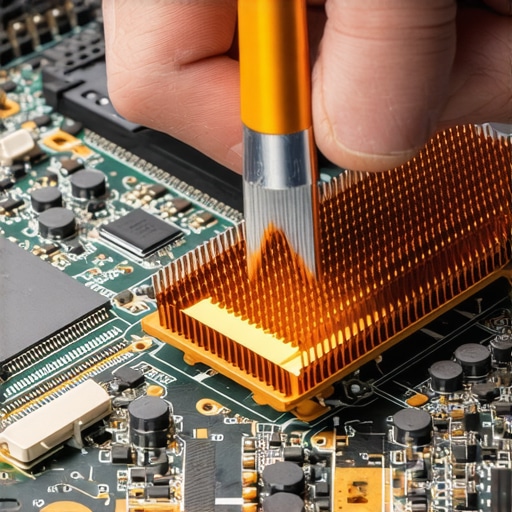
Does throwing more money at hardware actually solve the heat problem?
The short answer is no, and the long answer involves physics. According to research on thermal dynamics in enclosed systems by organizations like the IEEE, heat dissipation efficiency doesn’t scale linearly with fan speed. Once a heat pipe reaches its maximum capacity to move energy, spinning the fans faster provides diminishing returns. This is why you should look for unbeatable laptop deals on mid-range hardware that actually has the thermal headroom to run at its rated clock speeds. In my experience, a well-cooled mid-range rig provides a much smoother experience than a high-end rig that is constantly stuttering as it hits its thermal ceiling.
Avoid the Budget Accessory Disaster
If you are looking to save money, do not do it on the things that connect directly to your motherboard. I’ve seen too many business-laptops-for-professionals ruined because someone used a cheap, off-brand power brick. It is a classic ‘oops’ factor: you think you’re getting a deal, but how to spot a fake charger before it fries your motherboard is a skill you need to learn before you plug anything in. These cheap chargers often have poor voltage regulation, which can create micro-fluctuations in heat that confuse your laptop’s thermal sensors, leading to even more fan noise and potential hardware failure. Even when doing simple maintenance, you have to be careful; I’ve documented the most common errors when replacing a laptop battery that can lead to permanent damage if you aren’t using the right tools. Investing in quality must-have laptop accessories to boost your work setup isn’t just about aesthetics—it’s about protecting the longevity of your machine.Investing in a high-end machine is only half the battle; keeping it from becoming a paperweight after two years is where the real work begins. I have learned the hard way that you cannot rely on a kitchen steak knife to open a three-thousand-dollar rig. After stripping a screw on a rare prototype, I finally bought the specific screwdriver kit you need to open 90% of modern laptops. Having the right Torx and Pentalobe bits isn’t just about being a hardware enthusiast; it is about protecting your investment from the damage caused by ‘making it work’ with the wrong tools. Professional-grade bits ensure that every time you open your chassis for a cleaning, you aren’t leaving behind scars or compromised fasteners.
Build a Maintenance Toolkit That Actually Works
My maintenance bag is small but specialized. Beyond the screwdriver set, I keep a high-quality microfiber cloth and a bottle of non-conductive electronic cleaner. I avoid those ‘all-in-one’ cleaning kits found in checkout aisles because they often leave a filmy residue that attracts more dust. If you are using top business laptops for productivity in 2025, you likely have premium finishes that react poorly to harsh chemicals. Stick to 99% isopropyl alcohol for the internals and a dry, high-density sponge for the keys. I also suggest grabbing a few must-have laptop accessories to boost your work setup, such as a specialized air duster that uses a battery-powered motor rather than compressed gas to avoid the ‘freezing’ effect that can crack fragile plastic connectors. 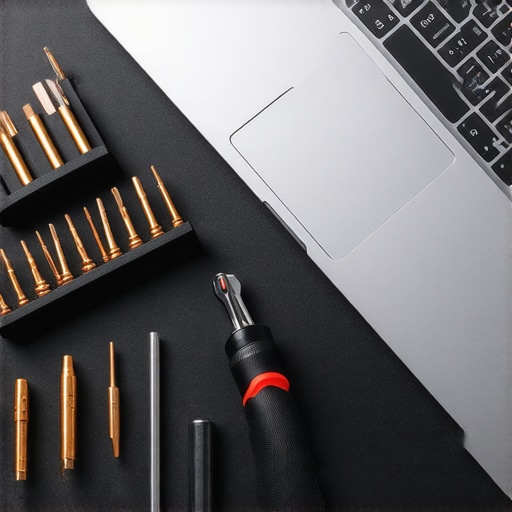
Protect Your Battery from an Early Grave
We need to talk about the ‘plugged-in’ lifestyle. I used to keep my laptop at 100% charge for weeks on end while it sat on my desk, thinking I was being prepared. This is the fastest way to kill your lithium-ion cells. If you have ever wondered about the reason your laptop battery won’t charge past eighty percent, it is because your manufacturer is trying to save you from yourself. Keeping the charge level between 40% and 80% can significantly extend the chemical life of the battery. According to technical white papers from the IEEE Xplore Digital Library regarding semiconductor and battery reliability, sustained high voltage and heat are the primary drivers of capacity loss. If your software allows it, cap that charge immediately.
How do I keep my laptop feeling new for the long haul?
Maintenance is a marathon, not a sprint. Every six months, I perform a ‘system audit’ where I check my fan curves and thermal logs. If I see my idle temperatures creeping up by even 5 degrees, I know it is time to blow out the vents. This discipline is what separates a machine that lasts four years from one that dies at eighteen months. When you are trying to how to pick a student laptop that lasts all four years, you have to look for repairability. Can you swap the SSD? Are the fans accessible? If the answer is no, you are essentially buying a disposable device. I predict that in the next few years, we will see a massive shift toward AI-driven thermal management that predicts fan needs before the heat even builds up, but for now, the responsibility is on us. Even if you are into the truth about cloud gaming on a budget laptop, your local hardware still needs to breathe. Go into your BIOS or manufacturer software right now and set your battery charge limit to 80%—it is the single easiest way to double your battery’s life today.
The Brutal Truth About Keeping Your Rig Silent
After years of trial and error, I’ve realized that silence is a luxury you have to engineer yourself. Here are a few lightbulb moments that changed how I use my tech:
- Thermal headroom is better than peak speed. I used to chase the highest clock numbers, but I realized that a machine running at 80% capacity is significantly quieter and lasts years longer than one redlining at 100%.
- Software is your first line of defense. Before you even think about opening the case, mastering your power profiles can solve 90% of noise issues.
- Hardware isn’t set and forget. Even student laptops that boost productivity and learning require a physical checkup every few months to ensure air still flows freely.
Gear I Actually Trust for Long-Term Maintenance
I’ve wasted plenty of money on gimmicks, but these are the few things that stay in my tech bag year after year. First, I never travel without the only laptop stands that don’t shake while you type. Airflow is the cheapest performance boost you can get. Second, for those deep-clean days, I rely on the specific screwdriver kit you need to open 90% of modern laptops; using a cheap bit that slips and strips a screw is a mistake you only make once. Finally, always be wary of replacement parts; learning how to spot a fake charger before it fries your motherboard has saved me from potential house fires and fried circuits. #IMAGE_PLACEHOLDER_E#
Take Control of Your Thermal Destiny
Owning a high-performance machine doesn’t have to mean living with the noise of a jet engine. By being proactive with your maintenance and smart with your power settings, you can enjoy your game-changing gaming laptops without the public embarrassment of a screaming fan. It’s about balance—treating your hardware with respect so it returns the favor with years of silent, reliable service. If you are still looking for your next rig, keep an eye on unbeatable laptop deals to find hardware that fits your thermal needs as well as your budget. Have you ever tried undervolting or changing your thermal paste to quiet down a loud machine? Let me know your results in the comments below!