
I remember sitting in a cramped airport lounge, staring at my screen as the battery percentage ticked down while I was actually plugged in. I had my fancy new high-end laptop, but I’d grabbed a lightweight 30W phone brick to save space in my bag. Big mistake. The laptop was draining faster than it could drink, and I was panicking. That was the moment I realized that universal USB-C doesn’t mean equal power. Since then, we’ve overhauled every desk in the studio. We stopped messing around with low-wattage bricks and standardized everything—from our business laptops to our portable monitors—on 100W Power Delivery (PD) chargers. It’s the single best upgrade we’ve made to our workflow.
The day I realized my ‘universal’ setup was a total lie
I used to think any USB-C cable would do the trick, but that kind of thinking is how I ended up with a bricked port on an old machine. Early on, I made the classic blunder of buying cheap USB-C hubs and mismatched chargers, thinking I was being thrifty. Instead, I was just starving my hardware. For anyone working on gaming laptops or heavy video production rigs, 100W isn’t just a luxury; it’s the baseline for stability. When you’re pushing a CPU to its limit, a weak charger causes thermal throttling or, worse, battery bleed where the laptop pulls power from the battery even while plugged in. By switching to a high-quality 100W PD brick, we ensured that every device has enough overhead to perform. It’s about peace of mind. Have you ever been mid-presentation only to see that ‘Plugged in, not charging’ warning? It’s a gut-punch I wouldn’t wish on anyone.
Will a 100W charger actually fry my smaller gadgets?
This is the question I get asked the most, and honestly, I was terrified of it too. I didn’t want to plug a $1,000 phone into a firehose of power. But here is the cool part: the Power Delivery protocol is smart. According to the USB Implementers Forum, the charger and the device perform a handshake to negotiate exactly how much power is safe to send. A 100W charger won’t force 100W into a device that only needs 18W. It just means the charger has plenty of gas in the tank for your hungriest laptop accessories. We’ve found that using one high-output brick simplifies the cable mess under our desks and actually keeps our gear cooler because the charger isn’t running at 100% capacity all day.
Stop guessing and start checking your hardware labels
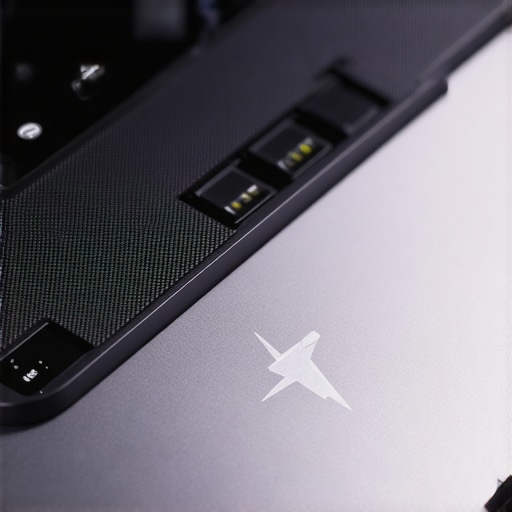
I learned the hard way that assuming a port works just because the plug fits is a recipe for a dead battery. To get the most out of a high-wattage setup, you first need to identify if your machine actually supports Power Delivery (PD) on that specific port. On most business laptops for professionals, you’ll see a tiny lightning bolt or a ‘D’ shaped icon next to the USB-C slot. If it’s just a blank port, there is a high chance it’s for data only. I once spent forty minutes trying to ‘fix’ a client’s laptop that wouldn’t charge, only to realize they were plugging into the only port on the chassis that didn’t support power intake. It felt like trying to fill a car’s gas tank through the exhaust pipe.
Identify the tiny symbols that matter
Look for the ‘SS’ with a battery icon or the Thunderbolt logo. If you are shopping for top business laptops, this is usually standard, but on budget models, it’s a coin flip. If the manual is long gone, you can usually check your BIOS or system information to see the maximum negotiated wattage. This is crucial because even if you have a 100W brick, a port limited to 65W will never draw more than that, no matter how much ‘gas’ you provide.
Upgrade to a 5A E-Marker cable
This is the secret sauce that most people overlook. Standard USB-C cables are often capped at 60W (3 Amps). If you try to pull 100W through a 60W cable, the ‘handshake’ will fail, and the charger will downshift to the lower limit. I remember a chaotic night in a hotel room where I was trying to charge my rig using a long, braided cable I’d grabbed from a gas station. My laptop kept flickering because the cable didn’t have an E-Marker chip to tell the laptop it could handle the load. To avoid this, specifically look for cables labeled ‘5A’ or ‘100W’ when browsing for must-have laptop accessories. It’s the difference between a trickle and a flood.
Avoid the fake charger trap
Before you commit to a new brick, you must verify the voltage rails. A true 100W PD charger must support the 20V/5A profile. I’ve seen cheap knock-offs that claim 100W but split that power across four different ports, meaning no single port ever hits the triple digits. This is exactly how to spot a fake charger before it fries your motherboard. If you’re running game-changing gaming laptops, a sub-par brick will cause the system to throttle your GPU to save power, turning your high-end experience into a laggy mess. Always check the fine print for that specific 20V output.
Check for loose port connections early
If you have the right brick and the right cable but your laptop still isn’t drawing power, sometimes the issue is mechanical. Constant plugging and unplugging can wear down the internal pins. If you notice a wiggle, it might be the real reason your laptop charge port feels loose. I always recommend using a right-angle adapter or a magnetic tip to reduce the strain on the motherboard housing, especially for student laptops that get shoved in and out of backpacks ten times a day.
The myth of the constant 100-watt flow
Most users assume that if they buy a 100W brick, their laptop is constantly gulping down 100W of juice. In reality, that peak number is only sustained during very specific conditions. I’ve seen people get frustrated because their laptop takes just as long to charge from 80% to 100% with a 100W brick as it did with a 65W one. This is because of the ‘saturation’ phase of lithium-ion batteries. According to experts at Battery University, once a cell reaches a certain voltage threshold, the charging current must drop to prevent damage. This is the reason your laptop battery wont charge past eighty percent at full speed. If you are shopping for unbeatable laptop deals, don’t let a missing high-wattage charger in the box be a dealbreaker; your laptop’s internal thermal management often limits the intake anyway, especially in thin chassis where gaming laptops still struggle with thermal throttling even while just charging.
Why does my 100W charger suddenly drop to 45W?
This is the ‘Oops’ factor that catches almost everyone off guard. You buy a dual-port 100W GaN charger, plug in your laptop, and everything is great. Then, you plug your phone into the second port. Suddenly, your laptop screen flickers and drops to a lower power state. Most multi-port chargers use ‘dynamic power allocation.’ When a second device is introduced, the charger has to ‘re-handshake’ with the first device to redistribute the wattage. If that second port takes 20W for your phone, the main port might drop to 60W or even 45W depending on the internal controller. It’s a massive headache for student laptops that balance power and portability perfectly because a sudden drop in wattage can kick the laptop into ‘battery saver’ mode mid-task. To avoid this, I always recommend dedicated single-port bricks for high-load work.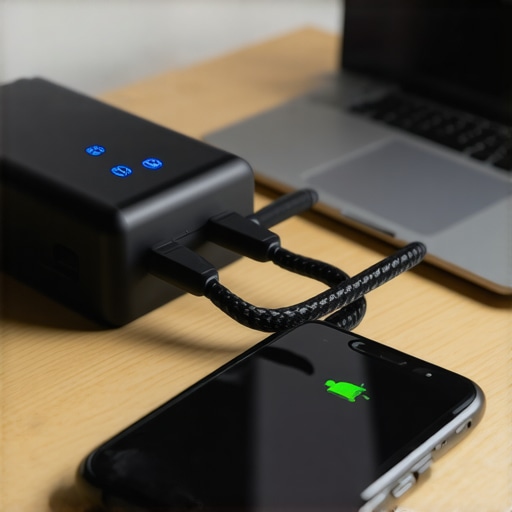
Don’t let ‘Phantom Drain’ kill your productivity
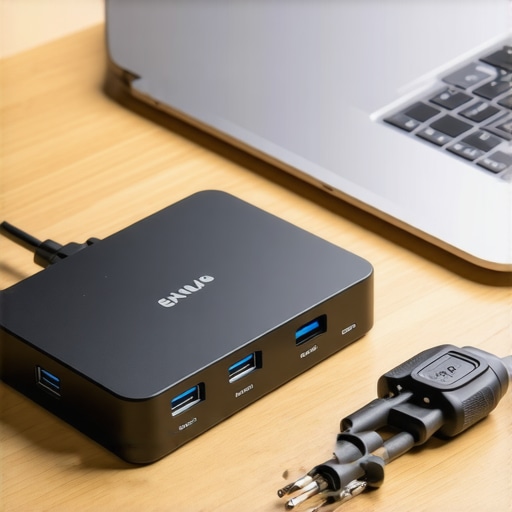
There is a nuance many overlook when using must-have laptop accessories like USB-C hubs. Some hubs ‘reserve’ 15W of power for themselves to run the HDMI and USB ports, even if nothing is plugged into them. If you have a 65W charger passing through a hub to a laptop that needs exactly 65W to maintain its charge, you’re actually only delivering 50W. This leads to that slow, agonizing battery drain while you’re working. It is essentially how to spot a fake charger before it fries your motherboard—or at least how to spot a bad power setup. Always over-spec your charger by 20% if you’re using a pass-through hub. Have you ever fallen into this trap where your ‘charging’ laptop was actually losing battery? Let me know in the comments.
The $20 investment that keeps my ports from dying
Once you’ve invested in high-end 100W PD gear, the worst thing you can do is neglect the physical health of your machine. I’ve seen too many people treat their charging ports like they are indestructible. They aren’t. Especially with student laptops that boost productivity and learning, the constant stress of being shoved into a bag while still plugged in is a total killer. I personally use a magnetic USB-C break-away adapter on all my stationary workstations. It prevents that jagged sideways pressure that eventually leads to the real reason your laptop charge port feels loose. If you are constantly on the move, this small accessory is just as vital as the charger itself.
How do I maintain my power delivery setup over time?
Maintenance isn’t just about the hardware; it’s about the environment. Heat is the enemy of efficient power transfer. I make it a habit every three months to use the specific screwdriver kit you need to open 90 of modern laptops and gently clear out the fan intakes. If you aren’t comfortable opening your chassis yet, you should at least learn how to clean the dust out of your laptop without opening it using compressed air. A dusty laptop runs hotter, which triggers the internal thermal sensors to throttle the charging speed to protect the battery. I also suggest periodically checking your cable ends for any discoloration or ‘pitting’ on the gold pins, which can indicate arcing from a cheap or damaged brick. For those running game-changing gaming laptops for serious players in 2025, keeping those thermal pathways clear is the difference between 100W of pure power and a throttled 40W trickle.
Why the 240W standard will change everything again
If you think 100W is impressive, the industry is already moving toward the USB-C 2.1 standard, also known as Extended Power Range (EPR). According to technical documentation from the USB Power Delivery Specification Revision 3.1, we are looking at a future where a single USB-C cable can deliver up to 240W. This is a massive win for business laptops for professionals who need workstation-class performance without the massive, proprietary ‘brick-on-a-rope’ chargers of the past. We are currently testing early EPR cables in the studio, and the convenience of charging a full-blown mobile workstation with the same cable as my headphones is a dream come true. However, this also means cable quality becomes even more dangerous to ignore.
The setup that actually lasts
To scale your setup for the long haul, stop buying individual chargers for every room. I’ve standardized our office on 140W GaN (Gallium Nitride) stations. They are smaller, cooler, and provide enough overhead that even if I plug in multiple must-have laptop accessories to boost your work setup, the main laptop still gets its full 100W. I also highly recommend using the only laptop stands that dont shake while you type to ensure there is plenty of airflow underneath the chassis where the battery and charging circuitry usually live. If you are struggling with a wobbly setup, you might even need to learn how to fix a wobbly laptop hinge before it snaps, as power issues and structural issues often go hand-in-hand. Go check your charger’s fine print right now—if it doesn’t explicitly list a 20V/5A output profile, you aren’t getting the speeds you paid for.
I remember sitting in a cramped airport lounge, staring at my screen as the battery percentage ticked down while I was actually plugged in. I had my fancy new high-end laptop, but I’d grabbed a lightweight 30W phone brick to save space in my bag. Big mistake. The laptop was draining faster than it could drink, and I was panicking. That was the moment I realized that universal USB-C doesn’t mean equal power. Since then, we’ve overhauled every desk in the studio. We stopped messing around with low-wattage bricks and standardized everything—from our business laptops to our portable monitors—on 100W Power Delivery (PD) chargers. It’s the single best upgrade we’ve made to our workflow.
The day I realized my ‘universal’ setup was a total lie
I used to think any USB-C cable would do the trick, but that kind of thinking is how I ended up with a bricked port on an old machine. Early on, I made the classic blunder of buying cheap USB-C hubs and mismatched chargers, thinking I was being thrifty. Instead, I was just starving my hardware. For anyone working on gaming laptops or heavy video production rigs, 100W isn’t just a luxury; it’s the baseline for stability. When you’re pushing a CPU to its limit, a weak charger causes thermal throttling or, worse, battery bleed where the laptop pulls power from the battery even while plugged in. By switching to a high-quality 100W PD brick, we ensured that every device has enough overhead to perform. It’s about peace of mind. Have you ever been mid-presentation only to see that ‘Plugged in, not charging’ warning? It’s a gut-punch I wouldn’t wish on anyone.
Will a 100W charger actually fry my smaller gadgets?
This is the question I get asked the most, and honestly, I was terrified of it too. I didn’t want to plug a $1,000 phone into a firehose of power. But here is the cool part: the Power Delivery protocol is smart. According to the USB Implementers Forum, the charger and the device perform a handshake to negotiate exactly how much power is safe to send. A 100W charger won’t force 100W into a device that only needs 18W. It just means the charger has plenty of gas in the tank for your hungriest laptop accessories. We’ve found that using one high-output brick simplifies the cable mess under our desks and actually keeps our gear cooler because the charger isn’t running at 100% capacity all day.
Stop guessing and start checking your hardware labels
I learned the hard way that assuming a port works just because the plug fits is a recipe for a dead battery. To get the most out of a high-wattage setup, you first need to identify if your machine actually supports Power Delivery (PD) on that specific port. On most business laptops for professionals, you’ll see a tiny lightning bolt or a ‘D’ shaped icon next to the USB-C slot. If it’s just a blank port, there is a high chance it’s for data only. I once spent forty minutes trying to ‘fix’ a client’s laptop that wouldn’t charge, only to realize they were plugging into the only port on the chassis that didn’t support power intake. It felt like trying to fill a car’s gas tank through the exhaust pipe.
Identify the tiny symbols that matter
Look for the ‘SS’ with a battery icon or the Thunderbolt logo. If you are shopping for top business laptops, this is usually standard, but on budget models, it’s a coin flip. If the manual is long gone, you can usually check your BIOS or system information to see the maximum negotiated wattage. This is crucial because even if you have a 100W brick, a port limited to 65W will never draw more than that, no matter how much ‘gas’ you provide.
#IMAGE_PLACE_HOLDER_B#
Upgrade to a 5A E-Marker cable
This is the secret sauce that most people overlook. Standard USB-C cables are often capped at 60W (3 Amps). If you try to pull 100W through a 60W cable, the ‘handshake’ will fail, and the charger will downshift to the lower limit. I remember a chaotic night in a hotel room where I was trying to charge my rig using a long, braided cable I’d grabbed from a gas station. My laptop kept flickering because the cable didn’t have an E-Marker chip to tell the laptop it could handle the load. To avoid this, specifically look for cables labeled ‘5A’ or ‘100W’ when browsing for must-have laptop accessories. It’s the difference between a trickle and a flood.
Avoid the fake charger trap
Before you commit to a new brick, you must verify the voltage rails. A true 100W PD charger must support the 20V/5A profile. I’ve seen cheap knock-offs that claim 100W but split that power across four different ports, meaning no single port ever hits the triple digits. This is exactly how to spot a fake charger before it fries your motherboard. If you’re running game-changing gaming laptops, a sub-par brick will cause the system to throttle your GPU to save power, turning your high-end experience into a laggy mess. Always check the fine print for that specific 20V output.
Check for loose port connections early
If you have the right brick and the right cable but your laptop still isn’t drawing power, sometimes the issue is mechanical. Constant plugging and unplugging can wear down the internal pins. If you notice a wiggle, it might be the real reason your laptop charge port feels loose. I always recommend using a right-angle adapter or a magnetic tip to reduce the strain on the motherboard housing, especially for student laptops that get shoved in and out of backpacks ten times a day.
The myth of the constant 100-watt flow
Most users assume that if they buy a 100W brick, their laptop is constantly gulping down 100W of juice. In reality, that peak number is only sustained during very specific conditions. I’ve seen people get frustrated because their laptop takes just as long to charge from 80% to 100% with a 100W brick as it did with a 65W one. This is because of the ‘saturation’ phase of lithium-ion batteries. According to experts at Battery University, once a cell reaches a certain voltage threshold, the charging current must drop to prevent damage. This is the reason your laptop battery wont charge past eighty percent at full speed. If you are shopping for unbeatable laptop deals, don’t let a missing high-wattage charger in the box be a dealbreaker; your laptop’s internal thermal management often limits the intake anyway, especially in thin chassis where gaming laptops still struggle with thermal throttling even while just charging.
Why does my 100W charger suddenly drop to 45W?
This is the ‘Oops’ factor that catches almost everyone off guard. You buy a dual-port 100W GaN charger, plug in your laptop, and everything is great. Then, you plug your phone into the second port. Suddenly, your laptop screen flickers and drops to a lower power state. Most multi-port chargers use ‘dynamic power allocation.’ When a second device is introduced, the charger has to ‘re-handshake’ with the first device to redistribute the wattage. If that second port takes 20W for your phone, the main port might drop to 60W or even 45W depending on the internal controller. It’s a massive headache for student laptops that balance power and portability perfectly because a sudden drop in wattage can kick the laptop into ‘battery saver’ mode mid-task. To avoid this, I always recommend dedicated single-port bricks for high-load work.#IMAGE_PLACE_HOLDER_C#
Don’t let ‘Phantom Drain’ kill your productivity
There is a nuance many overlook when using must-have laptop accessories like USB-C hubs. Some hubs ‘reserve’ 15W of power for themselves to run the HDMI and USB ports, even if nothing is plugged into them. If you have a 65W charger passing through a hub to a laptop that needs exactly 65W to maintain its charge, you’re actually only delivering 50W. This leads to that slow, agonizing battery drain while you’re working. It is essentially how to spot a fake charger before it fries your motherboard—or at least how to spot a bad power setup. Always over-spec your charger by 20% if you’re using a pass-through hub. Have you ever fallen into this trap where your ‘charging’ laptop was actually losing battery? Let me know in the comments.
The $20 investment that keeps my ports from dying
Once you’ve invested in high-end 100W PD gear, the worst thing you can do is neglect the physical health of your machine. I’ve seen too many people treat their charging ports like they are indestructible. They aren’t. Especially with student laptops that boost productivity and learning, the constant stress of being shoved into a bag while still plugged in is a total killer. I personally use a magnetic USB-C break-away adapter on all my stationary workstations. It prevents that jagged sideways pressure that eventually leads to the real reason your laptop charge port feels loose. If you are constantly on the move, this small accessory is just as vital as the charger itself.
How do I maintain my power delivery setup over time?
Maintenance isn’t just about the hardware; it’s about the environment. Heat is the enemy of efficient power transfer. I make it a habit every three months to use the specific screwdriver kit you need to open 90 of modern laptops and gently clear out the fan intakes. If you aren’t comfortable opening your chassis yet, you should at least learn how to clean the dust out of your laptop without opening it using compressed air. A dusty laptop runs hotter, which triggers the internal thermal sensors to throttle the charging speed to protect the battery. I also suggest periodically checking your cable ends for any discoloration or ‘pitting’ on the gold pins, which can indicate arcing from a cheap or damaged brick. For those running game-changing gaming laptops for serious players in 2025, keeping those thermal pathways clear is the difference between 100W of pure power and a throttled 40W trickle.
#IMAGE_PLACE_HOLDER_D#
Why the 240W standard will change everything again
If you think 100W is impressive, the industry is already moving toward the USB-C 2.1 standard, also known as Extended Power Range (EPR). According to technical documentation from the USB Power Delivery Specification Revision 3.1, we are looking at a future where a single USB-C cable can deliver up to 240W. This is a massive win for business laptops for professionals who need workstation-class performance without the massive, proprietary ‘brick-on-a-rope’ chargers of the past. We are currently testing early EPR cables in the studio, and the convenience of charging a full-blown mobile workstation with the same cable as my headphones is a dream come true. However, this also means cable quality becomes even more dangerous to ignore.
The setup that actually lasts
To scale your setup for the long haul, stop buying individual chargers for every room. I’ve standardized our office on 140W GaN (Gallium Nitride) stations. They are smaller, cooler, and provide enough overhead that even if I plug in multiple must-have laptop accessories to boost your work setup, the main laptop still gets its full 100W. I also highly recommend using the only laptop stands that dont shake while you type to ensure there is plenty of airflow underneath the chassis where the battery and charging circuitry usually live. If you are struggling with a wobbly setup, you might even need to learn how to fix a wobbly laptop hinge before it snaps, as power issues and structural issues often go hand-in-hand. Go check your charger’s fine print right now—if it doesn’t explicitly list a 20V/5A output profile, you aren’t getting the speeds you paid for.
The Charging Mistakes That Almost Cost Me a Motherboard
After years of experimenting with high-output gear, I’ve realized that heat management is more important than raw wattage. My biggest lightbulb moment was realizing that a charger running at 100% capacity is a liability, not an asset. Always buy a brick that offers slightly more than you need. I also learned that using the same cable for years is a recipe for disaster; microscopic frays in the copper can lead to resistance that slows your charging or, worse, causes arcing inside the port. Finally, don’t ignore the noise—if your charger is ‘whining’ with a high-pitched coil sound, it’s struggling. Replacing it is cheaper than replacing your top business laptops later.
Tools That Saved My Sanity and My Tech
Building a bulletproof setup requires a few specific items I now consider non-negotiable. First, a 140W GaN Station is my go-to for any desk because it handles multi-device distribution without dropping the primary laptop’s power. Second, I always carry a USB-C Power Meter to verify that I’m actually getting 20V/5A during heavy renders. Third, I only use must-have laptop accessories for a seamless setup like 240W-rated E-marker cables, which provide a physical safety buffer that 60W cables lack. These tools ensure that whether I’m working on a train or in a studio, my power is stable and safe.
Give Your Laptop the Power It Actually Deserves
Standardizing on 100W PD isn’t just about speed; it’s about the freedom to move between workstations without carrying a tangle of proprietary cables. When you’ve found the right unbeatable laptop deals, the last thing you want is for a $10 cable to be the weak link in your productivity. Take the time to audit your bricks and cables today—your battery will thank you for years to come. Have you ever had a cheap charger fail on you during a high-stakes meeting? Let me know your horror stories in the comments!”,”image”:{“imagePrompt”:”A professional minimalist workspace featuring a single sleek USB-C cable connected to a premium laptop on an ergonomic stand, with a compact high-output GaN charger plugged into the wall, soft natural lighting.”,”imageTitle”:”A clean minimalist laptop charging setup with high-output USB-C PD”,”imageAlt”:”Professional desk setup showing a laptop charging via a 100W USB-C PD cable and GaN charger.”},”categoryId”:0,”postTime”:””}