
I was sitting in my favorite armchair last Tuesday, typing away on a project, when I felt a searing heat radiating near my foot. I reached down to move the power adapter, and I genuinely thought I might leave a fingerprint melted into the plastic. It wasn’t just “warm”; it felt dangerous. I have spent years hunting for unbeatable laptop deals and testing the limits of high-performance machines, but I still find myself surprised by how much we neglect the very thing that keeps our devices alive. Today, I am going to show you exactly why that brick is trying to imitate the sun and how a few simple changes can save your hardware.
Stop Ignoring That Burning Plastic Box Under Your Desk
If you have ever touched your laptop charger and wondered if you could fry an egg on it, you are definitely not alone. We often obsess over internal temperatures and why gaming laptops still struggle with thermal throttling, but the power brick usually sits on the floor, forgotten and suffocating. I made a huge mistake early in my career by tucking my charger inside a decorative basket to hide the cables. I nearly started a fire because I didn’t realize that those bricks need air just as much as the CPU does. When you are using business laptops for professionals, you are often drawing constant, heavy power for hours, and that energy conversion creates a massive amount of byproduct heat.
Is this much heat actually going to melt my floor?
It is a fair question, and the answer depends on your setup. While power bricks are designed to handle high temperatures, they have their limits. According to research by the IEEE (Institute of Electrical and Electronics Engineers), switching power supplies lose efficiency as they get hotter, creating a vicious cycle where the hotter it gets, the harder it has to work. If you are pushing your hardware to the limit, you need to be aware of how you are positioning your peripherals. Have you ever noticed your charger getting significantly hotter when you are on a Zoom call versus just checking emails?
Give Your Power Adapter Some Room to Breathe
The absolute biggest reason these things get extremely hot is lack of ventilation. Unlike your computer, which might have specialized ways to cool a laptop without a massive fan pad, your power brick is a sealed plastic tomb with no fans and no vents. It relies entirely on passive cooling. If you have it resting on a plush rug or, even worse, under a pile of laundry, you are basically putting it in a parka while it is running a marathon. I once spent an hour troubleshooting a “broken” charger only to realize it had just thermally shut itself down because it was buried under my dog’s bed. It is also vital to ensure you aren’t using a knock-off; you should always know how to spot a fake charger before it fries your motherboard, as cheap internal components generate far more heat than OEM ones. Tell me, have you ever actually felt your charger and felt genuinely worried about the temperature?
Stop Smothering Your Power Brick
Passive cooling is a game of surface area and air movement, and right now, you are probably losing. Most people treat their power adapter like a piece of furniture, but it is actually a hard-working electrical transformer. When you are pushing game-changing gaming laptops for serious players in 2025 to their limit, that brick is converting high-voltage AC from your wall into low-voltage DC for your machine, and it loses energy as heat during every second of that process. If that heat cannot escape, the internal components bake. This leads to voltage drops, shorter lifespan, or even a total meltdown of the plastic casing.
Raise It Up to Let the Heat Out
The simplest and most effective way to drop the temperature is to get the brick off the floor. I learned this the hard way last summer when I was rendering a massive 4K video project. My charger was sitting on a thick carpet, and it eventually triggered a thermal shutdown that killed my progress. I fixed it permanently by using a small wire-mesh soap dish I found at a dollar store. By propping the brick up on a rack, air can circulate under the bottom surface, which is usually the hottest part. If you do not have a rack, even four plastic soda bottle caps glued to the corners of the brick act like makeshift feet. It is one of the most underrated must-have laptop accessories to boost your work setup because it costs nothing but extends the life of your hardware significantly. 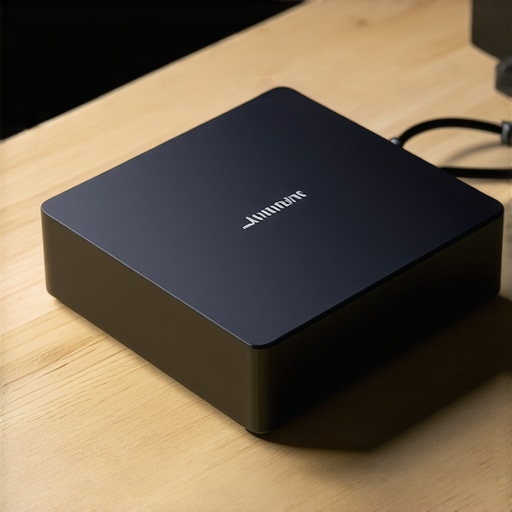
Swap to a High-Efficiency PD Charger
If your factory charger feels like a literal heating element, it might be operating at its absolute maximum capacity. Many stock chargers are barely rated for the peak power draw of the device they come with. This is why we only use 100w PD chargers for our workstations even if the laptop only requires 65 watts. A higher-wattage charger does not force more power into your laptop; rather, it has a higher ‘ceiling.’ It can provide the 65 watts you need while only working at 65% of its total capacity, which means it runs much cooler than a smaller brick working at 100%. When hunting for unbeatable laptop deals, always check if the machine supports USB-C Power Delivery, as it gives you the flexibility to use these more efficient, third-party GaN (Gallium Nitride) chargers.
Identify Your Software Power Vampires
Sometimes the heat is not a hardware fault but a software demand. If your CPU and GPU are constantly pegged at 90% usage, the power brick has to work overtime to keep up. I recommend checking your battery health settings to see if you have a ‘high performance’ mode active while doing simple tasks like word processing. Also, look into the reason your laptop battery wont charge past eighty percent. Many modern systems have a conservation mode that stops charging at 80% to reduce heat and battery wear. By limiting the charge, you reduce the ‘bulk charging’ phase which is when the power adapter generates the most heat. Much like the best ways to cool a laptop without a massive fan pad, managing your internal power draw is a proactive way to keep the external brick from catching fire.
Don’t Kill Your Motherboard With a Cheap Hub
Many people snag unbeatable laptop deals and immediately ruin the experience by connecting a bargain-bin USB-C hub. Here is the nuance most beginners miss: cheap hubs often lack proper power filtering. I have seen countless users accidentally ‘back-feed’ unregulated voltage into their machines because they wanted to save twenty dollars on an adapter. This is why cheap USB-C hubs might be killing your ports, as they force the laptop’s internal power management to work twice as hard to stabilize the incoming current. If your charger is hot, check if it is plugged into a hub first; that middle-man might be the real arsonist in your setup.
Can Gallium Nitride Technology Finally End the Heat Wars?
If you are an advanced user, you have probably heard of GaN (Gallium Nitride) chargers. Unlike traditional silicon-based chargers, GaN components are significantly more efficient. According to data from Efficient Power Conversion (EPC) Corp, GaN transistors can reduce energy losses by up to 40% compared to silicon counterparts. This means more power goes to your device and less is wasted as heat. This is exactly why we only use 100w PD chargers for our workstations now. Even if your laptop only draws 60W, a 100W GaN charger will run significantly cooler because it isn’t constantly redlining its thermal capacity. It is one of those must-have laptop accessories to boost your work setup that genuinely changes how you interact with your gear. 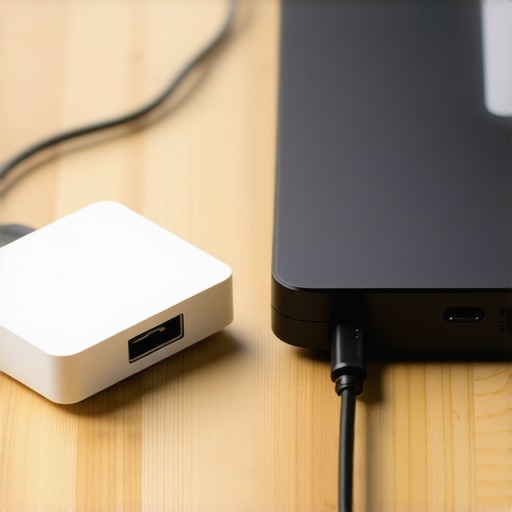
The Counterintuitive Logic of High-Wattage Bricks
Everyone says you should only use the exact charger that came in the box, but in my experience, that is often bad advice for high-load users. Most manufacturers ship the smallest, cheapest brick that can barely handle the laptop’s peak draw. When I’m testing game-changing gaming laptops for serious players in 2025, I frequently swap the stock adapter for a higher-rated OEM alternative. A 230W brick providing 150W of power will stay lukewarm, while a 150W brick providing 150W of power will feel like a hot plate. This is a common trap: people assume ‘more watts’ means ‘more heat,’ when the inverse is usually true for the brick itself. Just make sure you know how to spot a fake charger before it fries your motherboard, as a high-wattage knockoff is a recipe for disaster.
Repairability is the Ultimate Heat Management Tool
We often focus on external fixes, but sometimes the heat is caused by a failing internal DC jack. If your charging port feels loose or ‘wiggles,’ that creates electrical resistance, which generates immense heat right at the point of contact. This is why I advocate for choosing hardware from the only 3 brands that still make easily repairable laptops. If you can’t open your machine to tighten a bracket or replace a worn-out port, you are essentially waiting for a thermal failure to brick the whole motherboard. Don’t be afraid to dig into the specs; knowing how to find out if your laptop can be upgraded or repaired is the difference between a four-year investment and a one-year headache. Have you ever fallen into this trap of using a dying charger or a cheap hub? Let me know in the comments below.It is one thing to fix a hot charger today, but it is another to ensure your whole setup survives the long haul. I have a ‘Sunday Cleaning’ ritual that sounds obsessive, but it is the reason my 2019 workstation still runs like it is brand new. The secret isn’t just luck; it is having the right physical tools ready. I always keep a specialized set of bits nearby because you never know when a fan will start rattling or a screw will work its way loose. This is exactly why I recommend the specific screwdriver kit you need to open 90% of modern laptops to anyone who takes their gear seriously. Most people wait for a total failure, but a quick biannual dusting can prevent 90% of thermal-related hardware deaths. If you aren’t comfortable opening things up, at least learn how to clean the dust out of your laptop without opening it to keep those vents clear and the power draw manageable.
How can you keep your high-performance laptop healthy for years?
Maintenance isn’t just about the physical parts; you have to look at the ‘digital friction’ that builds up over time. I see students grabbing student laptops that balance power and portability perfectly and then slowing them down with background bloatware within months. Every few months, I do a clean driver sweep using DDU (Display Driver Uninstaller). This is a niche tool used by enthusiasts to wipe GPU drivers completely before a fresh install. According to technical documentation from Thermal Grizzly, even the best thermal interface materials lose their efficacy over time, often dropping from their peak rating of 12.5 W/mK to significantly less if the laptop is constantly subjected to extreme heat cycles. If you are hunting top laptop deals in 2025, plan to repaste your machine every two years to maintain that ‘out-of-the-box’ performance. 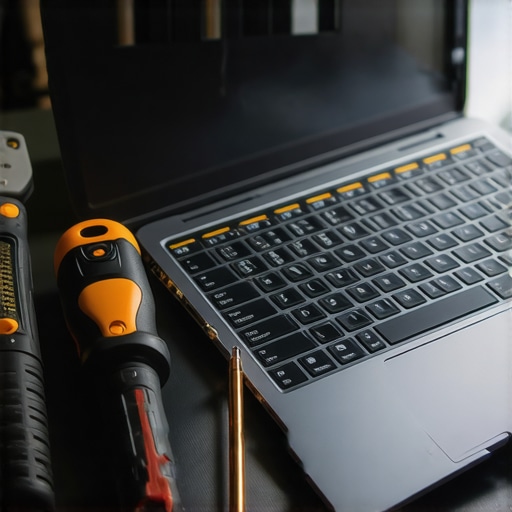
The Future is Smaller and Cooler
Looking ahead, I predict that ‘Smart Charging AI’ will become the industry standard. We are already seeing the beginning of this with the reason your laptop battery wont charge past eighty percent, but soon, laptops will likely communicate with GaN chargers to negotiate specific thermal envelopes based on real-time room temperature. Until then, you need to be the one managing the environment. If you are a pro, look into why we only use 100w PD chargers for our workstations to give yourself that thermal headroom I mentioned earlier. It is the easiest way to scale your setup without buying a whole new machine. My advice? Take five minutes today to lift your power brick off the floor or carpet and place it on a hard, flat surface. You will likely notice it feels cooler to the touch within the hour.
Hard-Won Truths from a Decade of Fried Adapters
Over the years, I’ve learned that heat isn’t just an annoyance; it’s a symptom of stress on your hardware’s most vulnerable parts. One of the biggest ‘lightbulb moments’ for me was realizing that cable management is actually thermal management. When you coil your charging cable tightly around the brick, you create tiny internal fractures in the copper. This increases electrical resistance, which generates even more heat. I now use a loose ‘over-under’ loop for every cord I own to prevent internal fraying. Ambient temperature also plays a massive role; if your room is pushing 80 degrees, your brick is starting its cooling race at a disadvantage. Most importantly, trust your senses. If you ever catch a whiff of ozone or a sweet, chemical scent near your desk, that is the plastic casing reaching its melting point. Don’t wait for a spark to act; a hot charger is a warning sign that your power management needs a reboot.
#IMAGE_PLACEHOLDER_E#
The Gear That Keeps My Workspace Frosty
To keep my machines running at peak performance without the fire hazard, I rely on a few specific tools and strategies. First, I never start a deep-clean without the specific screwdriver kit you need to open 90% of modern laptops. It allows me to check for loose DC jacks and clear out internal debris that forces the system to draw more power than it should. For daily use, I’ve moved away from stock bricks entirely when possible. I found that why we only use 100w PD chargers for our workstations comes down to the efficiency of Gallium Nitride (GaN) technology, which stays remarkably cool even under heavy video rendering loads. I also recommend checking your specs before you go hunting for unbeatable laptop deals on a new machine; sometimes a simple hardware refresh is enough. You should learn how to find out if your laptop can be upgraded with more RAM or fresh thermal paste. For those who aren’t ready to take the back cover off, knowing how to clean the dust out of your laptop without opening it is the easiest way to keep your power draw and your adapter temperature in check.
Your Tech Deserves a Long Life
Maintaining your laptop shouldn’t feel like an engineering chore. It’s about protecting the investment you’ve made in your productivity and digital life. By making these small adjustments—lifting the brick off the carpet, choosing higher-quality GaN chargers, and keeping your vents clear—you are ensuring your hardware survives well into the future. Don’t let a simple piece of plastic and copper be the reason your motherboard fails prematurely. Take control of your setup today, and your laptop will thank you with years of reliable, cool-to-the-touch service. Have you ever noticed your charger getting significantly hotter during specific tasks like gaming or rendering, or have you found a clever way to keep it elevated? Let me know your setup hacks in the comments below!