
I still remember the cold sweat at Terminal 3. It was 4:15 AM, the line was a mile long, and I was fumbling with a bulky neoprene case that refused to slide out of my overstuffed backpack. Behind me, a businessman sighed loudly enough to register on the Richter scale. In my rush to be helpful, the laptop slipped. That sickening thud against the linoleum floor is a sound I can still hear in my nightmares. I learned the hard way that not all protection is created equal, especially when you are trying to keep up with airport security. Finding the right gear is part of the must-have laptop accessories for a seamless setup, but when you’re on the move, the rules change entirely. Today, I am going to help you avoid that terminal-side panic by picking a sleeve that actually plays nice with the TSA. We are looking for that perfect ‘butterfly’ or ‘check-point friendly’ design that lets you zip through security without exposing your expensive hardware to the germs of a shared plastic bin.
Stop Digging Through Your Bag at Security
To be honest, I spent years thinking I was being smart by buying the thickest, most padded case I could find. It was a tank. But a tank is useless if you have to rip it open every time you see a blue uniform. The TSA actually established specific guidelines back in 2008 for checkpoint-friendly laptop bags, requiring a clear, unobstructed view of the device during X-ray screening. If your sleeve has pockets full of chargers, coins, or keys, you’re going to be told to take the laptop out anyway. I made that exact mistake on a flight to Chicago, thinking my ‘travel-ready’ sleeve was enough, only to realize my extra mouse was blocking the scanner’s view. If you are carrying a high-end machine, perhaps even one of those student laptops that balance power and portability perfectly, you want a sleeve that mirrors that efficiency. We want a slim profile that fits inside the best minimalist backpacks for carrying two laptops at once without adding unnecessary bulk.
Are These Specialized Sleeves Really Any Better Than a Standard Case?
You might be skeptical. I was too. I figured a sleeve is just a glorified envelope. But the difference lies in the materials and the hinge. A true TSA-compliant sleeve allows the laptop to lie flat on the conveyor belt with nothing above or below it. It saves your screen from scratches and saves your sanity during a tight layover. I’ve seen people use the only student laptops that actually survive a backpack drop, but even those rugged machines don’t deserve the abuse of a hurried security agent shoving them back into a bin. Have you ever had that heart-stopping moment where you thought you left your laptop at the bottom of a gray plastic tray? Tell me about your worst airport tech horror story—I promise I’ve probably been there too. Let’s look at the specific models that will actually make your next trip feel like a breeze rather than a chore.The first thing you need to identify is the ‘butterfly’ design. This isn’t just marketing fluff; it is a structural necessity. A proper sleeve for travel essentially splits down the middle, allowing the laptop to lie on one side of the conveyor belt while the rest of your gear—pens, notebooks, or your passport—lays on the other. Think of it like a book. If the TSA agent cannot see the laptop clearly without other objects interfering, you are back to square one, pulling it out and risking a drop. When I was traveling through Heathrow last summer, I saw a guy with a $3,000 workstation-grade laptop. He had one of those business laptops for professionals that is built like a tank. But he had stuffed a thick power brick right against the screen in his sleeve. The X-ray could not see through the dense copper of the charger, and the agent made him unpack everything in a crowded line. I, on the other hand, had my sleeve configured with the charger in a separate bag entirely. I just unzipped, laid the sleeve flat, and walked through.
The Butterfly Hinge is Your New Best Friend
To pass the test, your sleeve must provide a ‘clear image’ of the laptop. This means no pockets, no zippers, and no padding should be directly above or below the device when the case is opened and laid on the X-ray belt. Look for sleeves that use a 180-degree zipper. If it only opens at the top, it is just a standard sleeve, and you will be forced to remove the laptop every single time. It is one of those must-have laptop accessories to boost your work setup specifically designed for the road. 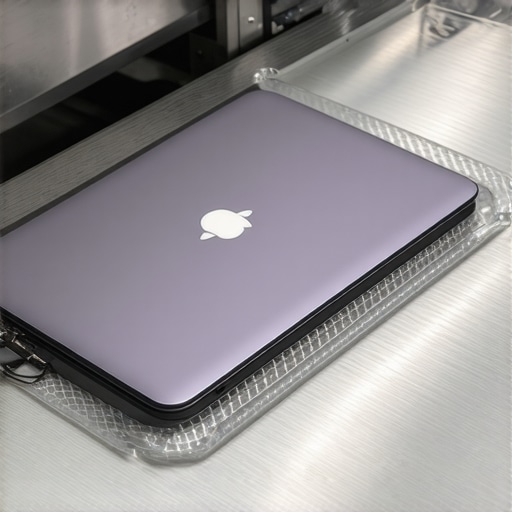
Keep Your Cables Away from the X-Ray Path
The biggest mistake I see travelers make is using the built-in pockets of their ‘checkpoint friendly’ sleeves for chargers and mice. TSA guidelines are very specific: the laptop compartment must be ‘laptop only.’ If you have a mess of wires blocking the view, the machine is getting pulled. I recommend keeping your peripherals in a separate tech pouch. This is especially true if you are using the only travel mouse we actually enjoy using, which is compact but still dense enough to show up as a dark blob on a scanner. By keeping the sleeve ‘clean,’ you ensure the X-ray technician sees exactly what they need to see in three seconds or less.
Don’t Buy a Sleeve That is Too Tight for Your Machine
Heat is the silent killer of hardware, even when it is off. If your sleeve is so tight that you are struggling to zip it, you are putting unnecessary pressure on the screen and the internal components. This is a common issue with student laptops that boost productivity and learning, which often have slightly thicker chassis for durability. I once tried to squeeze a beefy 15-inch gaming rig into a sleeve designed for an ‘ultra-thin’ model. Not only did I struggle at the security bin, but the pressure caused a permanent white spot on my LCD. If you are hunting for top laptop deals in 2025, do not waste those savings by crushing your new screen with an ill-fitting case. Always check the internal dimensions, not just the ‘fits 15-inch’ label, because the hidden downside of ultra-thin gaming laptops is that they set a standard for ‘slimness’ that your specific machine might not meet.
Most people believe that the thicker the padding, the safer the computer. I am going to challenge that right now: over-padding is often a trap. In my years of testing gear, I have seen more screens cracked by ‘protective’ cases than by drops. When you cram a thick, rigid sleeve into a tight backpack, the padding actually transfers the pressure from your books or gym gear directly onto the laptop lid. This is especially dangerous for student laptops that boost productivity and learning because they are built to be light, not necessarily to withstand a crushing force from the side. You want ‘energy-absorbing’ foam, not just ‘thick’ foam. A sleeve that is too bulky can also put tension on the frame, leading to a situation where you need to know how to fix a wobbly laptop hinge before it snaps.
Padding Often Creates a False Sense of Security
The nuance that many miss is the ‘flexural strength’ of the laptop itself. Modern machines, including those unbeatable laptop deals you find online, are designed to be thin. If your sleeve is so rigid that it doesn’t allow the bag to contour to your body, you are creating a lever effect every time you lean against a wall or sit down with your pack on. I’ve found that a slightly more flexible, high-density neoprene or a memory foam sleeve actually protects better in real-world transit than a hard-shell plastic case. Hard shells are great for impact, but they are terrible for pressure distribution. This is a lesson I learned the hard way with one of the the hidden downside of ultra-thin gaming laptops; the chassis is so slim that any external torque can twist the motherboard.
Does Your Sleeve Choice Actually Shorten Your Laptop’s Lifespan?
It’s a question most people don’t ask until they see the dreaded ‘white spots’ on their LCD. According to hardware durability insights from repair experts at iFixit, the structural integrity of modern, ultra-thin lids is compromised when external pressure is concentrated on a single point—a phenomenon known as point-pressure damage. When you use a TSA-friendly sleeve, make sure the zipper teeth are guarded. I once saw a premium workstation get a deep gouge because the ‘heavy duty’ metal zipper was resting directly against the aluminum finish. Even why most business laptops have terrible speakers is often a result of internal space being so tight that there is no room for error or external compression.
The biggest ‘oops’ factor? Leaving a tiny crumb or a pen cap inside the sleeve. Because these cases are designed for a snug, ‘checkpoint-friendly’ fit, even a small object trapped between the screen and the keyboard can act like a diamond-tipped drill under the weight of a travel bag. I always recommend a quick ‘swipe out’ of the sleeve before sliding your laptop in. It takes two seconds but saves a $400 screen replacement. Have you ever fallen into this trap or noticed a mysterious scratch after a flight? Let me know in the comments. We are all trying to keep our gear alive for as long as possible, and sometimes the simplest habits are more effective than the most expensive accessories.
Maintaining a laptop isn’t just about the outside; it’s about what’s happening under the hood. I’ve noticed that even the most expensive rigs start to dip in performance because of thermal throttling. This is often the real reason your laptop feels sluggish after three months. It isn’t just bloatware; it’s dust. I personally use a canister of compressed air every Sunday to clean the dust out of your laptop without opening it. If you let those fans get clogged, your processor hits its “T-junction” temperature limit—which, according to Intel’s ARK technical documentation, is the maximum temperature allowed at the processor die. Once you hit that, the system throttles your speed to save itself from melting. When I’m helping people find student laptops that balance power and portability perfectly, I always tell them to look at the hinge construction and fan placement first.
How do I keep my gear running like new for years?
For me, it starts with the right tools. I don’t trust generic dollar-store drivers because they strip screws faster than you can blink. I keep the specific screwdriver kit you need to open 90 of modern laptops in my desk drawer at all times. If you really want to go pro, you should consider that why we swapped the thermal paste on our brand new laptop isn’t just for enthusiasts—it can drop your idle temperatures by 10 degrees.
Your Sunday Morning Strategy for Success
I have a routine. Every few months, I do a physical and digital deep clean. This ensures my device lasts all four years of its intended lifespan. I check the battery health and clear out the “Downloads” folder that everyone ignores. Looking ahead, I suspect we are moving toward a “modular” future where swapping a screen or a keyboard is as easy as changing a phone case. We’re already seeing brands like Framework lead the charge, and I predict that within five years, even the big players will have to offer more repairable designs to meet environmental standards. If you’re currently hunting for unbeatable laptop deals, prioritize machines that don’t glue everything down. My challenge to you: Grab a soft microfiber cloth today and wipe down your screen and keyboard. It sounds simple, but preventing oil buildup on the keys stops that permanent “glossy” wear pattern that ruins resale value. For those ready to go deeper, check your system’s thermals today using a free tool like HWMonitor—if you’re idling above 50°C, it’s time for a cleaning.
What Years of Terminal Layovers Taught Me About Gear Safety
After crossing dozens of time zones, I’ve realized that the best protection isn’t a hard shell—it’s a system. Here are the lightbulb moments that saved my hardware: First, always prioritize energy-absorbing memory foam over rigid plastic; it handles travel vibrations far better. Second, those “checkpoint-friendly” features only work if you keep the sleeve strictly for the device. Third, check your zipper guards weekly. A single exposed metal tooth can turn the finish on business laptops for professionals into a scratched mess. Finally, never trust a sleeve that doesn’t have a small “lip” to prevent the laptop from sliding out the moment you unzip it halfway.
The Gold Standard Tools for a Stress-Free Journey
I don’t just buy things because they look good; I buy them because they survive. For maintaining your device, I always keep the specific screwdriver kit you need to open 90 of modern laptops in my travel tech pouch. It’s saved me more than once when a fan started rattling in a hotel room. For monitoring, I rely on HWMonitor to track thermals, ensuring my must-have laptop accessories to boost your work setup aren’t causing unexpected heat spikes. When searching for top laptop deals in 2025, I cross-reference durability ratings on sites like NotebookCheck or iFixit. If you use game-changing gaming laptops for serious players in 2025, these tools are non-negotiable for longevity.
Why Smart Protection is a Long-Term Investment
Travel shouldn’t be a test of your patience or your hardware’s durability. By choosing the right student laptops that boost productivity and learning and pairing them with smart protection, you’re buying peace of mind. Whether you’re a student rushing to a lecture or a professional heading to a keynote, your tech is your lifeline. Don’t let a bad sleeve or a dusty fan be the reason your productivity stalls. Invest in quality, stay proactive with your maintenance, and your machine will serve you faithfully for years to come.
Have you ever had a close call with your laptop at an airport security bin? Let me know your story in the comments below!