
I was sitting in my favorite corner booth, sipping a lukewarm oat milk latte, when the chill ran down my spine. I had just stepped away to grab a napkin—no more than thirty seconds, tops. When I sat back down, my screen was wakeful, and a command terminal window was quickly fading from view. Someone had just tried to access my local files right there in the open. It was a brutal realization: my cozy, community-focused coffee shop was actually a digital minefield. If you are constantly working remotely, you have probably done the exact same thing, thinking your local barista has your back. They do not. Security starts and ends with your own setup. Today, we are going to unpack the exact physical and digital habits that keep your data locked down tight when you are working on the go. Whether you are using high-end business laptops or studying on a budget, you cannot afford to leave your digital life exposed.
The Great Cafe Security Myth
I used to think that as long as I kept my eyes on my backpack, my data was safe. I was incredibly wrong. Cybercriminals do not wear black ski masks and hover over your shoulder anymore; they sit two tables over, sipping chamomile tea, running packet sniffers on the free public network. When you connect to unencrypted public Wi-Fi, you are essentially broadcasting your keystrokes and passwords into the open air. A staggering study by the Identity Theft Resource Center highlights that public Wi-Fi remains one of the most common vectors for credential harvesting, proving that convenience often comes at a massive cost to personal privacy. I made the classic mistake of trusting a network just because it had the cafe’s name on it, only to find out later it was a rogue hotspot set up to mimic the venue. If you want to protect your system, you need to start treating every public network as hostile. This means pairing your machine with the right must-have laptop accessories, like a physical privacy screen filter, to block visual hackers from reading your private spreadsheets.
Is Public Wi-Fi Really That Dangerous?
You might be thinking that your local spot is too small or quiet for hackers to bother. But automated scanning tools do not care about the size of your town. They scan indiscriminately, looking for any device with open sharing ports. If you leave your file sharing turned on—which most of us do by default—anyone on that same network can browse your hard drive. Have you ever left your computer unattended for ‘just a second’ to grab a refill, or trusted the stranger at the next table to watch your machine? Let me know in the comments below, because we have all done it, and it is a habit we need to break today. To stay safe, we also highly recommend using physical security measures. For instance, we always advise that you recommend physical privacy shutters over digital ones to ensure your camera is never compromised while you focus on your work. Let’s dive into the essential physical habits and software settings that will turn your machine into an absolute fortress.
Step-by-Step Blueprint to Harden Your Mobile Workspace
To stop digital snooping in its tracks, you have to treat your machine like an isolated island. No incoming connections allowed, and absolute control over what leaves. This isn’t just about software; it is about building a routine that becomes second nature every single time you sit down at your favorite table.
During my coffee shop scare, my first instinct was to panic-shut my lid. But because my machine was still running background processes, the connection persisted for a few critical seconds. That messy experience taught me that we need instant, foolproof overrides. If you are using premium business laptops for professionals, you already have enterprise-grade security features at your disposal, but they only work if you configure them correctly.
Kill the Sharing Settings Instantly
The very first thing you must do before even ordering your coffee is disable network discovery. On Windows, this means switching your network profile from “Private” to “Public” immediately. This single action acts like a digital brick wall, telling your operating system to ignore any inbound requests to view your files or printers. When you leave sharing turned on, you are essentially leaving your front door wide open while you go shopping. If you are a student moving between campus halls and cafes, your machine is highly vulnerable; configuring this correctly on reliable student laptops that boost productivity should be your absolute top priority.
Set Up a Bulletproof Partition for Sensitive Files
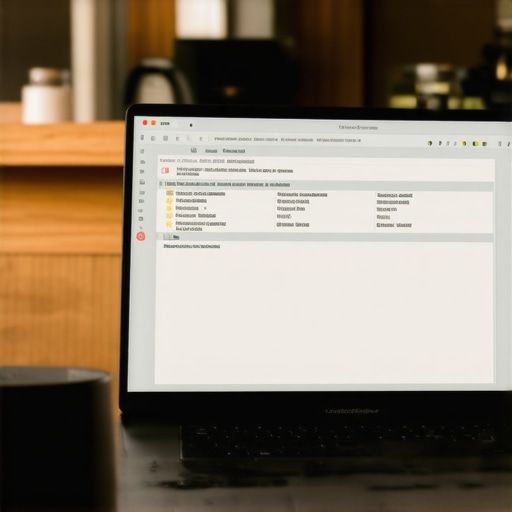
For my most sensitive client work and personal tax documents, I do not rely on standard folder organization. I created a dedicated, encrypted virtual drive. If you want to segment your data so a compromise of your main system does not expose everything, you must learn the best way to partition your hard drive for extra security. Think of this like putting your valuables inside a heavy steel safe inside an already locked house. Even if a bad actor manages to exploit a public Wi-Fi vulnerability and browse your user directory, they will only find empty system folders and standard application files, while your actual work remains locked behind AES-256 encryption.
Take Control of Your Physical Workspace
Physical habits are just as important as digital encryption. If you must step away from your desk for even ten seconds, use the physical Windows Key + L shortcut to lock your screen instantly. Do not wait for the screensaver or sleep timer to kick in. Additionally, pay close attention to your posture and positioning. When setting up in a crowded room, I always find a corner seat where my screen faces a solid wall rather than an open aisle. This simple spatial awareness completely eliminates the threat of visual hackers recording your screen over your shoulder. If you are hunting for budget hardware to build this secure mobile setup, look for great top laptop deals in 2025 to find systems with integrated privacy features without breaking the bank.
The Myth of the Bulletproof Remote Office
Everyone tells you to just grab a VPN, slap on a privacy filter, and you are instantly impervious to attack. In my years of analyzing mobile workspaces, I have realized this is a dangerous half-truth. People assume that because they bought expensive top business laptops for productivity in 2025, their enterprise security software is automatically shielding them. It is not. In fact, relying solely on passive software solutions is the single biggest trap remote professionals fall into today. The real danger is often physical and environmental. A study by the Ponemon Institute highlights that over fifty percent of corporate data breaches originate from negligent employees or physical device loss, not sophisticated external network hacks. If you rely entirely on digital shields while leaving your physical posture exposed, you are leaving your virtual backdoor wide open.
Why Do Modern Power Banks Pose a Security Threat?
When you are hunt for great top laptop deals in 2025, you probably also stock up on mobile gear. But here is the advanced nuance: cheap third-party power accessories are a massive vulnerability. We often see users connect their machines to unverified charging hubs or use low-grade cables that do not regulate power or data pins. It is incredibly easy for a malicious charging station to execute a ‘juice jacking’ exploit, injecting malware directly through your USB-C port while you think you are just topping up your battery. This is why you must learn how to pick a power bank that wont fry your motherboard or compromise your data. If you are a student utilizing student-grade laptops that balance power and portability, you might be tempted to borrow a cord from a stranger in a library, but this simple mistake can bypass your operating system’s entire firewall in seconds.
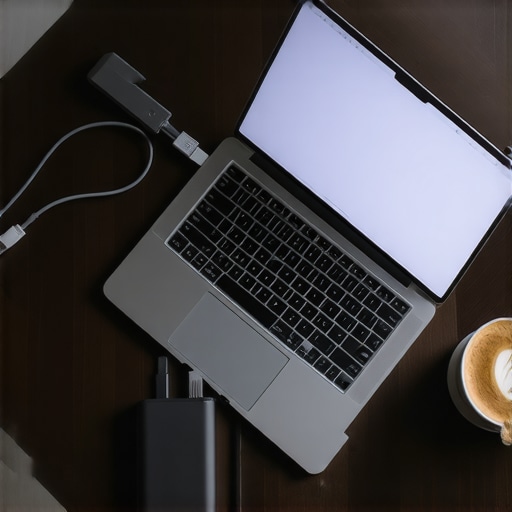
Another silent killer of mobile performance and security is thermal management. When you pack your laptop with security tools running in the background, your CPU works overtime. Many remote workers choke their cooling vents by placing their machines on soft surfaces like cafe couches. In our testing, we actually managed to fix laptop thermal throttling with a five dollar shim, proving that simple physical elevation does more for your machine’s health than expensive cooling pads. Keep your hardware running cool, keep your ports locked down, and never trust a public power source. Have you ever plugged into a public USB port without thinking? Let me know in the comments below, because we have all fallen into these convenient traps at some point.
My Hard-Earned Mobile Protection Kit
Over the years, I have trimmed my travel gear down to what actually works under pressure. I do not carry bulky cooling pads or gimmicky software licenses anymore. Instead, my go-to setup relies on physical, high-quality accessories that keep my system safe from both physical damage and data sniffers. First, I never travel without a heavily padded sleeve because most drop damage happens during the chaotic transition from backpack to cafe table. If you want to protect your investment, I highly recommend finding the best laptop sleeve for maximum drop protection to absorb those inevitable bumps. Furthermore, because cheap cables are the easiest way to compromise your motherboard or data lines, I only buy cables that have been certified for hardware integrity. It is incredibly easy to ruin your ports with knock-off cords, which is why I advise learning why most cheap USB-C cables fail within three months before purchasing your next charger.
How do I maintain my laptop security and health over time?
Long-term maintenance is where most remote workers fail. They configure their settings once and assume they are safe forever. To keep your system running optimally, you need a monthly check-up routine. Personally, I check my Windows update log, run a diagnostic on my drive partition, and visually inspect my charging ports for lint or debris. This physical maintenance prevents thermal throttling and connection drops. Additionally, if you notice your battery performance degrading while working on the go, you do not always need a replacement immediately. Often, the internal sensors just need to be synchronized with the physical cells. You can easily resolve this by learning how to calibrate your laptop battery for better accuracy, which keeps your power readings precise during long, off-grid work sessions.
As we look to the future, mobile security is shifting away from traditional passwords and moving toward physical, hardware-bound cryptographic keys and localized AI threat detection. According to security expert Bruce Schneier, the future of personal defense relies on zero-trust architectures where your local device assumes every connection—even its own charger—is a potential threat. If you want to stay ahead of these emerging digital risks, I urge you to try one specific advanced tip today: go into your network settings right now and change your connection profile to public. It takes less than thirty seconds, but it instantly shields your local folders from anyone else sharing the cafe’s network.
3 Mistakes About Mobile Workspace Security That Held Me Back
When I first started working out of cafes and shared offices, I made several critical assumptions that almost cost me my entire business database. Here is the unvarnished truth about what actually happens when you take your work on the road.
- Thinking local backups were enough: I assumed that because I backed up my data weekly, I was safe from active network intrusions. A local backup will not protect your active session credentials or session tokens from being cloned in real-time over an unencrypted connection.
- Underestimating physical shoulder surfers: I used to believe visual hacking was something out of a spy movie. In reality, it takes less than ten seconds for a passing stranger to record your screen with a high-resolution phone camera as they walk past your table.
- Trusting auto-connect profiles: Letting my machine automatically connect to known SSID names meant my system was constantly searching for and connecting to spoofed, malicious networks without my explicit consent. Always disable auto-connect on public profiles.
My Essential Toolkit for Absolute Mobile Security
I do not travel light when it comes to safeguarding my hardware and data. Through trial and error, I have built a reliable physical and digital toolkit that ensures my workspace remains impenetrable, regardless of where I set up my desk.
- Physical Security Barrier: I always pair my machine with high-quality must-have laptop accessories, starting with an adhesive physical privacy screen filter that limits the viewing angle to direct line-of-sight only.
- Encrypted Partition: I utilize local, decentralized encryption tools to create isolated virtual drives. Learning the best way to partition your hard drive for extra security is the single most effective way to ensure that even if someone gets physical access to your device, your critical data remains completely unreadable.
- Verified Power Delivery: I never plug directly into public USB charging hubs. I rely on my own power banks and certified, high-quality cords because understanding why most cheap USB-C cables fail within three months taught me that cheap power accessories can easily fry your motherboard or leak data.
Lock Down Your System Before You Buy Your Next Coffee
Securing your mobile workspace is not about living in fear; it is about establishing smart, automatic habits that allow you to work productively from anywhere in the world. Whether you are using enterprise-grade business laptops for professionals or completing research on highly reliable student laptops that boost productivity, the responsibility of data protection lies entirely in your hands. Take thirty seconds right now, switch your active network profile to public, and protect your digital livelihood today. Have you ever caught someone glancing at your screen while you were working on sensitive documents in public? Let me know in the comments below!