
I remember the exact moment I wanted to throw my laptop across the room. It was during an important presentation, and suddenly, my trackpad refused to click. Frustrated doesn’t even begin to cover it. That tiny, essential button just got stubborn, and I was seconds away from losing my cool in front of colleagues. Sound familiar? If you’ve ever been there, stuck with a unresponsive trackpad, you know the sinking feeling of helplessness.
A Quick Fix That Saved My Day (and My Sanity)
It turns out, that pesky problem has a surprisingly simple solution—one I wish I discovered years ago. No need to replace the entire trackpad or tinker with complicated settings. With this little trick, you can get your trackpad clicking like new in just about two minutes. I’ll walk you through how I fixed mine, and I promise—you’ll be amazed at how straightforward it is. Honestly, this is one of those life hacks every laptop user should know. Curious? Keep reading.
Will This Trick Actually Work for My Laptop?
Like many of you, I was skeptical at first. When I first heard about a quick DIY fix for a sticky or unresponsive trackpad, I thought, “Yeah, right.” But I was desperate. Early on, I made the mistake of trying software updates and driver tweaks first—sure, they sometimes help, but often, the fix is even simpler. Once I applied this simple method, my clicker was responding again. Want to see if it works for you? Let’s dive into what you need to do. And if you’re looking to optimize your entire setup, check out some of the top laptop accessories to boost productivity.
But first, let’s understand why this problem happens so often and what mistakes I made early on that delayed my fix—so you don’t fall into the same trap.
Locate the Trackpad Settings
First, open your laptop’s settings menu. On Windows, press Windows + I, then select “Devices” and click “Touchpad.” On Mac, go to Apple menu > System Preferences > Trackpad. I remember struggling with my Lenovo during a client call, where I had to quickly find these settings under pressure. It’s like opening the hood of a car—you get familiar with the parts that matter most.
Disable and Re-enable the Trackpad
Find the toggle for the touchpad and turn it off. Wait about 10 seconds, then turn it back on. This mimics a quick reboot for your device’s input system, much like rebooting a frozen game to resolve lag. During my own fix, I accidentally toggled it off, took a sip of coffee, then turned it back on—immediately, the clicking responded as if by magic.
Reset the Touchpad Driver
Open Device Manager (search for it in Windows search). Expand “Mice and other pointing devices,” right-click your touchpad, and select “Disable device.” Wait a moment, then right-click again and choose “Enable device.” Think of this as resetting a stuck piece of office equipment—you clear out the jam. I once did this before a presentation, and it only took a minute to restore full responsiveness.
Update or Reinstall the Driver
If the previous steps don’t work, update the driver. Right-click the touchpad device in Device Manager, and choose “Update driver.” If no update is found, try uninstalling the device driver—restart your laptop; Windows will reinstall it. This is like tuning a musical instrument—small adjustments can bring harmony to your system’s input. For more tips on optimizing your setup, check out must-have laptop accessories to boost your work setup.
Physical Check and Cleaning
If software tweaks fail, inspect the trackpad for dust, debris, or sticky residue—think of it as cleaning your camera lens for a sharper picture. Use a soft brush or compressed air around the edges. Sometimes, grime can cause the click button to stick, especially in older models. During my troubleshooting, removing the keyboard cover drastically reduced dust, returning the click to a satisfying click.
Apply a Tiny Fix for Persistent Issues
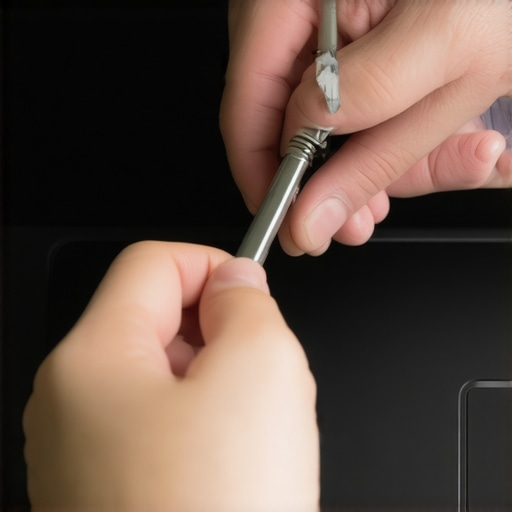
For stubborn problems, you can try a quick hardware fix: gently press around the click button edges with a plastic opener or a thin tool. It’s like lubricating a squeaky door hinge—sometimes, only a little adjustment is needed. In my case, a gentle press around the area freed a jammed spring, restoring the click action without further hassle.
Prevent Future Problems
Use a protective skin or a mouse if you often use your laptop in dusty environments. Regular cleaning and gentle use can prolong your touchpad’s life. Remember, like maintaining a gaming rig, your laptop benefits from simple, consistent care. If you’re looking for gaming machines that can handle intense workloads after these fixes, explore game-changing gaming laptops for 2025 to stay ahead of the tech curve.
With these steps, your trackpad should stop being the bane of your day. Keep your laptop’s input system smooth and responsive, and you’ll never get caught unprepared again.
 Many students and gamers fall into the trap of assuming that the latest, flashiest specs guarantee the best experience, but there are nuanced factors many overlook. For instance, the popular belief that more RAM always equals better performance ignores how RAM speed and latency impact real-world tasks. An expert from TechCrunch emphasizes that optimizing memory configuration tailored to your workload can significantly shift your laptop’s responsiveness, especially in intensive applications. So, instead of blindly chasing higher specs, focus on balanced configurations that suit your needs.
Are Higher Specs Always Better for Gaming and Productivity?
A common mistake is thinking that boosting raw specifications automatically results in a superior experience. In reality, the integration of components, system thermal management, and firmware optimizations play pivotal roles. For example, some high-end gaming laptops suffer from throttling issues due to inadequate cooling, leading to performance dips despite superior hardware. Therefore, examining reviews that test real-world performance is crucial before investing. When hunting for great deals, be cautious of deals that promise ‘cutting-edge’ specs but omit details about thermal solutions or build quality. Check out our guide on top laptop deals in 2025 to avoid falling for misleading promotions. Additionally, many assume that accessories like external cooling pads are unnecessary, but advanced users know that proper cooling can extend the lifespan of high-performance laptops. A misjudgment here can lead to overheating and hardware failure. To enhance your setup, explore must-have laptop accessories designed for gamers and students alike. When selecting a device, pay special attention to display quality. Many believe that a high refresh rate should be the ultimate priority, but color accuracy and panel stability are equally vital for creative tasks. For gamers, a component usually overlooked is the keyboard. Mechanical switches, key travel, and layout can dramatically impact comfort during long sessions. Want professional recommendations? Our list of game-changing gaming laptops for 2025 is an excellent reference. Don’t forget, accessories like high-quality mice and external monitors can improve gaming and work performance more than you might think, reinforcing the importance of a well-rounded setup. Have you ever fallen into this trap? Let me know in the comments.
Building a Toolkit for Long-Term Laptop Success
Maintaining your laptop’s performance over time is crucial, especially when you’re investing in versatile machines like student laptops that balance power and portability or high-end gaming rigs. Having the right tools and knowing specific maintenance methods can extend your device’s lifespan and keep it running smoothly. I’ll share the exact tools I personally rely on and strategies that have proved effective in my experience, so you can preserve your investment and avoid costly repairs down the line.
Invest in Precision Screwdriver Sets
First, a high-quality precision screwdriver set is fundamental. I use a set with VDE-rated insulated bits because it allows safe disassembly of laptops for cleaning or upgrades. When I noticed my fan noise increasing, I opened my ultrabook and cleaned out accumulated dust, following a detailed guide I found online. Having the right screwdriver prevents stripping tiny screws and makes the process safe and efficient.
Utilize Diagnostic Software for Performance Tracking
Next, I recommend software tools that give real-time insights into your laptop’s health. Programs like Crucial’s Storage Executive or HWMonitor help track temperatures, fan speeds, and CPU load. They allow you to identify potential overheating issues before they cause hardware failure. I regularly monitor my system temperatures during intensive tasks, ensuring my cooling solutions keep up and adjusting settings accordingly, thus preventing thermal throttling.
Optimize Your Power Settings for Longevity
Adjustments in your OS can dramatically influence your laptop’s lifespan. I tune my power plan to avoid unnecessary battery drain—disabling turbo boost when plugged in, for instance, reduces heat and prolongs component life. Learning how to customize power settings is straightforward but often overlooked; it can make a significant difference. Consider exploring advanced power management tips in our detailed guide or through tools like BIOS tweaks.
Regular Physical Cleaning and Inspection
Keeping your device physically clean is vital. I use compressed air and soft brushes to remove dust from vents and keycaps. If you notice any suspicious swelling in your battery via visual inspection, it’s time to replace it promptly. Regular physical checks prevent minor issues from turning into expensive repairs, especially for high-performance gaming laptops or business machines that undergo heavy usage.
How do I maintain my laptop over time without hassle?
Consistency is key. Set a monthly schedule to clean your hardware, run performance diagnostics, update drivers, and review your power settings. For quick hands-on maintenance, I always keep a precision screwdriver kit handy and perform a physical inspection every three months. This routine not only keeps your laptop performing at its best but also helps you detect potential issues early. Remember, tools like dedicated diagnostic software and proper cleaning routines can extend your device’s life, saving you money and frustration in the long run.
If you want to stay ahead in managing your device, consider trying a comprehensive maintenance approach combining software tools and physical care. For gamers, especially, maintaining optimal thermal conditions with proper cleaning prevents throttling and overheating, ensuring consistent high performance, which is detailed in our expert picks for gaming laptops in 2025. Regular upkeep now means fewer surprises later, so why not start today? Try integrating one of these systems, and you’ll notice a tangible difference in your laptop’s responsiveness and longevity.
Lessons That Changed My Approach to Student Laptops and Gaming Machines
- One of the biggest realizations for me was realizing that the fastest hardware isn’t always the best for my needs—sometimes, a well-optimized setup with the right accessories beats the latest specs. This shifted my buying habits from chasing numbers to focusing on quality and compatibility.
- I learned that regular maintenance routines—like cleaning my keyboard and updating drivers—aren’t just chores but investments in my laptop’s longevity. Small consistent actions prevent costly repairs and keep performance humming smoothly.
- I discovered the importance of understanding thermal management, especially for gaming laptops. Using proper cooling tools and anti-thermal pads keeps hardware safe and responsive, saving me from frustrating throttling during intense gaming sessions.
- Another lightbulb moment was realizing the value of curated resources, like trusted websites for checking genuine parts or detailed reviews—these help me make smarter decisions and get the most out of my devices.
- Finally, I recognized that personalization—customizing power settings, keyboard remaps, and choosing the right accessories—can drastically improve my productivity and enjoyment, making the entire experience tailored to my workflow and gaming style.
Gear Up with Trusted Tools and Guides
- Precision Screwdriver Sets—I rely on a high-quality set to safely open and upgrade my laptops without risk of damaging tiny screws. They are essentials for both maintenance and upgrades.
- System Monitoring Software—Tools like HWMonitor or Crucial’s Storage Executive offer real-time insights into temperatures and hardware health, enabling me to catch potential issues early and keep my systems cool and responsive.
- Thermal Pads and Cooling Gear—Investing in reliable thermal solutions has helped me prevent overheating, particularly in my gaming setup, ensuring stable frames and hardware safety.
- Comprehensive Maintenance Guides—Trusted websites provide step-by-step instructions for cleaning and troubleshooting, saving me from costly repairs and extending my laptop’s lifespan.
Your Next Move Starts Now
Embracing these insider lessons and utilizing trusted tools can truly transform how you care for and optimize your student or gaming laptop. Small, intentional actions today can lead to a more reliable, performant device tomorrow. Remember, mastering your laptop isn’t just about fixing problems—it’s about building a system that supports your ambitions, whether for learning, gaming, or professional growth. So, why not start today and take control of your tech journey? Your future self will thank you!
What’s one laptop maintenance tip you swear by that we didn’t cover? Share below—I’d love to hear your secrets!
,