
I’ll never forget the weekend I decided to turn my living room into a “pro gaming suite” by hooking my laptop up to the family 4K TV. I had just snagged one of those game-changing gaming laptops for serious players in 2025, and I figured a 65-inch screen would make the graphics pop like never before. Instead, I spent three hours squinting at blurry text and wondering why my character moved like he was wading through waist-deep molasses. It was a humbling reality check. I thought I was being clever and saving money on 3 external monitors that won’t break a student’s budget, but I was actually sabotaging my hardware. Most people don’t realize that the signal processing in a television is vastly different from a monitor. I learned the hard way that size does not equal performance, and that “cinematic” often means “sluggish” in the world of high-refresh gaming.
Why Your TV is Sabotaging Your Precision
The most painful lesson I learned is that TVs are built for movies, not for the high-octane demands of a modern gaming rig. When you plug in, you aren’t just getting a bigger picture; you’re often inviting a massive amount of input lag into your life. I once lost a competitive match because my TV was processing “image enhancements” while I was trying to dodge a grenade. It felt like playing in a dream where your legs won’t move. If you’ve ever felt like why your expensive gaming mouse feels laggy even though it’s brand new, the culprit might be the glass you’re looking at. According to testing data from RTINGS, typical mid-range TVs can have input lag exceeding 50ms outside of specialized modes, which is an eternity in the world of competitive play. We’re going to peel back the curtain on why this happens and what you should actually do if you want that big-screen feel without the frustration.
Is a bigger screen actually worth the visual trade-off?
You might be thinking, “But it looks so cinematic!” Trust me, I said the same thing until the headaches started. TVs have a much lower pixel density than monitors. Up close, those beautiful 4K pixels start to look like a screen door. I made the classic rookie mistake of sitting three feet away from a screen meant for a ten-foot viewing distance. It’s a fast track to eye strain and a very cluttered desk. If you’re looking to improve your setup, you’re much better off checking out must-have laptop accessories to boost your work-setup rather than relying on the living room furniture. Have you ever tried to use your TV for gaming only to find yourself getting frustrated with the lag? I’d love to hear if you’ve faced the “ghosting” nightmare like I did. Before we dive into the technical nitty-gritty, we need to talk about the physical toll this setup takes on your gear. I’ve seen the hidden downside of ultra-thin gaming laptops manifest as thermal throttling because the TV was blocking the exhaust or forcing the GPU to work twice as hard for a sub-par image.
Switch on the bypass for instant speed
The first thing you have to do—before you even launch a game—is find your TV’s “Game Mode.” Think of this as telling the TV to fire its entire makeup department. Usually, a TV takes the incoming signal and tries to “beautify” it with motion smoothing, noise reduction, and edge enhancement. For a movie, that’s fine. For gaming, it’s a disaster. I remember when I first toggled this on my old Sony; it was like the laggy fog finally lifted. If you don’t do this, your game-changing gaming laptops for serious players in 2025 are essentially racing with the parking brake on. By bypassing the internal image processing, you drop the input lag from unplayable levels to something that actually feels responsive. It won’t turn a TV into a 240Hz competitive monitor, but it makes the difference between hitting a target and shooting where they were three frames ago. 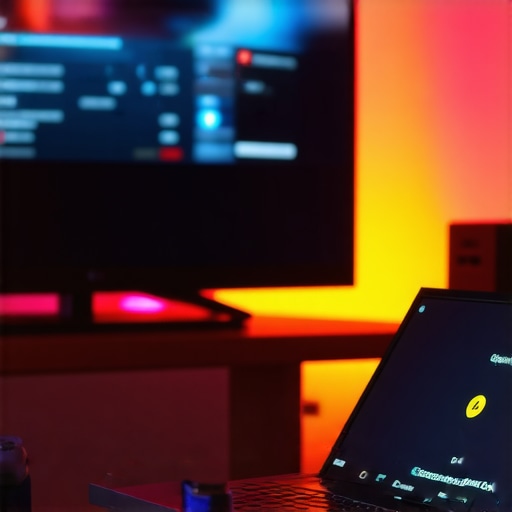
Kill the fuzz with the right color setting
If your text looks like it’s bleeding or has weird shadows, you’re dealing with a chroma subsampling issue. Most TVs compress color data to save bandwidth, which makes small text in an RPG menu look like a blurred mess. You need to hunt through your input settings and look for “Chroma 4:4:4” or “PC Mode.” This tells the TV to treat the signal with the same respect a dedicated monitor would. I once spent a whole afternoon troubleshooting a flickering screen only to realize my old “high-speed” cable couldn’t handle the 4K 60Hz bandwidth. If you’re still seeing performance dips after this, you might need to look into the only 3 ways to genuinely speed up a slow laptop to ensure your OS isn’t the bottleneck.
Protect your hardware from the heat trap
When I moved my setup to the living room, I tucked my laptop into a tight shelf under the TV. Big mistake. Within twenty minutes, the fans sounded like a jet engine taking off. Large screens often output a surprising amount of heat from the back, and if your laptop is sitting in that warm pocket, it’s going to throttle. I had to learn how to lower your gaming laptop fan noise in seconds by simply giving the machine some breathing room and moving it away from the TV’s exhaust.
Prop it up for better airflow
Don’t just set your laptop flat on the media console or, heaven forbid, a carpeted floor near the TV stand. Use a stand or even a couple of books to lift the back. This is especially vital for “thick” gaming rigs that have massive intake vents on the bottom. I’ve found that the simple hack for better airflow on thick gaming rigs works wonders when you’re pushing a 4K signal out to a massive display. If you can’t get the thermals under control even with better positioning, you might eventually realize that 3 external monitors that won’t break a student’s budget provide a much more stable environment than a hot, cramped TV stand ever could.
The spec sheet lies you’ve been told
Most people think that if they shell out for game-changing gaming laptops for serious players in 2025, they are automatically buying a ticket to seamless 4K gaming on any screen. In my experience, that’s a total myth. I’ve seen budget-friendly top business laptops for productivity in 2025 handle external displays with more stability than thousand-dollar rigs because of how their internal motherboards manage video signals. Everyone tells you to focus on the GPU, but the hidden nuance is the ‘DisplayPort Alt Mode’ or the specific HDMI controller version soldered to your board. If your laptop is powerful but the image on the TV still feels ‘off,’ you’re likely hitting a bandwidth ceiling that no amount of RAM can fix. Have you ever fallen into this trap? Let me know in the comments.
Don’t let a cheap hub fry your motherboard
The biggest ‘oops’ moment I see—and one I’m guilty of myself—is trying to bridge the gap with a bargain-bin adapter. It’s tempting when you find unbeatable laptop deals to save money on the accessories, but why cheap usb-c hubs might be killing your ports is a reality you don’t want to face. A low-quality hub can’t handle the heat of a 4K 60Hz signal and will eventually throttle your connection or, worse, short out your USB-C port entirely. I always tell people that if you’re serious about a big-screen setup, you need to invest in must-have laptop accessories to boost your work-setup that are actually rated for high-bandwidth data. 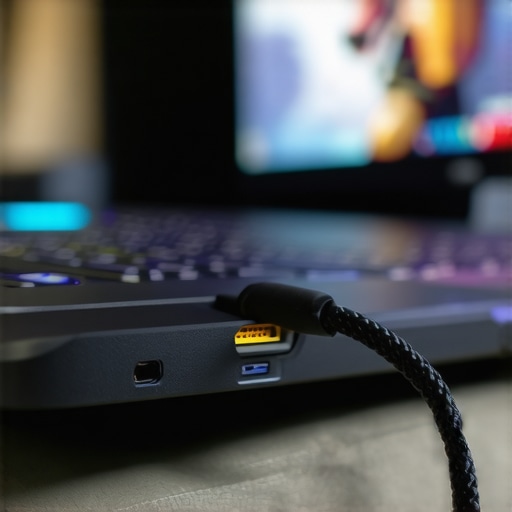
Why does your 4K output stutter even with a top-tier GPU?
The answer usually lies in the signal routing. On many laptops, the HDMI port is wired to the integrated graphics (iGPU) rather than the powerful dedicated GPU (dGPU). This creates a massive bottleneck because the frames have to travel from the powerful chip through the weaker one before reaching your TV. Experts at Digital Foundry have noted that this routing can add significant latency and even cause micro-stuttering that makes high-frame-rate gaming feel like a slideshow. If you find your performance is lacking, you might need to check if your machine has a MUX switch or if using a USB-C to DisplayPort cable can bypass the iGPU entirely. It’s these tiny technical hurdles that separate a frustrating experience from a pro-level setup. If you’re still struggling with speed, you might need to look at the only 3 ways to genuinely speed up a slow laptop to ensure your background processes aren’t eating the resources your external display needs. Stop assuming that the most expensive cable is the best; instead, look for the specific protocol support your laptop demands.
Skip the repair shop with a little preventative care
Keeping a high-stakes setup running isn’t just about the initial purchase; it’s about the grind of daily maintenance. I’ve seen some of the best game-changing gaming laptops for serious players in 2025 turn into expensive paperweights simply because the owner ignored a bit of dust. Every three months, I take a can of compressed air to my vents—never a vacuum, as static is a silent killer. If you’ve been eating over your rig while grinding through a project, you should definitely learn the best way to clean a sticky keyboard without breaking the keys before the debris migrates into the chassis. It sounds tedious, but this habit is why my three-year-old machine still runs like it’s brand new. You want to avoid the common trap where why most gaming laptops fail right after the warranty expires, which is almost always due to heat-induced solder degradation.
My personal toolkit for peak performance
I don’t trust the built-in Windows task manager to tell me the whole truth. My go-to tool for real-time diagnostics is HWiNFO64. It provides a granular look at sensor data that most software hides, specifically the “GPU Hot Spot” and “Memory Junction” temperatures. If I see those numbers spiking while my laptop is hooked up to an external 4K display, I know it’s time to adjust my positioning or invest in the best ways to cool your laptop without a bulky pad. On the hardware side, I’ve stopped using cheap generic adapters. I only rely on the only 3 usb-c docks that don’t overheat during transfers because they handle the 100W power delivery and high-bandwidth video signal without melting their internal circuits. Using the right tools is the difference between a productive afternoon and a frantic call to tech support. 
How can I keep my laptop running like new for years?
The secret is monitoring your drive health. I use a simple utility to check S.M.A.R.T. data once a month because I need to how to spot a dying ssd before your files vanish. If you see the ‘reallocated sectors’ count rising, it’s time to back up and swap that drive. This is just as vital for student laptops that boost productivity and learning as it is for high-end rigs, because a lost thesis is just as painful as a lost save file. Looking forward, I predict that the rise of Thunderbolt 5 will finally solve the external display bottlenecks we face today, making the ‘TV as a monitor’ setup far more viable for everyone. For now, focus on the basics: clean your fans, watch your temps, and don’t skimp on your cables. My biggest advice? Download HWiNFO64 tonight and check your ‘Hot Spot’ temperature while gaming; it’s the most honest metric you’ll ever find for your laptop’s health.
3 Painful Truths I Learned While Playing on My Living Room Floor
I spent weeks thinking my setup was broken when, in reality, I just didn’t understand the limitations of my hardware. First, never assume a wireless mouse will behave the same on a TV as it does on a small monitor; the extra distance adds a subtle jitter that can drive you mad. Second, your TV’s “Standard” mode is your enemy; it adds processing layers that make your game-changing gaming laptops for serious players in 2025 feel like decade-old machines. Finally, don’t ignore the scaling settings in Windows. If you leave it at 100% on a 4K 65-inch screen, you’ll be squinting at icons the size of ants. Finding the right balance between real estate and readability is a game of trial and error that most people give up on too early.
My Go-To Kit for Making Big Screens Work
Building a reliable setup requires more than just a laptop and a screen. I personally rely on RTINGS for their incredibly detailed input lag databases—it’s the only way to know if a TV is actually gaming-ready before you buy it. I also swear by a high-quality, certified HDMI 2.1 cable; generic ones are the leading cause of flickering and black screens. For keeping my machine organized and properly connected, I always check for must-have laptop accessories for a seamless setup to find docks that won’t overheat. If you are a student trying to make this work in a dorm, checking out student laptops that boost productivity and learning can help you find a device with the right port variety to handle external displays without needing five different dongles.
#IMAGE_PLACE_HOLDER_E#
Claim Your Ultimate Battle Station
Transitioning from a small screen to a massive TV is a journey of technical discovery. It’s not always easy, and you’ll likely face a few “why is this happening?” moments, but the payoff of a fully immersive experience is worth every minute of troubleshooting. Whether you’re hunting for unbeatable laptop deals or trying to push your current top business laptops for productivity in 2025 to the limit, remember that the right settings matter more than the price tag. Don’t be afraid to dive into those deep menu settings and take control of your display. Have you ever tried using a TV as a monitor only to realize the lag was unbearable? Let me know in the comments below!