
I was midway through a final exam prep on one of my favorite student laptops when the sound hit. It wasn’t just a hum. It was a violent, vibrating rattle that made my palms tingle through the palm rest. Within ten minutes, the chassis was hot enough to brew tea. The fan had died. My first thought wasn’t about the hardware, though—it was about that little sticker on the bottom screw. You know the one. The one that stares at you, daring you to pick it off and lose your safety net. I’ve been in that panic room before, and I’ve made the mistakes so you don’t have to. I once thought I could just blow some canned air through the vents to fix a seized bearing. I was wrong. All it did was spin the fan fast enough to create a static charge that almost fried my RAM, and I’ve also accidentally scratched a motherboard trace with a cheap tool. Today, I’m going to show you that a dead fan doesn’t mean a dead warranty. We are going to fix this, keep your coverage intact, and get your machine back to its silent glory. Have you ever felt that literal heat rising from your keyboard and wondered if your laptop was about to melt into your lap?
Why Your Screaming Laptop Doesn’t Have to Stay That Way
The cooling system is the unsung hero of everything from high-end gaming laptops to slim business laptops. When it fails, the CPU throttles, and your performance goes off a cliff. Most people assume a dead fan is a “send-it-to-the-factory” death sentence, but that’s a myth that keeps you away from your computer for weeks. The reality is that many manufacturers allow you to access “customer-replaceable units” without voiding the whole agreement. Before you go ordering a whole new machine from the latest laptop deals, you need to know how the law is actually on your side. In the United States, the Magnuson-Moss Warranty Act protects your right to repair. According to the Federal Trade Commission, those “Warranty Void if Removed” stickers are generally unenforceable unless the company provides the parts or service for free under the warranty. This doesn’t mean you should go in like a wrecking ball, but it gives you the legal breathing room to perform basic maintenance. [IMAGE_PLACEHOLDER]
Is DIY repair actually worth the warranty risk?
I get it. You’re scared. I was terrified when I first opened my $2,000 workstation. But think about the alternative: paying a “genius” $150 plus parts to do a 10-minute job while your laptop sits in a warehouse for a month. If you learn how to find official repair guides, the risk drops to nearly zero. The secret isn’t just in the screwdriver you use; it’s in the approach. We aren’t hacking the BIOS or overclocking the GPU until it smokes. We are simply replacing a mechanical part that has reached its end of life. Most fans are held in by two screws and a single ribbon cable. If you can handle a Lego set, you can handle this. The key is making sure you don’t leave a “footprint” that suggests you were ever there, just in case you need to send it in for a real motherboard failure down the line. I’ve learned the hard way that using the wrong bit can strip a screw and instantly give away your DIY attempt. We’re going to avoid all that. Whether you’re trying to lower your gaming laptop fan noise or revive a dead one, we’re doing it the smart way.
The Tool Kit That Keeps Your Warranty Safe
The first rule of laptop surgery: your kitchen’s junk drawer is the enemy. To perform a ‘stealth’ repair, you need a precision driver set with hardened steel bits. I once tried to save five bucks by using a flathead from a Christmas cracker to open a $1,200 workstation. The result? A gouged screw head that screamed ‘unauthorized repair’ to any technician with eyes. Using the wrong bit is like trying to unlock a front door with a spoon; you’re just going to ruin the hardware. Whether you are working on high-performance gaming laptops or delicate ultrabooks, the right laptop accessories—specifically a nylon spudger and a magnetic mat—are non-negotiable. 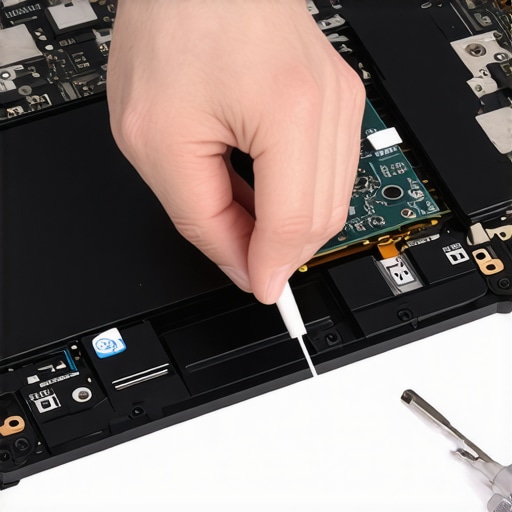
Disable the Power Before You Touch Anything Else
This is where most people fry their motherboards. Even if the laptop is ‘off,’ the battery is still pushing a small current to the CMOS and standby circuits. Before you even look at the fan, you must disconnect the internal battery. I’ve seen enthusiasts skip this step while performing a routine swap, only to drop a screw onto the board and watch a $400 spark fly. It’s one of the most common errors when replacing a laptop battery or internal component. Gently pull the plastic tab on the battery connector—never use metal tweezers here. Think of it like working on a car engine; you wouldn’t reach into the fan belt while the ignition is live.
Pop the Hood Without Scuffing the Finish
Modern business laptops are often held together by hidden clips and proprietary screws that require patience. Once the screws are out, don’t just yank the bottom panel. Use a plastic pry tool (your guitar pick works too) and slide it along the seam until you hear a satisfying ‘pop.’ This prevents the metal-on-metal scraping that service centers use as evidence to deny claims. If the panel feels stuck, stop. Check under the rubber feet; manufacturers love hiding a ‘security’ screw there. Once you’re inside, the fan is usually a self-contained module. You aren’t just doing this for the noise; it’s about longevity. If you frequently use tactics to stop your laptop from overheating on your bed, you know that dust is a silent killer.
Swap the Fan and Secure the Ribbon Cable
Most fans are held by two or three small screws. The tricky part is the ribbon cable. It’s thinner than a strand of spaghetti and just as fragile. Use your spudger to flip the tiny locking gate on the connector. Don’t pull the cable itself—slide it out by the reinforced plastic ‘ears.’ When you drop the new fan in, make sure no wires are pinched under the housing. If the cable isn’t seated perfectly, your laptop might boot but the fan won’t spin, leading to an immediate thermal shutdown. Before you close it all up, check how to find official repair guides for your specific model one last time to ensure you didn’t miss a secondary sensor cable hidden underneath the shroud.
Why a Cheap i7 Is Often Slower Than a Quality i5
Most people hunting for unbeatable laptop deals look at two things: the processor name and the price tag. But here is the contrarian truth: a top-tier i7 processor in a poorly cooled, ultra-thin chassis will almost always perform worse than a mid-range i5 in a well-ventilated machine. This happens because of thermal throttling. When that tiny fan we just discussed can’t keep up, the system intentionally slows itself down to avoid melting. I’ve seen enthusiasts spend an extra $300 on a ‘better’ CPU, only to realize their machine runs at half-speed during a long gaming session or a video export. This is especially true for gaming laptops where the thermal envelope is pushed to the absolute limit. Before you buy, check the ‘Sustained Performance’ benchmarks, not just the ‘Burst’ speeds. According to research by NotebookCheck, some thin-and-light models lose up to 30% of their performance within minutes of starting a heavy task. Knowing how to maintain your cooling system isn’t just about noise; it’s about getting the performance you actually paid for.
Why your student ID is more powerful than a Black Friday coupon?
If you are looking for student laptops that balance power and portability perfectly, stop waiting for the big holiday sales. The industry’s dirty secret is that ‘special’ holiday models are often manufactured with cheaper components—think lower-nit screens or plastic hinges—to hit those basement prices. Conversely, why your student ID is the best tool for laptop discounts is because it gives you access to the ‘Education’ portals of major manufacturers. These portals often sell the high-end, durable business laptops at consumer prices. You aren’t just getting a discount; you are getting a machine built to a higher standard. This is the smartest way to ensure you are learning how to pick a student laptop that lasts all four years rather than one that will end up in a landfill by sophomore year. 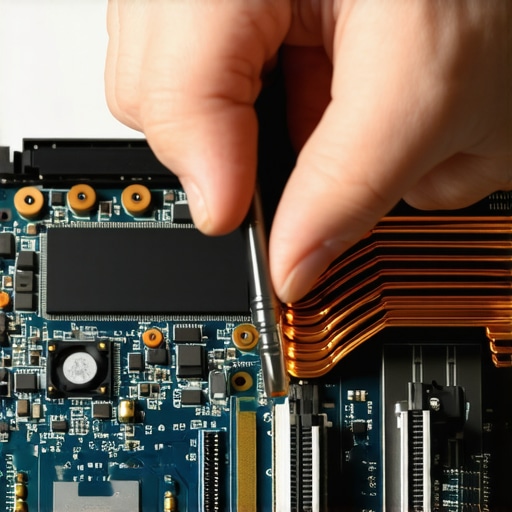
Don’t Let Soldered RAM Turn Your Machine into a Brick
The ‘Oops’ factor that catches even seasoned pros is the rise of soldered components. In the quest for thinness, manufacturers are permanently welding RAM and even SSDs to the motherboard. If one memory chip fails, you can’t just swap it out like we did with the fan; you have to replace the entire motherboard, which usually costs as much as a new laptop. I always point people toward the only 3 brands that still make easily repairable laptops because they offer a safety net that ‘glued-together’ ultrabooks simply don’t. You should also be aware of the hidden costs of choosing an ultra-thin business laptop, which often includes a lack of ports and a nightmare repair process. To truly maximize your hardware, some advanced users even go as far as re-pasting the factory cooling. Understanding why we swapped the thermal paste on our brand new laptop can give you a 5-10 degree drop in temperatures, extending the life of your hardware significantly. It’s a bit more advanced than a fan swap, but the principle is the same: you own the hardware, the hardware doesn’t own you. Have you ever fallen into the trap of buying a high-spec laptop only for the hinge or fan to die in six months? Let me know in the comments.
Why Generic Screwdrivers Will Eventually Cost You a Motherboard
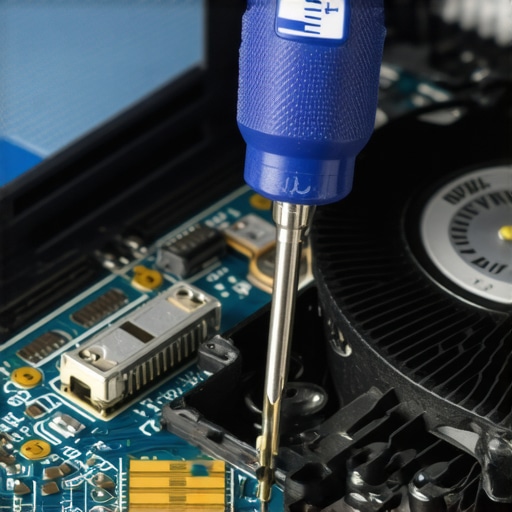
I have a rule: if the screwdriver came in a pack of ten for five dollars, it stays far away from my business laptops. I personally use Wera Kraftform Micro-stix because their tips are laser-treated to grip the screw head. When you are dealing with high-end game-changing gaming laptops for serious players in 2025, the factory often over-tightens the internal screws. A cheap, soft-metal driver will round off the edges of a T5 Torx head in a single second, turning a simple fan swap into a nightmare that requires a drill. These are the must-have laptop accessories to boost your work setup that actually matter. Using a magnetic project mat is my second non-negotiable rule; it prevents that one ‘stray’ screw from falling into the chassis and causing a short-circuit later. According to a technical analysis by iFixit, the increasing use of proprietary fasteners is a deliberate friction point designed to discourage end-user maintenance, making quality tools your first line of defense.
Software is the Early Warning System You Are Ignoring
You shouldn’t wait until you hear a grinding noise to check your hardware. I keep HWInfo64 running in the background once a month to look for ‘thermal throttling’ flags. If my CPU hits 95°C during a standard Zoom call, I know the thermal paste has dried out or the fins are clogged. This proactive approach is how you avoid searching for top laptop deals in 2025 prematurely. While you’re at it, run a SMART test on your storage; learning how to spot a dying ssd before your files vanish is the difference between a ten-minute clone and a week of data recovery. I’ve seen too many students lose a semester’s worth of work because they ignored a simple ‘Slow Boot’ warning.
How do I keep my cooling system healthy for the next five years?
The secret isn’t just cleaning; it’s cleaning correctly. Every six months, I use a can of compressed air, but here is the trick: I use a non-conductive toothpick to hold the fan blades still while I spray. If you let the fan spin freely from the air pressure, it can act as a generator, sending a reverse voltage back into the motherboard and frying a component. This simple habit is more effective than most how to clean the dust out of your laptop without opening it shortcuts. Additionally, keep an eye on your chassis. Catching a loose screw early is the best way of how to fix a wobbly laptop hinge before it snaps. If the hinge starts to feel stiff, a tiny drop of synthetic lubricant on the pivot point can save you from a cracked screen housing down the road.
Why the Future of Laptops Looks a Lot More Like Legos
We are entering a new era where the ‘throwaway’ culture of electronics is finally being challenged. I predict that by 2027, the ‘Repairability Score’ will be as prominent as the RAM or CPU specs on every product listing. We are already seeing this shift with the only 3 brands that still make easily repairable laptops gaining massive market share among professionals. The trend is moving toward modularity—where swapping a port or a keyboard is as easy as changing a SIM card. If you want to stay ahead of the curve, I highly recommend downloading a hardware monitor today and checking your ‘idle’ temperatures. If they are over 50°C, it’s time to crack open that toolkit and give your machine the breath of fresh air it deserves.
I have spent years under the hood of everything from budget-friendly student laptops to high-performance workstations, and I have learned that the difference between a successful fix and a bricked machine often comes down to the things no one tells you in the manual. Taking control of your hardware is a rite of passage for any power user.
3 Mistakes I Made So You Do Not Have To
When I first started tinkering, I assumed that as long as the screws were back in, I was fine. I was wrong. Here are the hard truths about maintaining business laptops and gaming rigs:
- The Static Trap: I once fried a motherboard because I worked on a carpet while wearing wool socks. Always use an anti-static wrist strap or at least touch a grounded metal object before diving into your game-changing gaming laptops for serious players in 2025.
- Over-tightening is a Death Sentence: Laptop chassis are often made of plastic or thin magnesium. If you crank a screw too hard, you will crack the standoff. Tighten until you feel resistance, then stop.
- Generic Air Cans Are Risky: Many cheap cans of compressed air can spit liquid refrigerant if tilted. That moisture can cause immediate shorts. I switched to a dedicated electronic blower years ago and never looked back.
The Gear I Actually Use to Save My Machines
You do not need a laboratory, but you do need a few specific must-have laptop accessories to boost your work setup and repair success rate. These are the tools I trust: must-have laptop accessories to boost your work setup. First, a magnetic project mat is vital; it keeps your screws organized so you do not put a long screw into a short hole and pierce your screen. Second, I only use non-conductive nylon spudgers for prying. Metal tools are for unbeatable laptop deals you do not care about breaking; nylon is for the machines you love. Finally, I always keep a bottle of 99% Isopropyl alcohol nearby for cleaning off old, crusty thermal paste before applying a fresh layer. If you are shopping for unbeatable laptop deals, remember that the cost of these tools is an investment in that machine’s five-year lifespan.
Your Path to a Forever Laptop
Repairing your own fan or upgrading your storage is the first step toward breaking the cycle of planned obsolescence. When you know how to navigate the internals of business laptops for professionals, you stop being a victim of the manufacturer’s repair pricing. Check out the business laptops for professionals that actually allow these upgrades. You bought the hardware; you should have the right to keep it running as long as the silicon is relevant. Do not let a little plastic sticker or a tiny screw intimidate you from getting the performance you paid for. Have you ever found a mystery screw left over after putting your laptop back together? Let me know in the comments below.