
I reached into my backpack during a quiet morning lecture, expecting to pull out a cool piece of aluminum. Instead, I grabbed what felt like a hot frying pan. My laptop was roasting. The fans were spinning at maximum velocity inside a cramped, airless pocket, and the battery had plummeted from 95% to a measly 12% in just forty minutes. It was terrifying. I genuinely thought I’d fried the motherboard before the professor even finished the attendance. I’ve been there, staring at a black screen and a blinking orange light, wondering why on earth my computer decided to wake up and run a marathon while tucked away in my bag.
Your Backpack Shouldn’t Feel Like a Microwave
The “Toasted Backpack Syndrome” is a rite of passage for almost everyone using student laptops these days. It doesn’t matter if you have a sleek ultrabook or one of those powerful business laptops; Windows has this incredibly annoying habit of “waking up” to check for updates or sync emails while it’s supposed to be asleep. I used to make the amateur mistake of assuming that closing the lid meant the computer was actually off. I’ve even seen people struggle with tactics to stop your laptop from overheating on your bed, only to find the same issues happening in their bags. I’m going to show you how to fix this for good. We are going to dive into the settings and kill the “wake timers” that are draining your sanity. We’ll also look at how certain laptop accessories might be the secret culprits behind your laptop’s sudden insomnia. My goal is to make sure that when you pull your computer out at a meeting, it’s actually ready to work, not gasping for air.
Is Modern Standby Actually Working?
You might be wondering if your laptop is just “broken” or if this is a design flaw. Honestly, it’s a bit of both. Microsoft introduced a feature called “S0 Low Power Standby”—commonly known as Modern Standby—which is designed to let your laptop behave more like a smartphone, staying connected even when the screen is off. However, technical analysis from hardware experts suggests that these background tasks can trigger significant thermal spikes if the device lacks ventilation, which is exactly the situation inside a backpack. According to documentation on Windows ACPI states, this S0 state allows the CPU to remain partially active, often leading to devices reaching over 50 degrees Celsius while enclosed. It’s supposed to be convenient, but for many of us, it’s just a way to kill a battery and stress out the hardware. Early on, I tried to “fix” this by just letting the battery drain completely once a week, thinking it would “calibrate” the system. That was a huge mistake that likely shortened my battery’s lifespan. Have you ever reached into your bag and felt that alarming warmth? Tell me I’m not the only one who has had a “mini-heart attack” over a hot laptop.
Kill the Wake Timers Before They Kill Your Battery
Before we get into the more technical registry edits, we need to check the simple things first. Sometimes, it isn’t even a Windows update causing the stir. I’ve found that small items every student should keep in their laptop bag, like a wireless mouse dongle, can be the primary suspect. If that little receiver gets nudged, it tells the laptop to wake up and look for its owner. This is especially true if you are carrying around one of those high-performance gaming laptops that already runs a bit warm. We’ll start by looking at your Power Options and finding the “Allow wake timers” setting. This is the “on-off” switch for most of the nonsense that happens behind your back. By disabling these, you’re telling Windows that when you say sleep, you actually mean it. No more midnight updates, and no more thermal throttling before you’ve even opened your first Excel sheet. Let’s get into the step-by-step process of reclaiming control over your hardware.
Stop Your Mouse from Waking the Beast
I remember a flight where I almost had a full-blown security incident because my backpack started radiating heat like a space heater. I didn’t have a fire; I just had a wireless mouse that kept clicking inside the side pocket, waking my ultrabook every ten seconds. I had to rip the USB dongle out and let the machine cool on the tray table for twenty minutes. It was embarrassing, but it taught me a lesson: those tiny laptop accessories are often the primary reason your computer won’t stay asleep. To stop this, you need to dive into the Device Manager. Find your ‘Mice and other pointing devices,’ right-click your specific mouse, and under the Power Management tab, uncheck ‘Allow this device to wake the computer.’ This is a non-negotiable step if you use gaming mice or wireless dongles that stay plugged in while you travel. If you don’t do this, every bump in your commute is a potential signal for your laptop to turn on its screen and start crunching data in a confined, padded space. 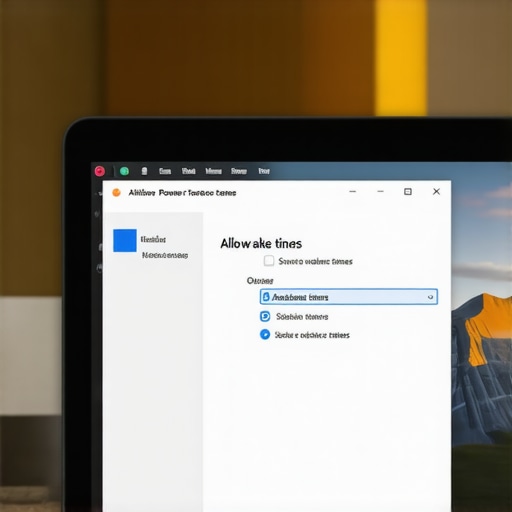
Kill Wake Timers in Your Power Plan
The most effective way to handle a software-based ‘phantom wake’ is to neuter the wake timers. These are scheduled tasks—like Windows Update or a random cloud sync—that have permission to pull your PC out of sleep mode. You need to head into the ‘Edit Power Plan’ settings, click on ‘Change advanced power settings,’ and look for the ‘Sleep’ tree. Inside, you’ll find ‘Allow wake timers.’ Set this to ‘Disable’ for both Battery and Plugged In. This is one of the most important tactics to stop your laptop from overheating because it essentially puts a padlock on the power button. I’ve seen business laptops lose half their charge in a lunch meeting just because Outlook decided it needed to sync folders while the lid was closed. By killing these timers, you ensure that ‘Sleep’ actually means ‘Sleep.’
Use Event Viewer to Find the Smoking Gun
If your laptop is still coming out of its bag hot, you need to play detective. Windows actually keeps a log of exactly what woke your computer. Press the Windows key, type ‘Event Viewer,’ and navigate to Windows Logs > System. Look for an event source called ‘Power-Troubleshooter.’ When you click on these entries, it will tell you the ‘Wake Source.’ Sometimes it’s a network card, and other times it’s a specific piece of software. I once found that a poorly optimized chat app was waking my student laptop every hour. Identifying the specific app is better than blindly guessing. If you find that ‘Modern Standby’ is the culprit and you have one of those gaming laptops that runs hot by default, you might even consider switching your ‘Close lid’ action to ‘Hibernate’ instead of ‘Sleep.’ Hibernation saves everything to the SSD and completely cuts power, which is the only 100% foolproof way to prevent a thermal meltdown in a backpack.
The Myth of the Cool-Running Pro Machine
Most people think that if they spend more on premium business laptops, they are buying better thermal management. In reality, the opposite is often true. We’ve been conditioned to believe that ‘Pro’ or ‘Enterprise’ means efficiency, but thin-and-light designs are actually the worst offenders for heat retention. When you hunt for top laptop deals, you’re often looking at machines that have crammed high-performance components into a chassis that literally cannot breathe. I’ve seen students snag game-changing gaming laptops only to realize they throttle so hard they perform worse than basic student laptops once they get even slightly warm.
Can Your SSD Actually Be the Reason Your Laptop Overheats?
Here is the nuance most beginners miss: it isn’t always the CPU waking up. Modern NVMe drives are incredibly fast, but they are also tiny furnaces. Technical analysis from experts at NotebookCheck reveals that modern processors often exceed their rated Thermal Design Power (TDP) by 50% or more during ‘burst’ tasks—like a background virus scan or a cloud sync—that Windows loves to run the moment you close the lid. If your SSD is active in a confined space, it can reach temperatures that trigger a thermal shutdown before the fans even have time to ramp up. This is a massive ‘Oops’ factor for anyone who thinks a padded bag is protecting their tech; you aren’t just protecting it from drops, you’re insulating the heat. 
Stop Buying Specs and Start Buying Airflow
The trap many fall into is buying a laptop based on the spec sheet alone. They see 32GB of RAM and a fast clock speed and think they’ve found a winner. But if the chassis doesn’t have a clear exhaust path, that hardware is useless. Why gaming laptops still struggle with thermal throttling is simple: physics doesn’t care about your budget. The hidden downside of ultra-thin gaming laptops is that they are essentially ticking time bombs when placed in a backpack because their ‘Modern Standby’ state keeps the high-wattage components on a hair-trigger. If you want a machine that survives, you need to look for larger intake vents, even if it adds a few millimeters of thickness.
The Real Price of Portability
When you’re trying to figure out how to pick a student laptop that lasts, you have to look past the marketing fluff. A laptop that runs hot in your bag isn’t just a nuisance; it’s actively degrading its own battery and solder joints. I’ve even noticed the real reason your laptop power brick is getting extremely hot is often tied to the machine trying to fast-charge a battery that was just cooked in a backpack for an hour. It’s a vicious cycle of thermal stress. We need to stop prioritizing ‘thin’ over ‘functional’ if we want our gear to last through a four-year degree. Have you ever fallen into this trap? Let me know in the comments.
Get the Gunk Out Before the Fans Quit
Maintenance isn’t just about deleting old files; it’s about physical longevity. Every six months, I take my electric duster to the intake vents. If you’ve never done this, you’d be shocked at the felt-like layer of dust choking your heatsink. I’ve seen student laptops that balance power and portability perfectly turn into sluggish bricks simply because the fans couldn’t pull air through the fins. If you aren’t comfortable opening the casing yet, you should at least learn how to clean the dust out of your laptop without opening it to keep the airflow consistent. This is especially vital if you use your machine in bed or on carpets where lint is a constant threat.
The Pro Toolset for Hardware Lifespan
One tool I swear by is a precision driver set. You need the specific screwdriver kit you need to open 90% of modern laptops if you want to do any real maintenance. Once inside, the first thing I often do—even on a brand-new machine—is a repaste. It sounds extreme, but the logic behind why we swapped the thermal paste on our brand new laptop comes down to the fact that factory applications are often dry or unevenly applied. Switching to a high-quality compound like Thermal Grizzly Kryonaut can drop temperatures by 5-10 degrees Celsius instantly. For software-side monitoring, I rely on HWiNFO64. It’s a free utility that gives you the ‘true’ story of what’s happening under the hood. It shows you if your CPU is ‘Thermal Throttling’—which is basically the computer screaming for help. For those using high-end business laptops for professionals, keeping an eye on these sensors can prevent a premature motherboard failure. 
How do I maintain my laptop’s performance over several years?
Longevity is a game of heat management and power cycles. Beyond the physical cleaning, I use a ‘Sunday morning’ strategy to check for bloatware and unnecessary background services. This is one of the only 3 ways to genuinely speed up a slow laptop that actually works. Technical data from Puget Systems highlights that hardware failure rates often spike when devices are consistently run at their thermal limits. To combat this, I recommend setting a battery charge limit (usually 80%) through your manufacturer’s software. Keeping a battery at 100% while plugged in 24/7 is the fastest way to kill its chemistry.
Where Portable Power is Heading
Looking ahead, I predict that ‘Modern Standby’ woes will eventually be solved by AI-driven NPU (Neural Processing Unit) power management. Future laptops will likely use these low-power chips to handle background syncs and updates with 90% less heat than the main CPU. Until then, the responsibility is on us. I strongly encourage you to try one advanced tip today: download HWiNFO64 and check your ‘CPU Package Temperature’ while doing a normal task. If you’re hitting 90°C while just browsing, it’s time to act.
The Hardest Lesson I Learned About Portable Heat Management
Over the years, I’ve realized that the “perfect” machine doesn’t exist on a spec sheet alone. I used to chase the thinnest laptop deals thinking portability was the only metric that mattered. The truth? A thin laptop that throttles is actually slower than a slightly thicker one that can breathe. I also learned that software is often a bigger threat than physical dust. You can have a pristine fan, but if Windows decides to run a search index while your laptop is in a padded sleeve, that hardware is suffering. It changed my perspective: I no longer look for the smallest student laptops; I look for the ones with the most intelligent venting.
Tools That Keep My Gear Running Like New
Maintaining high-performance gaming laptops or reliable business laptops requires more than just a microfiber cloth and standard laptop accessories. Here is what I keep in my desk drawer: first, HWiNFO64 is non-negotiable for monitoring thermal health. Second, I always keep the specific screwdriver kit you need to open 90% of modern laptops nearby for those bi-annual dustings. #IMAGE_PLACEHOLDER_E# For my travel setup, I’ve switched to a specific power strategy, which is why we only use 100w pd chargers for our workstations now—they are more efficient and generate less heat during the charging cycle. Lastly, never underestimate the bag itself; checking out why we only recommend these 3 student backpacks helped me find options that don’t crush the vents when the bag is full.
Reclaiming Your Hardware’s Longevity
Don’t let your computer dictate when it works and when it wastes energy. Whether you are rocking high-end business laptops for professionals or more affordable student laptops, you have the power to stop the “toasted backpack” cycle. By disabling wake timers and keeping your fans clear, you’re not just stopping a minor annoyance—you’re extending the life of your investment by years. It’s time to treat your tech with the respect it deserves so it’s actually ready when you are. Have you ever pulled a burning-hot laptop out of your bag and wondered if it was going to survive? Let me know your close calls in the comments below!