
I was sitting in a cramped airport terminal, thirty minutes away from boarding a six-hour flight across the country, when my laptop screen suddenly flickered and died. I had been ‘saving’ my work for the plane ride, but the battery had dropped from 80% to 15% while the lid was closed in my bag. I felt like an absolute rookie. I’ve spent years testing business laptops for professionals, and there I was, hunting for a wall outlet like a frantic traveler in a desert. It wasn’t a hardware failure; it was the ‘vampire’ features buried in the operating system. If you have ever wondered how to fix your laptop battery if it only lasts one hour, you are likely fighting the software, not the lithium cells. We are going to stop that today. My goal is to help you squeeze every possible minute out of your machine, whether you are using student laptops that boost productivity or a heavy-duty workstation.
The Day I Realized My Settings Were Working Against Me
I used to think that ‘Battery Saver’ mode was a magic wand. I would click that little leaf icon and assume I was suddenly a green-energy guru. I was wrong. Early in my career, I made the classic mistake of ignoring background indexing and ‘Fast Startup’—two features that sound helpful but actually keep your components humming while you think they are asleep. I once lost an entire morning of work because I assumed my laptop was ‘off’ when it was actually just indexing five thousand emails in the background. This is especially brutal for those who hunt for top laptop deals in 2025 only to find their new gear doesn’t last half as long as the box promised. Windows is essentially a chatterbox; it wants to talk to servers, index your files for a search you might never perform, and keep apps ‘ready’ just in case. But ‘just in case’ is killing your mobility. Even when I finally found unbeatable laptop deals, the first thing I had to do was gut these settings. It is the only way to ensure your must-have laptop accessories, like portable monitors, don’t drain the main unit in twenty minutes.
Is Windows Actually Designed to Drain Your Battery?
It certainly feels that way when you are down to 4% and still have three slides to finish for a presentation. The truth is more boring: Microsoft prioritizes ‘instant-on’ convenience over raw endurance. Research has shown that background telemetry and constant update-checking can sap significant power; in fact, some experts at PCWorld have noted that aggressive background processes can slash battery life by nearly a quarter in certain configurations. This isn’t just a nuisance for gaming laptops for serious players that already struggle with power; it’s a productivity killer for everyone. Have you ever opened your bag only to find your laptop is hot to the touch and half-dead? That is ‘Modern Standby’ failing you. Today, we are going to walk through the exact toggles you need to flip to take back control. No more tethering yourself to a wall like a desktop from the nineties.
Slash the Background Noise and Save Your Cells
Imagine your laptop is a high-performance athlete. If that athlete is trying to run a marathon while juggling five oranges and reciting poetry, they are going to collapse. Background apps are those oranges. I remember working on a project where my laptop was dying in under two hours. I had just snagged one of those top laptop deals in 2025 and felt cheated. It turned out that ‘News and Interests’ and half a dozen ‘helper’ apps were pinging the processor every few seconds. If you find your machine is sluggish, it is often because 8GB of RAM is no longer enough to handle the bloat Windows ships with by default.
Stop the Silent Drains in the Task Manager
Open your Task Manager (Ctrl+Shift+Esc) and look at the ‘Startup’ tab. Most of what you see there is dead weight. When you are setting up student laptops that boost productivity and learning, you need to be ruthless. Disable anything that isn’t essential for the system to boot. I once found a ‘print helper’ app on a refurbished unit that hadn’t seen a printer in three years but was still munching on my CPU cycles. This is especially vital for business laptops for professionals where every percentage point matters during a presentation.
The Fast Startup Paradox
This is the ‘vampire’ I mentioned. Fast Startup doesn’t actually shut your computer down; it hibernates the kernel. This means your hardware never truly rests. While this makes the machine feel snappy when you open the lid, it can lead to weird power leaks that leave you wondering how to fix your laptop battery if it only lasts one hour. I disabled this on my main rig and instantly gained an extra 45 minutes of standby time. To do this, go to Power Options, find ‘Choose what the power buttons do,’ and uncheck ‘Turn on fast startup.’ It is the best way to configure a new business laptop if you actually want it to last through a long-haul flight.
Manage Your Display and External Gear
Brightness is the most obvious thief. I have found that the best laptop screen brightness for working in direct sunlight is usually ‘as low as you can stand’—the extra nits are just burning juice. Also, disconnect those must-have laptop accessories to boost your work setup if you aren’t using them. A plugged-in USB-C hub is a constant power draw, even if nothing is attached to the hub itself. I once left a security dongle plugged in overnight and woke up to a 20% drop; now, I am even careful about why your business laptop needs a privacy filter since they can sometimes tempt you to crank the brightness higher to compensate for the narrowed viewing angles.
Tame the Graphics Processor
If you are using gaming laptops for serious players, you probably have a dedicated GPU. For heaven’s sake, make sure your system is switching to integrated graphics when you’re just writing emails. Using a high-end card to scroll a PDF is like using a blowtorch to light a candle. It is the fastest way to turn a premium machine into a paperweight before noon.
Most people still treat their modern laptops like the nickel-cadmium bricks from 1998. They think they need to drain the battery to zero to ‘train’ it. In reality, that is a fast track to a dead cell. Expert research from Battery University indicates that deep discharge cycles significantly increase the stress on lithium-ion batteries, reducing their overall lifespan. If you are constantly running your machine down to the red line, you are essentially aging it prematurely. This is a common trap when hunting for unbeatable laptop deals—you get a great machine and then kill its longevity in six months with bad habits. I have seen countless users buy gaming laptops for serious players and treat the battery like a disposable resource, only to complain when it swells or dies within a year.
Why Does Your Charging Stop at Eighty Percent?
You might notice your laptop refusing to hit that 100% mark. Don’t panic; it isn’t broken. In fact, the reason your laptop battery won’t charge past eighty percent is usually a deliberate smart-charging feature. High voltage levels required to top off a battery generate heat and chemical stress. By capping the charge, manufacturers extend the total number of cycles the battery can handle. This is the ‘hidden nuance’ of business laptops for professionals designed for longevity. I used to override this setting because I wanted that 100% number for my ego, but I paid for it a year later when my capacity plummeted. If you are looking at top laptop deals in 2025, check if the BIOS includes these health management tools.
Don’t Fry Your Motherboard with Cheap Spares
The biggest ‘oops’ factor I see with student laptops that balance power and portability is the use of ‘universal’ chargers found on bargain sites. It is remarkably easy to learn how to spot a fake charger before it fries your motherboard if you know what to look for—weight, UL certification, and pin quality—but many ignore it. These chargers often have ‘dirty’ power delivery that causes microscopic damage to your battery’s health every single time you plug it in. There is a lot of nuance in the truth about high wattage chargers and battery longevity; specifically, that heat is the enemy, not the wattage itself. Using a high-quality PD charger is one of the few ways how to fix your laptop battery if it only lasts one hour by preventing further degradation. Have you ever fallen into this trap of buying a cheap replacement? Let me know in the comments.
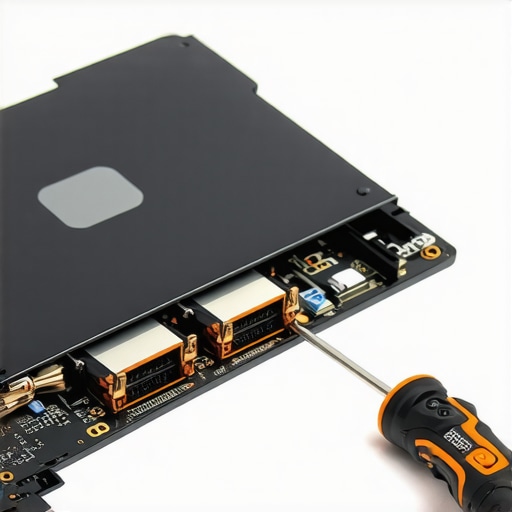
Beyond the charger, physical maintenance is the next frontier of laptop longevity. I’ve learned that hardware lifespan is rarely about luck; it’s about the tools you keep in your desk drawer. Most people are terrified of opening their chassis, but the specific screwdriver kit you need to open 90 of modern laptops costs less than a fancy lunch and can save you a fortune in repair fees. I personally keep a set of precision bits handy because the only 3 brands that still make easily repairable laptops often hide their screws under adhesive rubber strips. If you want student laptops that balance power and portability perfectly to actually last until graduation, you have to blow out the dust every six months. I’ve seen fans get so choked with lint that the CPU starts downclocking to 800MHz just to stay alive. Knowing how to replace a dead laptop fan without voiding the warranty is a superpower in the digital age.
How do I maintain my laptop internals over time?
Physical cleaning is only half the battle. I use a tool called HWInfo64 to keep an eye on my Tjunction or junction temperature. According to Intel’s technical documentation on processor thermal monitoring, running a processor at its maximum thermal limit for extended periods can eventually lead to performance degradation, even though modern chips are remarkably resilient. I look for Thermal Throttling flags in red text. This is why gaming laptops still struggle with thermal throttling in small frames; the heat simply has nowhere to go. If I see those flags during a normal workflow, I know it’s time to re-apply thermal paste or at least check the vents for obstructions.
The Diagnostic Software Every Pro Should Run
As we look toward the future, I predict we will see a massive shift toward modularity in the next three to five years. We are already seeing the early stages where users demand to know how to find out if your laptop can be upgraded before they even look at the price tag. The era of disposable tech is slowly being choked out by Right to Repair legislation. Soon, buying business laptops for professionals won’t just be about the initial specs, but about how easily you can swap the motherboard in five years. My advice? Start by downloading a tool like CrystalDiskInfo. It’s one of the only 3 ways to genuinely speed up a slow laptop by identifying a failing SSD before it takes your data with it. I want you to try one thing tonight: go into your BIOS or manufacturer power app and find the battery charge limit setting. Set it to 80% and watch your battery health stay Excellent for the next three years instead of just one.
The Hard Truths I Learned After Killing Three Different Power Cells
If there is one thing I have realized after years of testing business laptops for professionals, it is that ‘convenience’ is usually the enemy of battery health. I used to be the person who kept my machine plugged in 24/7, thinking I was being efficient, but I was actually cooking the internals. Here are a few lightbulb moments I had to learn the hard way:
- The ‘Sleep’ Trap: Modern standby is a battery vampire. If you aren’t going to use your laptop for more than an hour, use hibernation. I spent months wondering why my bag was warm until I realized my laptop was waking up to check for emails while I was commuting.
- Heat is a Chemical Killer: It isn’t just about fan noise; heat physically degrades lithium-ion cells. If you have ever wondered how to fix your laptop battery if it only lasts one hour, the answer usually starts with better thermal management.
- Software Bloat is Real: Most ‘slow’ laptops are actually fast machines buried under layers of telemetry. You often do not need a new device; you just need to learn the only 3 ways to genuinely speed up a slow laptop by stripping back the OS.
The Survival Kit for Your Digital Lifeline
I don’t leave the house without a few specific tools—some digital, some physical—that keep my workflow from collapsing. When I am setting up student laptops that boost productivity and learning, these are the non-negotiables I install first. I highly recommend HWInfo64 for real-time thermal monitoring; it is the most reliable way to catch a failing fan before it throttles your CPU. I also suggest everyone own the specific screwdriver kit you need to open 90 of modern laptops. Being able to physically blow the dust out of your machine once a year is the difference between a three-year and a six-year lifespan. Finally, I rely on the Windows Battery Report (generated via command prompt) to see the honest truth about my cell’s health versus what the software icon claims.
Take Control of Your Machine and Stop Fearing the Red Battery Icon
Your laptop should be an extension of your intent, not a source of anxiety. Whether you are using high-end business laptops for professionals or a budget-friendly workstation, the power is in your hands to make it last. By applying the best way to configure a new business laptop right out of the box, you are setting yourself up for a frustration-free digital experience. Don’t let the factory defaults dictate your productivity. Have you ever found a hidden setting or a specific background app that was secretly draining your battery? Let me know in the comments below!