
I remember sitting there at 2 AM, the blue light of my screen reflecting off my tired eyes, when my laptop suddenly sounded like a jet engine preparing for takeoff. It wasn’t just a hum; it was a desperate, rattling wheeze. My palms were sweating, and not because of the deadline. I was terrified. I knew the heat was killing my performance, but the thought of taking a screwdriver to my expensive machine made my stomach churn. I’ve seen too many horror stories of snapped plastic clips and lost screws to ever want to open the casing unless it was a total emergency. If you have ever felt that same dread—the fear that your tech is slowly suffocating while you feel powerless to help—you are in the right place. I am going to show you how to be a detective without ever voiding your warranty.
Stop Guessing and Start Looking at Your Vents
I used to think that as long as I kept my desk clean, my internal fans would stay pristine. Boy, was I wrong. Even if you are using one of those top business laptops for productivity in 2025, dust is an invisible enemy that finds its way into every nook and cranny. It is the real reason your laptop feels sluggish after three months of heavy use. You do not need to be a certified technician to realize that your cooling system is struggling; you just need to know what signs to look for. Today, I am sharing the exact methods I use to peer inside the ‘lungs’ of my computer without moving a single screw. We are going to solve the mystery of your rising temperatures together, using nothing but a few household items and a bit of patience.
Can you really spot debris through those tiny grilles?
Many people assume that the intake vents are too small to reveal anything useful, but that is a common misconception. I actually made a massive mistake early on by assuming my fans were fine just because the exterior looked clean. I even wasted money on accessories, failing to realize that most laptop cooling pads are a waste of money if the internal airflow is already choked by hair and lint. A surprising fact found in thermal management studies is that dust isn’t just ‘dirt’; it often contains skin cells and fabric fibers that create a literal felt-like blanket over your heat sink. According to research from the University of Utah, even a microscopic layer of dust can act as an insulator, trapping heat and forcing your processor to throttle its speed to survive. I once tried to ‘clean’ my vents with a high-powered household vacuum—a move that ended with a static shock that nearly fried my motherboard. Learn from my panic! We are going to do this the safe way. Have you ever noticed your keyboard getting uncomfortably warm during a simple Zoom call? Let me know in the comments, because that is usually the first red flag that your fans are struggling for air. Let’s dive into how we can confirm those suspicions without breaking the seal on your chassis.
Why Your Eyes are Better Than Any Benchmark
I’ve spent years benchmarking game-changing gaming laptops for 2025 adventures, and I can tell you that software alone doesn’t tell the whole story. You need a visual. Think of your laptop’s cooling system like a set of lungs; if the ‘airway’ is blocked, no amount of software optimization will save it. Before you assume your hardware is failing, you need to perform a physical check that requires zero tools.
Shine a Light on the Problem
The most effective tool in your kit isn’t a screwdriver—it is a high-lumen LED flashlight. I recommend turning off the lights in your room and shining the beam directly into the intake vents (usually on the bottom) and the exhaust vents (usually near the hinge). I’ll never forget the time I spent forty minutes trying to figure out why my FPS was tanking; I thought it was a driver issue, but when I finally pointed a light at the intake of my rig, I saw a literal ball of gray lint wedged against the copper fins. It looked like a tiny rodent had tried to move in. If you see a ‘felt-like’ texture or matted hair, you’ve found your culprit. This blockage is often the real reason your laptop power brick is getting extremely hot as the system overcompensates for the lack of airflow. 
Listen for the Whine Before It Becomes a Grind
While your eyes see the dust, your ears can hear the mechanical struggle. A healthy fan should sound like a consistent ‘whoosh.’ If you hear a high-pitched whistling or a rhythmic clicking, something is physically obstructing the path. This is especially common in ultrabooks where the tolerances are razor-thin. I once ignored a slight rattling sound, only to realize later that a tiny piece of plastic from a cheap accessory had been sucked into the blades. If you can’t hear it clearly, use a free tool like HWInfo64 to monitor your RPMs. If your fans are spinning at 5,000 RPM but your CPU is still hitting 95°C, the air simply isn’t moving. In these cases, you might need to how to undervolt your gaming laptop for better temps and performance just to keep things stable while you address the physical blockage.
Clean the Airflow Without the Risk
Now, let’s talk about the ‘Safe Blast’ method. Never, under any circumstances, should you use a vacuum cleaner or a high-pressure air compressor. The static buildup from a vacuum can fry a motherboard instantly, and a compressor can spin a fan so fast it generates a back-voltage that kills the fan controller. Instead, use short, half-second bursts of canned air. Hold the can upright—never upside down, or you’ll spray liquid refrigerant—and aim at the exhaust first to push the dust back out through the larger intake. This is the best way to how to stop your laptop fan from rattling without buying parts or risking your warranty. I’ve seen people panic when they see a cloud of dust emerge, but that ‘dust cloud’ is literally your performance returning to the machine. If you find that your device is still overheating, check if you are accidentally blocking the vents, which is why your laptop is getting hot while the lid is closed or resting on a soft surface. Use these manual checks regularly to maintain peak speeds.
I have seen a lot of people make the mistake of thinking that once the dust is gone, the job is done. But here is the contrarian truth: cleaning your vents is often just a band-aid. Everyone tells you to blast some canned air and call it a day, but in my experience, that often exposes a deeper issue you didn’t know you had. If your machine is more than two years old, you aren’t just fighting dust; you are fighting the laws of chemistry. The thermal interface material (TIM) between your chip and the heat sink eventually dries out, turning from a conductive paste into a brittle, insulating crust. You could have the cleanest fans in the world, but if the heat can’t jump from the silicon to the copper, your fans will still scream at max volume.
Why does your fan only get louder after you’ve cleared the blockage?
It sounds counterintuitive, right? You cleaned the vents, yet the noise is more piercing than ever. This is a classic nuance known as fan bearing fatigue. When dust builds up, it often creates a slight resistance that keeps the fan from reaching its absolute maximum RPM. Once you remove that resistance, the fan spins faster than it has in months, revealing worn-out bearings that now rattle or whine. This is exactly why your laptop fan only gets louder after cleaning. If this happens, you might need to look into how to stop your laptop fan from rattling without buying parts, though sometimes a replacement is the only real cure for a mechanical failure.
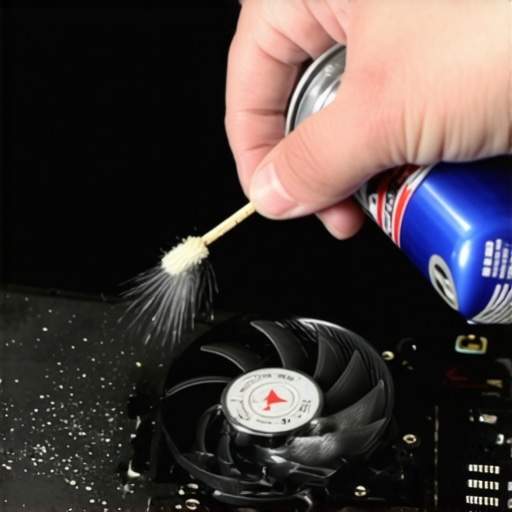
The biggest ‘oops’ factor I see with advanced users is the ‘Fan Spin Trap.’ When you use compressed air, it is incredibly satisfying to hear that fan spin up to a high-pitched whistle. Do not do this. Allowing a fan to spin freely from a blast of air can turn it into a small generator. This produces back-voltage that can travel back into the motherboard and fry delicate components. Always use a non-conductive toothpick or a finger to hold the blades still while you clean them. It is a simple step that separates the pros from the people who end up with a dead laptop and a voided warranty. This is especially vital when prepping game-changing gaming laptops for 2025 adventures where the fan assemblies are more complex and expensive to replace.
If you have cleared the dust and the fans are healthy, but you are still seeing 95°C on your dashboard, you need to be brave. A study published in the Journal of Thermal Analysis and Calorimetry found that traditional silicone-based thermal greases can lose up to 30% of their effectiveness after just 24 months of high-temperature cycling. This is why I suggest learning how to replace your laptop thermal paste without breaking anything. It is the single most effective way to restore ‘day one’ performance. While you are at it, make sure you aren’t falling for marketing fluff; remember that why most laptop cooling pads are a waste of money if your internal paste is the bottleneck. Have you ever fallen into this trap of cleaning your fans only to find the temps didn’t budge? Let me know in the comments, because you likely need a repaste or an undervolt to solve the real problem.
The Toolkit I Actually Carry in My Bag
I have spent enough time hunting for the right screwdriver under my couch to know that good tools are not just a luxury; they are a necessity. When I am working on business laptops for professionals, I never touch a screw without my iFixit Pro Tech Toolkit. The reason is simple: modern manufacturers love using proprietary Pentalobe and Torx Security screws that strip the moment you use a generic hardware-store driver. Along with a good set of bits, I always keep a bottle of 99% isopropyl alcohol and a pack of lint-free microfiber wipes. These are truly must-have laptop accessories to boost your work setup because they ensure that when you do clean your internals, you aren’t leaving behind static-charged fibers that could cause a short. In fact, Intel’s official technical documentation, specifically the ‘Intel® Core™ i9-13900K Processor Datasheet, Volume 1,’ emphasizes that even minor inconsistencies in thermal application or mounting pressure can lead to localized ‘hot spots’ on the silicon, which software alone cannot fix. This is why having a precision driver set like the $10 tool that fixes every squeaky laptop hinge is vital for anyone serious about longevity. 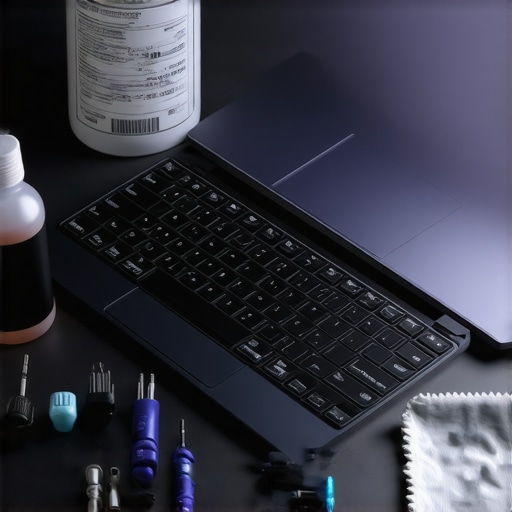
How do I keep my workstation running like new for years?
Maintenance isn’t just a physical act; it is a software habit. For student laptops that balance power and portability perfectly, I recommend a ‘Deep Clean’ every six months. This involves blowing out the vents with canned air while the fans are immobilized, followed by a software purge. You would be shocked at how to disable Windows features that eat your battery life to drastically reduce the heat load on your CPU. When your processor doesn’t have to work as hard on background telemetry, it stays cooler, which prevents the fans from ramping up and sucking in more dust. It is a virtuous cycle. If you neglect this, you’ll eventually notice the real reason your gaming laptop feels sluggish on battery is actually thermal throttling happening in real-time. Consistency is the secret sauce here. Don’t wait for the noise to start; stay ahead of the dust.
Why I Think Fanless High-Performance Laptops are Coming
Looking at where the industry is headed, I predict we are about to see a massive shift in how we handle heat. We are already seeing ‘solid-state cooling’ technology, like the AirJet chips from Frore Systems, which move air using ultrasonic vibrations instead of spinning blades. This means the end of the ‘jet engine’ sound and the end of mechanical fan failure. Until those become standard in the top laptop deals in 2025, we have to be our own mechanics. My challenge to you: download ThrottleStop tonight and simply look at your ‘Offset Voltage’ settings. You don’t have to change anything yet, but seeing how your CPU handles power is the first step toward true hardware mastery. Don’t be a passive user; be the one who knows exactly why their machine is humming.
Lessons Learned from the Frontlines of Fried Motherboards
Over the years, I’ve learned that maintenance isn’t just about the tools you own, but the habits you build. One of the biggest ‘lightbulb moments’ for me was realizing that environmental humidity is the secret partner-in-crime for dust. In humid climates, that dry lint turns into a sticky, conductive sludge that no amount of canned air can move. It is why I started keeping a silica gel pack in my laptop bag. Another hard lesson? Never trust your ‘Lap’ to be a good surface. I learned the hard way that why you should never use your laptop on a soft blanket—it acts like a thermal insulator and a dust magnet simultaneously. Finally, don’t ignore the software; undervolting isn’t just for enthusiasts anymore. It’s a necessary skill for anyone owning game-changing gaming laptops for 2025 adventures if you want them to survive past the warranty period.
The Gear I Actually Use to Save My Tech
I don’t believe in buying every gadget on the shelf, but a few specific items are non-negotiable for me. First, a high-quality precision driver set is mandatory. I personally use the iFixit Pro Tech Toolkit because stripping a screw on a $2,000 machine is a nightmare you don’t want to live through. It is essentially the $10 tool that fixes every squeaky laptop hinge and so much more. Second, for keeping surfaces clean, I swear by 99% Isopropyl alcohol and a dedicated brush—these are must-have laptop accessories to boost your work setup. #IMAGE_PLACEHOLDER_E# Lastly, I always keep a digital copy of my laptop’s service manual on my phone. Knowing exactly where the internal clips are located prevents the ‘snap of doom’ that happens when you’re being too aggressive with a plastic spudger.
Take Control of Your Thermal Destiny
You don’t need to be an engineer to keep your hardware healthy; you just need to pay attention. Your laptop isn’t a static appliance like a toaster; it’s a living system that breathes, and just like us, it needs clear airways to perform at its best. By taking these small, preventative steps, you are extending the life of your machine by years. Whether you are rocking one of the latest business laptops for professionals or a budget student rig, a little bit of care goes a long way. Don’t let the heat win. You’ve got the knowledge, you’ve got the plan—now go show those fans some love.
Have you ever tried to clean your own vents and ended up with a ‘leftover’ screw when you put it back together? Let me know in the comments below!