
The clock hit 2:14 AM, and the silence of my home office was shattered by a sound that resembled a tiny, caffeinated woodpecker trapped inside my chassis. It wasn’t just a hum; it was a rhythmic, bone-deep vibration that I could feel through the palm of my hand on the keyboard. I was deep into a deadline using one of my favorite business laptops, and suddenly, the peace was gone. It’s a sound that triggers instant anxiety in any computer owner. Is the hard drive failing? Is the whole thing about to melt down into a puddle of silicon? Most of the time, it’s just a fan that has lost its way, and I promise you don’t need to go hunting for laptop deals just to replace a perfectly good machine. I’ve spent years tinkering with everything from student laptops to high-end rigs, and I’ve learned that the ‘death rattle’ is often just a cry for a little bit of common-sense maintenance. We’re going to silence that noise today using nothing but what you already have in your junk drawer. [image_placeholder]
Your Laptop Sounds Like a Chainsaw for a Reason
When I first heard this rattle on an old machine, I panicked and did something incredibly stupid. I took a high-powered household vacuum cleaner to the exhaust vents. I thought I was being clever by sucking out the dust, but instead, the high-velocity air spun the fan way beyond its rated RPM, likely damaging the bearings even further. It was a classic ‘neighborly’ mistake—trying to fix a delicate problem with a sledgehammer approach. That rattle is usually caused by a tiny piece of debris, a loose screw, or a fan blade that’s slightly out of alignment. According to the repair experts at iFixit, even a microscopic hair or a speck of grit can throw off the balance of a fan spinning at thousands of rotations per minute. When that balance goes, the fan starts hitting its own housing, creating that soul-crushing vibration. It’s even more common if you’ve been carrying your laptop in a backpack without enough padding.
Does this mean my motherboard is about to fry?
This is the big question that keeps people up at night. Most users are terrified that if they touch a single internal component, their warranty will vanish and their computer will never turn on again. While some brands are frustrating about proprietary screws, most modern machines are actually quite accessible if you have the right screwdriver kit. The reality is that ignoring a rattling fan is much more dangerous than a careful inspection. A struggling fan leads to heat, and heat leads to your laptop feeling sluggish as the system throttles the CPU to save itself. You aren’t breaking it by looking; you’re performing essential surgery to extend its life.
Try the Gravity Re-Alignment Before Anything Else
Before we get into the heavy lifting, there is a weird, almost magical trick I’ve used on dozens of gaming laptops that has saved me hours of work. Sometimes, the fan isn’t actually broken; it has just settled weirdly in its mount due to a bump or vibration. While the laptop is running and making the noise, gently tilt it at different angles. Sometimes, a 45-degree shift is enough to let the fan ‘seat’ itself back into the center of its bearing. It’s not a permanent fix, but it tells us exactly which fan is the culprit. Have you ever noticed the sound changes when you move from your desk to your lap? That’s a huge clue that we’re dealing with a physical obstruction rather than a motor failure. Have you ever been driven crazy by that tiny, persistent ticking sound coming from your keyboard? Let me know in the comments if you’re hearing it right now.If the gravity trick didn’t silence the beast, it’s time to stop guessing and start unscrewing. Opening up a modern machine can feel like defusing a bomb, but with the specific screwdriver kit you need to open 90 of modern laptops, it’s actually more like playing a very low-stakes game of Operation. Most business laptops are designed to be serviced, so don’t let the sleek exterior intimidate you. Lay your machine upside down on a soft towel and remove the screws, keeping them in a small bowl so they don’t migrate to the floor. 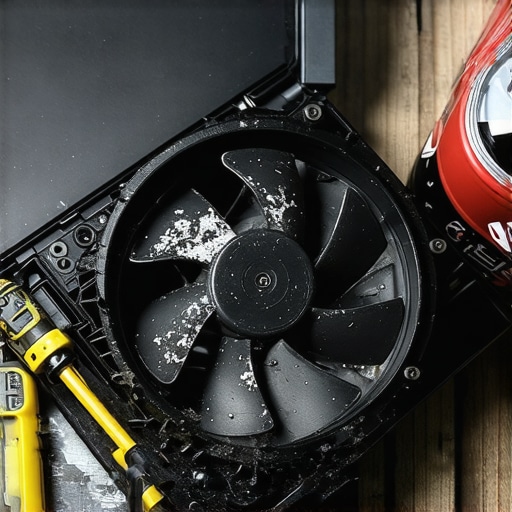
Blast Away the Invisible Grime
Think of your laptop fan like a high-performance car tire. If it’s even a gram out of balance, the whole vehicle vibrates at high speeds. Inside high-performance gaming laptops, these fans spin at up to 5,000 RPM. At those speeds, a ‘clump’ of dust is like a lead brick on the wheel. Once the back cover is off, your first instinct will be to blow into the fan like an old Nintendo cartridge. Don’t do that. Your breath contains moisture that can cause corrosion over time. Instead, use a can of compressed air. I remember a frantic Sunday afternoon where I was fixing one of those student laptops for a friend. It sounded like a blender full of marbles. I cracked it open, expecting a shattered blade, and found a single, solitary strand of cat hair that had wrapped around the spindle. Ten seconds with a pair of tweezers and it was silent again. When you use compressed air, always hold the fan blade still with a toothpick or a finger; if you let the air spin the fan freely, it can generate voltage that back-feeds into your motherboard.
When a Good Cleaning Just Isn’t Enough
If you’ve cleaned the dust and the rattle persists, you’re likely dealing with a worn-out bearing. This is where the ‘meat’ of the repair happens. Most fans are held in by two or three small screws and a single ribbon cable. If you’re lucky enough to own one of the only 3 brands that still make easily repairable laptops, you can find a replacement part online for less than twenty bucks. Before you swap it out, check if the fan housing itself is loose. Sometimes the screws holding the fan to the chassis have vibrated loose over months of travel. If you’re already this deep, it’s a great time to see why we swapped the thermal paste on our brand new laptop, as dried-out paste makes the fan work twice as hard, leading to premature failure. Ignoring this won’t just keep the noise around; it’s the real reason your laptop feels sluggish after three months as the CPU slows down to prevent a meltdown. Fix the fan, and you fix the performance.People often fall for the marketing trap that ‘thinner’ equals ‘more advanced.’ In my years of testing business laptops for professionals, I’ve found the opposite to be true. When you shave off those few millimeters, you aren’t just losing ports; you’re losing the air gap needed for cooling. This is the ‘Oops’ factor most buyers ignore: an ultra-thin chassis is a heat trap. Have you ever fallen into this trap of prioritizing aesthetics over airflow? Let me know in the comments.
Why Ultra-Thin Designs Are Often a Trap
Choosing a laptop because it looks like a piece of stationary is a recipe for thermal throttling. When there is no room for air to move, your fans work at maximum capacity just to keep the system from melting. I’ve seen student laptops fail mid-semester because the internal fans were so small they couldn’t handle the dust from a typical dorm room. If you look at the hidden costs of choosing an ultra-thin business laptop, you’ll see that you often pay more for less longevity. Manufacturers use proprietary screws specifically to keep you from cleaning those tiny, critical pathways yourself. 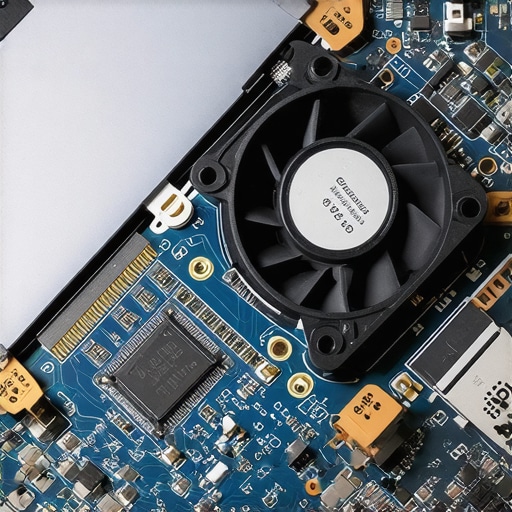
The Enterprise Grade SSD Secret
The hidden nuance that really separates the pros from the amateurs is the storage architecture. Everyone looks at the ‘1TB’ label, but they ignore the controller and the NAND type. There is a real difference between consumer and enterprise-grade SSDs. Consumer drives are built for bursty, light use. If you’re doing heavy data work, a cheap SSD will throttle and eventually fail much faster than an enterprise unit. A study by storage experts at Backblaze, which tracks thousands of drives, consistently shows how sustained operating temperatures directly correlate to failure rates. If your drive is constantly hitting 70°C because of poor airflow in a ‘sleek’ chassis, its life expectancy drops significantly.
Is your high-wattage charger actually killing your battery?
It’s a common mistake to assume that more power is always better for every situation. While 100W PD chargers are convenient for docking stations, using them exclusively on a battery that doesn’t need that much juice can lead to chemical stress and localized heat. Pushing too much current into a small cell causes it to degrade faster than a slow, steady charge. When searching for top laptop deals in 2025, don’t just look for the highest specs; look for the most efficient power management.
Skip the Overpriced Gaming Labels
Finally, stop thinking that everything labeled for ‘gamers’ is high quality. In reality, most gaming headsets are just overpriced plastic, and many gaming-branded laptop stands provide less airflow than a simple mesh riser. For those in academia, skipping the touchscreen trend is usually the smarter move. You’ll save battery life and reduce screen glare, which is far more valuable during a three-hour lecture than a finger-smudged display. Instead, invest that saved money into a specific screwdriver kit. Being able to open your machine once a year to clear out the dust is the single best way to ensure it lasts all four years of your degree.
Why Software Gunk is the New Dust
Maintaining a laptop isn’t just about the physical fan; it’s about the digital weight we force the processor to carry every single day. I’ve seen plenty of student laptops that were physically pristine but performed like 10-year-old relics because of background bloatware and fragmented registries. Every time you install a ‘handy’ utility that you only use once, it adds a layer of strain to your boot cycle. One of my favorite tricks for a snappier machine is to disable Windows features that eat your battery life, specifically the background telemetry services that ping servers every few seconds. If you want to know how to fix your laptop battery if it only lasts one hour, start by checking your startup tab. I personally prune mine once a month, ensuring that only the absolute essentials—like my primary cloud sync or security software—are allowed to load automatically. 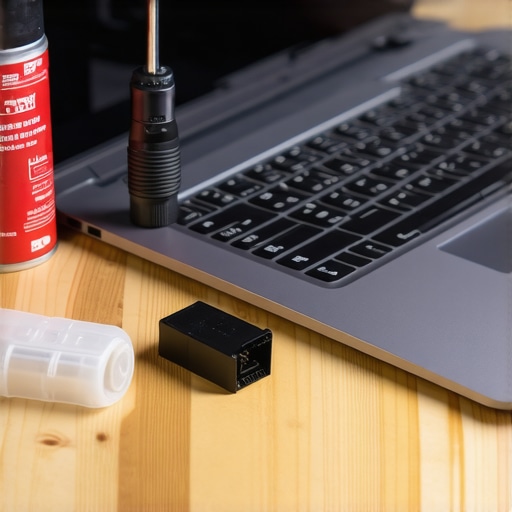
How do I maintain my hardware performance over several years?
The secret to long-term speed is aggressive heat management, which goes far deeper than just blowing out a bit of dust. If you’re serious about longevity, you have to look at the thermal interface between your chip and the cooling pipes. According to technical documentation from Thermal Grizzly, high-performance thermal compounds can dry out or lose effectiveness if the laptop is consistently kept in high-heat environments, like a hot car or a room with poor ventilation. This is why I always tell people to invest in the only laptop stands that dont shake while you type. Elevating the rear of the machine by just an inch can drop internal temperatures by up to 5°C by simply opening the airway. For those using game-changing gaming laptops for serious players in 2025, this isn’t just a suggestion; it’s a requirement to prevent the dreaded thermal throttle that kills your frame rates during a crucial match.
Stop Using Your Lap as a Desk
It sounds counterintuitive given the name, but your lap is actually the worst place for a high-performance machine. Soft surfaces like jeans or blankets act as giant insulators and block the intake vents on the bottom of the chassis. If you must work from the couch, find a hard surface or a lap desk. I even use a specific travel setup that includes the only gaming mice that work well for spreadsheets, allowing me to stay productive without the ergonomic nightmare and heat transfer of a built-in trackpad.
The Shift Toward Modular Longevity
Looking ahead, the industry trend is finally moving back toward repairability and away from the ‘disposable’ tech of the last decade. We are starting to see a massive push for modular components in business laptops for professionals, where even the I/O ports can be swapped out if they get loose or damaged. This is a huge win for anyone hunting for top laptop deals in 2025, as it means the ‘used’ market will finally be a viable option for long-term use again. Instead of a dead USB port meaning a dead motherboard, it’ll be a five-minute fix with a single screw. My advice? Don’t wait for the future to start taking care of your current rig. Go into your Task Manager right now, click the ‘Startup’ tab, and disable everything you don’t recognize. You’ll feel the speed difference immediately.
Lessons I Learned From Opening a Thousand Machines
One truth I’ve learned after years of hardware testing is that a scary sound is rarely the end of the road. For instance, I’ve found that many used Thinkpads that actually last three more years are often discarded simply because a ten-dollar fan started making noise. Another lesson? Don’t ignore the frame. If your fan sounds off, check the casing; a wobbly laptop hinge can actually pinch internal cooling cables or the fan housing, making the motor work twice as hard. Finally, stop thinking of your computer as a black box. It’s a mechanical tool that needs a seasonal ‘oil change’ just like a car to keep the air moving and the processor happy. [image_placeholder]
The Gear That Stops the Noise for Good
To get started, you don’t need a professional lab. You just need the specific screwdriver kit you need to open 90% of modern laptops and a bit of patience. To prevent the dust from returning so quickly, I always recommend using laptop stands that dont shake while you type, which keeps the intake vents elevated away from the dust-heavy surface of your desk. If you’re still in the buying phase, focus on picking a student laptop that lasts all four years by checking if the manufacturer provides easy access to the cooling assembly in their maintenance manual. Knowledge and a few basic tools are your best defense against hardware failure.
Your Computer Deserves a Second Chance
There is a unique satisfaction in hearing your machine go from a screaming blender to a silent whisper. Before you jump on the latest unbeatable laptop deals, give your current rig one last chance to prove its worth. Whether you’re using high-end business laptops for professionals or a budget student machine, a little proactive maintenance goes a long way in preserving performance. You have the tools and now you have the strategy—don’t let a little dust stand in your way. Have you ever managed to fix a scary laptop sound on your own, or did you end up taking it to a shop? Let me know your success stories in the comments!