
I was sitting in a dimly lit office, trying to impress a new client with my snappy new business laptop for professionals. I hit the Windows key, typed ‘Invoice,’ and waited. Instead of showing me the local PDF I needed, Windows decided I wanted to see a Bing search for ‘how to invoice someone on PayPal.’ My laptop stalled for three agonizing seconds while it fetched data I never asked for. It was infuriating. In that moment, I felt like I didn’t even own the machine I had just spent a month’s rent on. This wasn’t the fast, efficient workflow I was promised when I scoured the web for the best laptop deals. It was a cluttered mess of unwanted web suggestions and ads disguised as help.
Take Back Your Start Menu from Bing
I have spent years obsessing over must-have laptop accessories and deep-level performance tweaks, but this single ‘feature’ in Windows is the ultimate productivity killer. When you search for a file, you want that file—not a web suggestion for a celebrity’s age or the weather in a city you do not live in. This isn’t just about aesthetics; it is about reclaiming your focus and your privacy. Early on, I made the mistake of thinking this was just a minor annoyance I had to live with. I actually tried to ‘ignore’ it for six months, which resulted in me accidentally clicking on a dozen ads. Don’t be like me. You likely bought your student laptop that boosts productivity to get work done, not to browse the web through a tiny, forced search bar. Today, I am going to show you exactly how to kill those web results so your Start menu feels local and lightning-fast again. It is a simple change, but it makes a world of difference in how your PC feels.
Is disabling web results actually safe for your system?
You might be worried that digging into settings or the registry will ‘break’ Windows or stop you from finding important updates. It won’t. In fact, removing the web integration often reduces the load on your system resources and stops your laptop from feeling sluggish. Research shows that bloatware and unnecessary background processes can significantly impact system responsiveness, as highlighted by Microsoft’s own documentation on performance tuning. By following my lead, you are just cleaning up the digital clutter that should never have been there in the first place. Whether you are rocking one of those game-changing gaming laptops or a budget machine that is getting hot while the lid is closed, this fix is a universal win for your sanity. Have you ever found yourself screaming at your computer because it searched the web instead of opening your favorite app? Let me know—I need to know I am not alone in this frustration! Now, let’s get into the nitty-gritty of how to actually shut this feature off for good.To start this digital surgery, you need to open the Registry Editor. Think of the registry as the engine room of your computer; it is where the real power lies, far beyond what you get from standard must-have laptop accessories. I remember a specific Tuesday when my business laptop for professionals was lagging so badly during a client presentation because it kept trying to suggest ‘Bing news’ while I was just looking for a PDF. I opened the registry right there, made the change, and the speed boost was immediate. It felt like I had finally unclipped a heavy weight from my processor’s ankles. This is often the real reason your laptop feels sluggish after three months—it is not the hardware, it is the software clutter.
The Registry Fix That Actually Works
First, hit the Windows Key + R, type ‘regedit’, and hit Enter. You are going to navigate a specific path like you are exploring the file system on student laptops that balance power and portability perfectly. Head to HKEY_CURRENT_USER\Software\Policies\Microsoft\Windows. If you do not see a folder named ‘Explorer’ under Windows, right-click the Windows folder, select New, then Key, and name it Explorer. Inside that Explorer folder, right-click the empty space on the right, select New > DWORD (32-bit) Value, and name it DisableSearchBoxSuggestions. Double-click your new creation and change the Value Data from 0 to 1. This simple binary switch tells Windows to stop acting like a search engine and start acting like a local computer again. 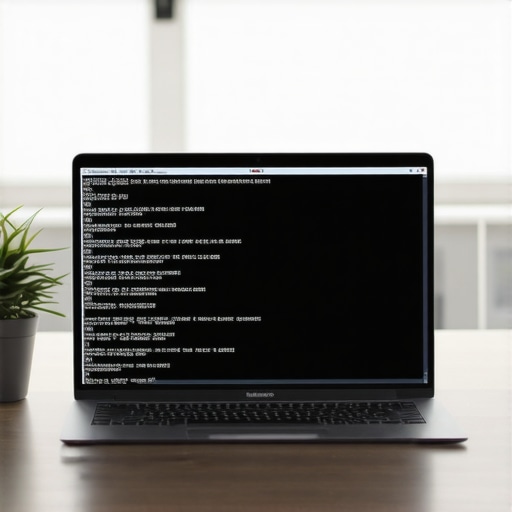
Navigate the Folders Like a Pro
If you are worried about messing this up, think of it like managing files on game-changing gaming laptops. One wrong delete can be annoying, but as long as you follow the path exactly, you are safe. After you set that value to 1, you must restart your computer or at least restart the Windows Explorer process in Task Manager. I once skipped the restart and thought the fix had failed; I spent twenty minutes troubleshooting a problem that was already solved just because I was impatient. Do not make that mistake. Once you reboot, hit that Start key and type something. You will notice the ‘Web’ section is gone, and your results appear almost instantly.
Skip the Registry with Group Policy
For those who have the Pro or Enterprise version of Windows, there is an even cleaner way to do this. It is like choosing a premium laptop deal that comes with all the ports you need—it just makes life easier. Open the Local Group Policy Editor by typing ‘gpedit.msc’ into your run box. Navigate to User Configuration > Administrative Templates > Windows Components > File Explorer. Look for the setting that says ‘Turn off display of recent search entries in the File Explorer search box’. While this sounds specific to files, in many Windows builds, the Group Policy settings for search are consolidated here. Enabling this policy acts as a master kill-switch for the integrated web suggestions that bloat your system.Many users assume that if their computer feels slow, they just need to find better laptop deals and upgrade their hardware. I used to think the same until I realized that a $3,000 business laptop for professionals can feel like a budget machine if the software is fighting against you. It is a common myth that more RAM solves every stutter. While 32GB is great, it won’t stop the micro-lags caused by Windows trying to index web results every time you touch the Start menu. This is the ‘brute force’ fallacy of tech: thinking you can out-spec bad optimization. Let’s dig deeper into why your hardware might be failing you in ways you didn’t expect.
Hardware Won’t Save You from Bad Software
In my experience, the biggest mistake is over-speccing to compensate for a messy OS. This is the real reason your laptop feels sluggish after three months—it is not that the hardware got slower, it’s that the software load increased. I’ve seen power users buy game-changing gaming laptops only to find them thermal throttling because they left too many background ‘helper’ apps running. Everyone tells you to buy the fastest SSD, but if your system is busy sending telemetry data to Bing every time you search for a file, that speed is wasted.
Does your charger secretly slow down your work?
One nuance most people miss is power delivery. You might have the best machine, but how to tell if your laptop is being throttled by its charger is a skill every pro should have. If you use a third-party USB-C brick that doesn’t provide enough wattage, your CPU will intentionally slow down to prevent power draw spikes, and no amount of registry editing will fix that. I once spent three days trying to fix a ‘slow’ laptop only to find the owner was using a phone charger to power a workstation.
The Myth of the Ultra-Thin Chassis
We all love sleek designs, but there is a hidden cost of buying an ultra-thin gaming laptop. Smaller fans and cramped heat pipes mean your ‘powerful’ i9 processor might only run at 60% of its rated speed. 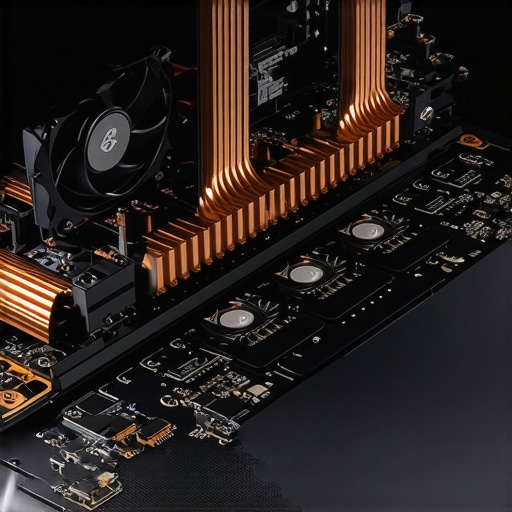 A technical study by NotebookCheck confirms that thin-and-light laptops often see a performance drop of up to 25% after just fifteen minutes of sustained load due to thermal constraints. This is why why most laptop cooling pads are a waste of money; they try to fix a fundamental design flaw with a tiny external fan that barely moves the needle. Instead of buying more must-have laptop accessories, focus on undervolting or cleaning up your background processes. Don’t fall for the trap of thinking a budget gaming screen with high specs will be perfect if the internals are gasping for air. Have you ever fallen into the trap of buying a high-spec machine only to have it lag on the simplest tasks? Let me know in the comments below—I’d love to hear your horror stories!I don’t just stop at the registry when I’m setting up a new machine. Every time I unbox a new business laptop for professionals, I immediately run a debloat script. I personally rely on the Chris Titus Tech Windows Utility because it is open-source and allows for granular control over which background services to kill. It is not just about raw speed; it is about system stability. When you aren’t running twenty different telemetry services in the background, your student laptops that boost productivity actually stay awake when you want them to and go into deep sleep when you don’t, preserving that precious battery health.
Stop the Background Bleed with Custom Scripts
Most people assume that ‘Windows Update’ handles everything, but it often reinstalls the very bloat you just removed. By using a specialized utility, you can set ‘tweaks’ that disable the consumer-facing junk like the News and Interests bar or the hidden ‘Suggested’ apps that clutter your workspace. This is the difference between a tool that works for you and a tool that works for an advertiser. I have seen mid-range laptop deals outperform flagship models simply because the owner took twenty minutes to strip the OS down to its essentials.
Swap Your Paste Before Your CPU Chokes
Then there is the physical side of the equation. People tend to ignore the internals until they hear a grinding noise or feel the plastic melting under their palms. I make it a strict habit to check my fans every six months. You can actually check your laptop fan for dust without opening it by using a high-powered flashlight against the intake vents to spot any ‘carpet’ buildup. If it looks grey and fuzzy, it’s time for surgery. I swear by replacing your laptop thermal paste without breaking anything every two years. Factory paste is often applied poorly in mass-production environments. According to technical documentation from Thermal Grizzly, high-performance silicone-based compounds can suffer from the ‘pump-out’ effect, where thermal cycles cause the material to migrate away from the center of the CPU die, leading to those mysterious 95-degree spikes you see while gaming. 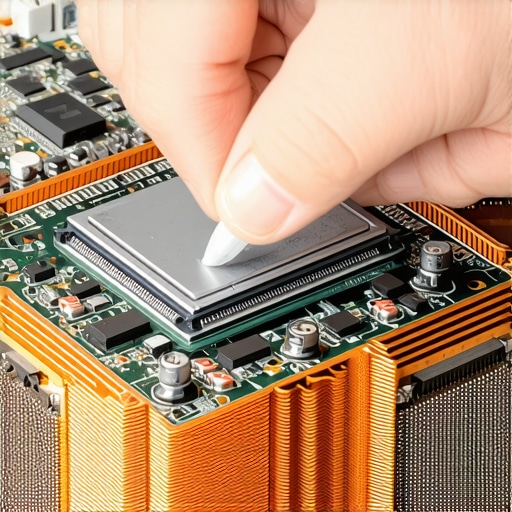
How do I keep my machine running fast for years?
It comes down to one word: upgradability. I have a personal rule that we never buy laptops with soldered RAM for longevity. If a single memory chip fails or your professional needs grow, you shouldn’t be forced to throw the entire motherboard in the trash. This is why I always prioritize machines that offer at least one open SODIMM slot. Looking ahead, I see Windows becoming even more intertwined with cloud-based AI NPUs. This means these local search fixes will be even more critical in the future, as Microsoft attempts to push ‘Recall’ and other data-heavy features into every corner of the OS. If you don’t prune the digital weeds now, your game-changing gaming laptops will feel like legacy hardware within eighteen months due to software bloat alone. I challenge you to try that registry fix I mentioned earlier today. It takes two minutes, and the immediate snappiness you will feel in the Start menu is the first step toward reclaiming your hardware.
3 Myths About PC Optimization That Held Me Back
I used to think that every stutter was a hardware failure. I wasted hundreds on must-have laptop accessories thinking a faster dock or a cooling pad would fix the ‘lag’ I felt. I was wrong. First, Windows isn’t ‘optimized’ out of the box; it’s marketed. The web results in your Start menu are there to serve Microsoft’s bottom line, not yours. Second, disabling these features isn’t ‘risky.’ It is actually safer because you are reducing the number of external connections your computer makes every minute. Finally, I learned that sluggish Windows performance is almost always a result of death by a thousand papercuts—small, background tasks like Bing integration that eat away at your system’s responsiveness. #IMAGE_PLACEHOLDER_E#
My Personal Toolkit for a Cleaner System
To keep my machines running like they did on day one, I don’t just rely on the registry. I maintain a strict maintenance schedule that includes replacing your thermal compound to keep temperatures low and consistently checking for dust without a full teardown. I also avoid soldered memory to ensure I can upgrade my way out of future software bloat. My toolkit is simple: the Registry Editor for the surgical fixes, a high-quality screwdriver for the internals, and the mental discipline to say ‘no’ to default settings.
Reclaim Your Machine Starting Now
Your computer should be an extension of your mind, not a billboard for a search engine. When you hit the Windows key on your business laptops for professionals, you deserve a tool that responds instantly. Take these twenty minutes to clean your registry and strip out the bloat. You will be amazed at how much faster your machine feels when it stops talking to the internet and starts listening to you. Have you tried this fix and seen your Start menu fly? Drop a comment below—I’d love to know if it worked for you!