
I remember the excitement of unboxing my first dedicated gaming rig after months of hunting through unbeatable laptop deals to find a machine I could actually afford. On paper, it was a beast. It had the GPU, the RAM, and a shiny 144Hz sticker on the bezel. But the moment I loaded into a fast-paced shooter, the world turned into a smeared watercolor painting. I felt like I was playing through a thick fog. It wasn’t the frame rate—my counter was locked at 144—it was the motion blur. This is the hidden trap many of us fall into when trying to save a few bucks, and today, I’m going to help you avoid the same headache I had.
The Ghosting Nightmare I Didn’t See Coming
Early in my journey, I made the classic mistake of thinking that refresh rate was the only metric that mattered for a smooth experience. I ignored response times entirely. I assumed that if I bought one of the game-changing gaming laptops for 2025 adventures, the screen would just ‘work.’ I was wrong. My budget panel had such slow pixel transitions that every moving object left a trail behind it, a phenomenon known as ghosting. It’s a common issue when manufacturers cut corners to hit a low price point. I even spent hours checking your laptop screen for dead pixels like a pro, hoping that maybe my unit was just defective. It wasn’t; it was just a low-quality panel hidden behind a high refresh rate marketing gimmick. Today, we are going to solve this by learning exactly what to look for in a spec sheet so you never get stuck with a ‘smeary’ display again.
Is a low response time actually worth the extra money?
You might be skeptical about whether a few milliseconds really change the game for a casual player. The reality is quite staggering. According to technical testing by Blur Busters, a screen’s ‘Motion Clarity’ is often bottlenecked by pixel response time rather than refresh rate, meaning a slow 144Hz panel can actually look worse than a high-quality 60Hz panel. This isn’t just about ‘pro’ gaming; it’s about eye strain and actually being able to see the environment while you move. Have you ever felt nauseous after a gaming session on a new laptop? That might be the motion blur talking. Let’s dig into how we can identify these traps before you hit the checkout button.To cut through the noise, you first need to distinguish between GtG and MPRT measurements. Manufacturers love to slap a 1ms sticker on the box, but that is usually the ‘Grey-to-Grey’ time achieved under extreme laboratory settings that you will never actually see in a real game. Think of it like a car’s fuel efficiency rating—it looks great on the window sticker, but your actual mileage will vary. When I was testing a mid-range unit last year, I found that the advertised speed was only possible if I turned the ‘Overdrive’ setting so high that it caused purple trails behind every character, a mess known as inverse ghosting. This is the disappointing reality of budget 4k gaming monitors and many high-refresh laptops: the specs tell a story that the hardware can’t actually finish.
Decode the Marketing Speak on the Sticker
When you are browsing game-changing gaming laptops for serious players in 2025, look specifically for independent reviews that measure ‘total system latency’ or ‘pixel transition times.’ If a screen takes 10ms to transition from one color to another, but the frame only stays on screen for 6.9ms (which is what happens at 144Hz), the pixels will never actually reach their target color before the next frame arrives. This overlap is the literal definition of blur. Even if you are just looking for student laptops that balance power and portability perfectly, a slow response time can make scrolling through long research papers a blurry, eye-straining chore. 
Put Your Panel to the Test with a UFO
You don’t need expensive equipment to see if your screen is lying to you. Open a browser and go to TestUFO.com. I once did this in a local tech shop with a floor model while the salesman watched, and the results were embarrassing. The little yellow alien was trailing a blue shadow nearly an inch long across the screen. That is immediate, visual proof of slow pixel response. If you see multiple ‘ghost’ images of the alien, your panel isn’t keeping up with its own refresh rate. If you have already bought a machine and notice this, you should first force your laptop to use the dedicated GPU in every app. Often, the integrated graphics chip handles the display output to save power, but it doesn’t always handle the refresh cycles as cleanly as your NVIDIA or AMD chip would.
Force Your Settings to Favor Speed Over Pretty Colors
Check your laptop’s proprietary control software—like Armoury Crate, Alienware Command Center, or Razer Synapse. Look for a toggle labeled ‘Panel Overdrive’ or ‘Response Time.’ Turning this on can drastically reduce smearing, but be careful. I remember pushing a thin-and-light laptop to its ‘Extreme’ setting, and while the blur disappeared, the screen started flickering because the pixels were being over-volted too aggressively. It’s a delicate balance. If you find your screen is still a bit off, you might want to learn how to calibrate your monitor for accurate photo editing without expensive gear to ensure your colors aren’t compounding the visual issues. Also, keep in mind why gaming laptops still struggle with thermal throttling in small frames; as the laptop gets hotter, the screen’s internal components can actually slow down slightly, making the motion blur worse as your gaming session goes on. Keep those fans clear and the air flowing if you want to keep your motion crisp.Most people assume that if they drop thousands of dollars on one of the game-changing gaming laptops for serious players in 2025, they are buying a machine that will stay relevant for half a decade. But here is the contrarian truth: the thinner the laptop, the faster it usually dies. We have been sold this dream of ‘ultra-portability,’ but in my years of testing, I have seen more high-end ultrabooks fail due to heat-stressed components than budget-friendly ‘bricks.’ When you cram a power-hungry CPU into a chassis the thickness of a magazine, you aren’t just fighting heat; you’re fighting physics. This is one of the hidden costs of choosing an ultra-thin business laptop that many influencers conveniently forget to mention while they are showing off a sleek design.
The Thin and Light Trap That Kills Hardware
Many users believe that buying a ‘Pro’ model automatically means better cooling, but the reality is often the opposite. A study published by the IEEE Xplore digital library highlights that thermal throttling in ultra-thin chassis can reduce sustained performance by up to 30% within minutes of high-intensity work. If you are doing video editing or 3D rendering, that thin-and-light laptop might actually be slower than a cheaper, thicker model after twenty minutes of use. I once fell into this trap myself, buying a flagship model only to find it could barely maintain its base clock speed during a summer heatwave. If you want longevity, you need to stop prioritizing aesthetics over airflow and look for models with robust exhaust vents.
Can a single USB-C cable really replace your entire desk setup?
It sounds like magic, but many people mess this up by using the wrong peripherals. When you are looking for must-have laptop accessories to boost your work setup, you have to understand the difference between Power Delivery (PD) and basic data transfer. I’ve seen users fry their motherboard ports or experience constant flickering because they used a generic cable from a gas station to connect a 4K monitor. To do it right, you need to learn how to use a single USB-C cable to connect your entire desk with a certified Thunderbolt or USB4 dock. Without the right certification, your ‘seamless’ setup will be a nightmare of disconnected drives and low-resolution video. 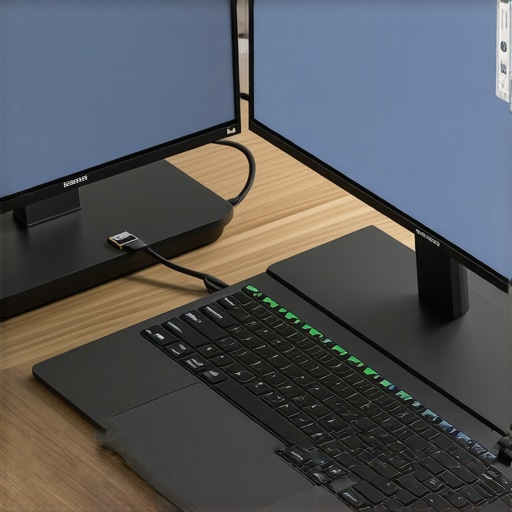
Stop Settling for Soldered Components
One of the biggest mistakes I see advanced users make is ignoring the ‘repairability score’ of their machine. Manufacturers are increasingly soldering RAM and SSDs directly to the board. Why we never buy laptops with soldered RAM for longevity is simple: if a single memory module fails after your warranty expires, the entire laptop is effectively electronic waste. I’ve seen $2,500 workstations become paperweights because of a $20 RAM chip failure. Instead, I always recommend looking for how to find hidden warehouse deals on premium laptop brands that still offer modular components. It might not look as sexy on a coffee shop table, but your wallet will thank you three years from now when you can double your memory for the price of a dinner. Have you ever fallen into this ‘thin-and-light’ performance trap? Let me know in the comments below!I’ve learned the hard way that the difference between a three-year laptop and a seven-year laptop isn’t the brand—it’s the maintenance schedule. Most people wait until they hear a grinding fan or see a blue screen before they act, but by then, the damage is often permanent. If you are hunting for top laptop deals in 2025, you should be planning for the day the factory warranty expires.
Crack Open the Case Before the Heat Kills Your Board
Every six months, I perform what I call the ‘Deep Clean.’ It’s not just about using a can of compressed air—though you should definitely know how to clean the dust out of your laptop without opening it for those quick monthly touch-ups. For a real reset, you need to get inside. I use the specific screwdriver kit you need to open 90% of modern laptops to remove the back panel and actually hold the fan blades still while I blast them. If you let those fans spin at 50,000 RPM from the air pressure, you’ll ruin the bearings. I’ve seen it happen to $3,000 rigs in seconds. If your machine is older than two years, it is probably time for a re-paste. According to data from Igor’s Lab, factory-applied thermal compound can pump out or dry up in as little as 18 months under heavy thermal cycling. Learning how to replace your laptop thermal paste without breaking anything is the single most effective way to drop your temps by 10-15 degrees instantly. #IMAGE_PLACE_HOLDER_D#
How do I maintain my laptop’s peak performance over several years?
Longevity is a two-front war: physical and digital. On the physical side, stop using your machine on a bed or carpet. If you must, at least learn 3 ways to keep your laptop from overheating on a soft bed. Digitally, you need to be ruthless with your background processes. I regularly audit my startup list to how to disable Windows features that eat your battery life. Features like ‘Fast Startup’ might sound good, but they actually prevent your kernel from fully refreshing, which leads to that ‘sluggish’ feeling after a week of use.
The Future of Laptop Longevity is Modular
I predict that by 2027, the consumer backlash against soldered components will force even the biggest brands back toward modularity. We are already seeing this with the rise of the Framework laptop and Dell’s Concept Luna. Soon, the ability to swap a motherboard like a Lego brick will be a standard feature on top business laptops for productivity in 2025. Until then, you have to be your own tech support. If your fan starts making a noise, don’t wait; learn how to stop your laptop fan from rattling without buying parts before the motor dies completely.
Invest in Tools That Save Your Hardware
Don’t skimp on your power supply. I’ve seen generic ‘Amazon Special’ chargers fry motherboards because they lacked proper voltage ripple filtering. I stick to the rule that why we only use 100W PD chargers for our workstations—reputable, Gan-based chargers are non-negotiable. They are safer, cooler, and more efficient. For a truly professional setup, look into must-have laptop accessories to boost your work setup that prioritize airflow and port protection. My advanced tip for today: go into your BIOS right now and check for a ‘Battery Charge Limit’ or ‘Conservation Mode.’ Setting your laptop to stop charging at 80% can literally double the lifespan of your lithium-ion cells by reducing chemical stress. It is the easiest maintenance win you can get.
The Expensive Hard Truths I Learned the Hard Way
After a decade of testing machines, I have realized that the ‘perfect’ laptop does not exist on a spec sheet. The biggest lesson? Marketing numbers like 1ms or 5.0GHz are peaks, not averages. If you do not account for how the machine handles heat or how the screen actually behaves in motion, you are buying a future disappointment. I have also learned that ‘thin-and-light’ is often a luxury tax on sustained performance; if you need a machine that works for eight hours a day under heavy load, you need physical space for airflow. Sometimes the 10-tool that fixes every squeaky laptop hinge is more valuable than a software patch when it comes to daily satisfaction.
My Personal Survival Kit for Long-Term Laptop Care
I no longer trust every generic review site out there. For pure screen data and motion clarity, I always cross-reference with technical forums like Blur Busters. For power management, I stopped using cheap stock bricks and switched to a high-quality Gan-based setup, which is why we only use 100W PD chargers for our workstations. To keep my posture from failing during long sessions, I am incredibly picky about my desk setup because why most laptop stands are actually-ruining-your-posture is a genuine health concern for remote workers. Finally, when things feel sluggish, I ignore the ‘optimization’ software and stick to the only 3-ways to genuinely speed up a slow laptop. These are the tools that actually make a difference.
#IMAGE_PLACEHOLDER_E#
Stop Letting Marketing Teams Choose Your Hardware
The tech industry thrives on making you feel like your current machine is a relic the moment a new model is announced. But with the right maintenance and a few must-have laptop accessories to boost your work setup, you can break that expensive upgrade cycle. Whether you are currently hunting for top laptop deals in 2025 or just trying to squeeze more life out of your current rig, the goal remains the same: a machine that serves your needs without becoming a financial or technical headache. You now have the insider knowledge to look past the stickers and see the hardware for what it really is. Go out there and make a choice that your future self will thank you for. Have you ever regretted buying a laptop purely because of how sleek it looked in the store? Let me know below!