
I remember the first time I fired up a graphically intense project on what I thought was one of the most game-changing gaming laptops of the year. I had the charger plugged in, the lights dimmed, and my expectations high. Instead of smooth, buttery frames, I got a stuttering mess that looked like a 1990s stop-motion film. It was a total gut-punch. I’d spent a small fortune on a machine with a dedicated graphics card, yet here it was, struggling to render a basic shadows. It took me an hour of frustrated Googling to realize my laptop was stubbornly using the weak integrated graphics because it thought it was ‘saving power.’ My expensive GPU was literally sitting there doing nothing. We are going to end that nonsense right now and make sure you actually get the frames you paid for.
Stop Letting Windows Hibernate Your Best Hardware
If you have ever felt like your machine is underperforming, you aren’t crazy. Most modern portables use a clever but often annoying system to switch between the low-power chip and the high-performance GPU. It is great for when you are hunting for unbeatable laptop deals or writing an essay, but it is the real reason your gaming laptop feels sluggish when the action starts. I made the mistake of thinking my hardware was faulty for months before I learned that Windows and NVIDIA have a mind of their own regarding ‘efficiency.’ According to research by PCWorld, failing to engage your dedicated GPU can result in a performance drop of up to 40% in creative apps and games, which is essentially like driving a sports car and never shifting out of first gear. Have you ever looked at your frame counter and just wanted to throw the whole laptop out the window? You are not alone.
Won’t this kill my battery life in ten minutes?
It is the most common fear I hear from neighbors and friends. They worry that forcing the high-performance chip will turn their laptop into a space heater or kill the battery before they finish a single match. While it is true that your dedicated GPU is a power-hungry beast, you have total control over when it turns on. If you find things getting a bit too toasty, you can always learn how to undervolt your gaming laptop to keep the heat under control. Today, I am going to show you the manual overrides that tell your computer exactly who is boss, ensuring that when you launch a heavy app, your best hardware actually shows up for work.
Take Direct Control of Your Graphics Hardware
Imagine your laptop’s CPU as a general-purpose assistant and the GPU as a specialized heavy-lift crane. Most of the time, the assistant handles the paperwork, which is fine for student laptops that boost productivity and learning. But when you launch a game or a 3D renderer, you need the crane. The problem is that Windows often thinks the assistant can lift the 10-ton weight alone just to save a bit of energy. To stop this, you have to go into the Windows Graphics Settings. This is the new master switch that overrides almost everything else. I once spent an entire cross-country flight trying to finish a complex 4K render on one of those top business laptops for productivity in 2025, and it was crawling. I realized the software was defaulting to the power-saving mode because I wasn’t plugged into a wall outlet. As soon as I manually assigned the app to High Performance, the fans screamed to life, and the project finished before we even started our descent.
The Manual Override in Windows Settings
Open your Start menu and type Graphics Settings. Once you are there, you will see a list of apps. If your specific game or video editing software isn’t in that list, you have to click Browse and find the .exe file in your program folders. This is the digital equivalent of pointing at a worker and saying, You, use the big machine. Once the app appears in the list, click Options and select High Performance. This tells Windows to ignore the battery-saving logic and fire up the dedicated silicon every time that specific program runs. This simple step is more effective than any of the must-have laptop accessories for a seamless setup you could buy.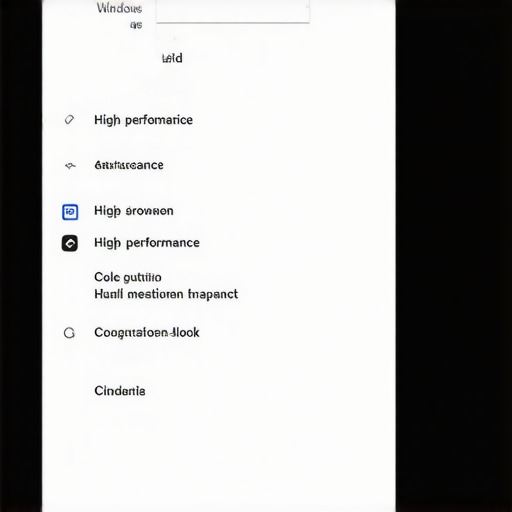
Don’t Ignore the NVIDIA Control Panel
Even though Windows handles most of this now, the NVIDIA Control Panel or AMD Software is still the backend brain of your machine. If you have just invested in unbeatable laptop deals, you want your software to match that hardware quality. Right-click your desktop and open the NVIDIA Control Panel. Under Manage 3D Settings, you can set the Preferred graphics processor to the High-performance NVIDIA processor globally. However, I recommend doing this on a per-program basis so you don’t drain your battery while just browsing the web. This double-layer of settings is often the real reason your laptop feels sluggish after three months of use; system updates can sometimes reset these preferences without telling you, forcing you back into the low-power lane.
Check Your Power Cord and Power Plan
You can have every software setting turned to Max, but if your Windows power plan is set to Best Power Efficiency, your GPU is essentially running with one hand tied behind its back. Click your battery icon and slide that bar all the way to Best Performance. This is especially crucial because many game-changing gaming laptops will physically limit the electricity going to the GPU if it thinks you are trying to conserve juice. Also, don’t fall for the trap of thinking external hardware fixes internal throttles; understanding why most laptop cooling pads are a waste of money is a lesson many learn when they realize the heat is a result of the hardware finally being allowed to work at 100% capacity. You need to ensure your power settings are consistent both in Windows and in your manufacturer’s proprietary software like Armoury Crate or Alienware Command Center.
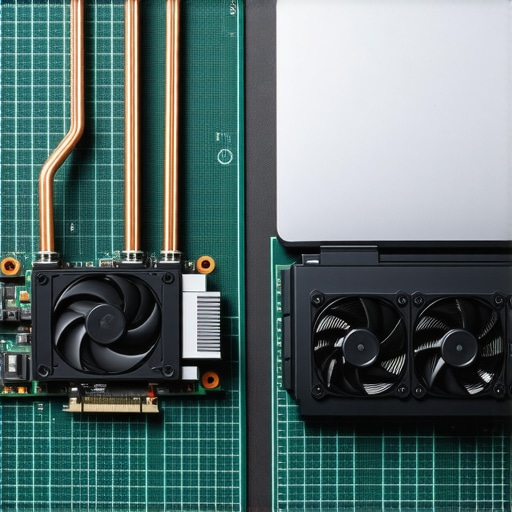
Here is the thing that most ‘expert’ reviews gloss over: the model number on the box is often a half-truth. I have seen countless people snag what they thought were unbeatable laptop deals only to find out their brand-new RTX 40-series card is being outpaced by a last-gen model. This happens because of TGP, or Total Graphics Power. A ‘thin and light’ laptop might limit its GPU to a meager 35 watts to prevent it from melting the chassis, while a thicker, heavier machine lets that same exact chip run at 115 watts. You aren’t just buying a GPU; you are buying a thermal solution. According to detailed hardware analysis by NotebookCheck, the performance gap between a low-wattage and high-wattage version of the same GPU can reach up to 30%, which is massive. This is the hidden cost of buying an ultra-thin gaming laptop that no one mentions at the checkout counter.
The Spec Sheet Lies and the Thermal Reality
Everyone says to just look at the RAM and the CPU, but in my experience, the chassis design matters just as much. I once tested two game-changing gaming laptops for serious players in 2025 that had identical specs on paper. One ran 15 degrees hotter and dropped its clock speeds within ten minutes of gaming. The ‘trap’ here is assuming that ‘Pro’ or ‘Ultra’ branding guarantees sustained performance. If the fans can’t move enough air, your expensive silicon will throttle itself to protect the motherboard. This is why I always tell people to check for reviews that show ‘clock speed over time’ graphs, not just peak scores. If you already own a machine that is struggling, you might need to learn how to undervolt your gaming laptop to get those temperatures under control without losing your mind over fan noise.
Should you really pay extra for that 4K screen upgrade?
Many students searching for student laptops that balance power and portability perfectly get seduced by high-resolution screens. On a 14-inch display, 4K is almost always a mistake. It drains your battery significantly faster and forces your GPU to work four times harder just to render a basic desktop environment. This is exactly why we skip the 4k upgrade on 14 inch screens. If you are a creative professional, you are much better off looking at business laptops for professionals that prioritize color accuracy and sRGB coverage over raw pixel count. A high-quality 1600p screen will always look better and run smoother than a mediocre 4K panel that makes your GPU sweat.
Avoid the ‘All-in-One’ Connectivity Trap
Another nuance people miss is the limitation of ports. You see a USB-C port and assume it does everything. However, many budget and even mid-range laptops have ports that don’t support Power Delivery or DisplayPort Alt Mode. You buy must-have laptop accessories to boost your work setup only to realize your laptop can’t actually drive two monitors through a single cable. It is a frustrating realization that usually happens right after the return window closes. Always verify the specific generation of your ports—Thunderbolt 4 is the gold standard, but ‘USB-C 3.2 Gen 1’ is often just a fancy shape for an old, slow connection. Have you ever fallen into the trap of buying a laptop that looked great on paper but disappointed you in the real world? Let me know in the comments below.
Stop the Dust Before it Throttles Your CPU
Most people treat their laptops like appliances that never need cleaning, but after six months, the inside of your chassis probably looks like the lint trap of a dryer. This is the primary reason why your clock speeds drop during a heavy session. I personally use a small electric duster—not the canned air that can freeze components—to blow out the exhaust ports every two months. If you are nervous about cracking the case, you should learn how to check your laptop fan for dust without opening it to see if you have a blockage. As Kyle Wiens, CEO of iFixit, often points out in his advocacy for repairability, the shift toward thinner designs has made thermal management much more fragile; even a small amount of debris can disrupt the airflow needed to keep a high-end GPU from melting itself.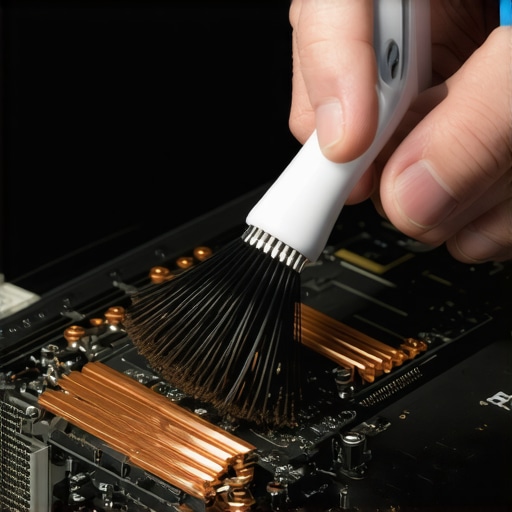
How do I keep my machine running like new for years?
Maintenance isn’t just about blowing out dust; it is about knowing when to refresh the internals. Every two years, I make it a point to perform a teardown and re-apply high-quality thermal compound. It sounds intimidating, but learning how to replace your laptop thermal paste without breaking anything can drop your temperatures by nearly 10 degrees. This keeps your fans from spinning at max volume and preserves the life of the motherboard. I also recommend looking for top laptop deals in 2025 that specifically feature accessible screws rather than those hidden under glued rubber feet. Looking ahead, I predict we will see a massive swing back toward modularity as consumers get tired of throwing away $2,000 machines because a single charging port or 10-cent chip failed.
Clean Up the Digital Clutter Slowing Your Workflow
If your hardware is clean but the machine still feels sluggish, the culprit is likely ‘Windows bloat.’ Every time you search for a file in your Start menu and it tries to sell you a movie or show you a weather report, it is eating up background resources. I always take a few minutes to learn how to disable web results in your Windows Start menu to keep the OS lean and responsive. This is especially vital for student laptops that boost productivity and learning, where every second spent waiting for a search result is a distraction you don’t need. I suggest you go into your settings right now and turn off those bloated web results; it is the fastest five-second upgrade you will ever make.
Choose Hardware That Grows With You
When you are browsing unbeatable laptop deals, it is easy to get blinded by the price tag, but you have to look at the ‘upgrade path.’ This is why we never buy laptops with soldered RAM for longevity. If you can’t add more memory in three years, that ‘deal’ becomes a paperweight. I also take it a step further by swapping out stock networking hardware. For example, why we replaced our laptop Wi-Fi card with an Intel AX210 was a game-changer for connection stability in crowded coffee shops. If you find yourself constantly losing your signal, a $20 card swap can save you from buying a whole new laptop. Invest in must-have laptop accessories to boost your work setup like a proper toolkit so you are always ready to tweak your rig as your needs change. Keep an eye on the Friday afternoon trick for catching warehouse price drops to snag these parts for next to nothing.
The Brutal Truth About Why Some Specs Fail You
After years of testing and tearing down dozens of machines, I’ve realized that the spec sheet is only about 60% of the story. I used to chase the highest numbers on the box, but I quickly learned that a slightly ‘slower’ chip with better cooling and open power limits will beat a ‘Pro’ chip that is being suffocated by its own chassis every single time. The biggest lesson? Don’t trust the default settings out of the box. Most manufacturers prioritize quiet fans over performance, which is why your expensive machine might feel like it is dragging its feet. I always tell my friends that a laptop is a living thing; it needs clean air and the right software permissions to thrive. If you ignore the internals, you are basically leaving half of your money on the table.
- Benchmarks tell you what the laptop can do, but your settings tell it what it will do.
- Thermal management is more important than raw clock speed for long-term health.
- Software bloat is a slow poison that negates even the best unbeatable laptop deals you might find.
- Longevity is built on repairability, which is why we never buy laptops with soldered RAM for longevity.
#IMAGE_PLACEHOLDER_E#
Tools I Use to Keep My Machine Fast
I don’t just rely on luck to keep my gear running. I use a specific set of tools to monitor heat and performance. I swear by HWiNFO64 for checking if my GPU is being throttled by its power limits in real-time. For physical maintenance, I keep a dedicated precision toolkit and a high-velocity electric duster nearby. If you are worried about the noise or heat, I highly recommend learning how to undervolt your gaming laptop as it is the single most effective way to improve efficiency without spending a dime. And remember, before you buy any extra fans, keep in mind why most laptop cooling pads are a waste of money—good internal hygiene and a simple stand that allows for airflow are usually all you need.
Master Your Own Tech Destiny
At the end of the day, your laptop is a tool designed to serve your goals, whether you are crushing a deadline on top business laptops for productivity in 2025 or winning a competitive tournament. By taking these manual overrides into your own hands, you are moving from being a passive user to an informed power user. Don’t be afraid to poke around in your settings or look for ways to check your laptop fan for dust without opening it first. You have the knowledge now to make sure that when you invest in top laptop deals in 2025, that hardware actually delivers on its promises. Have you ever felt like your laptop was hiding its true power from you because of a single hidden setting? Let me know your experience in the comments below!