
I was sitting in my home office, right in the middle of a high-stakes match on one of my game-changing gaming laptops, when it happened. The dreaded ‘Connection Interrupted’ icon popped up. My router was only ten feet away, and my fiber connection was lighting up the ONT, yet my laptop acted like it was trying to suck data through a cocktail straw. It was infuriating. I realized then that I’d been tolerating mediocrity for way too long. Many of us spend thousands on premium hardware, only to have the entire experience throttled by a five-dollar network chip that the manufacturer threw in to save a few pennies. Today, I’m showing you exactly why we ripped out our factory cards and replaced them with the Intel AX210, and how this one tiny swap can save your sanity. [image_placeholder_1]
The Frustrating Truth About Most Factory Wi-Fi Cards
You would think that buying top business laptops for productivity would guarantee a flawless connection, right? Wrong. I made the mistake of assuming that if I paid for a high-end name brand, they wouldn’t skimp on the internals. I spent weeks troubleshooting my router settings and even called my ISP twice, only to find out my laptop was equipped with a subpar MediaTek or Realtek card that just couldn’t handle multiple device interference. These ‘budget’ cards often suffer from driver instability and poor range. According to Intel’s official specifications, the AX210 doesn’t just offer Wi-Fi 6; it unlocks the 6GHz band, which is essentially a wide-open highway compared to the congested 2.4GHz and 5GHz backroads we’ve been stuck on for years.
Is This Tiny Chip Actually Worth the Effort?
I know what you’re thinking—is it really worth the risk of cracking open your expensive machine for a tiny green rectangle? I used to be terrified of voiding warranties or snapping a ribbon cable. In fact, early on, I once tried to ‘fix’ a slow laptop by using a massive USB Wi-Fi dongle that I eventually snapped off in my bag. Talk about a waste of money. But here is the reality: swapping the card is one of the most impactful must-have laptop accessories you can technically ‘install.’ If you have the specific screwdriver kit you need, the process takes less than ten minutes.
Why 6GHz is the Real Game Changer
Most people don’t realize their ‘slow’ internet is actually just wireless traffic jams. In a world full of smart fridges, tablets, and phones, the standard airwaves are packed. By moving to an Intel AX210, you aren’t just getting faster speeds; you’re getting a dedicated lane that most of your neighbors’ devices can’t even see yet. It’s like moving from a crowded subway to a private jet. Have you ever felt like your laptop was gaslighting you about your internet speed? I’d love to hear if you’ve struggled with constant drops or lag even when you’re standing right next to your router. Stick with me, because I’m going to walk you through the prep work so you don’t repeat my early mistakes.Before you even touch a screwdriver, you need to download the Intel AX210 drivers from Intel’s website. I learned this the hard way during my first swap on one of my earlier game-changing gaming laptops. I popped the new card in, booted up, and realized I had no internet to download the drivers needed to make the internet work. It was a classic chicken-and-egg disaster that left me tethering to my phone for an hour. Save yourself the headache: download both the Wi-Fi and Bluetooth drivers to your desktop or a USB drive before you disconnect anything.
Open the Case Without Breaking the Plastic Tabs
Most game-changing gaming laptops for 2025 adventures use standard Philips or Torx screws, but manufacturers love to hide them under rubber feet or stickers. To avoid stripping the heads or cracking the chassis, you absolutely must use the specific screwdriver kit you need to open 90% of modern laptops. Once you have the screws out, use a plastic prying tool to gently separate the bottom cover. If you feel resistance, stop and check for a hidden screw. Forcing it is how you end up with a permanent rattle or a case that never quite closes again. 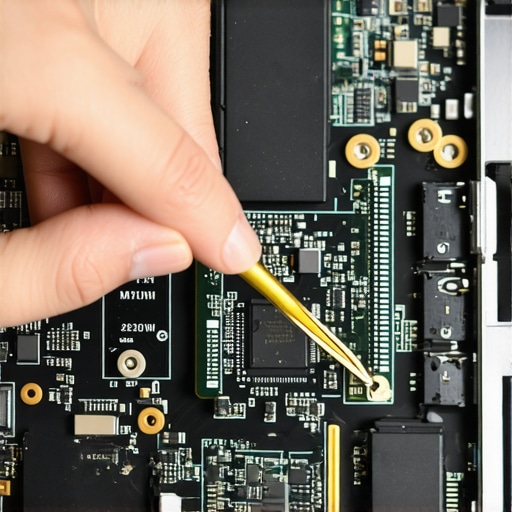
The Delicate Dance of Antenna Cables
Now you’ll see the existing Wi-Fi card. It’s usually a small square held down by a single screw with two tiny wires—the antennas—clipped onto it. These are U.FL connectors, and they are the most fragile part of the entire process. I once rushed this on a colleague’s machine and bent the center pin inside the cable. It turned a ten-minute job into a two-hour nightmare involving a soldering iron. Use tweezers or your fingernail to pop them straight up, never pull by the wire itself. This is why we generally avoid laptops with proprietary slots or glued-in components; repairability is king.
Seat the New Card and Reconnect
Once the old card is out, slide the Intel AX210 into the slot at a 30-degree angle. It should sit snugly. Reinstall the retention screw to hold it flat against the motherboard. Reattaching the antenna cables is the real test of your patience. You have to align the tiny circle perfectly over the post on the card and press down until you feel a microscopic ‘click.’ If you have to push hard, you’re doing it wrong. Aligning these is much like trying to thread a needle while wearing oven mitts, but once they are on, you’re golden. Even student laptops that balance power and portability perfectly can be transformed into high-speed machines with this one change.
The Final Boot and Driver Install
Close the case, but maybe don’t tighten every screw until you’ve confirmed it works. Boot into Windows, and you’ll likely see a red ‘X’ over your network icon. This is normal. Run the driver installer you downloaded earlier. Within seconds, the 6GHz bands will appear in your network list. It’s the same satisfaction you get when you replace a dead laptop fan without voiding the warranty—that feeling of taking control of your hardware. While you have the tools out, it’s a good time to check if everything else is tight, especially if you need to know how to fix a wobbly laptop hinge before it snaps.Most people think that once they have installed the hardware, the job is done. This is the biggest mistake I see when people hunt for top laptop deals in 2025—they assume the OS will optimize itself. In reality, Windows often pushes a ‘stable’ driver that is several versions behind the cutting-edge release. If you are using student laptops that boost productivity and learning, you might not notice a 15ms jitter, but in a competitive environment, it is the difference between a flawless experience and a stuttering mess. A common trap is mislabeling the antenna cables during the swap. If you accidentally swap the ‘Main’ and ‘Aux’ leads—usually labeled 1 and 2—your Bluetooth range will crater while your Wi-Fi remains only moderately functional. I have seen countless users claim their AX210 is ‘defective’ because they cannot connect their headphones from three feet away, only to find they crossed the wires.
Why Does Your 6GHz Signal Drop When You Move Five Feet Away?
The nuance here is physics, not a hardware failure. According to technical reports from the Wi-Fi Alliance, the 6GHz spectrum used by Wi-Fi 6E has a significantly shorter wavelength, which means it does not penetrate walls or heavy furniture nearly as well as the older 5GHz or 2.4GHz bands. You are essentially trading range for raw, uncongested speed. If you move behind a thick door or into another room, your laptop might automatically drop back to the 5GHz band. This sudden shift can make it feel like the real reason your laptop feels sluggish after three months has returned, when it is actually just your network card making a smart, but slower, choice. 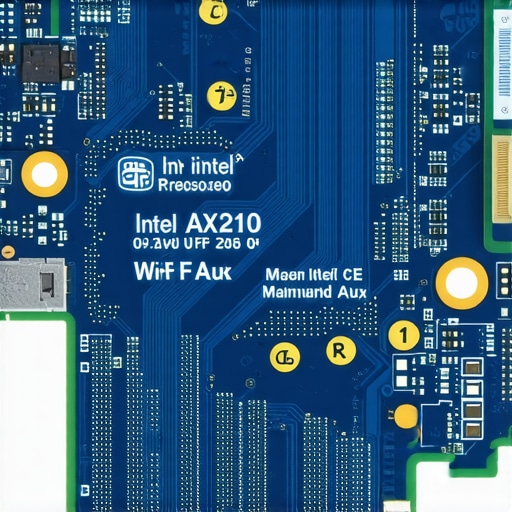 Another expert-level tip involves monitoring your internal temperatures. We often discuss why gaming laptops still struggle with thermal throttling in small frames, but we rarely talk about how that heat affects the Wi-Fi chip. High-speed data transfer generates its own thermal load; if your network card is sandwiched directly under a blazing-hot NVMe drive without proper airflow, you will see significant speed drops as the chip protects itself from melting. Have you ever fallen into the trap of assuming ‘full bars’ meant a perfect connection, only to have your stream freeze anyway? Let me know in the comments.Beyond the physical installation, I swear by a software tool called InSSIDer or a similar Wi-Fi analyzer. I use these specifically to map out wireless dead zones in my house or office. It is not enough to just have a great card; you need to know if your neighbor’s router is stepping on your signal toes. If you find a channel overlap, you can manually set your router to a less congested one. This is especially vital for business laptops for professionals where a dropped Zoom call can cost you a high-value client.
How can I keep my wireless speeds from dropping over time?
Software bloat is the silent killer of network performance. Every time you install a new gaming optimizer or connectivity assistant, you are adding another layer of potential interference to the stack. I personally make it a habit to prune my startup apps and network services every month. You should also regularly clean the dust out of your laptop without opening it using a can of compressed air. Dust buildup around the wireless card doesn’t just cause heat; it can actually interfere with the signal if it becomes thick and metallic enough.  If you are noticing power issues alongside your network drops, you might need to fix your laptop battery if it only lasts one hour, as Windows often aggressively throttles wireless power to save energy when the battery is failing. I always recommend using laptop stands that don’t shake while you type to ensure the internal antennas aren’t constantly shifting their physical orientation relative to the router. If you’re still hunting for unbeatable laptop deals, remember that the cost of proper maintenance tools is part of the long-term investment. Using the specific screwdriver kit you need prevents stripped screws that can turn a routine card swap into a permanent disaster.
Prepare for the Wi-Fi 7 Revolution Now
Looking ahead, we are already seeing the draft specifications for 802.11be—otherwise known as Wi-Fi 7. According to the IEEE 802.11be task group, we are looking at throughputs exceeding 30 Gbps in the near future. This means the AX210 swap we just performed is essentially the baseline requirement for the next five years of connectivity. If you want to stay ahead, choosing brands that still make easily repairable laptops is the only way to ensure you can upgrade to Wi-Fi 7 when the cards become affordable and stable. Before you call it a day, I want you to try this: go into your Device Manager, find your Intel AX210, and under Power Management, uncheck the box that says ‘Allow the computer to turn off this device to save power.’ It is the single most effective way to stop those random disconnections during idle periods.
Lessons Learned From Five Years of Network Card Swaps
After upgrading dozens of gaming laptops and work machines, I have realized that the physical installation is only half the battle. One thing I never see in official manuals is the importance of cable management within that tiny chassis. If you let those antenna wires bunch up, they can actually press against the bottom panel and cause it to bulge or even snap the delicate U.FL connectors over time. I also learned to always keep a pair of fine-tip tweezers in my specific screwdriver kit; trying to seat those connectors with just your fingers is a recipe for frustration. Lastly, don’t ignore the Bluetooth—since the AX210 handles both, a poor antenna seat will make your wireless mouse lag even if your Wi-Fi speeds are blazing. I always test my peripherals before I tighten the last screw on my top business laptops for productivity to ensure the card is perfectly seated.
Tools I Actually Use and Trust
To get the job done right without damaging your hardware, I recommend the following resources. First, the iFixit Pro Tech Toolkit is the gold standard, though you can find similar specific screwdriver kits that are more budget-friendly. Second, I highly suggest using the Intel Driver & Support Assistant; it’s a small utility that keeps your AX210 on the latest firmware automatically so you don’t have to manually check for updates. To ensure your card is getting enough juice during high-speed transfers, we only use 100W PD chargers for our workstations. Finally, if you find that your hardware is simply too old to support a modern M.2 card, it might be time to look into unbeatable laptop deals from brands that still make easily repairable laptops.
#IMAGE_PLACEHOLDER_E#
You Deserve a Faster Experience
Upgrading your network card is more than just a tech project; it is about reclaiming your time and removing the invisible barriers between you and your work or play. Whether you are using student laptops to finish a thesis or a high-end rig for competitive gaming, you shouldn’t have to fight your own hardware for a stable signal. Taking ten minutes to install an Intel AX210 is one of the most cost-effective ways to modernize your machine and ensure it remains relevant as Wi-Fi 6E becomes the new standard. Stop tolerating the spinning loading icons and take control of your connectivity today. Have you ever accidentally snapped a delicate internal cable or encountered a hidden screw while trying to fix your laptop? Let me know your repair horror stories in the comments!